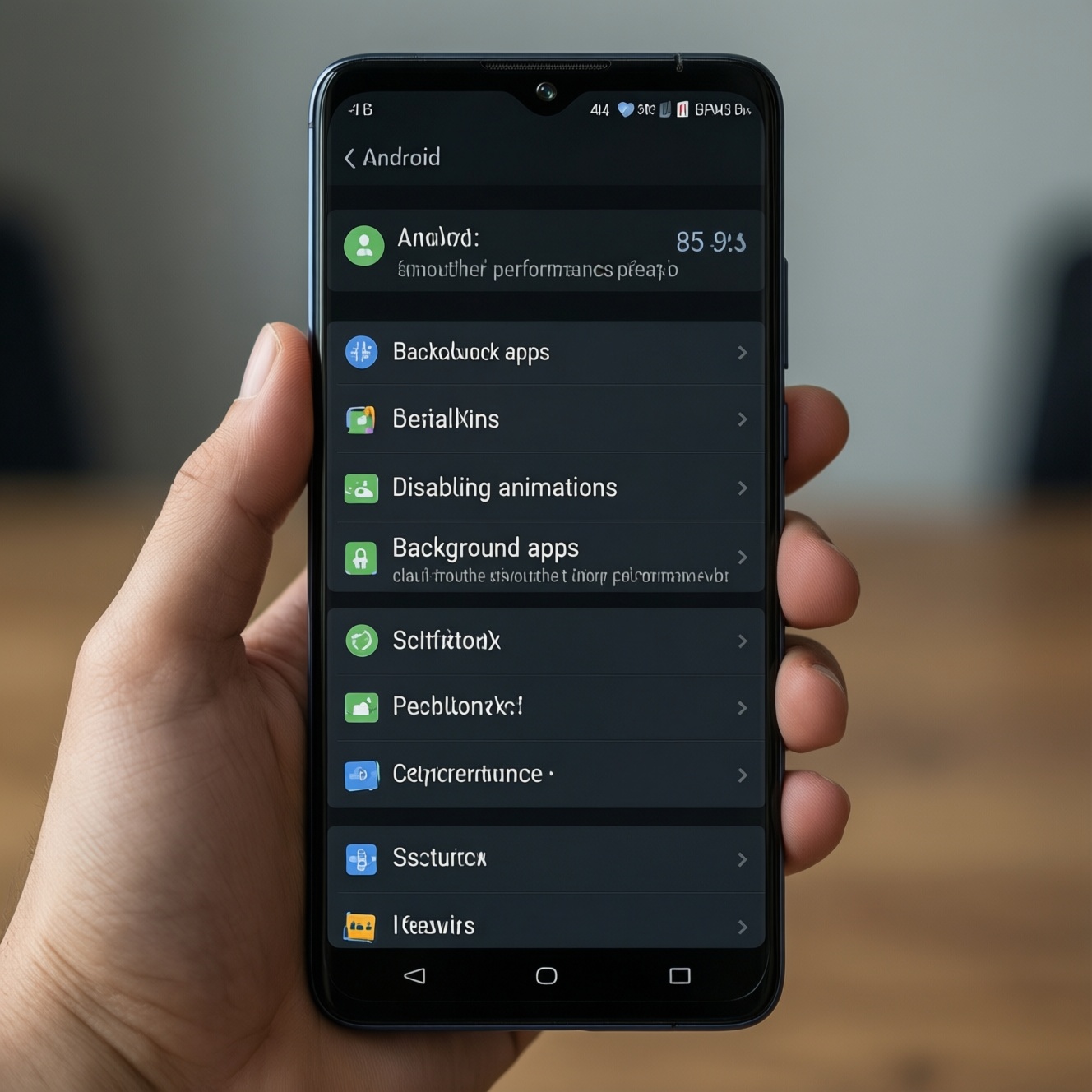
To make an older Android feel smoother, focus on three safe levers: reduce UI animations, stop unnecessary background activity, and use battery-smart settings that prevent aggressive throttling. This guide shows where to find the exact toggles, what to change, and how to verify results-without risky "boost" tricks or factory resets.
Performance summary checklist
- Free storage space and confirm the phone is not overheating during basic use.
- Reduce Window/Transition/Animator animation scales for faster perceived responsiveness.
- Restrict background work (battery optimization, background data, and fewer auto-start apps).
- Use battery-aware settings that avoid constant syncing and runaway refresh behavior.
- Prefer lightweight apps/launchers and do targeted storage housekeeping (not "clean everything").
- Escalate to advanced actions only if basic tuning doesn't help and hardware is healthy.
Assess device baseline: benchmarks, storage, and thermal signs

- Charge to at least ~30% and connect to stable Wi‑Fi.
- Close obvious heavy apps (games, video editors) and wait 3-5 minutes after reboot.
- Make sure the device is at normal room temperature (not on a charger, not in direct sun).
Who this is for: phones that feel laggy in the launcher, multitasking, notifications, or app switching-especially older or low‑RAM devices where people often search for แอปเพิ่มความเร็ว Android รุ่นเก่า.
When not to proceed (or proceed cautiously): if the phone is hot to the touch at idle, randomly reboots, has a swollen battery, or storage is failing (frequent "corrupted" messages). In these cases, software tuning can't fix hardware issues-consider diagnosis first; local repair quotes are often searched as ซ่อมมือถือ Android เครื่องช้า ราคา.
Quick baseline checks (no special tools):
- Storage pressure: Settings → Storage. If storage is nearly full, performance and app updates commonly degrade.
- Thermal throttling signs: lag spikes after 2-3 minutes of use, dimming screen, or camera/app crashes while warm.
- App culprit scan: Settings → Battery → Battery usage. Note any app that sits at the top unexpectedly.
Verify: open the recent apps screen and switch between two light apps (e.g., Messages and Settings). Note stutter frequency now; you'll compare after changes.
Tuning animation and UI responsiveness via Developer options
- Know your Android version (Settings → About phone → Android version) because menu names vary slightly.
- Be able to unlock the phone and access Settings; no PC required.
- Plan to change only the three animation scales; avoid unknown Developer toggles.
Enable Developer options (safe): Settings → About phone → tap Build number 7 times → enter PIN/password → go back to Settings → Developer options (usually under System).
Set animation scales:
- Developer options → Window animation scale → set to 0.5x (or Off if you prefer snappier transitions).
- Developer options → Transition animation scale → set to 0.5x.
- Developer options → Animator duration scale → set to 0.5x.
Expected outcome: less perceived lag when opening/closing apps and moving through menus; this is one of the most reliable "feel faster" tweaks for older devices.
Verify: open Settings, back out, open a light app, and pull down notifications repeatedly. You should see faster transitions and fewer "stuck" frames. If motion feels uncomfortable, revert 0.5x → 1x.
Curb background activity: app hibernation and process limits
- Update the Play Store apps you actually use (outdated apps can misbehave in the background).
- Identify 3-8 apps you rarely open but that run often (social, shopping, carrier bloat, preinstalls).
- Decide which notifications must stay real-time (messaging, banking OTP, ride-hailing).
- Prepare a 10-minute window to test notifications after changes.
-
Put non-essential apps under Battery optimization. Go to Settings → Apps → (select app) → Battery (or App battery usage). Choose Optimized (or turn on Battery optimization) for apps you don't need running constantly; this is a safer approach than any แอปปิดแอปเบื้องหลัง Android task killer.
- Keep Not optimized/Unrestricted only for apps that must receive immediate messages (e.g., primary chat app).
- If an app breaks (late notifications), revert that single app to Unrestricted rather than disabling optimization globally.
-
Disable background data where acceptable. Settings → Network & internet → Data usage → App data usage (names vary). For low-priority apps, turn off Background data so they don't fetch content while idle.
- This reduces random wakeups that cause stutter on low‑RAM devices.
- Do not apply to navigation, messaging, or authenticator apps unless you accept delays.
-
Remove "auto-start" style permissions on OEM skins. On some devices (Xiaomi/OPPO/vivo/Samsung variations), find Permissions/Auto-start in Settings or the Security app. Disable auto-start for apps you don't actively use.
- Expected outcome: fewer background services and faster app switching.
- Verification: after reboot, check if fewer apps appear in "Running services" (if available) and if the launcher stays responsive.
-
Limit background processes (use sparingly). Developer options → Background process limit → start with Standard limit; if your phone is extremely low‑RAM, test At most 3 processes.
- Trade-off: apps may reload more often, but the system can stay smoother.
- If you see frequent reloads or missing music playback, revert to Standard.
-
Uninstall/disable true culprits instead of "cleaner" apps. If a specific app dominates battery or runs constantly, uninstall it or disable it (Settings → Apps → Disable) rather than relying on a โปรแกรมล้างเครื่อง Android เพิ่มความลื่น, which often adds its own background load.
- Expected outcome: more free RAM, fewer wakeups, and less thermal throttling.
- Verification: re-check Settings → Battery usage after a day of normal use.
Battery-aware settings: adaptive profiles, sync, and refresh rates
- Do this after the background restrictions so you're not masking a misbehaving app.
- Know which accounts must sync immediately (work email, calendar) vs. can be delayed.
- If your phone supports multiple refresh rates, be ready to choose stability over peak smoothness.
Use this checklist to confirm you improved smoothness without breaking daily essentials-especially if you're also looking for an แอปประหยัดแบต Android รุ่นเก่า approach that doesn't cause notification delays.
- Battery Saver behavior: turn Battery Saver on for 2-3 hours; confirm the phone remains responsive and doesn't stutter heavily when unlocking.
- Adaptive Battery (if available): Settings → Battery → enable Adaptive Battery; confirm rarely-used apps stop appearing at the top of battery usage over time.
- Sync scope: Settings → Accounts → reduce sync frequency/content for non-critical accounts; confirm mail/chat still sync for your critical account.
- Refresh rate: if you have High/Standard, choose Standard for older devices to reduce heat and throttling; confirm scrolling stays consistent after 10 minutes of use.
- Location scanning: Settings → Location → turn off Wi‑Fi/Bluetooth scanning if you don't need it; confirm maps still work when Location is on.
- Background restrictions check: verify your main messenger is not restricted (late notifications mean it needs Unrestricted battery).
- Heat check: after 15 minutes of browsing/social, the phone should be warm at most-not hot-otherwise throttling will negate any tuning.
Lightweight app and launcher choices plus storage housekeeping
- Back up photos/documents you care about before deleting anything.
- Plan to keep core Google Play services and your primary messaging apps intact.
- Avoid installing multiple "optimizer" apps at once; they often conflict.
Common mistakes that reduce performance or break reliability:
- Installing aggressive task killers: repeatedly killing apps can increase reloads and CPU spikes, making the phone feel worse than before.
- Trusting one-tap cleaners as a fix: many โปรแกรมล้างเครื่อง Android เพิ่มความลื่น tools add overlays, notifications, and background services.
- Disabling system apps blindly: removing core services can break notifications, GPS, media, or Play Store updates; disable only apps you recognize and can re-enable.
- Keeping storage nearly full: low free space hurts app updates and can slow down the system; prioritize clearing large videos and offline downloads.
- Using heavy live wallpapers/widgets on low RAM: reduce widgets and avoid live wallpapers to lower memory pressure.
- Installing a feature-heavy launcher on an old device: prefer a lightweight launcher and keep icon packs minimal; verify by checking whether returning to Home is instant.
- Never clearing app caches that balloon: clear cache only for specific offenders (Settings → Apps → Storage → Clear cache), not "clear data" unless you accept sign-outs.
- Ignoring a single misbehaving app: one poorly optimized social/video app can dominate background activity-uninstall first, then reassess.
Advanced measures: kernel governors, ARMs tweaks, and safe rooting paths
- Do a full backup first and accept that advanced changes can reduce stability if done carelessly.
- Confirm the device has no hardware symptoms (random shutdowns, swollen battery, extreme heat).
- Have a recovery plan (stock firmware availability and time to restore).
Alternatives to consider, depending on your risk tolerance:
- Non-root: factory reset with selective restore (appropriate when) your system is cluttered after years of updates and you can reinstall apps manually. Expected outcome: fewer background conflicts; verification: smoother setup screens and faster app installs.
- Non-root: debloat via OEM tools (appropriate when) your phone supports disabling preinstalled apps safely. Expected outcome: fewer services; verification: improved idle battery and less heat.
- Rooted path: conservative tuning only (appropriate when) you understand recovery/boot loops and want to adjust CPU governor profiles with reputable tools. Keep changes minimal and reversible; verification: stable performance over 48 hours with no new crashes.
- Custom ROM (appropriate when) official updates ended and the community ROM is well-supported for your exact model. Expected outcome: lighter system and security patches; verification: pass basic calls, camera, banking app requirements (some may fail).
Common troubleshooting and gotchas
My phone feels faster, but notifications arrive late-what should I change?
Set your main messaging app to Unrestricted (or Not optimized) under the app's Battery settings. Keep optimization for everything else.
Should I use an app that claims to be แอปเพิ่มความเร็ว Android รุ่นเก่า?
Prefer built-in settings changes over "booster" apps; many add background services and negate gains. If you try one, measure battery usage and uninstall if it runs постоянно.
Is a โปรแกรมล้างเครื่อง Android เพิ่มความลื่น safe?
Cache cleaning for a specific app is usually safe; "one-tap" cleaners that constantly run in the background often reduce stability. Avoid tools that demand Accessibility permission just to "optimize."
Will limiting background processes break multitasking?
It can force more app reloads, especially on messaging, music, or navigation. If that bothers you, revert to Standard limit and rely on per-app battery optimization instead.
After turning off animations, the UI feels weird-did I harm anything?
No permanent harm; animation scales only change transition timing. Set them back to 1x if the experience feels abrupt.
What's a safer alternative to an แอปปิดแอปเบื้องหลัง Android task killer?
Use Battery optimization, disable background data for low-priority apps, and remove auto-start permissions where available. These reduce wakeups without constant forced-killing.
When should I stop tweaking and consider ซ่อมมือถือ Android เครื่องช้า ราคา options?
If the device overheats at idle, shuts down randomly, has a swollen battery, or stays slow even after freeing storage and uninstalling heavy apps, hardware diagnosis is the practical next step.