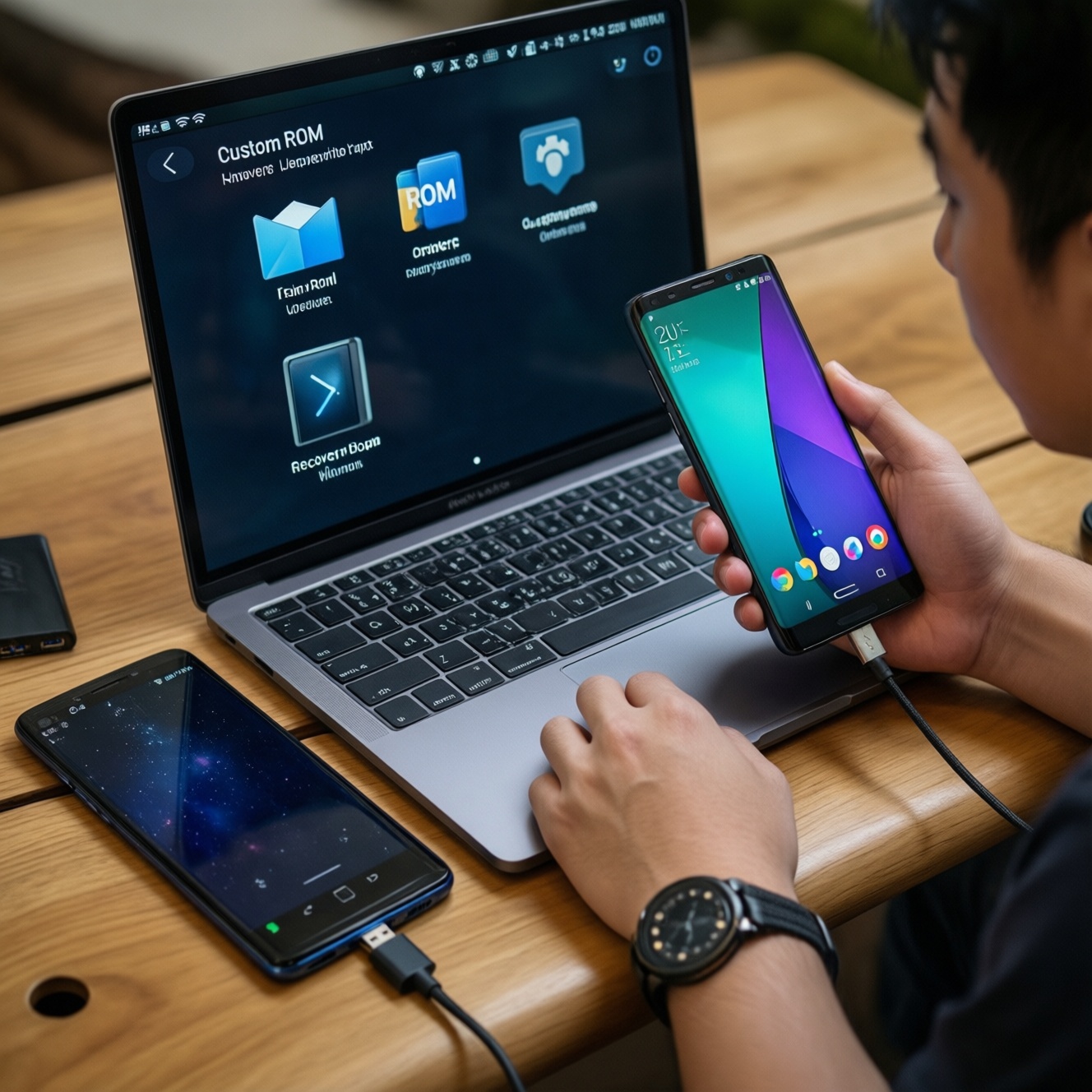
To choose a Custom ROM for an older Android phone, prioritize verified device support, a predictable update channel, and a recovery path before you flash anything. Aim for a ROM with active maintainers, clear security posture, and compatible kernels/firmware for your exact model code. Test boot, calls, Wi‑Fi, camera, and safety checks after installation.
Pre-install Checklist for Legacy Devices
- Confirm your exact device model code (and region variant) and that the ROM explicitly supports it.
- Ensure bootloader unlock is possible and you have a working custom recovery option (usually TWRP/OrangeFox, device-dependent).
- Back up user data and at least one full offline copy (PC or external storage) before any wipe.
- Download ROM, recovery, and required firmware from official project links (avoid random "ดาวน์โหลด Custom ROM สำหรับมือถือรุ่นเก่า" mirrors).
- Plan your Google apps strategy (GApps, microG, or none) and verify the ROM's supported add-ons.
- Have a rollback plan: stock ROM package, drivers, and a known-good flashing tool for your chipset.
Assessing Hardware Compatibility and Usability
Custom ROMs are a good fit for legacy devices when the manufacturer has stopped updates, the phone still has acceptable hardware health (battery, storage, thermals), and the device has stable community builds. They are not a good fit when you depend on strict banking/enterprise integrity checks, when your device variant is uncommon, or when you cannot unlock the bootloader legally and safely.
- Good candidates: devices with popular chipsets, widely used models, and known working recoveries.
- High-risk candidates: carrier-locked variants, rare regional SKUs, devices with broken USB ports, or failing eMMC/UFS storage.
Usability on older phones is usually limited by RAM and storage speed. If the device has very low RAM, favor lightweight builds and avoid feature-heavy ROM flavors. If storage is near full or degraded, no ROM will feel stable-fix storage/battery first.
Evaluating Security Architecture and Patch Policy
Security on a legacy device is a combination of: (1) how the ROM handles patches, (2) whether it ships a sane default configuration, and (3) what you trade off by unlocking/patching boot images. To get "Custom ROM ที่เสถียรและปลอดภัยสำหรับ Android รุ่นเก่า", you need both a reputable ROM and disciplined installation choices.
What you should have before deciding
- Platform tools: ADB/Fastboot on your PC, plus correct USB drivers for your device.
- Access: Ability to unlock bootloader and boot to recovery/fastboot reliably.
- Integrity expectations: Know if you need Widevine L1, SafetyNet/Play Integrity, or secure enterprise profiles.
- Patch expectations: Prefer projects that publish release notes and show recent security merge activity.
Practical verification commands (safe, read-only)
adb devices(confirm PC sees the phone)adb shell getprop ro.build.version.security_patch(check reported security patch level after boot)adb shell getprop ro.product.device(confirm the ROM matches your device codename)
Be cautious with "latest" claims. "Custom ROM อัปเดตล่าสุดสำหรับ Android รุ่นเก่า" is meaningful only if updates are signed, traceable to the project, and not repackaged by third parties.
Community Support, Releases, and Update Reliability
Use this workflow to pick a ROM that will remain stable on a legacy device and won't strand you after one update. This is selection-first, install-second.
- Mini prep checklist (before the steps):
- Charge to a safe level and use a reliable cable/USB port.
- Confirm you can boot into recovery/fastboot without time pressure.
- Download files over a stable connection; keep a second copy on PC.
- Read device-specific install notes end-to-end once.
-
Identify the exact device target
Write down model code, codename, Android base, and partition scheme (A-only vs A/B). Mixing variants is the fastest path to bootloops and radio failures.
- Confirm codename in ROM thread and compare with
adb shell getprop ro.product.device(on current OS).
- Confirm codename in ROM thread and compare with
-
Shortlist 2-3 reputable ROM families
For many legacy devices, candidates often include LineageOS-based builds, Pixel-like AOSP builds, and privacy-oriented forks. Choose the family that matches your priority: stability, features, or privacy controls.
- Stability-first: prefer conservative release cadence and long-lived maintainers.
- Feature-first: ensure your RAM/storage can handle it.
- Privacy-first: confirm app compatibility if you avoid Google services.
-
Check release activity and maintainer responsiveness
Look for recent device-specific builds, clear changelogs, and issue tracking. A ROM can be "popular" but effectively abandoned for your model.
- Prefer builds with reproducible links and consistent signing practices.
-
Validate required firmware, recovery, and add-ons
Legacy phones often need a specific firmware/radio version. Verify which recovery is recommended and whether you need GApps, microG, or no Google layer.
- Mismatch symptoms: no SIM, broken Wi‑Fi/Bluetooth, camera failures, random reboots.
-
Decide your support path: DIY vs service
If you are not comfortable with recovery restores and logs, consider a reputable shop. People often search "บริการแฟลชรอม Custom ROM ใกล้ฉัน" when they need a guaranteed rollback if the device fails to boot.
- If you choose a service, ask whether they provide a stock restore package and a written test checklist.
- When comparing "ติดตั้ง Custom ROM มือถือรุ่นเก่า ราคา", prioritize transparency (what ROM, what recovery, what warranty) over the lowest number.
-
Verify downloads and keep a rollback set
Use official project links whenever possible and keep: ROM ZIP, recovery image, firmware, and stock ROM. Avoid shady "ดาวน์โหลด Custom ROM สำหรับมือถือรุ่นเก่า" pages that bundle extra apps.
- After download, compare hashes if the project provides them.
Quick comparison for typical older-phone classes
- LineageOS-style builds: usually best for stability and broad device support; good baseline for daily use.
- AOSP/Pixel-like builds: clean UI and modern feel, but may be heavier; verify camera and VoLTE carefully.
- Privacy-oriented builds: stronger permission controls and de-Google options; may require more tuning for notifications and app compatibility.
Privacy Features and Built-in Service Trade-offs
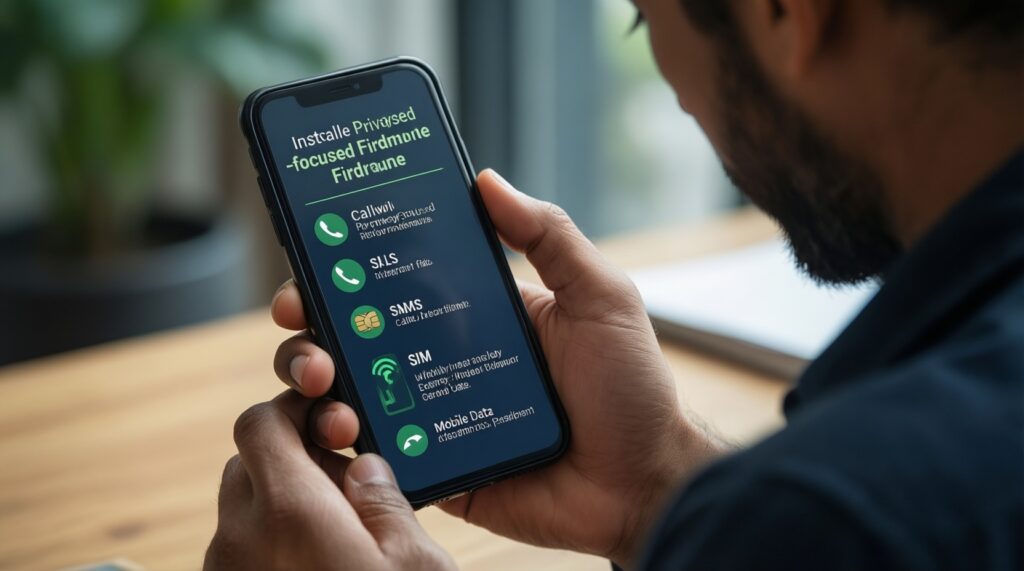
After installation, confirm you didn't lose essential functionality while gaining privacy controls. Use this checklist as your acceptance test; if multiple items fail, roll back and choose a different build or firmware combination.
- Calls/SMS work reliably; SIM is detected; mobile data connects.
- Wi‑Fi reconnects after sleep; Bluetooth pairing persists after reboot.
- Camera works in both stock camera app and a third-party app.
- GPS locks within a reasonable time outdoors; maps navigation is stable.
- Battery drain is acceptable at idle (no runaway "Android System" usage).
- Security patch level is reported and matches what the ROM claims (check
ro.build.version.security_patch). - Permissions manager behaves as expected; background access is controllable.
- If using Google services: Play Store works; if not: your alternative (microG/F-Droid) is functional.
- App-critical integrity constraints are understood (banking/DRM may fail after bootloader unlock).
Installation Procedures, Backup and Recovery Plans
Most "unstable ROM" reports on older devices come from avoidable mistakes: wrong variant, incomplete wipes, or missing firmware. Use these as a diagnostic list when something goes wrong.
- Wrong device/variant ROM: boots to recovery only, no radio, or repeated reboots. Stop and restore stock.
- Skipped firmware/radio requirement: SIM/Wi‑Fi/camera issues even though the ROM boots.
- Dirty flash across incompatible bases: random crashes, Setup Wizard loops. Fix by proper wipe per device instructions.
- Wrong GApps package: bootloop after flashing add-ons. Match Android version and architecture; reflash cleanly.
- Encryption/data issues: storage unreadable in recovery or boot. Follow the ROM's encryption guidance; keep backups off-device.
- Recovery mismatch: ROM flashes but won't boot, or partitions mount incorrectly. Use the recovery version recommended for your device.
- Insufficient power or bad cable: flashing interruptions can brick. Use stable power and do not rush.
- No rollback package: you can't recover quickly. Always keep stock ROM and the chipset flashing tool ready.
Performance, Battery Life and Thermal Tuning
If a full Custom ROM isn't the best fit, or you need less risk, use one of these alternatives depending on your constraints and device condition.
- Stay on stock ROM + harden it: best when banking/DRM must work. Remove bloat, restrict background apps, and use reputable security tools; accept older patches.
- Use a conservative, stability-first ROM build: best when your phone is a daily driver and you need fewer surprises than feature-heavy forks.
- Run a de-Googled setup on a compatible ROM: best when privacy is the priority and you can handle extra app-compat work (notifications, location services).
- Replace the battery / fix thermal throttling first: best when performance complaints are actually hardware degradation; a new ROM won't fix failing power delivery.
Common Deployment Concerns
Is a "stable" ROM always safer than a "latest" ROM?
No. Stability and security are different axes: a stable build can still be unpatched, and a frequently updated build can still be buggy. Prefer projects that publish change notes and device-specific maintenance rather than vague "Custom ROM อัปเดตล่าสุดสำหรับ Android รุ่นเก่า" claims.
Will unlocking the bootloader break banking apps?
It can. Many banking/DRM apps check device integrity and may refuse to run after unlock or after certain modifications. Decide this before flashing and keep a stock rollback option.
Do I need GApps, microG, or neither?
Choose based on your app needs. GApps improves compatibility but adds background services; microG reduces Google dependence but may require more setup; neither is simplest for privacy but limits push notifications and some apps.
Where should I download ROM files safely?
Use official project pages and the device maintainer's verified links; avoid random "ดาวน์โหลด Custom ROM สำหรับมือถือรุ่นเก่า" sites that repackage ZIPs. If hashes are provided, verify them.
Should I pay a shop to flash it?
If you lack recovery confidence or need guaranteed rollback, a service can be reasonable. When searching "บริการแฟลชรอม Custom ROM ใกล้ฉัน" or comparing "ติดตั้ง Custom ROM มือถือรุ่นเก่า ราคา", ask what ROM/recovery they use and whether they test calls, data, Wi‑Fi, camera, and restore options.
How do I know updates won't suddenly stop?
You can't guarantee it, but you can reduce risk by choosing ROMs with a visible maintainer, recent device builds, and active issue tracking. Avoid one-off uploads with no changelog or support channel.