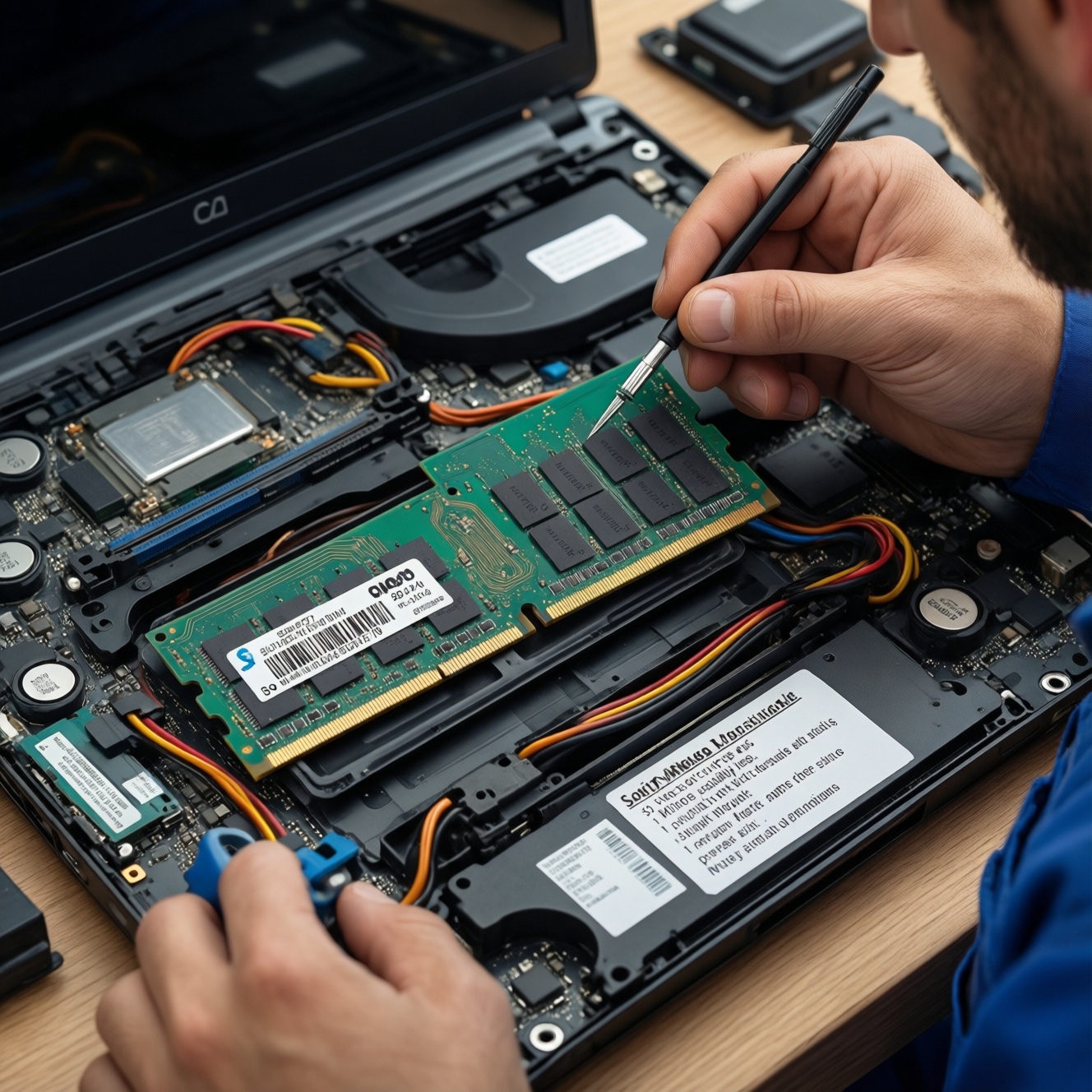
To upgrade laptop RAM correctly, confirm your notebook's supported DDR generation, form factor (SO-DIMM vs soldered), maximum capacity, and BIOS compatibility, then install matched modules and validate stability with repeatable stress tests. This approach avoids wasted spend (like chasing เพิ่ม RAM โน้ตบุ๊ก ราคา deals on incompatible parts) and prevents boot loops or random crashes.
Compatibility checklist before buying RAM
- Confirm RAM is upgradeable (SO-DIMM slot present) and not fully soldered (often listed as "onboard").
- Match DDR generation exactly (DDR4 vs DDR5 are not interchangeable).
- Buy the correct laptop form factor: SO-DIMM (not desktop UDIMM).
- Check your laptop's maximum supported total capacity and per-slot limit.
- Prefer a matched pair when using two slots (same capacity and similar timings).
- Plan your purchase/return window so you can test immediately after installation.
RAM standards, form factors and motherboard limits
This อัปเกรด RAM โน้ตบุ๊ก process fits laptops with accessible SO-DIMM slots and a chipset/BIOS that supports memory changes. It is usually not worth attempting when RAM is soldered-only, when the bottom cover is glued/riveted, or when your workloads won't benefit (for example, you're storage-bound and swapping to SSD would matter more).
Start by identifying what your laptop accepts:
- Form factor: Laptop memory is typically SO-DIMM. Desktop modules (UDIMM) do not fit.
- DDR generation: Must match the motherboard (DDR4 or DDR5).
- Capacity limits: Your model may cap total RAM and/or per-slot RAM.
- Speed behavior: Even if you buy faster RAM, many laptops run it at the platform's supported speed.
| What you see on the module/spec | Typical laptop match | Notes to avoid mistakes |
|---|---|---|
| Form factor | SO-DIMM | Do not buy UDIMM (desktop). Verify slot count (1 vs 2) in your service manual. |
| DDR generation | DDR4 or DDR5 | DDR4 and DDR5 are physically and electrically incompatible. If you compare RAM โน้ตบุ๊ก DDR4 ราคา vs RAM โน้ตบุ๊ก DDR5 ราคา, treat them as separate ecosystems. |
| Example spec string | DDR4-2666 CL16 1.2V (SO-DIMM) | Use a precise target like this to shop; avoid vague "gaming RAM" labels. |
| Voltage (typical) | DDR4: 1.2V / DDR5: 1.1V | Do not assume you can change voltage on laptops; BIOS options are often locked. |
Choosing capacity and frequency for your workload
What you need before buying:
- Current configuration info: installed RAM capacity, number of sticks, and speed (Task Manager on Windows, or a hardware info tool).
- Model-specific limits: your laptop's maintenance manual or vendor spec page for max RAM and supported DDR generation.
- Workload target: decide whether you're solving "not enough capacity" (paging/stutter) or "bandwidth-sensitive" tasks (some iGPU workloads).
- Shopping constraints: budget and availability in Thailand-compare local pricing realistically (including เพิ่ม RAM โน้ตบุ๊ก ราคา from shops vs online) and keep the ability to return if it fails memory tests.
Practical selection guidance (intermediate level):
- Capacity first: if you currently hit high memory usage, a capacity jump helps more than chasing higher MHz.
- Frequency and timings: buy at or above your platform's supported speed; the laptop will typically downclock safely if needed.
- When iGPU matters: dual-channel (two sticks) can improve integrated graphics performance more reliably than small MHz increases.
Module configuration: single, dual and matching pairs
- Data risk: while RAM upgrades shouldn't erase storage, crashes during testing can corrupt open files-back up important work first.
- Warranty/physical risk: some laptops have warranty seals or fragile clips; check your region/model policy before opening.
- Compatibility risk: mixing different sticks can work but may reduce stability; keep your old RAM to revert.
- Return risk: buy from a seller with a clear return window so you can complete stress tests promptly (handy if you're choosing a ร้านเพิ่ม RAM โน้ตบุ๊ก ใกล้ฉัน).
-
Decide your end-state (1 stick vs 2 sticks)
If you have two slots, a matched pair often enables dual-channel operation. If you have one slot plus onboard memory, you can still benefit, but results depend on the platform's memory controller.
-
Choose a pairing strategy
Best practice is a matched kit (same capacity, speed, timings). Mixing is acceptable for troubleshooting or budget constraints, but you should expect the system to run at the lowest common speed/timings.
- Good: 2×8GB DDR4-2666 CL16 1.2V
- Riskier: 8GB DDR4-3200 mixed with 16GB DDR4-2666 (may downclock; may still work, but test carefully)
-
Verify physical access before purchase
Some laptops require full bottom-cover removal, others have a small RAM door, and some have no accessible slot. Confirm with your exact model teardown or service manual.
-
Buy RAM that matches the platform, not marketing
Shop by the exact spec line (DDR generation + SO-DIMM + speed class). This prevents buying desktop DIMMs or the wrong DDR version while comparing RAM โน้ตบุ๊ก DDR4 ราคา and RAM โน้ตบุ๊ก DDR5 ราคา.
-
Plan immediate validation
Schedule time right after installation for POST checks and stress testing. Don't delay-if the module is faulty or incompatible, you want to catch it within the return period.
Pre-installation prep: tools, ESD safety and BIOS settings
- Back up critical files and close all work (assume testing may cause reboots).
- Shut down fully (not sleep/hibernate), unplug AC, and disconnect all peripherals.
- If your model has an internal battery disconnect option in BIOS/UEFI, enable it before opening (when available).
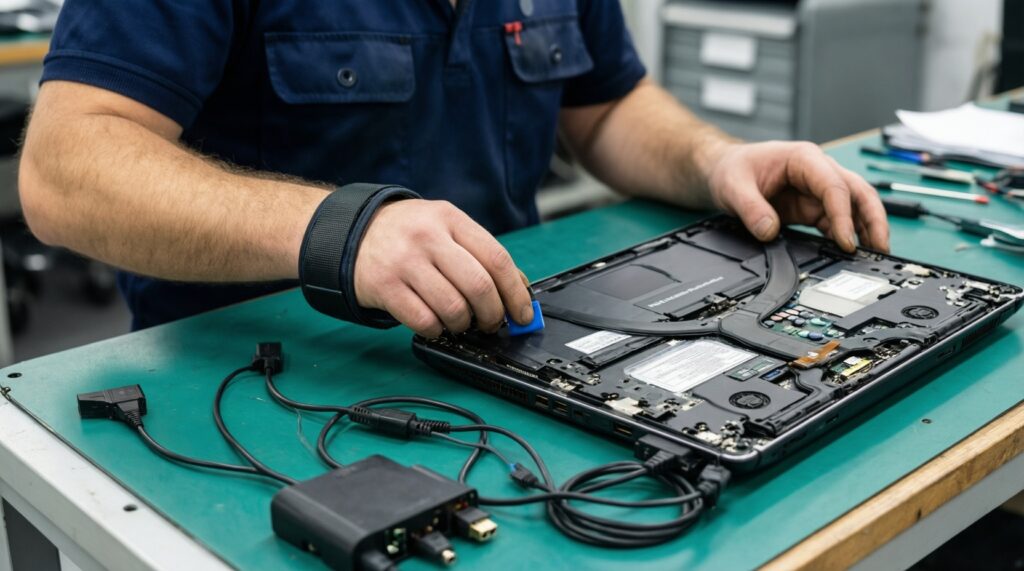
- Use ESD precautions: work on a non-carpeted surface, touch grounded metal before handling RAM, and hold the module by edges.
- Prepare the right screwdriver and a plastic pry tool; avoid metal tools near the motherboard.
- Photograph screw locations and bottom-cover clips to prevent reassembly damage.
- Update BIOS/UEFI only if you already have stability issues or the vendor explicitly lists memory compatibility fixes; do not flash firmware mid-upgrade unless necessary.
- Record the original RAM specs and keep the original module(s) ready for rollback.
Physical installation and initial POST verification
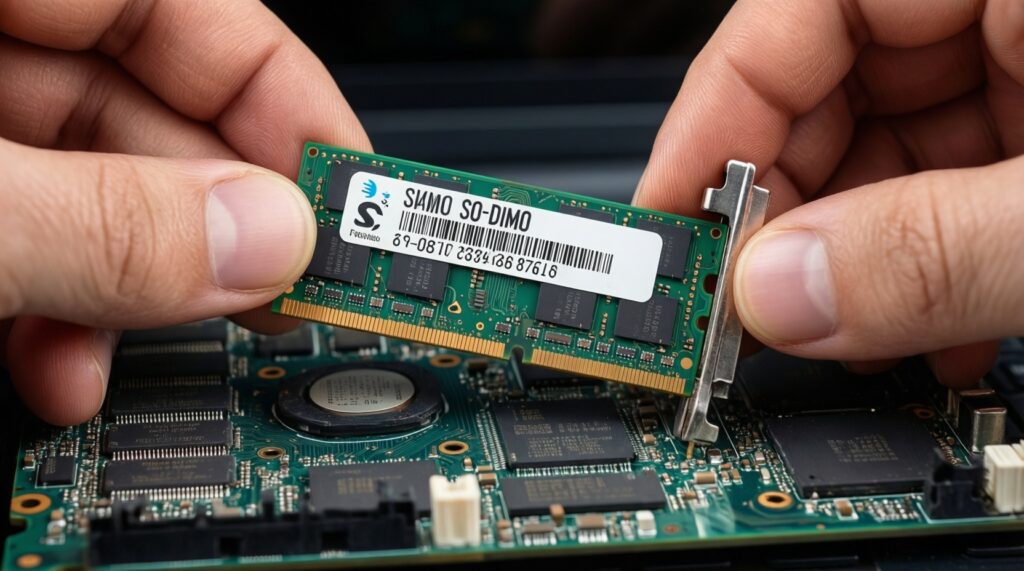
- Not fully seated SO-DIMM: insert at the correct angle, then press down until side clips lock. Partial seating is the #1 cause of no-boot.
- Wrong slot order on 2-slot boards: some laptops expect a primary slot first; follow the service manual if the system won't POST.
- Mixing DDR generations by mistake: DDR4 vs DDR5 confusion happens when shopping fast; confirm the notch position and labeling before insertion.
- Over-tightening screws: can crack plastic standoffs and warp the cover, creating pressure on internal parts.
- Forgetting battery reconnection: if you disconnected an internal battery, re-seat it properly before closing.
- Damaging ribbon cables: some bottom covers pull on touchpad/keyboard cables-open slowly and check for attached connectors.
- Expecting instant boot speed: first boot after RAM change may take longer while memory training runs; wait a few minutes before assuming failure.
Expected signs after power-on:
- System powers on, fans may ramp briefly, then settles.
- BIOS/UEFI shows the new total memory amount.
- Operating system reports the new RAM capacity without repeated crashes.
Stress tests, monitoring and long-term stability routine
If you cannot pass stability testing-or you prefer lower risk-use one of these alternatives:
- Conservative configuration: run the platform-default speed (no XMP/overclocking features if present) and prioritize a matched pair at the supported JEDEC profile.
- Single-module upgrade first: add one stick, test thoroughly, then add the second stick. This isolates whether a specific module or slot is problematic.
- Professional installation and validation: if tools/time are limited, a local ร้านเพิ่ม RAM โน้ตบุ๊ก ใกล้ฉัน can install and verify POST quickly-still insist on a stress test window and keep receipts for returns.
- Rollback strategy: if instability persists, revert to the original RAM and update BIOS only if the vendor notes memory compatibility improvements for your model.
Recommended routine after a successful boot:
- Run a memory test and a mixed workload stress tool long enough to catch intermittent errors.
- Monitor system logs for WHEA errors (Windows), unexpected reboots, or application crashes.
- Re-check stability after a few days of normal usage before discarding packaging (useful for returns).
Common troubleshooting and clarifications
Why does the laptop power on but show a black screen after the RAM upgrade?
Most often the SO-DIMM is not fully seated or the laptop is performing memory training. Power off, reseat the module, and wait longer on the first boot.
Can I mix different capacities like 8GB + 16GB?
Often yes, but the system may fall back to slower timings/speed and dual-channel behavior may be partial. Expect to test stability more thoroughly than with a matched pair.
Will faster RAM automatically run at its advertised speed?
Not necessarily; many laptops lock memory settings and will run RAM at the maximum supported platform speed. Buying above that can still be fine, but don't pay extra expecting guaranteed MHz gains.
How do I know whether my laptop uses DDR4 or DDR5 before buying?
Check the vendor specs for your exact model, or read the current module label via system information tools. Do not guess based on CPU generation alone.
Is it better value to compare RAM โน้ตบุ๊ก DDR4 ราคา and RAM โน้ตบุ๊ก DDR5 ราคา when shopping?
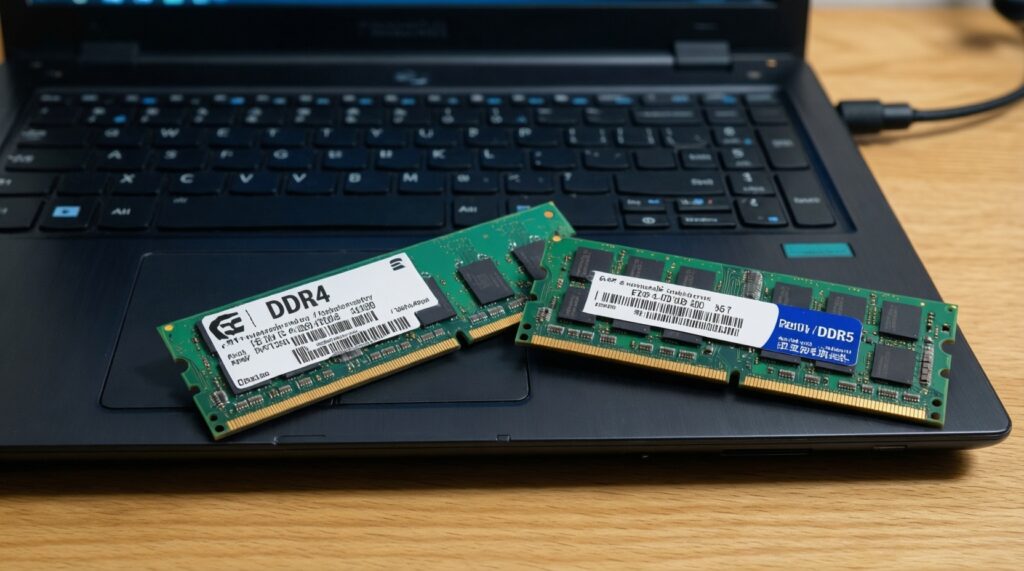
Only compare prices within the DDR generation your laptop supports. DDR4 vs DDR5 cannot be swapped, so a cheaper listing for the wrong DDR type is irrelevant.
Do I need a shop, or can I do it myself if I'm focused on เพิ่ม RAM โน้ตบุ๊ก ราคา?
If your laptop has accessible slots and you follow ESD-safe steps, DIY is reasonable. If the chassis is fragile or warranty-sensitive, paying a nearby shop can reduce physical risk.
What's the minimum verification I should do after อัปเกรด RAM โน้ตบุ๊ก?
Confirm BIOS/OS sees the new capacity, then run at least one dedicated memory test plus a real-world workload session. If any errors appear, revert or replace the module immediately.