To make an older laptop feel dramatically faster, replacing a spinning HDD with a compatible SSD is usually the highest-impact upgrade. This guide covers how to check fit (2.5-inch SATA vs M.2), plan a safe clone or clean install, install the drive without damage, and confirm BIOS/boot settings for a stable, noticeable speed-up.
Performance Goals and Compatibility Snapshot
- Best "felt speed" gain comes from swapping an HDD to SSD (boot, app launch, file search).
- Confirm your bay/interface before buying: 2.5-inch SATA, M.2 SATA, or M.2 NVMe.
- Plan your migration early: clone (keep everything) or clean install (fresh start).
- Have the right adapters ready (USB-to-SATA or M.2 enclosure) to avoid downtime.
- Expect older platforms to cap peak performance, but responsiveness still improves a lot.
Assess Your Laptop and Performance Targets
This upgrade is ideal if your laptop has an HDD or a small/aging SSD and you want faster boot, smoother multitasking, and less lag in everyday tasks. It's the practical path most people mean when they say อัปเกรด SSD โน้ตบุ๊ก on an older machine.
- Good fit: HDD-equipped laptops, office/work machines, older ultrabooks with SATA-based storage, systems that feel slow mainly due to disk activity.
- Consider skipping or delaying: laptops with soldered storage (no upgrade path), severe overheating/throttling, unstable power/charging, or critical data with no backup option.
- Define your target: "Faster responsiveness" (any decent SSD) vs "maximum throughput" (NVMe if your laptop supports it).
Choose the Right SSD and Interface
Before you buy, identify the physical form factor and protocol. Many "old laptop SSD" upgrades are simply เปลี่ยน HDD เป็น SSD โน้ตบุ๊ก using a 2.5-inch SATA drive, but some models use M.2.
What you'll need
- SSD: 2.5-inch SATA, M.2 SATA, or M.2 NVMe (must match your slot and protocol).
- Transfer method: USB-to-SATA adapter/dock (2.5-inch) or a USB M.2 enclosure (SATA or NVMe, matching your SSD).
- Tools: precision screwdriver set (Phillips), plastic pry tool (if needed), anti-static precautions.
- Software/admin access: disk cloning tool (optional), OS installer USB, BitLocker/FileVault recovery key if enabled.
- Optional: 2.5-inch spacer/bracket if the bay expects a thicker drive; external drive for backup.
Compatibility and selection checklist table
| Option | Form factor | Interface / protocol | Capacity planning | Real-world "feel" on old laptops | Notes for Thailand buyers |
|---|---|---|---|---|---|
| Classic laptop upgrade | 2.5-inch drive | SATA | Choose at least as large as used data if cloning | Big jump from HDD; very noticeable in boot and app launches | Commonest choice; aligns with searches like SSD SATA 2.5 นิ้ว ราคา |
| Thin-and-light (older) | M.2 card | SATA (not NVMe) | Match or exceed current drive size for easy migration | Similar responsiveness to 2.5-inch SATA SSD | Must confirm it's M.2 SATA; many listings look similar |
| Thin-and-light / newer-compatible | M.2 card | NVMe (PCIe) | Extra headroom helps updates and scratch space | Often faster on large transfers; responsiveness already excellent | Only if the laptop supports NVMe; verify in manual/BIOS |
When comparing ราคา SSD โน้ตบุ๊ก, prioritize compatibility, warranty, and reputable sellers over peak marketing numbers. For SSD สำหรับโน้ตบุ๊กเก่า, a reliable SATA SSD is frequently the simplest, safest performance win.
Backup Strategy and Pre‑installation Checklist
Mini prep checklist (before any changes)
- Confirm the laptop's storage type (2.5-inch SATA vs M.2 SATA vs M.2 NVMe) using the model's manual/service guide.
- Decide: clone (keep OS/apps) or clean install (fresh OS).
- Make a verified backup of important files to an external drive or cloud.
- Collect recovery keys (BitLocker/FileVault) and logins for OS/app re-activation.
- Prepare an OS installer USB and download key drivers (Wi‑Fi/LAN) just in case.
-
Identify your exact drive setup (5-10 min)
In Windows, check Disk Management and Device Manager; in macOS, check System Information; in Linux, list block devices. Confirm whether your current disk is HDD/SSD and the interface type.
- Windows: Open "Device Manager" → "Disk drives", or run
wmic diskdrive get model,mediaType. - Linux: Run
lsblk -o NAME,SIZE,TYPE,MODELandsudo nvme list(if NVMe exists). - macOS: System Information → Storage / NVMExpress (if applicable).
- Windows: Open "Device Manager" → "Disk drives", or run
-
Choose clone vs clean install (5 min)
Cloning is fastest to resume work; clean install is best if the OS is unstable or heavily cluttered. Either approach works for เปลี่ยน HDD เป็น SSD โน้ตบุ๊ก, as long as the SSD capacity is sufficient for your used data.
- Clone if you want minimal reinstall effort.
- Clean install if you want maximum "freshness" and fewer legacy issues.
-
Create a backup you can actually restore (15-40 min)
Copy critical files (documents, photos, project folders) to external storage. If possible, also create a full system image. Verify a few files open correctly from the backup.
-
Handle encryption and sign-in dependencies (5-15 min)
If disk encryption is enabled, export recovery keys and consider temporarily suspending encryption before cloning to reduce boot surprises. Record Microsoft/Apple IDs and any app licenses.
- Windows BitLocker: Save the recovery key; consider "Suspend protection" before cloning.
- macOS FileVault: Ensure you can sign in and have the recovery key if used.
-
Clone (optional) or create installer media (20-90+ min)
If cloning, connect the new SSD via USB adapter/enclosure and run your chosen cloning tool. If clean installing, create an OS installer USB and download network/storage drivers.
- Windows verification after clone:
bcdedit(boot entries), and check Disk Management partitions. - Linux clone example (advanced):
sudo dd if=/dev/sdX of=/dev/sdY bs=64K conv=noerror,sync status=progress(be extremely careful with disk IDs).
- Windows verification after clone:
-
Power down safely and prepare the workspace (3-5 min)
Shut down (not sleep/hibernate), unplug power, and disconnect peripherals. Work on a clean surface, discharge static, and keep screws organized by location.
Physical Installation: Tools and Safe Procedures
Follow your model's service guide if available. If not, proceed slowly: remove the bottom cover, locate the drive bay or M.2 slot, swap the drive, and reassemble without forcing connectors.
Tools
- Phillips screwdriver (correct size to avoid stripping)
- Plastic pry tool (for clips)
- Small tray for screws
- Optional: ESD wrist strap
Post-install check (use this checklist before closing everything up)
- Battery disconnected (if your model allows) while handling internal parts.
- SSD seated fully: M.2 inserted flat and screwed down; 2.5-inch SATA connector fully engaged.
- No cables pinched under the cover; no screws left inside the chassis.
- Drive bracket/caddy installed and tightened without bending the drive.
- Bottom cover sits flush; clips engaged; screw lengths match their original holes.
- First boot done on AC power (reduces risk during initial configuration).
- OS detects the SSD (BIOS/UEFI storage list shows the new drive).
- Temperatures and fan behavior seem normal after boot (no constant full-speed fan from a mis-seated cover/cable).
Firmware, BIOS and Boot Configuration
- SSD not detected: re-seat the SSD, verify the slot type (M.2 SATA vs NVMe), and confirm the laptop actually supports that protocol.
- Boot loop after cloning: set the cloned SSD as the first boot device; disconnect the old drive if it's still installed to avoid confusion.
- Wrong boot mode (UEFI/Legacy): match the OS install style; changing modes can break boot until repaired.
- Secure Boot issues: if you changed OS or bootloader, restore Secure Boot settings or enroll keys as required.
- BitLocker recovery prompt: enter the recovery key; if it's frequent, suspend BitLocker, reboot once, then re-enable after the system stabilizes.
- Old BIOS firmware: update BIOS/UEFI only after the system is stable and on reliable power; follow vendor instructions carefully.
- Drive appears smaller than expected: unallocated space may need partition expansion in Disk Management (Windows) or Disk Utility (macOS) or
gparted(Linux). - AHCI/RAID controller mismatch: changing SATA mode can prevent boot; keep the original mode unless you know how to migrate safely.
Post‑install Tuning, Benchmarking and Validation
Validate the upgrade first, then tune lightly. Over-tweaking often creates instability on older laptops.
Quick validation commands and checks
- Windows (TRIM):
fsutil behavior query DisableDeleteNotify(TRIM enabled when it returns 0). - Windows (drive health): check SMART with a reputable utility; ensure no warnings.
- Linux (TRIM):
systemctl status fstrim.timerandsudo fstrim -av. - Linux (device):
lsblk -fto confirm filesystem and mount points. - macOS: confirm the startup disk is the SSD and the system boots without external devices attached.
When to choose an alternative path
- Clean install instead of cloning: choose this if boot problems persist after cloning, or if the old OS has long-term corruption.
- Keep the HDD as secondary storage (if your laptop supports it): useful for large media files, while OS/apps stay on SSD.
- External SSD as a transitional step: if you're waiting on parts or worried about opening the laptop, you can prepare/clone externally first, then install internally later.
- RAM upgrade in addition to SSD: if you still hit heavy swapping after SSD upgrade, more RAM may reduce slowdowns further.
Common Troubles and Quick Remedies
Why doesn't the laptop see the SSD in BIOS/UEFI?
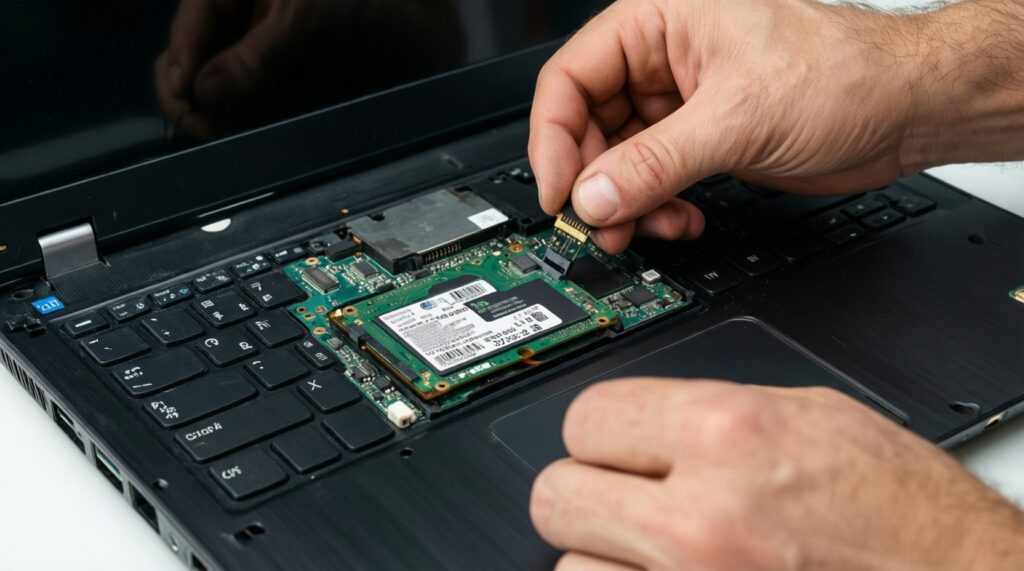
Power off, re-seat the drive, and confirm the SSD protocol matches the slot (M.2 SATA vs NVMe). If it's a 2.5-inch SATA SSD, re-check the SATA connector and caddy alignment.
What should I do if Windows shows the error inaccessible boot device after cloning?
Set the SSD as the first boot device and temporarily disconnect the old drive. If the SATA controller mode changed (AHCI/RAID), revert it to the original setting.
Why does the laptop still feel slow after the SSD upgrade?
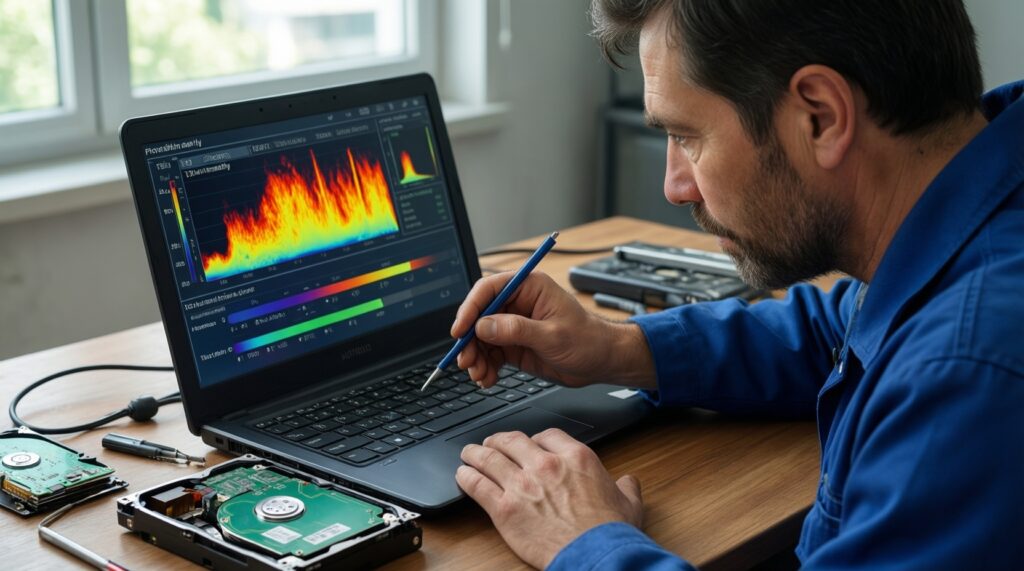
Check for thermal throttling, insufficient RAM, or background updates/indexing. Also confirm you actually installed the OS on the SSD and the HDD isn't still the boot drive.
Can I use any M.2 SSD in an old laptop?
No. Many older laptops accept only M.2 SATA, while others support NVMe. Confirm support in the service manual or by checking the current drive type before you buy.
Do I need to enable TRIM manually?
Usually no-modern Windows, macOS, and most Linux setups handle TRIM automatically. It's still worth verifying TRIM status after migration.
Is it safe to compare and shop by ราคา SSD โน้ตบุ๊ก alone?
Use price as a filter, not the decision. Prioritize the correct interface, a reputable brand/seller, and a solid warranty-especially when buying SSD สำหรับโน้ตบุ๊กเก่า.