To extend the usable life of an older smartphone, you can install a stable, well-supported Custom ROM that still receives security patches and bug fixes. The safest path is: verify exact device codename, unlock the bootloader, use a trusted recovery, create a full NANDroid backup, then flash a ROM with an active maintainer and clear rollback options.
Preflight priorities before flashing
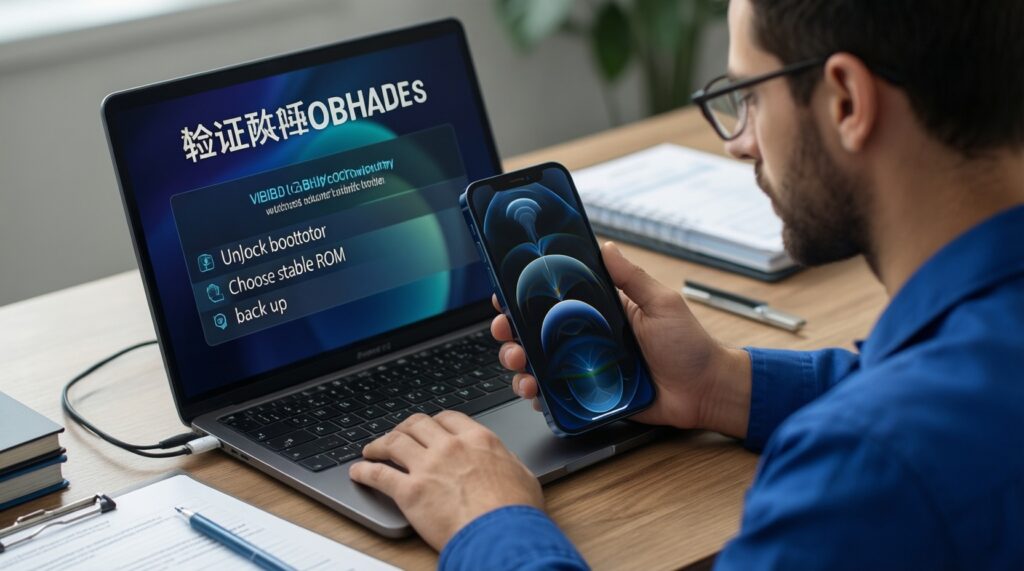
- Confirm the exact device codename/model variant (not just the marketing name).
- Ensure bootloader unlock is officially possible for your device and region.
- Pick a ROM เสถียรสำหรับ Android with active maintenance and a working issue tracker/community thread.
- Plan a rollback: full NANDroid + copies of current boot/vendor/modem partitions where relevant.
- Use a known-good USB cable/port and keep battery sufficiently charged before you ติดตั้ง Custom ROM.
Verify device model, bootloader status and community support
This is suitable if your device has an unlockable bootloader, a working custom recovery for its exact codename, and an actively maintained ROM (often AOSP-based). Avoid doing this on your only mission-critical phone, on corporate-managed devices, or when you cannot afford downtime (banking/2FA dependence) or accept potential warranty loss.
- Identify the codename via Android settings (About phone) and confirm with
adb shell getprop ro.product.deviceonce ADB works. - Check if the bootloader is already unlocked (many devices show a warning screen at boot) and whether OEM unlocking is available in Developer options.
- Validate community support: look for device-specific recovery + ROM threads with recent builds and confirmed working basics (boot, calls, Wi‑Fi, camera).
Select a stable ROM: builds, maintainers and update cadence
What you typically need before you ดาวน์โหลด Custom ROM and flash:
- A ROM build for your exact codename (stable/release where available), plus its checksum/signature if provided.
- Matching Google apps package (GApps) if the ROM does not include it, or a plan to stay Google-free.
- Optional: Magisk (only if you understand the trade-offs), plus any device-specific firmware/vendor packages required by the ROM thread.
- A custom recovery image (often TWRP or an AOSP-based recovery) proven for your device.
- A computer with platform-tools (ADB/Fastboot) and correct USB drivers (especially on Windows).
- A data backup destination: SD card, USB-OTG, or PC storage with enough free space.
Stability signals to prioritize: release/stable channel, an identifiable maintainer, changelogs, and recent user confirmations. If your goal is longevity, "latest nightly" is usually not the first pick unless the device has no stable channel and nightlies are widely reported as reliable.
Prepare backups and full NANDroid recovery images

-
Back up user data outside the phone
Copy photos, documents, downloads, and app exports to a PC/cloud. Assume an unlock/flash may force a data wipe.
- If you rely on chats (LINE/WhatsApp/Telegram), verify in-app backup and restore keys before continuing.
- Export 2FA recovery codes; plan re-enrollment on the new ROM.
-
Enable Developer options and prepare for OEM unlock
Enable USB debugging. If available, enable OEM unlocking. Some devices require an internet check-in period after toggling OEM unlock-do not rush.
-
Confirm you can talk to the phone with ADB
On the PC, authorize the RSA prompt, then verify connectivity.
adb devicesshould show your device asdevice(notunauthorized).
-
Install/boot into a known-good custom recovery
Use the device-specific method (fastboot/Download mode/bootloader interface). When possible, prefer temporarily booting recovery first to reduce risk.
- Common fastboot pattern (device-dependent):
fastboot boot recovery.img
- Common fastboot pattern (device-dependent):
-
Create a full NANDroid backup in recovery
In recovery, back up at least Boot, System, Vendor, and Data (if supported). Store the backup on SD/USB-OTG or pull it to a PC immediately after creation.
- Also save any partitions your device community recommends (e.g., EFS/modem) where applicable.
-
Verify integrity before flashing anything
Check ROM/GApps checksums (if provided). If the file was re-downloaded, re-check. A corrupted zip is a fast path to bootloops.
Fast mode: reduced-risk quick algorithm (3-5 steps)
- Confirm codename + unlockable bootloader + active ROM thread (do not guess the model).
- Boot custom recovery, then make and offload a full NANDroid backup to PC/SD.
- Wipe only what the ROM instructions require (typically system/vendor + cache/dalvik; data wipe if changing ROM base).
- Flash ROM zip, then GApps (if needed), then reboot and wait for first boot to finish.
- If anything looks wrong, restore NANDroid immediately instead of "trying random fixes".
Set up PC tools: drivers, ADB/fastboot and custom recovery
- Platform-tools installed and accessible (running
adb versionworks). adb devicesshows your device asdevicewhile in Android.- You can reboot to bootloader/recovery via
adb reboot bootloader/adb reboot recovery. fastboot devicesdetects the phone in bootloader/fastboot mode (where supported).- USB connection is stable (no random disconnects); use a rear motherboard port on desktops.
- Correct drivers installed (Windows): device appears properly in Device Manager while in ADB and fastboot modes.
- Recovery boots successfully and can read the storage location you'll use (internal/SD/OTG).
- You know how to force-reboot the device (hardware key combo) in case it hangs.
Fast-track flashing procedure with common command examples
Typical flow (device-specific details vary): unlock bootloader → boot/flash recovery → wipe per ROM instructions → flash ROM → optional GApps → reboot. Many users choose ติดตั้ง LineageOS for older devices because it is widely documented, but always follow the device-maintainer instructions for your exact build.
- Unlock bootloader using the official method for your manufacturer (this often wipes data).
- Boot to bootloader and verify fastboot connection:
fastboot devices. - Temporarily boot recovery when possible:
fastboot boot recovery.img(or flash recovery if required by your device). - In recovery: perform the required wipes (follow the ROM's install page/thread exactly).
- Flash the ROM zip from SD/OTG/internal storage; then flash GApps if your ROM requires it.
- Reboot and wait patiently for the first boot (it can take longer than normal).
Common mistakes that cause failures (and how to avoid them):
- Flashing a ROM for the wrong codename/variant: confirm codename in both Android and the ROM thread before you ดาวน์โหลด Custom ROM.
- Skipping the required firmware/vendor baseline: if the maintainer requires a minimum stock version, meet it first.
- Not wiping correctly when switching ROM families: when moving from stock to AOSP or between major bases, a clean data wipe is often required.
- Using an outdated recovery that cannot decrypt /data: update recovery to the recommended version for Android version and encryption.
- Flashing GApps that don't match Android version or CPU architecture: select the correct variant.
- Randomly adding kernels/modules early: boot once on a "plain" ROM install before tuning.
- Disconnecting USB during critical steps: keep the cable steady and avoid hubs.
- Assuming a shop will solve device-specific quirks: even a ร้านติดตั้ง Custom ROM มือถือ needs the exact codename and a verified plan for backups and rollback.
Post-flash optimization: kernels, gapps, safety and maintenance
Choose alternatives based on what you want from an older phone (battery, apps compatibility, or minimal attack surface):
- Stay minimal (no Google apps): best for performance and battery on older hardware; use FOSS app stores and web apps where possible.
- Use lightweight GApps: appropriate if you need Play Services for banking, push notifications, or work apps; pick the smallest package compatible with your ROM.
- Keep stock kernel first, then tune: appropriate when stability is your priority; only consider custom kernels after you confirm day-to-day stability (calls, Wi‑Fi, camera, sleep).
- Root only when required: appropriate for advanced workflows (firewall, backups, system tweaks); otherwise, avoid extra complexity that can break updates or app integrity checks.
- After first boot: let the phone idle for a while, then reboot once; initial background optimization can look like "lag".
- Enable automatic updates only if the maintainer recommends it; otherwise update manually after reading changelogs.
- Keep your NANDroid backup until you've used the ROM for a while without critical issues.
Frequent failure modes and immediate remedies
Why does my phone bootloop right after flashing?
Wait a bit longer for the first boot, then reboot to recovery. If it persists, re-check codename, wipe as required, and re-flash ROM (and matching GApps if used).
What should I do if recovery asks for an encryption password and cannot decrypt?
Your recovery may not support current encryption. Update to the maintainer-recommended recovery, or do a clean data format (only if you have backups) to remove encryption.
How do I fix fastboot not detecting the device?
Switch USB port/cable, reinstall drivers (Windows), and confirm you are in the correct mode (bootloader/fastboot). Try fastboot devices again after a full disconnect/reconnect.
How can I resolve ADB showing unauthorized?
Unlock the phone and accept the RSA prompt, or revoke USB debugging authorizations and reconnect. Run adb kill-server then adb start-server.
What if I lose mobile network service or see IMEI issues after flashing?
Restore the relevant partitions from backup if you have them, and confirm the ROM requires a specific firmware/modem baseline. Do not keep rebooting blindly; return to recovery and rollback if needed.
Why do apps crash or integrity checks fail after installing a ROM?
Verify you installed the correct ROM build and GApps for your Android version and architecture. If you rooted, remove modules and retest on a clean ROM state first.
What should I do when updates fail or install but the phone will not boot?
Read the maintainer's update instructions (some require recovery-based updates). If an update bricks boot, restore NANDroid, then attempt the update again only after verifying the required firmware/recovery versions.