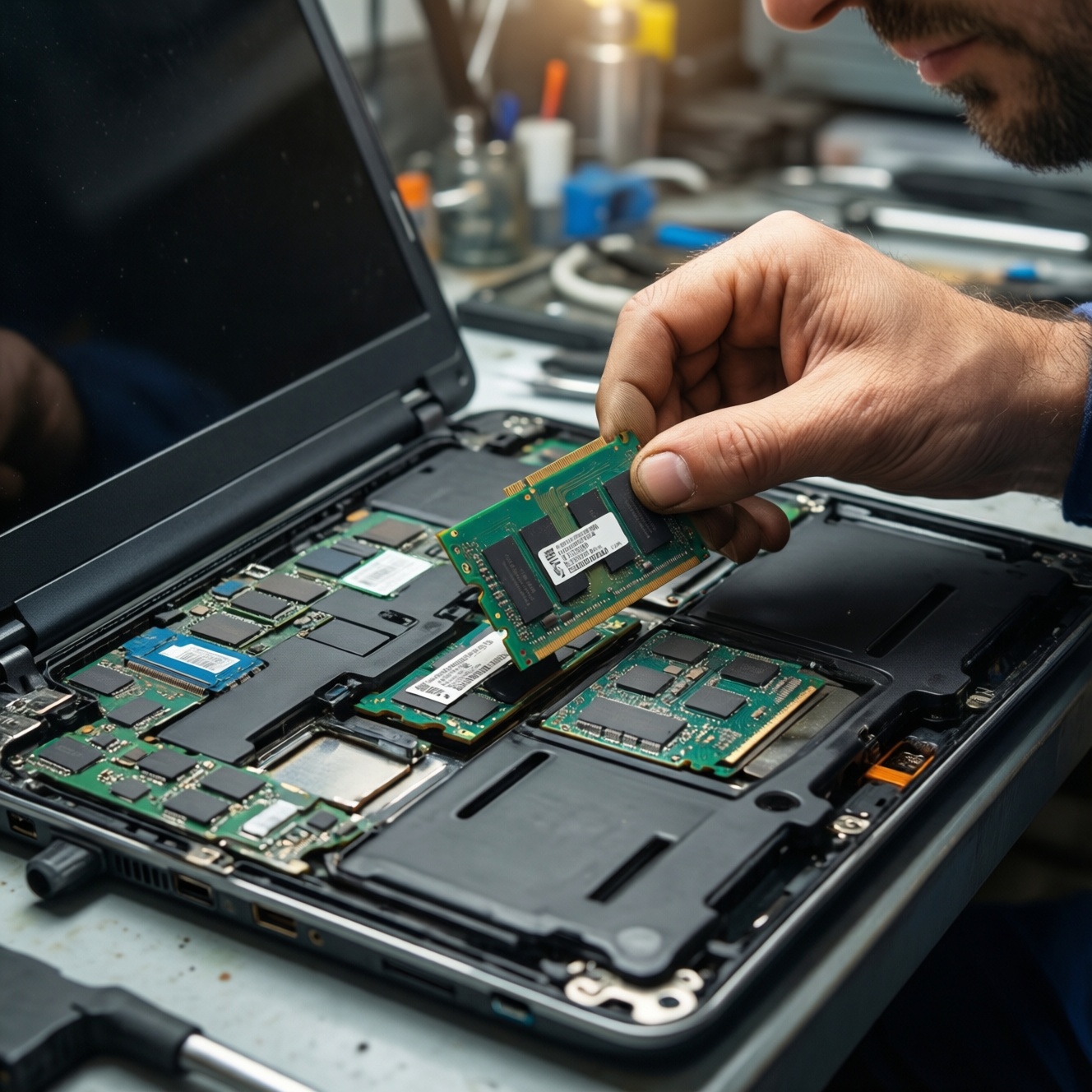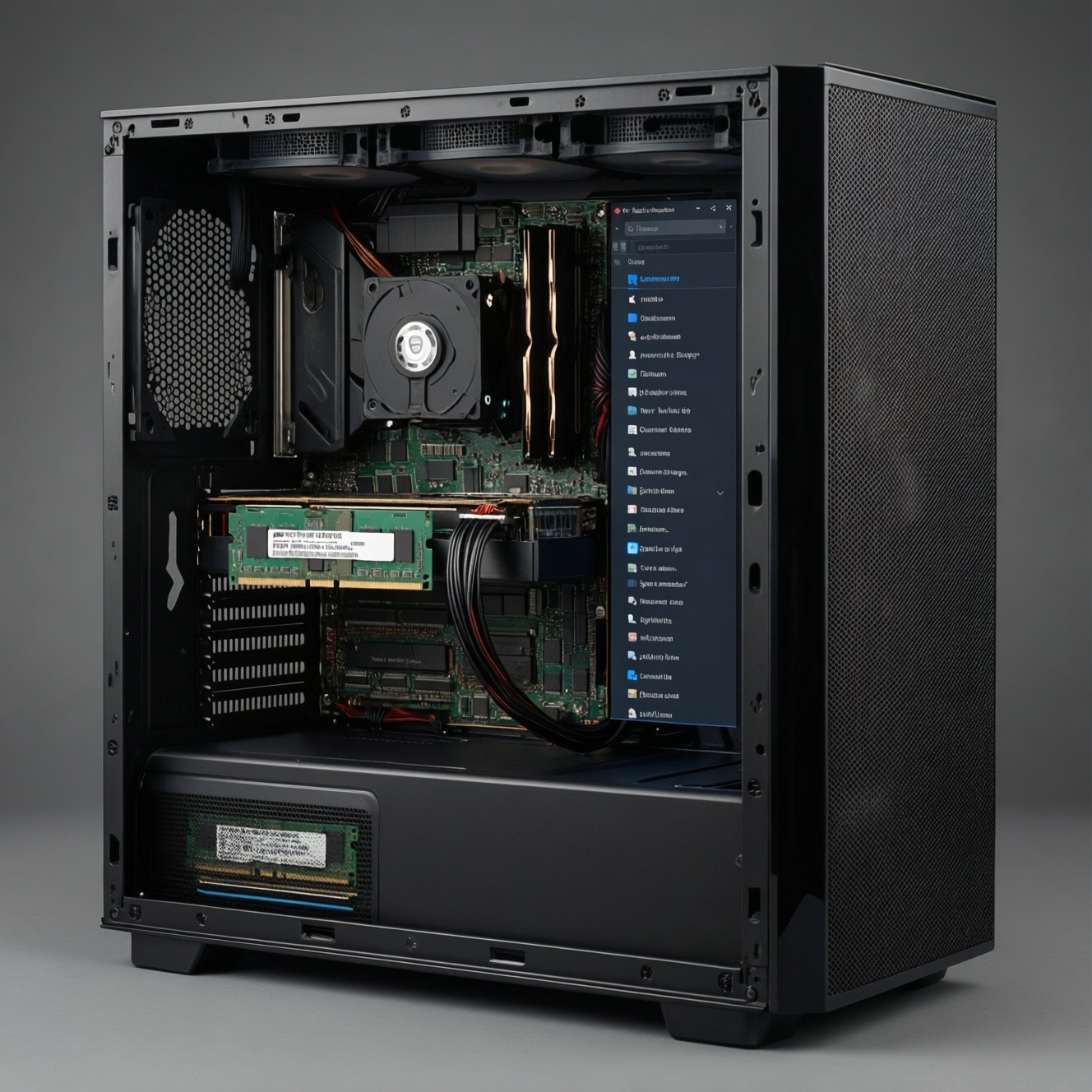
Upgrading RAM is worth it when your PC regularly hits high memory use and starts swapping to disk, causing stutter, slow app switching, or browser tab reloads. To avoid wasting money, first confirm you actually have an empty slot (or replaceable modules), then verify the supported DDR type and speed, and finally match modules for stable dual-channel performance.
When a RAM Upgrade Actually Pays Off
- You see frequent slowdowns during multitasking and memory-heavy apps (many browser tabs, editing, VMs).
- Task Manager/Activity Monitor shows memory pressure and heavy paging/swap during normal use.
- You have at least one free memory slot, or you can replace existing SODIMM/DIMM sticks.
- Your system is modern enough that the CPU/storage won't be the primary bottleneck after the upgrade.
- You can confirm เช็กรุ่น RAM ที่รองรับ โน้ตบุ๊ก (supported type/speed/capacity) before buying.
How to Identify and Inspect Your Memory Slots
This process fits laptops/desktops with replaceable memory (SODIMM for laptops, DIMM for desktops). It's usually not worth it if your laptop has soldered RAM only, if you're already at a capacity that your workload never exceeds, or if the performance issue is clearly storage/thermal throttling.
- Check if RAM is upgradeable without opening the device. In Windows, open Task Manager > Performance > Memory and note "Slots used". On macOS, check Apple menu > About This Mac (many newer Macs are not upgradeable). On Linux, use
sudo dmidecode -t memory(may require root). - Confirm physical form factor. Laptops typically use SODIMM; desktops use full-size DIMM. Mixing is impossible.
- Do a safe physical inspection (if you choose to open):
- Power off completely, unplug charger, and (if possible) disconnect/remove the battery.
- Discharge static: touch a grounded metal surface; avoid carpets.
- Open the service panel/bottom cover carefully; don't force clips.
- Count slots, check if one is empty, and photograph the label on the installed module(s).
If you're comparing อัปเกรด RAM โน้ตบุ๊ก ราคา vs benefit, slot availability is the first gate: no free slot means you must replace existing sticks, which changes the cost/benefit.
Determining Supported RAM Speeds and Types
Before you look at ซื้อ RAM DDR4/DDR5 ราคา, verify what your machine supports. DDR generations are not interchangeable (DDR4 vs DDR5), and laptops also require the correct voltage profile and form factor.
What you need
- Model identifiers: laptop full model code (and ideally motherboard model for desktops).
- Software tools:
- Windows: Task Manager; optionally CPU-Z (Memory + SPD tabs).
- Linux:
dmidecode; optionallylshw -class memory. - macOS: About This Mac / System Information (note: many models cannot be upgraded).
- Access to vendor docs: manufacturer spec page/service manual. This is the most reliable way to เช็กรุ่น RAM ที่รองรับ โน้ตบุ๊ก.
Quick compatibility table (common consumer platforms)
| Platform family (consumer) | Typical RAM generation | Typical module type | What to verify before buying |
|---|---|---|---|
| Intel Core laptops (recent gens) | DDR4 or DDR5 (varies by model) | SODIMM and/or soldered LPDDR | Whether RAM is soldered, max capacity, supported speed, number of slots |
| AMD Ryzen laptops (recent gens) | DDR4 or DDR5 (varies by model) | SODIMM and/or soldered LPDDR | Same as above; especially confirm DDR4 vs DDR5 and slot count |
| Desktop mainstream boards | DDR4 or DDR5 (depends on board) | DIMM | Motherboard QVL, BIOS version, XMP/EXPO support, slot population rules |
Tip: if a laptop reports "Slots used: 1 of 2" you can often add a second stick (best value). If it reports "2 of 2", you're looking at replacement, which impacts เพิ่ม RAM คอมพิวเตอร์ ราคา calculations.
Calculating Optimal Capacity for Your Workload
-
Measure real memory pressure during your normal peak usage.
Use Windows Task Manager (Performance > Memory), Linux (free -h), or macOS Activity Monitor (Memory Pressure). If you see swap/paging during routine work, more RAM is likely to help. -
Decide whether you want "add" or "replace".
If you have an empty slot, adding a matched stick is usually the most cost-effective path. If all slots are full, plan a full kit replacement to keep matching simple and stable.- Empty slot: target a second module matching capacity and specs.
- No empty slot: replace with a 2-stick kit when dual-channel matters.
-
Choose a capacity target based on your heaviest app mix.
Aim for enough headroom so you don't hit swap under your typical "worst day" workload. For intermediate users, this usually means planning for browser + office + communication + one heavy app (editing/IDE/VM) without sustained swapping. -
Cross-check your model's maximum supported capacity.
Vendor documentation overrides generic advice. Some laptops accept higher capacities than originally sold with, but don't assume it: verify per model. -
Estimate value against total upgrade cost.
Compare the RAM cost plus labor/time against the device's remaining useful life. This is where "RAM โน้ตบุ๊กรุ่นไหนดี" becomes practical: pick reputable modules that match specs, have a clear return policy, and are widely compatible.
Fast mode: the 60-second decision path
- Check "Slots used" (Windows Task Manager) or inspect physically.
- Confirm DDR type (DDR4 vs DDR5) and form factor (SODIMM vs DIMM).
- Match capacity + speed to the existing stick; prefer a pair for dual-channel.
- Buy from a seller with easy returns (critical for laptop compatibility).
- Install, then verify dual-channel/speed and run a stability test.
Matching Modules: Timings, Voltage and Dual/Single Channel
- Match DDR generation exactly (DDR4 cannot mix with DDR5).
- Match form factor (laptop SODIMM vs desktop DIMM).
- Match capacity per stick when possible for predictable dual-channel behavior (e.g., 8+8, 16+16).
- Match rated speed; the system will usually downclock to the slowest stick.
- Match voltage/profile as closely as possible; avoid exotic overclock-only kits for laptops.
- Prefer the same rank/layout when you can (not always visible; buying identical part numbers helps).
- Confirm dual-channel status after install using CPU-Z (Windows) or equivalent tools.
- Avoid mixing ECC vs non-ECC unless your platform explicitly supports it (most consumer laptops don't).
Step-by-step Installation and BIOS Configuration
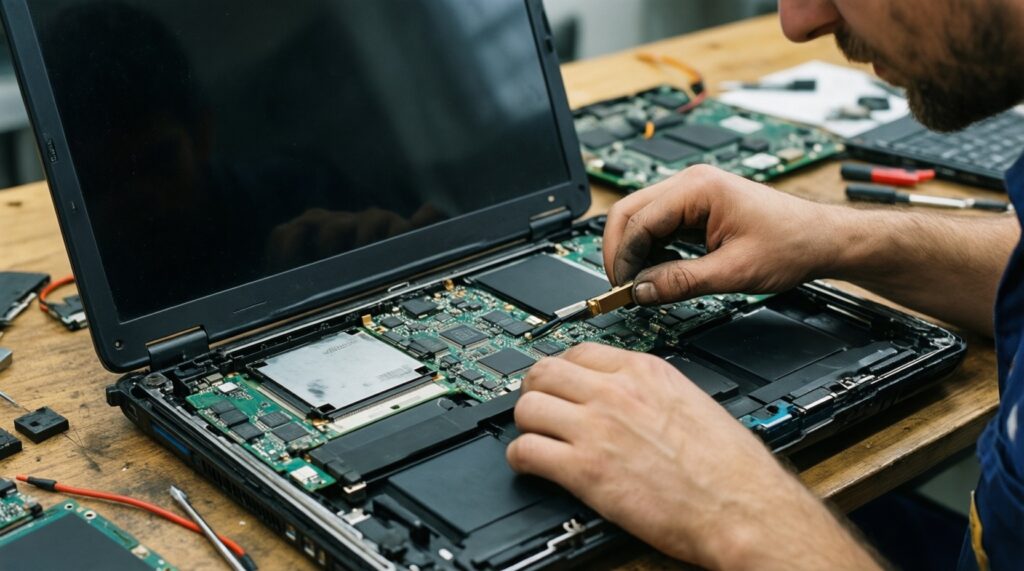
Common mistakes usually come from handling, seating, and expecting XMP/EXPO behavior on systems that don't support it.
- Not fully powering down (sleep/hibernate) before opening the device.
- Skipping battery disconnect (when it's user-removable) and shorting something accidentally.
- Touching contacts or working without static precautions, causing intermittent faults.
- Inserting the SODIMM at the wrong angle or not seating it fully (most "no boot" cases).
- Mixing DDR type or buying the wrong form factor because you only checked speed/GB.
- Assuming the printed speed will run automatically: many laptops run JEDEC defaults; XMP may be ignored.
- Updating BIOS mid-upgrade without a stable power setup (risk of failed flash).
- Placing sticks in the wrong slots on desktops (some boards require specific slot order for dual-channel).
Safe install checklist (laptop SODIMM)
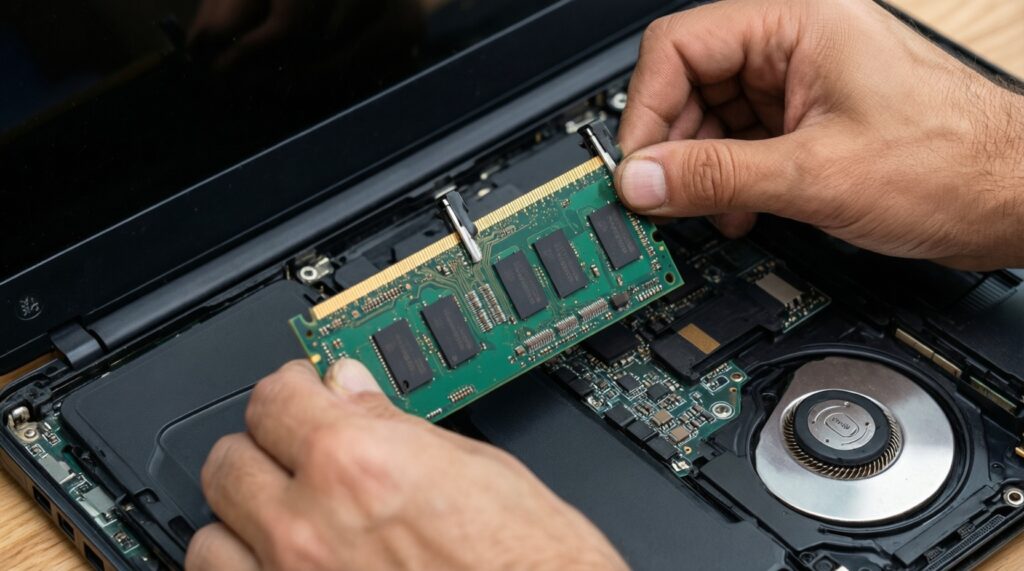
- Power off, unplug, remove/disable battery if possible.
- Open the cover, locate RAM slot(s), and note the notch orientation.
- Insert at an angle, then press down until clips lock firmly.
- Reassemble, boot, enter BIOS/UEFI once to confirm total memory is detected.
- Boot into OS and verify capacity + channel mode.
Troubleshooting Stability, BIOS Errors and Benchmark Verification
If the system boots but feels unstable (random reboots, BSOD, app crashes), treat it as a compatibility or seating problem before blaming the OS.
Verification steps
- Confirm detected RAM: Windows Task Manager; Linux
free -h; macOS System Information. - Confirm speed/channel: CPU-Z (Windows) or BIOS memory info; check if it's running at expected JEDEC speed.
- Run a memory stability test: use a reputable memory test tool and let it complete multiple passes; stop if errors appear.
Alternatives when a RAM upgrade isn't the best move
- SSD upgrade first if the PC is on an HDD or slow SATA SSD and your main pain is launch/load time, not multitasking.
- Clean thermal system (dust, dried thermal paste, blocked vents) if performance drops under load due to overheating.
- Reduce startup/background apps if memory use is inflated by resident utilities rather than your actual work apps.
- Replace the device if RAM is soldered and you're consistently memory-bound; money may be better spent elsewhere than chasing อัปเกรด RAM โน้ตบุ๊ก ราคา on a limited platform.
Common Practical Concerns Answered
Will adding RAM always make my laptop faster?
No. It helps mainly when you are swapping to disk; if you rarely hit high memory use, you'll see little change.
How do I check if my laptop has a free RAM slot?
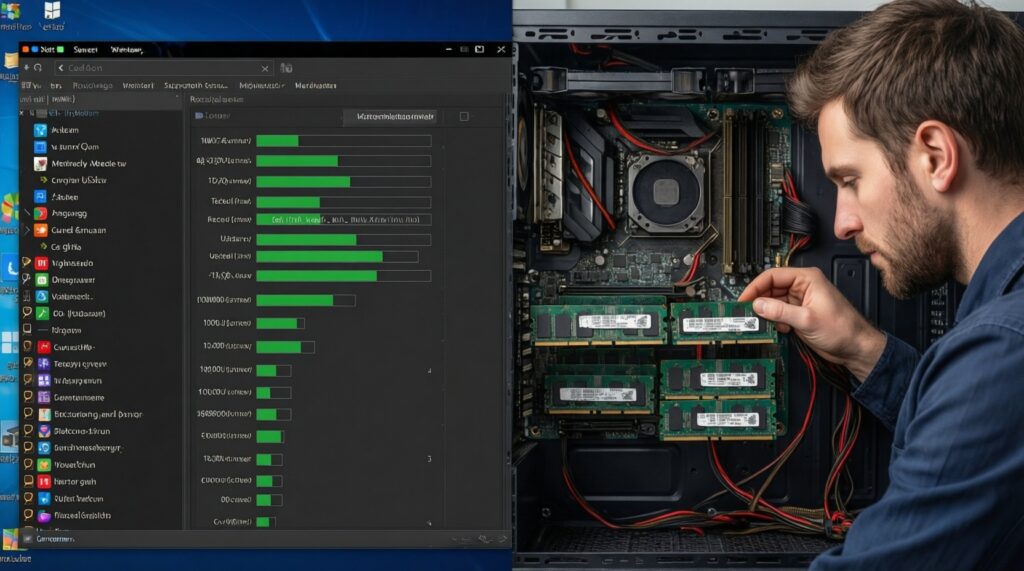
On Windows, Task Manager > Performance > Memory shows "Slots used". For certainty, check the service manual or do a careful physical inspection.
Can I mix different brands or different speeds?
Often it boots, but stability and dual-channel behavior can suffer. The system typically runs both sticks at the slowest common settings.
DDR4 vs DDR5: can I upgrade from DDR4 to DDR5 by swapping RAM?
No. DDR generation is dictated by the motherboard/platform; you can't convert a DDR4 system to DDR5 by changing modules.
What does dual-channel mean, and should I care?
Dual-channel increases memory bandwidth, which can improve performance in integrated graphics and some workloads. Best results usually come from matched pairs (same capacity and similar specs).
How do I choose what to buy if I'm comparing ซื้อ RAM DDR4/DDR5 ราคา?
Buy the correct DDR generation and form factor first, then match capacity/speed to your current module or buy a matched kit. Prioritize compatibility and return policy over minor spec differences.
Is it safe to install RAM myself?
Yes if you follow safe power-down and anti-static steps and don't force parts. If your laptop is hard to open or under strict warranty terms, consider professional installation.