To speed up an older Windows PC and Android phone without reinstalling, focus on startup apps, background services, storage health, and visual effects. These safe tweaks reduce RAM/CPU and I/O pressure, often making the device feel lighter immediately. Do changes in small batches, test after each batch, and keep simple rollback options ready.
Immediate tweaks to revive older Windows and Android devices
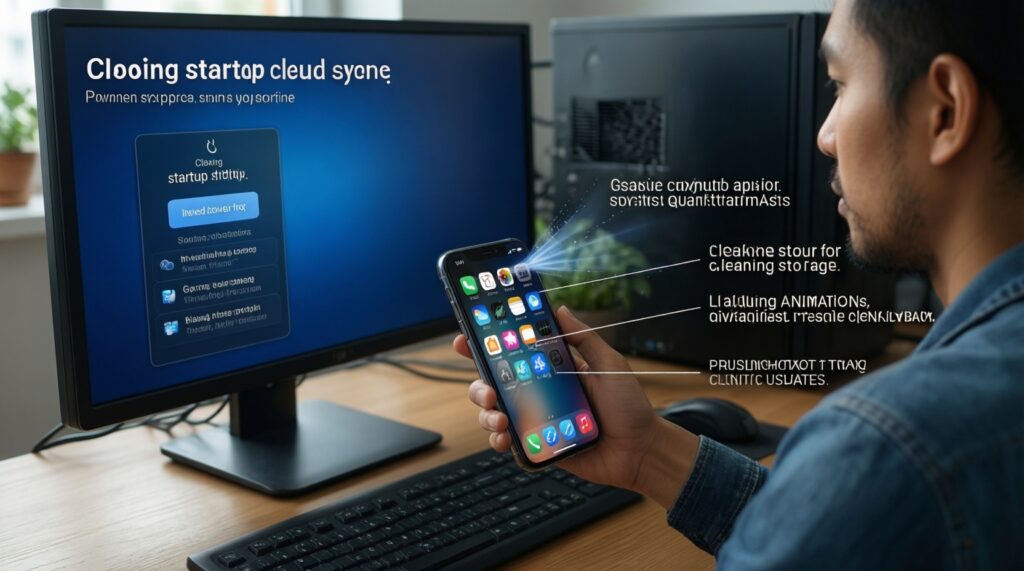
- Disable non-essential startup apps (Windows: Task Manager; Android: background restrictions).
- Free at least some working space on internal storage; clear temporary files and large downloads.
- Turn off heavy visual effects and animations.
- Pause or narrow cloud sync and auto-update behavior while troubleshooting.
- Update storage and chipset/firmware drivers (Windows) and system updates (Android) only after confirming stability.
- If the device still bottlenecks on disk/RAM, consider SSD/RAM upgrades instead of any "one-click booster."
Optimize Windows startup, services and scheduled tasks
Best for: Windows 10/11 laptops/desktops that boot slowly, stutter after login, or have constant disk activity from background tasks.
Skip or be cautious if: this is a work-managed PC with IT policies, you rely on vendor hotkeys/battery utilities, or the PC is unstable (random BSODs). Warning: Don't disable security software or core Windows services; prefer "startup app" changes first because they're easy to revert.
Startup apps (safe, reversible)
- Task Manager → Startup apps: Right-click the taskbar → Task Manager → Startup apps. Disable high-impact items you don't need at boot (chat clients, updaters, launchers).
- Settings → Apps → Startup: Use this view to double-check and keep essentials only (touchpad/keyboard utilities if needed).
Services and scheduled tasks (targeted, minimal)
- Services: Press Win+R →
services.msc→ sort by Status. Only change third-party services you recognize. Set to Manual rather than Disabled when unsure. - Task Scheduler: Win+R →
taskschd.msc→ review Task Scheduler Library. Disable obvious vendor telemetry/updaters if you can update manually later.
If you search for a โปรแกรมเร่งความเร็วคอมพิวเตอร์ Windows, treat "optimizer" suites as optional at best: prefer built-in tools and clear, reversible changes over registry cleaners.
Reduce Android app bloat: background activity, permissions, and packages
You'll need: Android 10+ recommended, access to Settings, and optionally a PC/Mac for ADB (Android Debug Bridge) if you plan to disable preinstalled packages safely.
- Permissions control: Settings → Privacy → Permission manager.
- Battery/background control: Settings → Battery → Background usage limits (names vary by brand).
- Optional tools: A USB cable + ADB (platform-tools). Warning: Do not remove system packages blindly; prefer "Disable" in Settings when available.
Practical bloat reduction (no root)
- Restrict background for heavy apps: Settings → Apps → (app) → Battery → set to Restricted for social, shopping, and video apps you don't need running.
- Remove notification spam: Long-press a noisy notification → turn off that channel; fewer wake-ups improves standby performance.
- Trim permissions: For apps you keep, set location to While in use and disable unused permissions (microphone, contacts) to reduce background triggers.
If you're considering an แอปเร่งความเร็วมือถือ Android, avoid "RAM booster" apps that kill processes aggressively; they often increase relaunch load. Focus on background limits, permissions, and uninstalling duplicates instead.
Reclaim and repair storage: cleanup, defragmentation, and filesystem checks
-
Measure what is consuming space (Windows + Android)
Low free space slows updates, caching, and app launches. Start by identifying large categories instead of deleting randomly.
- Windows: Settings → System → Storage → review Temporary files, Apps, Downloads.
- Android: Settings → Storage → review large apps, downloads, media, and cached data.
-
Windows cleanup using Storage Sense (safe baseline)
Settings → System → Storage → turn on Storage Sense and run cleanup. Prefer deleting temporary files and old update leftovers, not your personal folders.
- Rollback: If you accidentally removed something from Downloads, restore from cloud/backup; Storage Sense does not provide an "undo."
-
Check disk health indicators before heavy operations
If the drive is failing, "cleanup" won't fix slowdowns and may worsen instability. Watch for clicking sounds (HDD) and frequent freezes.
- Windows quick check: Open Command Prompt (Admin) →
wmic diskdrive get status. If it's not OK, prioritize backup and replacement.
- Windows quick check: Open Command Prompt (Admin) →
-
Filesystem check (Windows) to fix logical errors
Open Command Prompt (Admin) and run
chkdsk C: /scan. If it reports issues that require a reboot repair, schedule it when you can afford downtime.- Warning: Don't interrupt a repair scan; keep the laptop plugged in.
-
Optimize drives: defrag HDD, trim SSD
Windows Search → Defragment and Optimize Drives. Use Optimize; Windows will defrag HDDs and send TRIM to SSDs automatically.
- Warning: Do not use third-party "defrag" tools on SSDs; Windows Optimize is the safe default.
-
Android: clear storage the safe way
Uninstall unused apps, clear app cache for the worst offenders, and move photos/videos to cloud or an SD card if supported.
- Rollback: If you clear "storage/data" (not just cache), you may log out and lose local app settings-use cache first.
Fast mode (3-5 steps)
- Disable high-impact Windows startup apps and reboot once.
- Run Windows Storage cleanup (Storage Sense) and delete obvious large files.
- On Android, restrict background battery for 5-10 heavy apps and uninstall unused ones.
- Turn off animations/visual effects on both devices and retest responsiveness.
- If disk remains pegged or apps stall, plan an SSD upgrade before chasing "booster" software.
Switch to lightweight interfaces and disable visual effects
- Windows: Settings → Accessibility → Visual effects → turn off Animation effects and Transparency effects.
- Windows performance: Win+R →
SystemPropertiesPerformance.exe→ choose Adjust for best performance, then re-enable only what you want (e.g., smooth fonts). - Android animations: Enable Developer options → set Window animation scale, Transition animation scale, Animator duration scale to 0.5x or Off.
- Launcher: If your Android skin is heavy, switch to a lightweight launcher; keep widgets minimal.
Result check: confirm it actually improved
- Boot/login time feels shorter and the system is responsive within a minute.
- Disk usage is not stuck at 100% in Task Manager during idle.
- RAM usage at idle is lower and stays stable when opening your common apps.
- Android home screen opens without delays; app switching is smoother.
- Fewer background notifications/wakeups; standby drain is reduced.
- No new crashes, missing drivers, or broken hotkeys after disabling items.
- Updates still run when you trigger them manually (nothing critical was disabled).
Network, syncing and update settings that free up resources
- Mistake: Running multiple cloud clients at once (OneDrive + Google Drive + Dropbox) with full real-time sync. Fix: Pause sync during work/gaming; sync only key folders.
- Mistake: Allowing every app to start with Windows "just to update." Fix: Keep one updater per vendor; update the rest on-demand.
- Mistake: Windows Delivery Optimization saturating bandwidth/disk. Fix: Settings → Windows Update → Advanced options → Delivery Optimization → limit it or turn off sharing to other PCs.
- Mistake: Too many browser extensions and always-on tabs. Fix: Disable extensions you don't need; enable sleeping tabs.
- Mistake: Android auto-sync for every account/app. Fix: Settings → Accounts (or Passwords & accounts) → disable sync for non-essential items.
- Mistake: Background data allowed for everything on mobile networks. Fix: Restrict background data for heavy apps; keep messaging and security allowed.
- Mistake: Updating drivers/firmware from random tools. Fix: Use Windows Update + device maker support pages only.
Affordable hardware and firmware adjustments that extend usable life
- Upgrade to an SSD (best ROI for HDD-based laptops): If you're checking อัปเกรด SSD โน้ตบุ๊ก ราคา or ซื้อ SSD 1TB ราคา, prioritize a reputable SATA SSD for older laptops (2.5-inch) or NVMe if supported. Appropriate when disk usage is constantly high and app launches are slow even after cleanup.
- Add RAM to reduce swapping: If you're comparing เพิ่ม RAM โน้ตบุ๊ก ราคา, this helps when Task Manager shows high memory pressure and frequent stutter with multiple tabs/apps. Check maximum supported RAM and whether you have a free slot.
- Thermal maintenance (cooling): Clean vents/fans and replace thermal paste only if you're comfortable opening the device. Appropriate when the CPU throttles (gets hot) and performance drops after a few minutes. Warning: Opening the chassis may void warranty; take photos and keep screws organized.
- BIOS/firmware updates (only if needed): Update to fix stability or compatibility issues, not as a generic speed hack. Appropriate when the vendor notes mention performance, storage, or stability fixes. Warning: A failed BIOS update can brick a device; use AC power and follow vendor instructions exactly.
Solutions for common slowdown symptoms and risks
Why is Disk 100% in Windows even when idle?
Common causes are startup apps, indexing, sync clients, or a struggling HDD. Disable non-essential startup items first, then check Storage settings and run chkdsk C: /scan before assuming you need a "booster."
Is it safe to disable Windows services to speed up an old PC?
It's safe only when you target known third-party services and keep changes reversible (Manual instead of Disabled). Avoid touching security, networking, and core Microsoft services unless you fully understand dependencies.
Do Android task killers or RAM booster apps help?
Usually not; they can increase relaunch work and battery drain. Prefer restricting background battery for specific apps and uninstalling bloat instead of using an app that constantly kills processes.
Should I defragment an SSD to make it faster?
No; use Windows Optimize Drives which sends TRIM to SSDs. Traditional third-party defragging is unnecessary and can add wear.
What's the safest way to remove preinstalled Android apps?
Use the phone's Settings to Disable and revoke permissions first. If you use ADB, only disable packages you can identify and test after each change, because some vendor packages are tied to system features.
After disabling startup apps, something stopped working-how do I roll back?
Re-enable the item in Task Manager → Startup apps (Windows) or allow background activity again (Android). If it's a driver utility (touchpad, hotkeys), re-enable it and reboot.