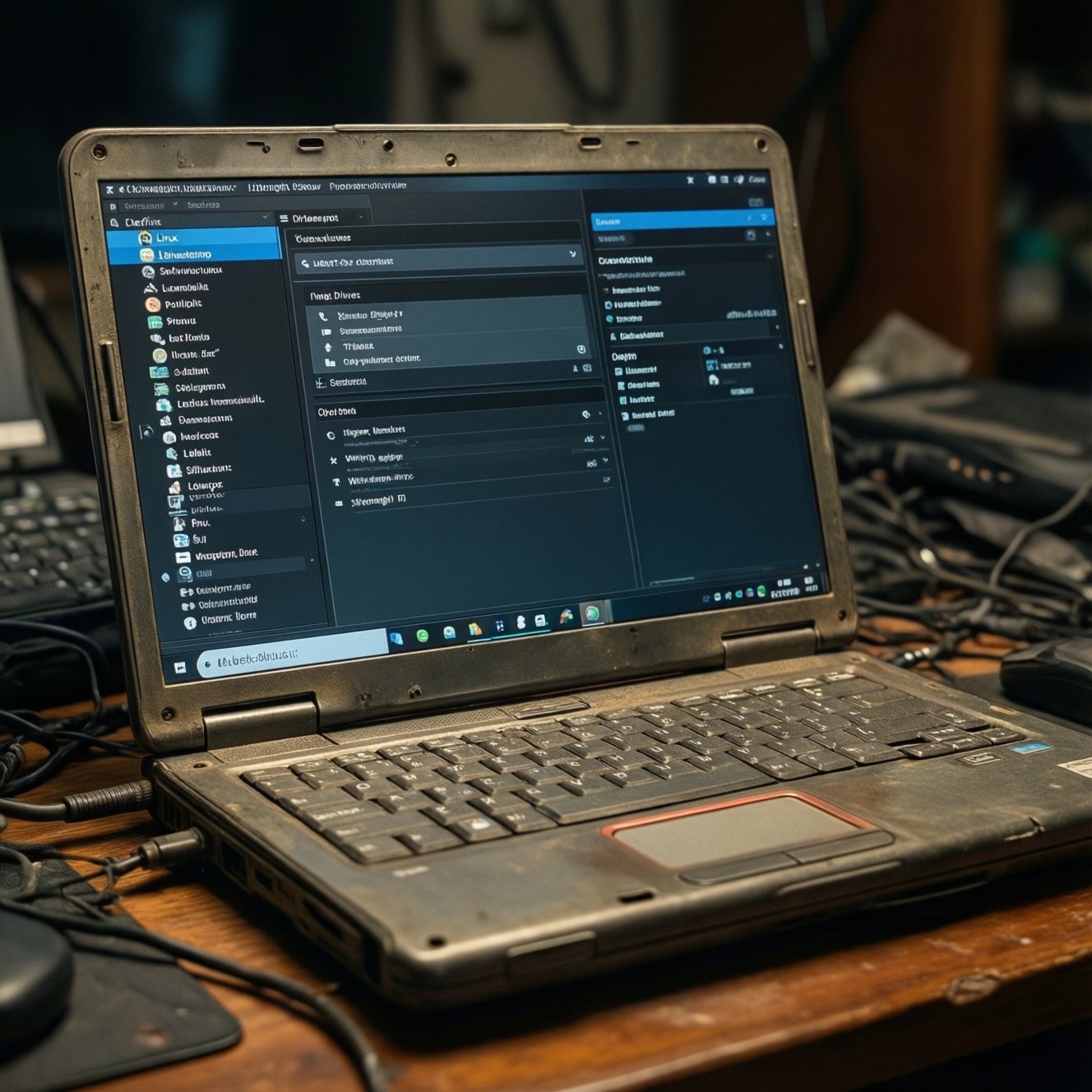
To "revive" an old notebook, install a lightweight Linux distro with an efficient desktop (XFCE, MATE, LXQt) and then tune drivers, storage, and power settings for your exact hardware. This guide shows safe, rollback-friendly steps for selection, preparation, clean installation, and daily-use tuning-so the laptop becomes responsive and reliable again.
Why lightweight Linux is the best choice for older notebooks
- Lower RAM/CPU overhead than heavy desktops, so older dual-cores and low-RAM systems feel responsive.
- Long security support cycles (on LTS-based distros) reduce maintenance risk.
- Modern kernels often improve hardware support (Wi‑Fi, graphics, power management) versus legacy OS installs.
- Clean installs are repeatable and auditable with logs, making troubleshooting faster than "mystery" Windows slowdowns.
- Rollback options (Timeshift, Btrfs snapshots, apt history) can undo risky changes.
- Great fit for "ลง Linux แทน Windows โน้ตบุ๊กเก่า" when Windows updates or drivers become a bottleneck.
Choosing a distro: balancing performance, hardware support, and stability
A lightweight distro is best when the notebook is limited by RAM, slow HDD, or a weak iGPU, but still has working basic hardware (disk, RAM, cooling). Prefer LTS-based options for stability and fewer surprise changes. Avoid this path if you need a specific Windows-only app without a workable replacement (native Linux app, web app, or VM) or if the laptop has failing storage (installing will likely magnify the failure).
- Performance: choose XFCE/MATE/LXQt; avoid heavyweight effects and background services.
- Hardware support: newer kernels help, but ultra-old Wi‑Fi chipsets may need extra firmware; verify in a live session first.
- Stability: stick to LTS or conservative release models; fewer PPAs means fewer breakages.
- Safety/rollback: plan snapshot backups (Timeshift) before "tuning" and after major updates.
Top lightweight distributions and which laptops they suit
You'll need: a USB drive (8GB+), another computer to create the installer, stable internet for updates/firmware, and admin access to the laptop's BIOS/UEFI. If your search starts with ติดตั้ง Linux ในโน้ตบุ๊กเก่า or Linux เบาสำหรับโน้ตบุ๊กสเปกต่ำ, these are the safest mainstream targets.
| Distro (desktop) | Footprint (typical feel) | Package manager | Recommended RAM/CPU (practical) | Pros / Cons |
|---|---|---|---|---|
| Linux Mint (XFCE) | Light, polished | APT | Older dual-core+; low-to-mid RAM notebooks |
Pros: friendly defaults; easy updates; great for ดาวน์โหลด Linux Mint XFCE users. Cons: still benefits a lot from SSD; very old GPUs may need extra tweaks. |
| Ubuntu MATE | Light-to-medium | APT | Older dual-core+; mid RAM |
Pros: excellent balance; mature tools; good fit for Ubuntu MATE สำหรับเครื่องเก่า. Cons: can feel heavier than XFCE on the weakest machines. |
| Lubuntu (LXQt) | Very light | APT | Very low-end CPUs; minimal RAM |
Pros: fastest UI on weak hardware. Cons: fewer "nice" defaults; requires more manual tuning for comfort. |
| Debian (XFCE) | Light, conservative | APT | Wide range; good for stability-first |
Pros: stable base; minimal surprises; great for long-term use. Cons: older packages by design; may require enabling non-free firmware for Wi‑Fi on some laptops. |
- If you want the smoothest "everyday desktop": Mint XFCE.
- If you prefer Ubuntu ecosystem but lighter UI: Ubuntu MATE.
- If the laptop is extremely weak: Lubuntu.
- If you want the least change over time: Debian XFCE (with careful firmware choices).
Preparing the machine: backups, firmware, and hardware diagnostics
- Data loss risk: partitioning and reinstalling can wipe disks; verify backups before booting the installer.
- Boot risk: mixing Legacy BIOS/UEFI or mis-handling Secure Boot can prevent booting; document current settings.
- Hardware risk: failing HDD/SSD or bad RAM can make installs "randomly" fail; test first.
- Driver risk: Wi‑Fi/GPU may require proprietary firmware; confirm in live mode and keep an Ethernet/USB Wi‑Fi fallback.
-
Back up and verify what matters
Copy user files to external storage and verify you can open a few random files. If you are doing ลง Linux แทน Windows โน้ตบุ๊กเก่า, export browser bookmarks and any app data you can't re-download.
- If dual-booting, create a Windows recovery USB first (from Windows) and note BitLocker status (if applicable).
- Safety option: if unsure, install Linux "alongside" first, then remove Windows later.
-
Record BIOS/UEFI settings and update firmware if safe
Note whether the system uses UEFI or Legacy BIOS, and whether Secure Boot is enabled. Update BIOS only if you have stable power and the vendor's official method; otherwise, skip to avoid bricking risk.
- Rollback: if you change boot mode, change only one variable at a time and document it.
-
Run quick hardware checks (RAM, disk, thermals)
From a live USB, test memory and storage health before installing. Many "mystery" install failures are bad RAM or a dying disk.
- Check disk SMART (live session):
sudo smartctl -a /dev/sda(installsmartmontoolsif needed). - Quick stress/temps (optional):
sudo apt install lm-sensors && sudo sensors-detect, thensensors. - If SMART looks bad, replace the disk before installing (best "performance upgrade" is often an SSD).
- Check disk SMART (live session):
-
Create a verified installer USB
Download the ISO from the official project site, then verify its checksum/signature when provided. Write it to USB with a reputable tool and boot it once to confirm the live session works (keyboard, touchpad, Wi‑Fi, display).
- Safety option: keep the USB as your rescue environment even after installation.
-
Validate critical hardware in live mode before touching the disk
In the live session, test Wi‑Fi, suspend/resume, audio, and brightness keys. If Wi‑Fi doesn't work, plan for Ethernet during install or install required firmware packages after.
- Rollback: if live mode is unstable (freeze/black screen), try a different distro/desktop before installing.
Clean install checklist: partitioning, boot mode, and swap strategy
- Confirm whether you are installing in UEFI or Legacy BIOS, and keep it consistent with the existing system.
- If UEFI: ensure an EFI System Partition (ESP) exists (usually FAT32) and you select it correctly (mount as
/boot/efi, do not format unless you know you must). - Choose ext4 for simplest reliability; consider Btrfs only if you will actually use snapshots and understand rollback.
- Swap choice:
- Swap file is simplest (default on many distros).
- Swap partition can be useful on very old setups or if you prefer fixed layout.
- If you need hibernation, plan swap capacity accordingly and test hibernate after drivers are installed (don't assume it works on all hardware).
- Set a clear hostname, create a strong user password, and store it in a password manager.
- After first boot: run full updates before installing extra software, and reboot once.
- Enable a rollback plan early (e.g., install Timeshift) before heavy tweaks.
Tuning for daily use: drivers, power profiles, and lightweight desktops
-
Skipping updates right after installation
Outdated kernels and firmware often cause Wi‑Fi, suspend, or graphics bugs. Run updates first:
sudo apt update && sudo apt full-upgradeRollback: if a kernel update breaks boot, select an older kernel from the boot menu (GRUB) and pin/hold until fixed.
-
Installing random PPAs or "optimizer" scripts
They are common sources of dependency conflicts on older notebooks. Prefer official repos and distro-supported drivers tools.
Rollback: remove the PPA and downgrade packages (or restore a Timeshift snapshot).
-
Ignoring proprietary firmware when Wi‑Fi/Bluetooth is missing
Some chipsets need non-free firmware packages. First identify hardware:
lspci -nn | grep -iE 'network|wireless'orlsusbRollback: keep Ethernet available; after firmware install, reboot and re-test.
-
Using heavy compositing and animations on weak GPUs
Disable desktop effects and keep compositor settings conservative. On XFCE, reduce or disable compositing if you see tearing/stutter.
Rollback: revert display manager/desktop settings from the session menu or reset user config by renaming the relevant config directory in your home folder.
-
Not optimizing for HDD vs SSD
On HDD, reduce write amplification and background indexing; on SSD, ensure TRIM is enabled. Check TRIM timers:
systemctl status fstrim.timerRollback: if a tuning change causes sluggishness, revert
/etc/fstaboptions from a backup copy. -
Power management set too aggressively (causing Wi‑Fi drops or lag)
Start with distro defaults; adjust one setting at a time. For Intel/AMD laptops, consider installing TLP if not present:
sudo apt install tlp && sudo systemctl enable --now tlpRollback: stop/disable TLP if it causes issues:
sudo systemctl disable --now tlp. -
Overcommitting RAM without monitoring
Old systems can thrash. Watch memory and swap use:
free -handtop(orhtop)Rollback: remove heavy background apps (cloud sync, electron apps) and switch to lighter alternatives.
Ongoing care: updates, backups, monitoring and safe rollback options
Pick a maintenance model that matches how critical the laptop is and how much change you can tolerate.
-
Conservative LTS workflow (recommended for old hardware)
Stay on LTS releases, apply security updates regularly, and avoid major version upgrades until you have time to test. Rollback option: keep at least one previous kernel installed and a Timeshift snapshot before big updates.
-
Snapshot-first workflow (best for frequent tweaking)
Use Timeshift (or Btrfs snapshots if you chose it) before driver changes and desktop experiments. Rollback option: restore a snapshot from the live USB if the system won't boot.
-
"Appliance mode" for maximum stability
Install only essential apps, disable unneeded autostart items, and avoid PPAs. Rollback option: keep a known-good installer USB and a documented reinstall checklist for quick recovery.
Practical concerns, pitfalls and quick fixes
My laptop won't boot the USB installer-what should I check first?
Confirm whether the firmware is set to UEFI or Legacy and recreate the USB with a reliable writer. Try a different USB port and disable Fast Boot in firmware if present.
Should I disable Secure Boot?
Many mainstream distros can install with Secure Boot enabled, but third-party drivers may be easier with it off. If you disable it, note the original state so you can revert.
Wi‑Fi works in Windows but not in Linux-why?
It's usually missing firmware or a driver mismatch. Test in live mode, identify the chipset with lspci/lsusb, then install the recommended firmware packages and reboot.
Is Linux Mint XFCE a good default for ดาวน์โหลด Linux Mint XFCE users?
Yes, it's a strong "install and use" option with a lightweight desktop and sensible defaults. Verify hardware in live mode first, especially graphics and Wi‑Fi.
Does Ubuntu MATE make sense for Ubuntu MATE สำหรับเครื่องเก่า on older notebooks?
Yes, if you want Ubuntu tooling with a lighter desktop than GNOME. On very weak CPUs, Lubuntu or Mint XFCE may feel faster.
Can I do ติดตั้ง Linux ในโน้ตบุ๊กเก่า without erasing Windows?
Yes, choose "install alongside" or manual partitioning to keep Windows. The safest path is backing up first and confirming UEFI/Legacy settings before resizing partitions.
After ลง Linux แทน Windows โน้ตบุ๊กเก่า, the system feels slow-what is the first fix?
Update fully and reboot, then check whether you're swapping heavily with free -h. If the disk is an HDD, consider an SSD upgrade; it's often the biggest real-world improvement.