To make an older PC feel faster, focus on storage: remove junk files, reclaim free space safely, split workloads with sensible partitions, and maintain SSDs with TRIM. Start by confirming the real bottleneck (disk, RAM, CPU), then apply low-risk cleanups. Only after that, adjust partitions and schedule maintenance to keep performance stable.
Essential actions overview for storage speed
- Confirm whether storage is the bottleneck before changing anything.
- Remove temporary files, caches, and obvious junk using built-in tools first.
- Identify oversized and duplicate files, then delete or move them intentionally.
- Reclaim space with archiving and selective compression (not blanket compression).
- Partition with a clear goal (system stability, easier backups, less fragmentation impact).
- For SSDs, verify TRIM is enabled and avoid defrag; schedule Optimize instead.
- Automate light maintenance (health checks, cleanup cadence) to prevent relapses.
Identify storage performance bottlenecks
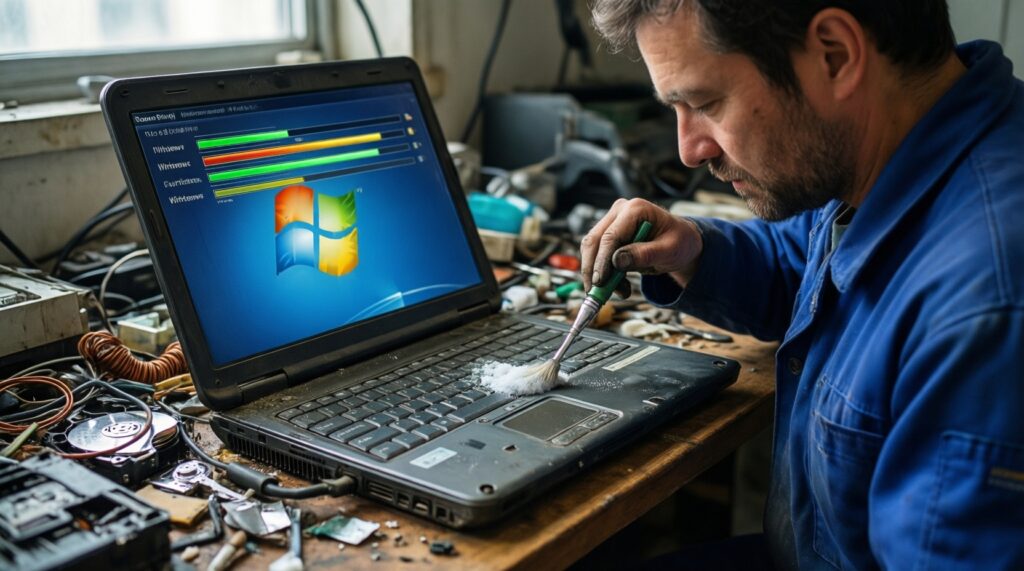
Who this is for: Older Windows 10 PCs, aging HDD/SSD laptops, and desktops where apps feel slow to launch, boot takes long, or file operations stall. It also helps after years of installs/uninstalls and low free space.
When not to do it: Don't repartition or run aggressive cleanup if you suspect a failing drive (clicking noises, frequent disconnects, S.M.A.R.T. warnings), if encryption/BitLocker status is unclear, or if you cannot make a backup first.
- Check disk saturation (Windows): Open Task Manager → Performance. If Disk stays near 100% during simple actions while CPU/RAM are moderate, storage is likely the bottleneck.
- Check free space: Keep meaningful headroom; when a system drive is nearly full, updates, paging, and caching suffer.
- Quick health signal: If the system freezes during reads/writes, prioritize backing up and running a disk health check before optimization.
Clean up junk: remove temp, duplicates and oversized files
What you need (safe baseline):
- Admin access (Windows/macOS) or sudo rights (Linux) for system-level cleanup.
- Backup space: an external drive or cloud folder for "move first, delete later".
- Built-in tools:
- Windows: Settings → System → Storage (Storage Sense), Disk Cleanup.
- macOS: System Settings → General → Storage.
- Linux: package manager cleanup (e.g., apt/dnf) and log rotation.
- Optional third-party tools (use carefully and review what they delete): a โปรแกรมล้างไฟล์ขยะ Windows may help with browser caches and temp files, but avoid "registry cleaner" features.
- Optional for duplicates/large files: a file analyzer (e.g., WinDirStat-like tools) to see what actually consumes space.
Reclaim space safely: compression, archival and selective deletion
-
Start with a rollback point (low effort, high safety)
On Windows, create a restore point (if enabled) and make sure critical folders (Documents/Desktop/Photos) are backed up. On macOS/Linux, ensure at least one recent backup exists before deleting system-related files.
-
Remove temporary files using built-in controls first
Built-in cleanup is safer than "deep cleaning" utilities because it targets known temp locations and system-managed caches.
- Windows: Settings → System → Storage → Temporary files; then run Disk Cleanup as admin.
- macOS: Storage recommendations (Review Files, Reduce Clutter).
- Linux (examples): clear package cache (distribution-specific) and trim old logs (via logrotate/journalctl).
-
Find oversized files and move them before deleting
Sort by size in your user folders and move large installers, videos, VM images, and old project folders to external storage first. Only delete once you confirm they are not needed.
- Windows tip: check Downloads and old ISO/ZIP archives.
- Dev tip: old node_modules, build outputs, and Docker images can silently bloat disks.
-
Handle duplicates deliberately (avoid auto-delete)
Duplicates are safest to remove when you can compare file hashes or preview content. If you use a duplicate finder, prefer "move to quarantine" over permanent deletion.
-
Use compression only where it won't hurt performance
Compress archives (ZIP/7z) for cold data. Avoid compressing active application folders and databases. On Windows, NTFS compression can help for rarely accessed text-heavy files, but it adds CPU overhead.
- Good candidates: old logs, exported reports, completed projects.
- Bad candidates: game folders, VMs, frequently edited media projects.
-
Archive with a simple retention rule
Create an "Archive" folder structure by year/project and move inactive items there. This makes later cleanup faster and reduces accidental deletion.
Fast mode
- Check Task Manager: if Disk is pegged, focus on storage; back up critical data.
- Run Windows Storage cleanup (Temporary files) and remove obvious junk in Downloads.
- Move the top 2–3 largest folders/files off C: to external storage or an Archive folder.
- If on SSD, verify TRIM is enabled; if on HDD, schedule defrag (not for SSD).
- Only then consider partition changes or ซื้อ SSD อัปเกรดคอมพิวเตอร์เก่า if the drive itself is the limiter.
Partitioning strategy: separate system, apps and user data
- Before resizing/creating partitions, you have a verified backup of user data (and a recovery plan if the PC fails to boot).
- The system partition has enough free space for updates, paging, and temporary files.
- User data is on a separate partition/volume (or at least clearly separated in folders) for easier backups and reinstalls.
- You chose one partition tool and understood its actions; avoid running multiple tools back-to-back.
- On Windows 10, you confirmed the disk layout (GPT/MBR) and EFI/System Reserved partitions are untouched.
- If you used a โปรแกรมแบ่งพาร์ทิชันฮาร์ดดิสก์, you validated the partition table after changes (no "unallocated" surprises).
- If you used a โปรแกรมจัดการพาร์ทิชัน Windows 10, you rebooted once and confirmed apps and user profile paths still resolve correctly.
- After changes, you can run a file system check without errors.
TRIM and SSD maintenance: enable, verify and schedule
- Running defragmentation on an SSD: on Windows, use "Optimize Drives" (it runs TRIM/maintenance), not classic defrag routines.
- Assuming TRIM works just because the SSD is installed; always verify the OS is issuing TRIM.
- Disabling scheduled optimization: it can reduce long-term SSD performance consistency.
- Using outdated vendor utilities blindly; prefer OS-native checks unless you have a specific reason.
- Filling an SSD to the brim and expecting stable performance; leave headroom for wear leveling.
- Mixing RAID/controller modes that may block TRIM on some setups; confirm your storage controller supports TRIM passthrough.
- Confusing "delete" with TRIM: deletion removes filesystem references; TRIM informs the SSD which blocks are no longer in use.
- Using a random โปรแกรม TRIM SSD Windows that promises "extra speed" via risky low-level tweaks; verification and scheduling matter more than gimmicks.
Quick verification commands:
- Windows (Admin CMD):
fsutil behavior query DisableDeleteNotify(0 typically means TRIM is enabled for NTFS). - Linux: check periodic TRIM (
systemctl status fstrim.timer) or runsudo fstrim -avwhen appropriate. - macOS: TRIM is usually automatic for Apple SSDs; for third-party SSDs, confirm TRIM status in System Information and only enable if you understand the risk.
Ongoing optimization: defragmentation, filesystem checks and automation
- Upgrade the storage device instead of over-optimizing: If the disk is the clear limiter, ซื้อ SSD อัปเกรดคอมพิวเตอร์เก่า can outperform any cleanup. Appropriate when you're on an HDD or a very small/old SSD.
- Keep OS and apps, but move data: Use an external SSD/HDD or a secondary internal drive for media/projects. Appropriate when you need quick space relief without repartitioning risk.
- Filesystem checks on a schedule: Run periodic checks (Windows: chkdsk planning; Linux: SMART + fsck when needed; macOS: Disk Utility First Aid). Appropriate when you see minor corruption symptoms or after improper shutdowns.
- Automation over "one big cleanup": Enable Storage Sense (Windows), set a calendar reminder for quarterly archive review, and keep Downloads tidy. Appropriate when space creeps back over time.
Troubleshooting and concise clarifications
Will deleting temp files break apps?
Deleting OS-managed temp files via built-in cleanup tools is generally safe. Avoid manually deleting unknown folders inside app directories unless you know what they are.
Is it safe to use a โปรแกรมล้างไฟล์ขยะ Windows?
It can be safe if it only targets temp files/caches and you review the list before cleaning. Avoid tools that "optimize the registry" or apply aggressive system tweaks.
Should I partition an SSD the same way as an HDD?
You can partition an SSD for organization and backup convenience, but it won't "speed up" seek times like an HDD. Keep enough free space and don't create partitions so small that the system volume runs out of room.
What's the safest way to resize C: on Windows 10?
Use Disk Management for simple changes and back up first. If you need advanced operations, choose one reputable โปรแกรมจัดการพาร์ทิชัน Windows 10 and reboot immediately after the change to validate boot and data access.
How do I know TRIM is actually enabled?
On Windows, run fsutil behavior query DisableDeleteNotify and confirm scheduled "Optimize Drives" is enabled. On Linux, check fstrim.timer or run fstrim manually.
Why is my disk still at 100% after cleanup?
The drive may be failing, the system may be paging due to low RAM, or background tasks (updates/indexing/antivirus) may be saturating I/O. Check health, RAM pressure, and which process is driving disk usage.
When should I stop optimizing and just replace the drive?
If the drive is slow even with plenty of free space, or you see health warnings/errors, replacement is the safer path. For many older PCs, ซื้อ SSD อัปเกรดคอมพิวเตอร์เก่า is the highest-impact improvement.