To check SSD/HDD health with S.M.A.R.T., read the drive's attributes (not just a single "health" score), confirm failure indicators, and immediately run a verified backup before stress-testing. Use OS-native tools or smartmontools to capture logs, then decide: keep monitoring, replace the drive, or escalate to professional recovery if data is already at risk.
Essential S.M.A.R.T. Indicators to Watch
- Reallocated sectors (HDD) or growing bad block remaps: any upward trend matters more than the current value.
- Pending/uncorrectable sectors (HDD): treat as urgent if non-zero or increasing.
- SSD wear indicators (e.g., percent used, remaining life, media wearout): watch for rapid decline over short time.
- Interface errors (CRC/UDMA): often points to a bad cable/enclosure, but still risks corruption.
- SMART self-test failures and error logs: a single failed extended test is a strong replacement signal.
- Temperature history and throttling: persistent heat shortens lifespan and can mimic performance "issues."
Understanding S.M.A.R.T.: What Each Attribute Means
S.M.A.R.T. is drive-reported telemetry: counters, error logs, and self-test results used to predict failure. It fits intermediate users who can identify the correct disk, read attribute names, and act on trends. Avoid heavy testing when the drive is clicking, repeatedly disconnecting, or has critical data without a current backup-prioritize imaging/backup first.
- Good for: early warning (trend analysis), deciding when to replace a drive, verifying cable/enclosure issues.
- Not worth doing right now if: the drive is unstable (drops from OS), you hear mechanical anomalies, or you suspect active corruption-back up or clone first.
Quick Tools to Read S.M.A.R.T. Data on Windows, macOS and Linux
You need admin/root privileges, physical access to the drive (or enclosure that supports SMART pass-through), and enough free space on a second disk for backup. If you're searching for a โปรแกรมเช็กสุขภาพ SSD S.M.A.R.T. or โปรแกรมเช็กสุขภาพ HDD S.M.A.R.T., start with a vendor app for quick status, then confirm with smartmontools for deeper attributes and logs.
| Platform | Fast check (built-in / easy) | Deep S.M.A.R.T. + logs (recommended) | Common command examples | Notes / access needs |
|---|---|---|---|---|
| Windows | PowerShell / WMIC status | smartmontools (smartctl) |
Get-PhysicalDisk | Select FriendlyName,HealthStatussmartctl -a /dev/sdX
|
Run terminal as Administrator. Some USB enclosures don't pass SMART. |
| macOS | Disk Utility (basic) | smartmontools (Homebrew) |
brew install smartmontoolssmartctl -a /dev/diskN
|
May require Full Disk Access / sudo. USB SMART pass-through varies. |
| Linux | GNOME Disks (basic) | smartmontools + nvme-cli (for NVMe) |
sudo smartctl -a /dev/sdXsudo nvme smart-log /dev/nvme0
|
Use lsblk to identify disks. Root privileges required. |
What to prepare before you touch the drive
- Confirm you have a second storage target with enough free space (internal, NAS, or an external drive).
- Stop write-heavy workloads (downloads, torrents, VM disks) to reduce additional wear and corruption risk.
- If the disk is encrypted, ensure you have keys/recovery codes available before moving it between devices.
Interpreting Health Scores and Predictive Failure Signals
-
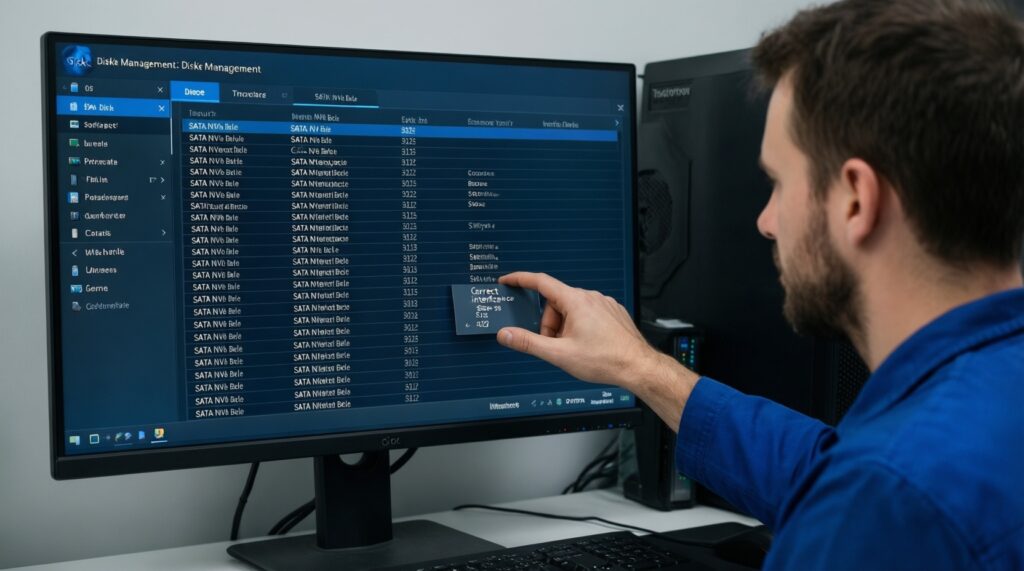
Identify the correct device and interface
List disks first to avoid reading the wrong drive, especially if you have multiple SSD/HDD devices attached. Note whether it's SATA, NVMe, or behind a USB enclosure (SMART may be partial).
- Windows: check Disk Management for disk number and size.
- Linux:
lsblk -o NAME,SIZE,MODEL,SERIAL,TYPE - macOS:
diskutil list
-
Capture a full S.M.A.R.T. report (attributes + logs)
Record the output to a text file so you can compare later. Avoid running multiple "repair" tools first; you want a clean baseline.
- SATA/SAS:
smartctl -a /dev/sdX - NVMe:
nvme smart-log /dev/nvme0(orsmartctl -a /dev/nvme0if supported)
- SATA/SAS:
-
Ignore single "health %" when attributes contradict it
Many tools show a simplified score that can remain "Good" while critical counters rise. Treat increasing error counters and failed self-tests as higher priority than a green badge.
- HDD red flags: reallocated, pending, uncorrectable sectors trending upward.
- SSD red flags: rapid wear increase, repeated media errors, failing self-tests.
-
Differentiate drive failure vs. connectivity issues
If you see many CRC/interface errors, reseat/replace cables or try another port/enclosure and re-check. Connectivity errors can corrupt transfers even if the drive media is fine.
- Test with a known-good SATA cable or a different USB-to-SATA bridge.
- Prefer direct SATA/NVMe connection for diagnostics when possible.
-
Run a safe self-test, then stop if it fails
Start with a short test to reduce stress. If the drive reports failure, don't loop tests-move straight to backup/clone and replacement planning.
- Start short test:
smartctl -t short /dev/sdX - Check result:
smartctl -a /dev/sdX(look for self-test log)
- Start short test:
-
Decide the next action based on trend and risk
If attributes are stable, set monitoring. If they worsen or tests fail, back up immediately and schedule replacement. If the drive is unreadable or contains irreplaceable data, consider professional services.
- For critical cases in Thailand, search for บริการกู้ข้อมูล SSD HDD instead of DIY stress testing.
Fast mode (3-5 steps for quick triage)
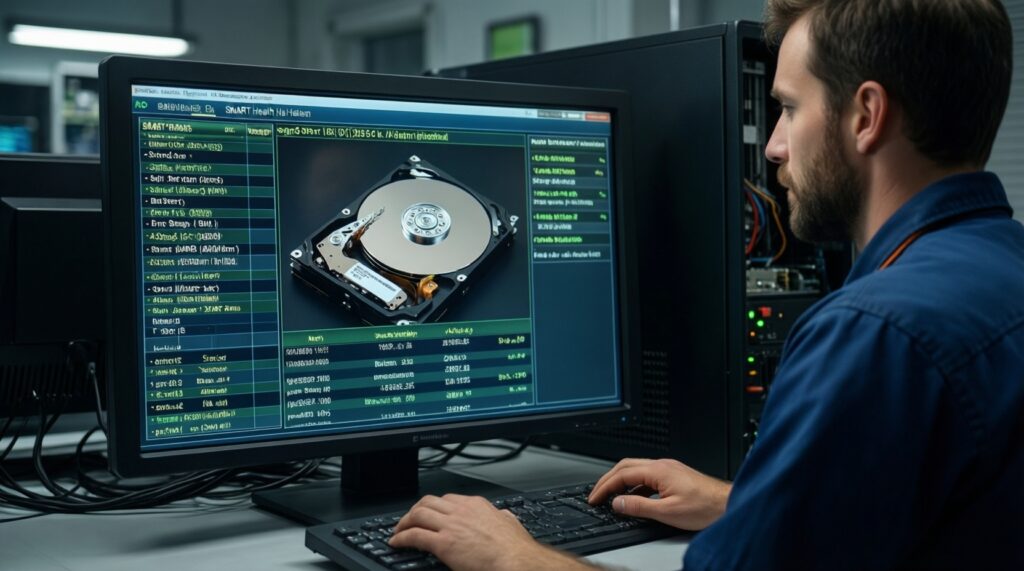
- Check disk visibility and basic status (OS tool) and confirm the correct device.
- Run
smartctl -a(ornvme smart-log) and save the report. - If any self-test failures, pending/uncorrectable sectors, or rapidly changing SSD wear appear: start backup immediately.
- Only after backup, run a short self-test; avoid repeated tests if errors show up.
- Plan replacement if the trend worsens; escalate to recovery service if data can't be copied cleanly.
Practical Steps to Test SSD/HDD Performance and Integrity
- Verify you have a current backup (or a full clone) before any extended test.
- Check file system integrity using the OS tool (do not force "repairs" on a failing disk without a backup).
- Run a short SMART self-test and review the self-test log for errors.
- If stable, run an extended/long self-test once (overnight is typical, depending on drive size and speed).
- Spot-check read performance by copying a large file set from the suspect drive to a healthy target; note retries, freezes, or I/O errors.
- Monitor temperatures during tests; stop if the drive overheats or disconnects.
- Re-check key SMART attributes after testing and compare with the baseline report (look for worsening counters).
- If the drive is in a USB enclosure, repeat one check using a direct connection (when feasible) to rule out enclosure issues.
Reliable Backup Strategies to Run Before a Drive Fails
Use at least one offline or separate-device copy, and verify that it can be restored. If you're evaluating ซอฟต์แวร์สำรองข้อมูลอัตโนมัติ, prioritize tools that support scheduling, versioning, and verification logs.
- Relying on a single backup destination (one external disk only) without a second copy.
- Backing up only "important folders" and forgetting browser profiles, password vaults, VM images, or app data.
- Not testing restore (a backup that can't be restored is not a backup).
- Running "sync" instead of "backup with versions" and accidentally propagating deletions/corruption.
- Keeping the backup drive always connected (ransomware and power events can affect both).
- Using a cheap/unstable enclosure that disconnects under load, causing incomplete backups.
- Waiting for extended diagnostics before copying data off a drive that already shows read errors.
- Skipping a new external drive purchase when capacity is tight; if you plan to ซื้อฮาร์ดดิสก์สำรองข้อมูลภายนอก, choose one with enough headroom for full-system images and multiple versions.
Automating Monitoring, Alerts and Emergency Recovery
Choose the simplest option that reliably alerts you before data becomes unreadable.
- Scheduled SMART checks + notifications: Run
smartctlon a schedule and alert on attribute changes or failed tests; suitable for desktops and home labs. - Vendor SSD utilities for periodic health checks: Convenient for a quick โปรแกรมเช็กสุขภาพ SSD S.M.A.R.T. workflow, but still cross-check with raw attributes when results look "too green."
- NAS/Server monitoring stack: Use system monitoring that tracks disk errors and temperatures; best for multiple drives and always-on systems.
- Recovery-first playbook: If the drive begins dropping offline or shows escalating read failures, stop automation and switch to cloning/backup attempts; escalate to บริการกู้ข้อมูล SSD HDD when data value is high.
Typical Troubleshooting Questions from Technicians
SMART shows "PASSED" but my PC freezes when accessing the drive-what now?
Save a full SMART report and check error logs plus pending/uncorrectable sectors. If freezes persist, back up immediately and test cabling/enclosure to rule out interface issues.
Why can't I see SMART data through my USB enclosure?
Many USB-to-SATA bridges don't support SMART pass-through. Try a different enclosure, a different USB port/cable, or connect the drive directly via SATA.
Is it safe to run an extended SMART test on a suspect drive?
Only after you have a verified backup/clone. If the drive is already throwing read errors or disconnecting, prioritize copying data first and avoid repeated stress tests.
Which matters more: Reallocated sectors or CRC errors?
Reallocated/pending/uncorrectable sectors indicate media problems; treat them as higher risk. CRC errors often indicate cabling/enclosure issues, but still warrant fixing because they can corrupt transfers.
My SSD "life remaining" dropped quickly-does it mean it will fail tomorrow?
Not necessarily, but a rapid change is a strong signal to back up and monitor more frequently. Confirm with additional indicators (media errors, self-test results, error logs) rather than one metric.
Windows says the drive is OK, but smartctl shows warnings-who is right?
Trust the detailed SMART attributes and logs over generic OS status. Use the OS check as a quick screen, then base decisions on trends and self-test outcomes.
When should I stop DIY and use professional recovery?
If the drive is unreadable, repeatedly disconnects, has critical data with no backup, or shows worsening errors during copying, stop experimenting and contact a บริการกู้ข้อมูล SSD HDD provider.