If your Windows PC feels slow, you can usually fix it without reinstalling by measuring what delays boot, reducing startup load, disabling or delaying non-essential services, and reclaiming disk space safely. This guide focuses on reversible changes with clear rollback options, using built-in Windows tools plus a few reputable utilities when needed.
Actionable Summary for Speed Repairs
- Measure boot and login delays first (Task Manager + Event Viewer), then change only what correlates with the slowdown.
- Trim startup apps (disable, don't uninstall) and review scheduled tasks that run at login.
- Audit services with a "manual start" approach for non-critical items; document every change for rollback.
- Recover space using Storage Sense/Disk Cleanup, component cleanup, and safe temp clearing.
- Optimize storage health (TRIM, SMART check, disk error scan) and keep paging and indexing sane.
- Verify improvements with repeatable checks; keep a rollback plan (restore point + notes).
Diagnose Boot Bottlenecks with Startup Analysis
This fits you if the PC is slow mainly at boot/login, or gets sluggish after a while due to background apps. It is also ideal when the goal is ซ่อมคอมพิวเตอร์ คอมช้า ไม่ต้องลงวินโดวส์ใหม่ and you want measurable, low-risk tuning instead of a wipe.
Do not proceed if you suspect failing hardware (clicking drive noises, frequent blue screens), encrypted/corporate-managed devices where policy controls startup/services, or if you cannot get admin rights. In those cases, diagnosis first (SMART, memory test, IT policy check) is safer than tweaking.
- GUI: Task Manager > Startup apps and Performance tab; Event Viewer > Applications and Services Logs > Microsoft > Windows > Diagnostics-Performance > Operational.
- CLI (Admin recommended): Use PowerShell for quick inventory and change tracking (examples included below).
Optimize Startup Apps and Scheduled Tasks
What you need (keep it simple and reversible):
- Access: A Windows admin account for service/task changes; standard user is enough for some startup items.
- Built-in tools: Task Manager, Settings, Task Scheduler, Services (services.msc), Event Viewer.
- CLI tools: PowerShell, DISM, SFC, CHKDSK (run carefully).
- Optional "โปรแกรมจัดการ Startup Windows" tools: Sysinternals Autoruns (advanced; use only if you can interpret entries and create restore points).
- Optional "โปรแกรมเร่งความเร็วคอม Windows" utilities: Prefer built-in tuning first; treat third-party "boosters" as optional and verify they don't bundle unwanted changes.
Before you start (risk-aware):
- Create a restore point (reversible): GUI System Properties > System Protection > Create.
- Write down what you change (app/service/task name + previous state) to enable fast rollback.
- Disable in small batches (3-5 items), reboot, and re-check performance to avoid guessing.
- Don't disable security components you rely on (Microsoft Defender, VPN, disk encryption, backup agents).
Audit and Triage Windows Services Safely
Goal: reduce background contention without breaking networking, updates, printing, audio, or security. The safest pattern is switching non-essential third-party services from Automatic to Automatic (Delayed Start) or Manual, not Disabled, unless you are sure.
-
Baseline the symptoms and capture evidence
GUI: Open Task Manager > Processes and sort by CPU, Memory, Disk. Note which processes spike during slowness.
CLI: In PowerShell:
Get-Process | Sort-Object CPU -Descending | Select-Object -First 10 Name,CPU,IdGet-Process | Sort-Object WorkingSet -Descending | Select-Object -First 10 Name,@{n='MB';e={[math]::Round($_.WorkingSet/1MB,0)}},Id
Rollback: None needed; this is read-only.
-
Reduce startup load before touching services
GUI: Task Manager > Startup apps > disable items with high impact you don't need at login (chat clients, auto-updaters, launchers).
CLI: You can inventory common Run entries:
Get-ItemProperty "HKCU:SoftwareMicrosoftWindowsCurrentVersionRun"Get-ItemProperty "HKLM:SoftwareMicrosoftWindowsCurrentVersionRun"
Rollback: Re-enable the same entry in Startup apps (or restore registry entry if you removed it-prefer disable over delete).
-
Identify third-party services and prioritize safely
GUI: Run
services.msc> sort by Startup Type and review non-Microsoft vendors (check the service "Path to executable" and "Description").CLI: List non-Microsoft-ish services (heuristic):
Get-CimInstance Win32_Service | Where-Object {$_.PathName -notmatch 'WindowsSystem32'} | Select-Object Name,StartMode,State,PathName | Sort-Object StartMode,Name
Risk note: Some drivers/agents live outside System32; do not disable storage, GPU, touchpad, audio, VPN, or antivirus services unless you fully understand them.
-
Change service startup type using the least destructive option
GUI: Services > double-click a service > set Startup type to Automatic (Delayed Start) or Manual > Apply.
CLI: For a chosen service name (example):
- Set to manual:
sc.exe config "ServiceName" start= demand - Set to delayed-auto (where supported):
sc.exe config "ServiceName" start= delayed-auto
Rollback: Set it back to the previous Startup type you recorded; reboot and confirm behavior.
- Set to manual:
-
Review scheduled tasks that run at logon or on idle
GUI: Task Scheduler > Task Scheduler Library > check triggers like "At log on" / "At startup". Disable only clearly non-essential updater/telemetry tasks from third-party apps.
CLI:
Get-ScheduledTask | Where-Object {$_.State -ne 'Disabled'} | Select-Object TaskName,TaskPath,State- For deeper inspection (triggers/actions), use Task Scheduler GUI per task.
Rollback: Re-enable the task (do not delete). If something breaks (e.g., an app stops updating), re-enable its updater task.
-
Validate after each batch with a reboot and quick metrics
GUI: Reboot, then re-check Task Manager for Disk/CPU at idle and "Startup impact" values. In Event Viewer, review Diagnostics-Performance events around boot.
CLI: Check service states quickly:
Get-Service | Where-Object {$_.Status -eq 'Running'} | Measure-Object
Rollback: If boot/login breaks, boot into Safe Mode, undo the last changes (services/tasks), or use System Restore.
Note for Thai market context: if you're comparing doing this yourself vs บริการแก้คอมช้า Windows ราคา, a safe DIY baseline (startup + services + disk cleanup) helps you describe the problem precisely to a shop and avoid paying for unnecessary reinstallations.
Recover Disk Space Without Reinstalling
Use built-in cleanup first; it's the safest "โปรแกรมล้างไฟล์ขยะ เพิ่มพื้นที่ว่าง Windows" approach because it respects Windows servicing and avoids aggressive registry cleaning.
- GUI: Settings > System > Storage > Temporary files; enable Storage Sense for ongoing cleanup.
- GUI (classic): Run
cleanmgr> "Clean up system files". - CLI (Admin): Component cleanup:
DISM /Online /Cleanup-Image /StartComponentCleanup
Result check (do these after cleanup):
- Reboot once and confirm Windows still updates and launches key apps normally.
- Settings > System > Storage: confirm free space increased on the system drive.
- File Explorer: check Downloads and Recycle Bin are intentionally cleaned (no accidental deletions).
- Confirm
C:WindowsTempand%TEMP%cleanup did not remove files currently in use (errors are fine; skip locked files). - Verify hibernation setting before removing it (only if you don't use it):
powercfg /a; then optionallypowercfg /h off(reversible withpowercfg /h on). - Check Storage > Apps: sort by size and remove genuinely unused apps (uninstall is reversible via reinstall, but can remove settings).
- Confirm cloud sync (OneDrive/Google Drive) still has enough local space for its cache.
- If you moved user folders or game libraries, ensure shortcuts and permissions still work.
Tune Storage and File System for Performance
- Running CHKDSK without understanding downtime:
chkdsk /fmay require reboot and can take time; avoid during urgent work. Use read-only scan first:chkdsk. - Disabling the page file entirely: It can cause crashes or app instability. If you must adjust, prefer "System managed size" (reversible).
- Defragmenting SSDs manually like HDDs: Use "Optimize Drives" which performs TRIM appropriately; do not run third-party defrag tools on SSDs.
- Ignoring SMART warnings: If the drive reports problems, tuning won't fix it-plan a backup and replacement.
- Over-aggressive "registry cleaning" tools: They rarely improve speed and increase risk; avoid them even if marketed as โปรแกรมเร่งความเร็วคอม Windows.
- Disabling Windows Update services: It can lead to security and stability issues and often causes later slowdowns when updates pile up.
- Turning off antivirus without a plan: Real-time protection affects performance, but removing it increases risk. Use exclusions sparingly and only for trusted, high-I/O dev/build folders.
- Changing many variables at once: You lose causality. Make one change set, test, then continue.
Verification, Monitoring, and Rollback Plans
When the above doesn't fully resolve "ซ่อมคอมพิวเตอร์ คอมช้า ไม่ต้องลงวินโดวส์ใหม่", use these alternatives based on what you observed:
- Clean boot troubleshooting (targeted isolation): Use
msconfigto hide Microsoft services and disable the rest temporarily to find the offender. Suitable when you suspect a third-party conflict; rollback by re-enabling items. - In-place repair install (keeps apps and files): Use the Windows installation media to repair system components without a full wipe. Suitable if SFC/DISM errors persist; rollback is limited, so back up first.
- Hardware validation and upgrade path: If Disk is pegged at 100% or SMART looks bad, consider SSD replacement or RAM upgrade. Suitable when monitoring indicates resource saturation; rollback depends on hardware.
- Professional servicing: If you need guaranteed turnaround or lack admin access, ask for a documented scope (startup/service audit + storage health check) when comparing บริการแก้คอมช้า Windows ราคา.
Common Concerns and Quick Clarifications
Is disabling startup apps safe?
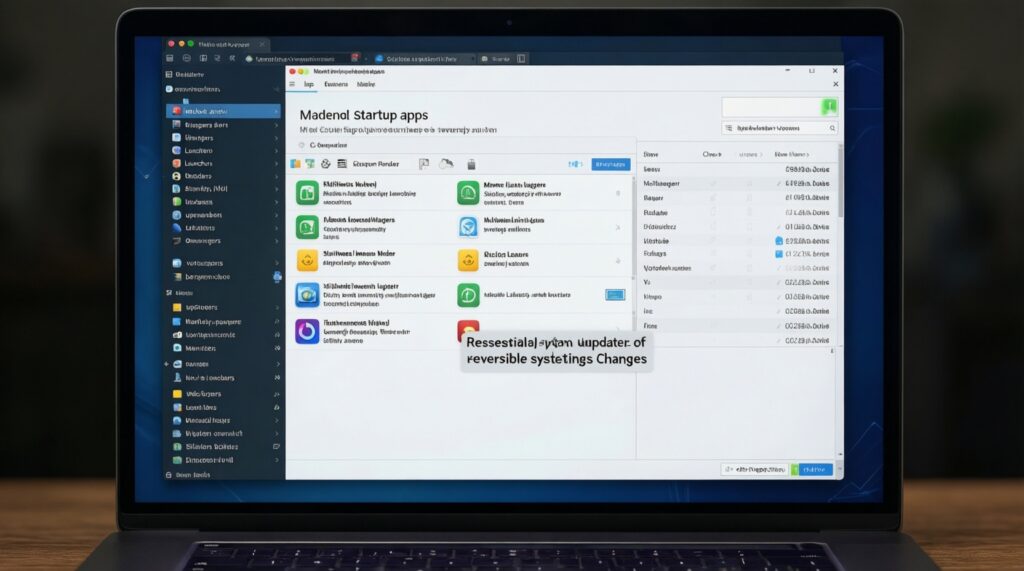
Yes if you disable non-essential items (launchers, updaters, chat). It's reversible in Task Manager > Startup apps by re-enabling the same entry.
Should I use a "โปรแกรมจัดการ Startup Windows" tool?
Built-in Task Manager is enough for most cases. Use Autoruns only if you can identify entries and you've created a restore point, because it exposes many low-level autostarts.
Do "โปรแกรมเร่งความเร็วคอม Windows" apps actually help?
Some help by surfacing the same startup and cleanup toggles, but many add risk (bundled changes, aggressive cleaning). Prefer measuring + built-in tools first, then verify any improvement.
What services are generally unsafe to disable?
Avoid disabling security, networking, storage, Windows Update, and device-driver services unless you know exactly what they do. When unsure, switch to Manual or Delayed Start rather than Disabled.
What is the safest "โปรแกรมล้างไฟล์ขยะ เพิ่มพื้นที่ว่าง Windows" approach?
Use Storage Sense and Disk Cleanup with "Clean up system files", then DISM component cleanup if needed. Avoid registry cleaners and unknown "one-click" cleaners.
When should I stop and consider repair shop help?
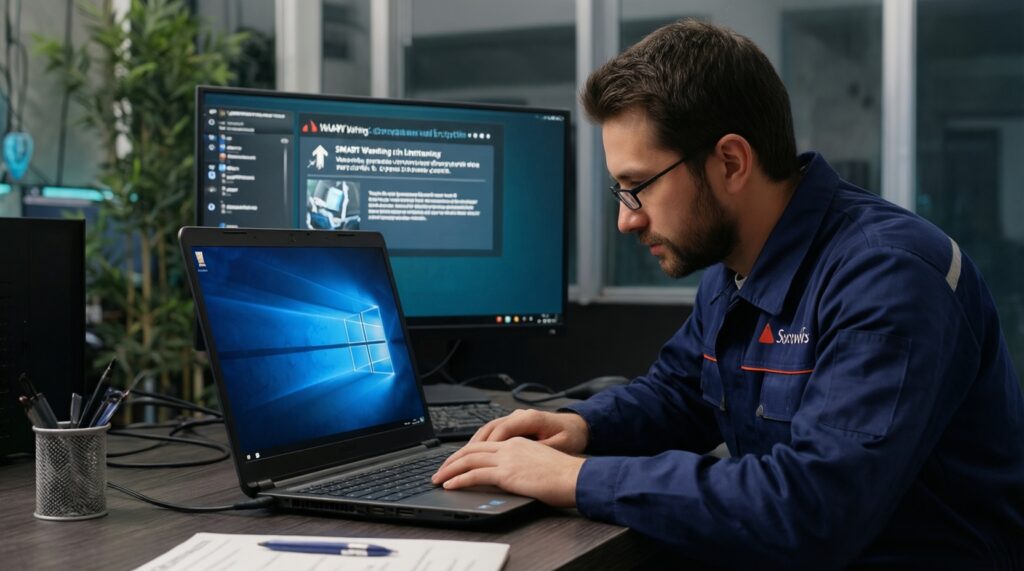
If there are SMART warnings, repeated blue screens, encrypted/managed corporate policies, or you can't get admin access. In that case, describe what you measured when asking about บริการแก้คอมช้า Windows ราคา.
Will these steps avoid reinstalling Windows completely?
Often yes, especially when the slowdown is startup bloat or low disk space. If system files are corrupted beyond repair, an in-place repair install may be the next step before a full reinstall.