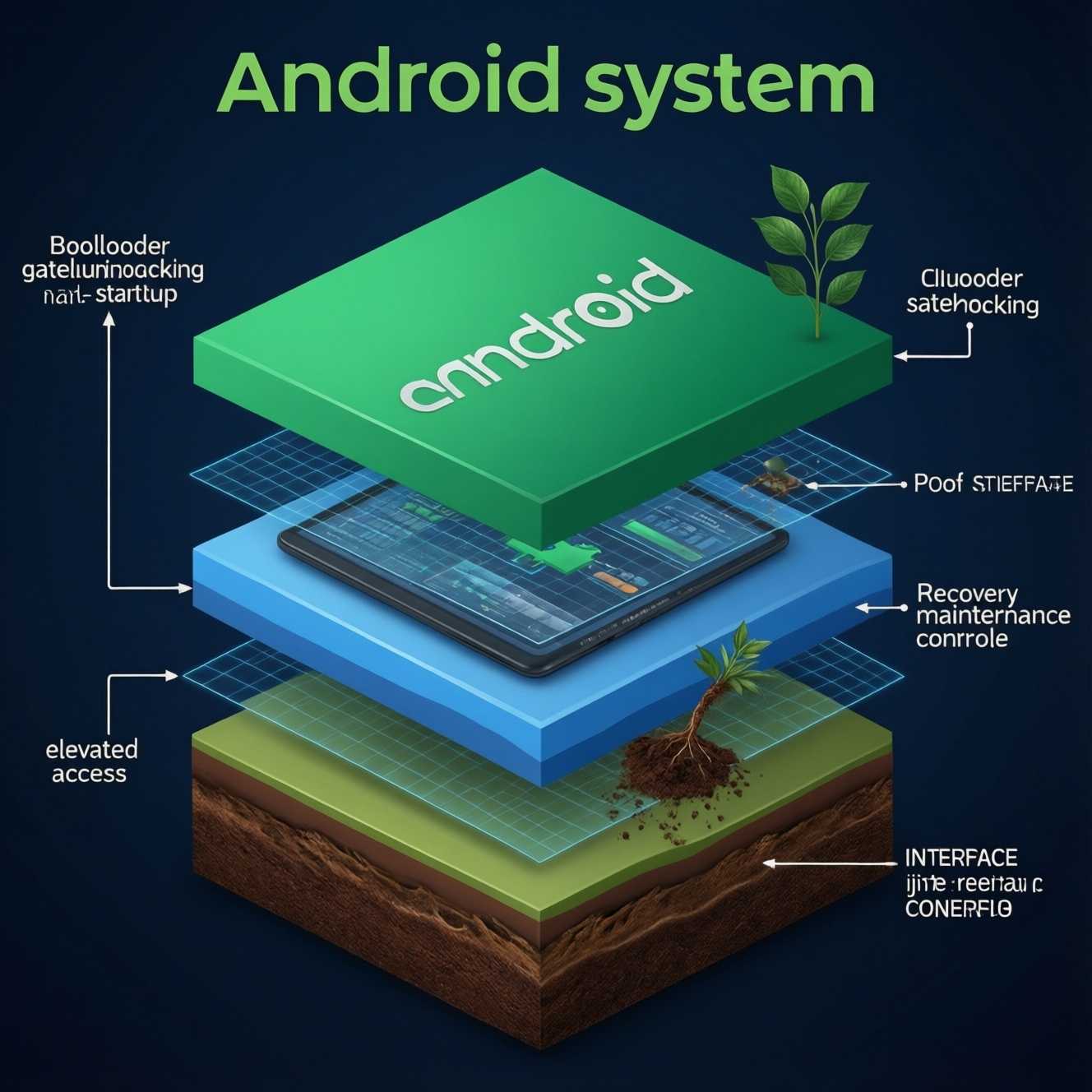
Bootloader, Recovery, and Root are three different Android layers: the bootloader decides what software is allowed to start, recovery is a separate maintenance environment for resets/updates/backups, and root is elevated access inside Android itself. If you want custom ROMs, you typically unlock the bootloader, install a custom recovery, and optionally root.
Essential distinctions between Bootloader, Recovery, and Root
- Bootloader = the device's startup gatekeeper; unlocking it changes what can be flashed and usually triggers a data wipe.
- Recovery = a separate boot mode for maintenance; stock recovery is limited, custom recovery enables full-device backups and advanced flashing.
- Root = admin-like permission inside Android; it changes what apps and services can do, not how the phone boots.
- If you only need a factory reset or official updates, then stock recovery is enough; you do not need root.
- If you want custom ROMs or custom kernels, then bootloader unlock is the usual prerequisite.
- If you want full offline backups and easier ROM management, then a custom recovery (often TWRP) is the practical tool.
What a Bootloader Does and How It Impacts Your Device
The bootloader is the first-stage program that runs when your Android device powers on. Its job is to verify and start the next components (boot, vendor, system, recovery), often enforcing signature checks to prevent untrusted images from loading.
When people talk about "unlocking," they mean disabling or loosening those verification restrictions so you can flash non-official images. If you search for ปลดล็อก bootloader มือถือ, the practical implication is: you gain flashing freedom, but you usually lose some protections (and you must accept vendor-specific consequences such as data wipe).
Bootloader unlocking is not the same as rooting. If you unlock the bootloader and do nothing else, Android still boots normally and apps still do not have root privileges.
| Layer | Where it operates | Main purpose | What it enables | Typical risk |
|---|---|---|---|---|
| Bootloader | Before Android starts | Boot verification and start-up control | Flashing custom images (ROM/kernel/recovery) | Data wipe; weaker boot-chain security if mismanaged |
| Recovery | Separate maintenance boot mode | Repair, update, wipe, backup/restore | Custom ROM installs; full-device backups (custom) | Soft-brick if wrong images/zips are flashed |
| Root | Inside running Android | Grant privileged access | System-level tweaks, advanced automation, debugging | Security exposure; app integrity and update friction |
Recovery Modes Compared: Stock vs Custom and Their Use Cases
Recovery is a minimal environment that boots independently from Android. Stock recovery is intended for official maintenance; custom recovery expands what can be installed and how backups are handled.
- Boot path: recovery is a separate partition/image that the bootloader can start instead of Android.
- Stock recovery: typically supports factory reset, applying official update packages, and basic diagnostics.
- Custom recovery (e.g., TWRP): adds full partition backups, file management, and flashing of community ROMs/kernels/mods.
- Signature enforcement: stock recovery usually enforces vendor signatures; custom recovery can install unsigned community packages.
- Decryption reality: on many modern devices, recovery must support your device's encryption scheme to access internal storage.
- Update flow: official OTA updates may fail after modifications, depending on device and what was changed.
Rooting Explained: Methods, Permission Models, and Security Trade‑offs
Rooting means enabling controlled superuser access within Android. Modern rooting typically uses a "root manager" that mediates which apps get privileged access, rather than giving every app unlimited power.
Common intermediate-level use cases:
- If you need advanced debugging (hosts rules, deeper logs, app sandbox inspection), then root can make troubleshooting practical.
- If you want system-wide automation beyond normal permissions, then root can unlock powerful task flows (with higher responsibility).
- If you need to run firewall-like controls or deep network tools, then root can enable low-level packet and rule management.
- If you are building/testing ROM components, then root helps validate changes quickly without full rebuild cycles.
- If you want to remove vendor apps at a system level, then root enables removal/disablement that normal user mode may block.
If your goal is X, then pick Y (quick decision rules)
- If you only want to install a custom ROM, then start with bootloader unlock + custom recovery; root is optional.
- If you want reliable full-device backups before experimenting, then install a custom recovery first (after unlocking, if required).
- If you want app-level system tweaks (ad-blocking methods, deep automation, advanced diagnostics), then root is the lever-but treat it as a security decision.
- If you are mainly comparing service costs (e.g., รูท Android ราคา), then separate the quote into three line items: bootloader unlock, recovery install, root setup.
Practical guide to Unlocking the Bootloader Safely
Bootloader unlock is a procedure, not a single universal button. Vendors implement different policies and tools, so you must follow your device's official unlock path where available.
Benefits (if..., then...)
- If you plan to flash a custom ROM, then unlocking is usually required.
- If you want to install a custom recovery for backup/restore workflows, then unlocking is often the prerequisite.
- If you need to recover from certain boot issues by reflashing images, then an unlocked bootloader makes recovery options broader.
Constraints and guardrails (if..., then...)
- If you have not backed up everything, then do not unlock yet; many devices wipe user data during the unlock process.
- If your work profile, banking apps, or device attestation matters to you, then expect friction after unlocking and plan alternatives.
- If you are shopping around using queries like ปลดล็อก bootloader ราคา, then ask the shop to state the exact device model, the official method used, and whether data wipe will occur.
- If you rely on warranty terms, then read your brand's policy first; some vendors treat unlocking as a support boundary.
Minimal safe workflow you can verify
- Backup: copy photos/files; export authenticator codes; note critical app logins.
- Identify model/variant: confirm exact model code (regional variants can differ in unlock ability).
- Use official tools where available: enable OEM unlocking/USB debugging, then follow the vendor unlock instructions.
- After unlock: boot once, verify basic functions (calls, Wi‑Fi, camera), then proceed to recovery/ROM steps.
Installing a Custom Recovery and Managing ROMs in Practice
Custom recovery is where many "looks easy on YouTube" guides fail-usually due to device mismatch, modern partition schemes, or encryption. If you're comparing quotes like ลง TWRP recovery ราคา, ensure the service includes verification and a rollback plan, not just flashing.
- Myth: "Any TWRP works on any device." Reality: recoveries are device-specific; flashing the wrong one can break boot or touch input.
- Common mistake: skipping verification. If you don't confirm bootloader state and exact model, then you risk flashing incompatible images.
- Common mistake: not handling encryption. If recovery cannot decrypt data, then ROM zip placement and backups become unreliable.
- Myth: "Custom recovery guarantees OTA updates." Reality: official OTAs often expect an unmodified system.
- Common mistake: flashing too many mods at once. If you stack ROM + kernel + tweaks without reboot testing, then diagnosis becomes guesswork.
Post‑root Maintenance: Updates, Backups, and Reversibility
After rooting, treat your device like a managed system: document changes, keep clean backups, and plan updates. If you want "set and forget," then don't root; if you do root, then operational discipline is what keeps the phone stable.
Mini-case: update planning after modifications
- If you are about to change anything (ROM/kernel/root modules), then create a recovery backup and copy it off-device.
- If an update is critical, then remove/disable risky modules first and reboot to confirm baseline stability.
- If an OTA fails, then prefer a clean flash path you understand (and can reverse) rather than repeatedly forcing the same update.
if (planning_change) {
  make_recovery_backup();
  export_backup_off_device();
}

if (must_take_update) {
  disable_root_modules();
  reboot_and_verify();
  attempt_update();
}

if (update_failed) {
  restore_backup_or_clean_flash();
}
If you are searching for บริการรูท Android ใกล้ฉัน, then ask for: (1) what root method will be used, (2) how updates will be handled afterward, and (3) how unroot/restore will be performed if an app stops working.
Practical clarifications and common stumbling blocks
Do I need to unlock the bootloader to root?

If your device's root method requires flashing a modified boot image, then yes-bootloader unlock is typically required. If a method claims "no unlock needed," then verify device support carefully and assume higher risk.
Is installing a custom recovery the same as rooting?
No. If you install a custom recovery, then you gain maintenance and flashing features, but Android itself is not rooted unless you install a root solution.
Will unlocking the bootloader erase my data?

On many devices, yes. If you cannot afford a wipe, then do a full backup and postpone unlocking until you're ready.
Can I go back to stock later?
Usually, yes. If you keep original firmware images and follow the official restore process, then you can return to stock; re-locking the bootloader may require fully stock partitions.
Why do banking or work apps sometimes fail after root/unlock?
If an app relies on device integrity checks, then unlocking/root can trigger restrictions. If those apps are essential, then avoid modifications or plan a separate device.
What should I ask a shop before paying for bootloader/recovery/root service?
If you want a safe outcome, then ask for the exact model support, whether data wipe will occur, and the rollback plan. If pricing is quoted (e.g., ปลดล็อก bootloader ราคา or รูท Android ราคา), then require a written scope: unlock only vs unlock+recovery vs full root setup.