Undervolting is the process of lowering CPU/GPU operating voltage while keeping clocks stable, which usually reduces heat, fan noise, and throttling without sacrificing performance. The safest approach is incremental tuning, strict stability validation, and easy rollback. This guide covers practical CPU and GPU workflows for Windows and Linux, with tool choices and risk controls.
Critical safety principles for undervolting
- Change only one variable at a time (voltage first; clocks later), and keep notes for every step.
- Work in small increments and validate after each change; avoid "big jumps" even if temperatures look high.
- Always keep a rollback path: default profile saved, safe-mode boot plan, and auto-apply disabled until stable.
- Validate with repeatable loads (gaming loop + synthetic stress), watching for WHEA errors, driver resets, and artifacts.
- Undervolting is "safe" when it fails gracefully: instability should cause crashes, not hardware damage-your job is to catch it early.
- Prefer vendor/OS-supported controls where possible; BIOS/firmware locks are common on laptops and must be respected.
Why undervolt: measurable gains in temperature and longevity
Undervolting is most useful when your system hits thermal limits (high sustained temperatures, loud fans, performance drops from throttling) or when you want steadier boost behavior at the same performance. It's also a common tuning step for the goal expressed in Undervolt GPU ลดความร้อน เพิ่มประสิทธิภาพ: keep performance steady by reducing heat and power spikes.
- Good candidates: gaming laptops, small-form-factor PCs, GPUs that frequently boost/thermal-throttle, CPUs with high sustained package power.
- Skip or postpone if: you have random crashes at stock, corrupted drivers/OS, inadequate cooling contact (paste/pads), or you can't monitor sensors reliably.
- Special note (laptops): some models lock CPU voltage control in firmware; when locked, focus on power limits, curve tuning (GPU), and cooling instead.
Preparing the system: backups, monitoring, and baseline benchmarks
Before attempting วิธี Undervolt CPU อย่างปลอดภัย, set up baseline monitoring and an escape route. You want to know what "normal" looks like and be able to revert fast if the system becomes unstable.
Fast preparation checklist
- Create a restore point (Windows) or ensure you can revert kernel parameters/configs (Linux).
- Update GPU driver to a stable release you trust; avoid changing drivers mid-tuning.
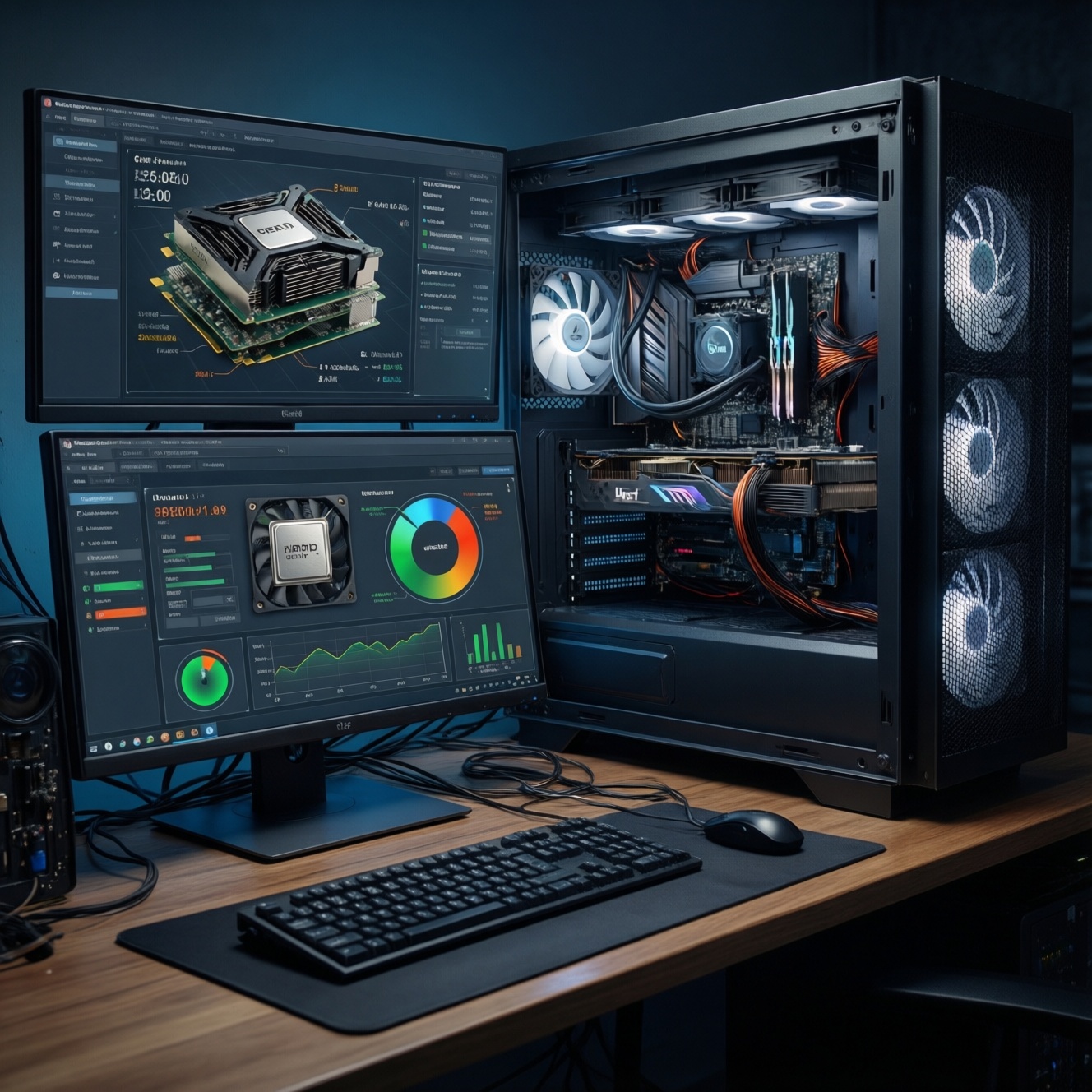
- Install monitoring: temperatures, clocks, power, and error logging.
- Capture a baseline: 10-15 minutes of your real game/workload + one consistent stress/benchmark run.
- Disable any "apply at startup" for tuning tools until stability is proven.
Tooling comparison (choose the least invasive option that works)
| Target | Tool / method | OS | What you control | Granularity | Notes / constraints |
|---|---|---|---|---|---|
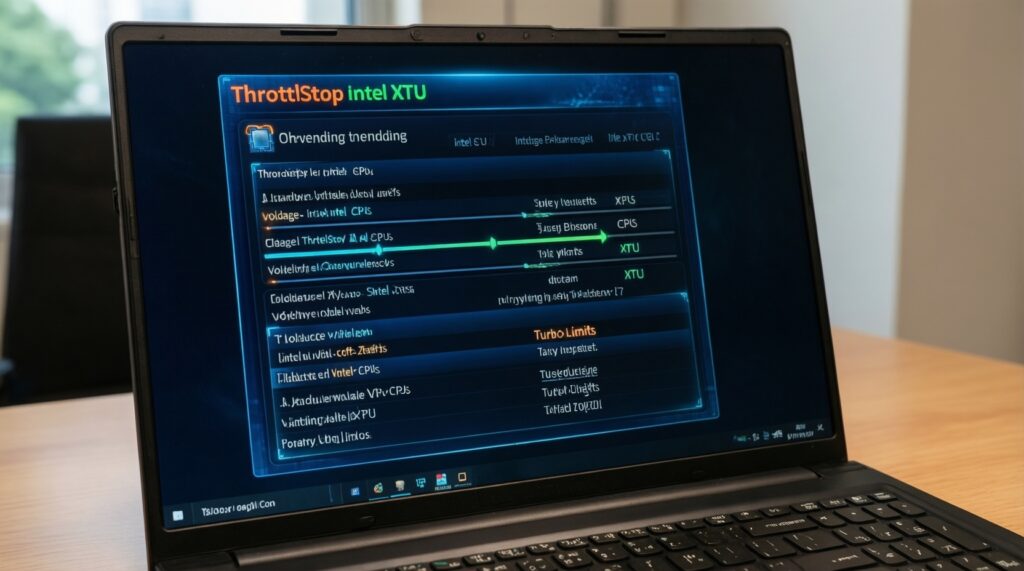
| Intel laptop CPU | ThrottleStop | Windows | Voltage offset, power limits, turbo behavior | Fine | Often referenced as โปรแกรม Undervolt CPU ที่ดีที่สุด (ThrottleStop/Intel XTU); voltage may be firmware-locked. |
| Intel desktop CPU | Intel XTU or BIOS | Windows / UEFI | Voltage offset/adaptive, power limits | Fine to medium | XTU changes can be reverted quickly; BIOS is more persistent-use with extra caution. |
| AMD CPU (desktop) | BIOS PBO + Curve Optimizer | UEFI | Per-core/per-CCD voltage-frequency behavior | Fine | Modern AMD undervolting is typically "curve" based rather than a simple offset. |
| NVIDIA / AMD GPU | MSI Afterburner (curve editor) | Windows | Voltage-frequency curve, power limit, fan curve | Fine | Common pick for โปรแกรม Undervolt GPU ที่ดีที่สุด (MSI Afterburner); avoid auto-apply until validated. |
| AMD GPU | AMD Adrenalin tuning | Windows | Undervolt slider/curve, power limit | Medium | Vendor-supported path; good first choice when available. |
| Linux (GPU/CPU) | Driver + sysfs / distro tools | Linux | Often power limits/clock caps; voltage control varies | Varies | Prefer power/clock caps if direct undervolt isn't exposed; keep changes reversible. |
Minimal baseline you should record
- CPU: sustained clock, package temperature, any WHEA/Corrected Hardware Error entries (Windows Event Viewer).
- GPU: average core clock, hotspot temp (if available), power draw behavior, any driver resets.
- One "real" workload: your main game/app, same scene/route each run.
CPU undervolting procedure: practical steps for Intel and AMD
-
Confirm voltage control is actually available
On many laptops, voltage offsets may be locked by BIOS/firmware. If your tool shows the controls but they have no effect (or revert instantly), stop and use power limits/cooling steps instead.
- Windows (Intel laptop): check ThrottleStop FIVR panel availability and whether offsets persist under load.
- Windows (Intel desktop): confirm XTU applies and stays applied during a stress test.
- AMD desktop: plan to use Curve Optimizer (negative curve) rather than a classic undervolt offset.
-
Create a "Stock" profile and disable auto-apply
Save a default profile you can instantly restore. Keep "apply at startup" OFF until you pass stability testing, otherwise you can get stuck in a boot-crash loop.
-
Apply the first small undervolt step
For Intel offset undervolting, reduce core voltage by one small step and (if supported) match cache/ring conservatively. For AMD Curve Optimizer, start with a mild negative curve rather than an aggressive per-core value.
- Intel guidance: keep cache/ring less aggressive than core if instability appears.
- AMD guidance: start all-core negative curve, then refine per-core only after stability.
-
Run a short stability gate after every change
Do a quick stress pass and one real workload run. Watch for freezes, reboots, WHEA errors, or sudden performance drops (clock stretching on some platforms can look "stable" but slower).
- Windows quick checks: your game for a consistent 10-15 minutes; a CPU stress tool for a short pass.
- Linux quick checks: use your normal compile/render workload; monitor temps/clocks via available system tools.
-
Iterate until you find the edge, then back off
When you hit the first sign of instability (WHEA errors, crash, freeze, or reproducible app error), revert to the last stable setting and keep a safety margin.
-
Only then consider power limits or fan tuning
Undervolting is not a replacement for sane power limits. If you still throttle, set reasonable CPU power limits for sustained workloads or tune cooling, but do it after voltage stability is proven.
Fast-track mode (3-5 steps)
- Record a baseline run (temps/clocks) and save a stock profile.
- Apply one small undervolt step (Intel offset or AMD negative curve).
- Run a short stability gate (real workload + quick stress) and check logs for errors.
- Repeat until the first instability, then revert one step and keep that as your daily profile.
- Enable "apply on startup" only after a longer validation session passes.
If you specifically want a practical tool starting point, the phrase โปรแกรม Undervolt CPU ที่ดีที่สุด (ThrottleStop/Intel XTU) usually maps to ThrottleStop for Intel laptops and Intel XTU for many Intel desktops, but availability depends on firmware policy.
GPU undervolting procedure: practical steps for NVIDIA and AMD GPUs
The safest GPU undervolt is curve-based: pick a realistic target clock, then run it at a lower voltage point with a stable curve. On Windows, many users start with MSI Afterburner (โปรแกรม Undervolt GPU ที่ดีที่สุด (MSI Afterburner)) or AMD Adrenalin's tuning panel.
Result verification checklist (use this after every GPU change)
- No visual artifacts (sparkles, checkerboarding, flashing textures) in your real game scene.
- No driver resets (Windows "Display driver stopped responding") during load transitions.
- Clock behavior is consistent (no repeated downclock spikes that weren't present at stock).
- Frame pacing remains stable (no new micro-stutter when entering heavy scenes).
- Temperatures improve or fans slow down without a performance drop in the same benchmark route.
- Power limit isn't constantly slamming into a ceiling (unless that's intentional for noise control).
- Hotspot temperature (if available) stays under control; large hotspot deltas can hint at cooling contact issues.
- Settings persist only when you choose to save/apply; no forced startup application until proven stable.
Validation and benchmarking: stability tests, logs, and thermal analysis
Validate undervolts with repeatable tests and logs, not just "it didn't crash once." Use a mix of synthetic load and your real workload, then compare to baseline to confirm you achieved "cooler without slower."
Common mistakes that cause hidden instability or lost performance
- Declaring victory after a short run: some undervolt errors appear only after heat soak or during load changes (menus, cutscenes, alt-tab).
- Changing multiple knobs at once: undervolt + overclock + fan curve makes it hard to identify the real cause of errors.
- Ignoring logs: corrected CPU errors (WHEA) can accumulate without obvious crashes; treat them as instability signals.
- Chasing the lowest voltage number: the best daily profile is the one with margin, not the absolute minimum that barely boots.
- Misreading "stable but slower" behavior: some platforms reduce effective performance under undervolt stress; always compare benchmark results, not just temps.
- Auto-applying unstable settings on boot: this is the fastest path to a frustrating recovery scenario.
- Using inconsistent benchmarks: different maps/scenes/settings produce misleading comparisons; keep the route identical.
- Skipping cooling basics: dust, bad paste, or blocked vents can dwarf undervolt benefits and create false expectations.
Recovering and troubleshooting: crashes, artifacts, and safe rollback
If you get crashes, black screens, artifacts, or sudden reboots, treat it as an unstable undervolt until proven otherwise. Recover first, then retune with smaller steps.
Safe rollback actions (in order)
- Revert to your saved stock profile in the tuning tool and reboot.
- If Windows is unstable, boot Safe Mode and remove/disable the tuning tool's startup task (or uninstall it).
- For GPU issues, reset driver settings to default and clear any saved profiles in the tuning utility.
- If BIOS-level CPU tuning caused boot issues, load BIOS defaults (or use the motherboard's safe recovery method).
Alternatives when undervolting is blocked or not worth the effort
- Set power limits instead of voltage: often available even when undervolt is locked; reduces heat predictably.
- GPU frame cap / V-Sync / limiter: lowers power and heat with minimal tuning risk, especially for esports titles.
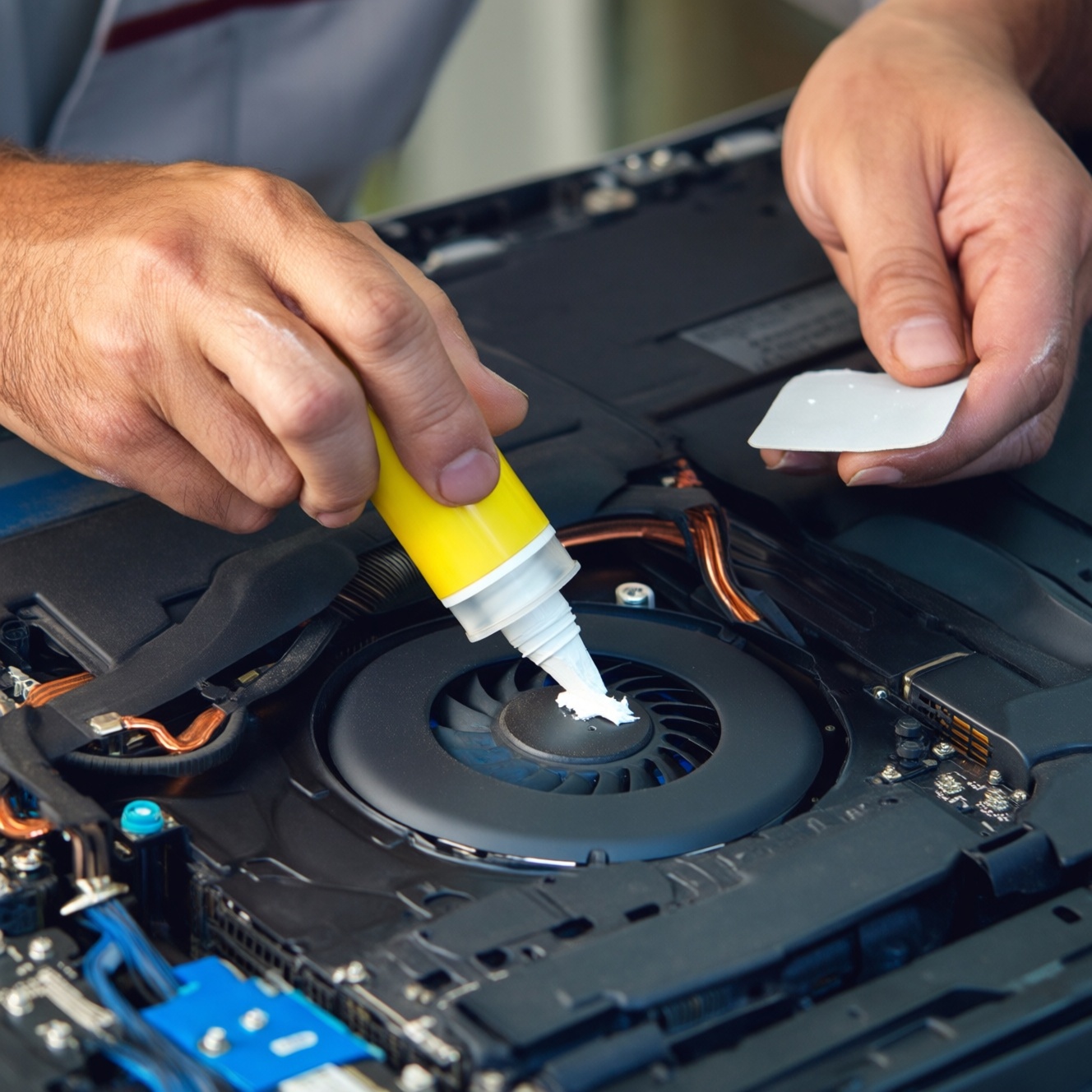
- Cooling maintenance: clean heatsinks, refresh paste/pads, improve airflow-useful when hotspot deltas are abnormal.
- Professional help: if you rely on the machine for work or can't risk downtime, consider บริการ Undervolt โน้ตบุ๊ก เกมมิ่ง ใกล้ฉัน ราคา and ask the shop to document settings and provide a rollback profile.
Concise answers on limits, warranties and risk mitigation
Can undervolting damage my CPU or GPU?
Undervolting typically fails as instability (crashes, freezes, errors) rather than physical damage. The real risk is data loss from crashes, which is why incremental steps and backups matter.
Will undervolting void my warranty in Thailand?
Software-only tuning is usually reversible, but warranty outcomes depend on the brand and service center policy. If you're concerned, keep everything at stock before service and avoid BIOS-level changes.
What's the clearest sign my CPU undervolt is too low?

WHEA corrected errors, sudden reboots, or a crash under a repeatable load are the most actionable signals. Back off to the last stable setting and keep a margin.
What's the clearest sign my GPU undervolt is too low?
Artifacts, driver resets, or black screens during load transitions are common. Increase voltage at your target clock (or lower the target clock) and retest.
Should I undervolt CPU and GPU at the same time?
No-do one first, validate, then move to the other. It prevents confusion when diagnosing instability.
If CPU voltage control is locked, what should I do instead?
Use power limits, boost behavior controls (where available), and cooling improvements. On many laptops this delivers most of the practical benefit without fighting firmware locks.
When should I enable "apply at startup" in ThrottleStop/Afterburner?
Only after you pass a longer validation session and you've confirmed you can easily revert. Until then, manual apply keeps recovery simple.