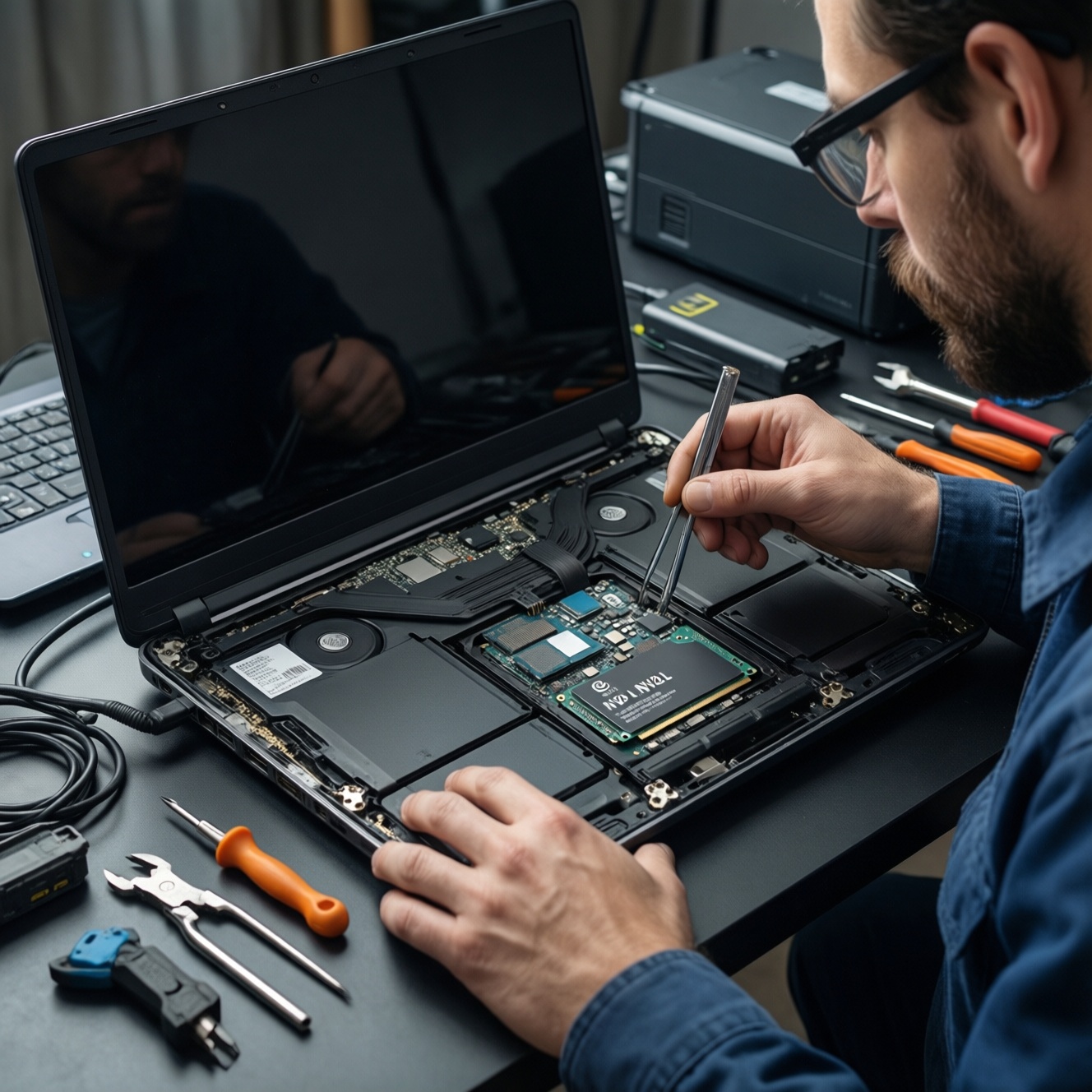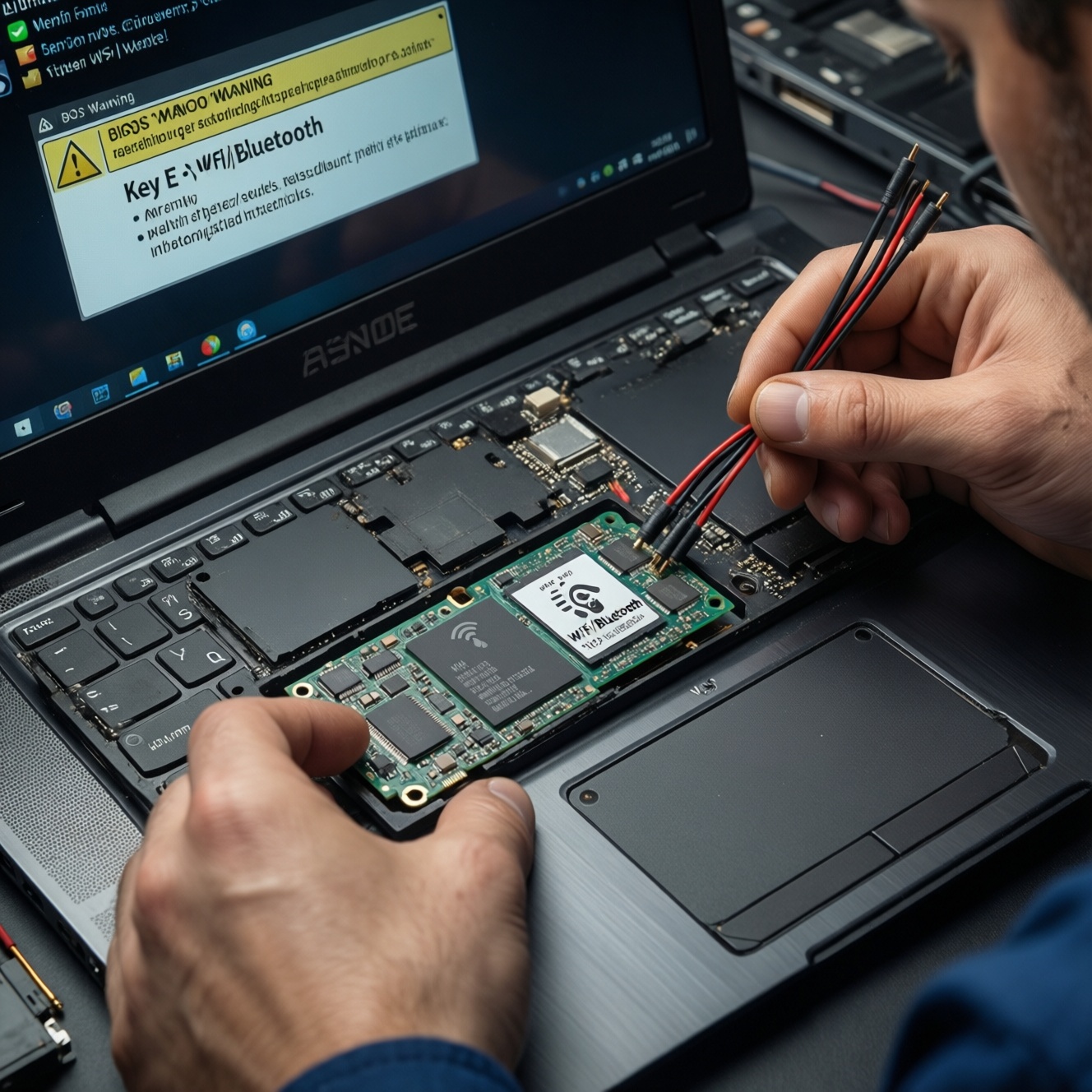
Upgrading a laptop Wi‑Fi/Bluetooth card is mainly about matching the correct form factor (usually M.2 Key E), avoiding BIOS whitelist traps, and ensuring your antenna leads and drivers fit the new chipset. With the right checks, the swap is safe and predictable: confirm interface, pick a supported chip, route antennas correctly, then validate Wi‑Fi and Bluetooth in the OS.
Pre‑upgrade Checklist: Essential Verifications
- Identify the current WLAN card form factor and keying (M.2 2230 Key E is common; older systems may use mini‑PCIe).
- Confirm the slot interface is PCIe/USB as expected for Wi‑Fi + Bluetooth (Bluetooth typically uses an internal USB lane).
- Check for OEM BIOS "whitelist" behavior (some business-class or older models block non-approved cards).
- Inspect antenna leads and connectors (MHF4 vs U.FL/IPEX) and note how many leads you have (1×1 vs 2×2).
- Verify your OS version and driver availability for the target chipset (especially for Wi‑Fi 6E/7 features).
Compatibility Matrix: Form Factors, Interfaces, and BIOS Restrictions
This is the part that determines whether อัปเกรดการ์ด Wi‑Fi โน้ตบุ๊ก is straightforward or not worth attempting.
- Good candidates: Laptops with an accessible M.2 2230 Key E WLAN slot, two antenna leads, and no known BIOS whitelist.
- Proceed carefully: Systems with only one antenna lead (you can still upgrade, but you won't get full 2×2 performance), or very thin designs with tightly routed antennas.
- Often not worth it: Soldered Wi‑Fi modules, devices with a hard BIOS whitelist you can't legally/comfortably work around, or laptops where opening the base risks damaging clipped plastics or glued parts.
Quick fit checks (before buying)
- Open Device Manager (Windows) or run
lspci/lsusb(Linux) to identify the current WLAN module vendor/model. - Confirm the card size (e.g., 2230) and key notch (Key E).
- Look for two antenna wires labeled MAIN/AUX (or 1/2).
Choosing the Right Chipset: Performance, Power, and Feature Tradeoffs
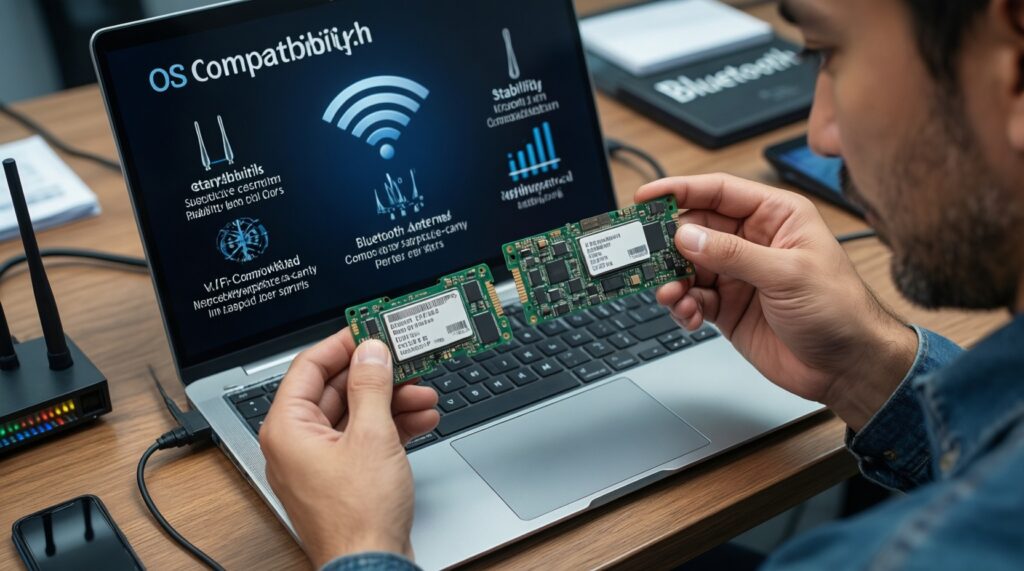
If your goal is to ซื้อการ์ด Wi‑Fi Bluetooth สำหรับโน้ตบุ๊ก, choose based on OS support, stability, and the features you can actually use (router capabilities, antenna count, and regulatory domain).
Practical chipset picks (examples)
- Intel AX200 / AX210 (Wi‑Fi 6 / 6E): Common M.2 Key E options; AX210 adds 6E capability where allowed and supported by OS/router.
- Intel BE200-class (Wi‑Fi 7): Only makes sense if your platform/OS supports it well; some systems won't negotiate features cleanly.
- Qualcomm/Atheros and MediaTek options: Can be fine, but verify Windows driver quality and Bluetooth reliability for your exact model.
What you need before ordering
- Access: You must be able to remove the bottom cover and reach the WLAN card without forcing connectors.
- Drivers: Download Wi‑Fi and Bluetooth drivers in advance (or ensure Windows Update can fetch them after).
- Router reality check: Wi‑Fi 6E/7 benefits require a compatible router and allowed 6 GHz operation. If you are searching การ์ด Wi‑Fi 6E สำหรับโน้ตบุ๊ก ราคา, treat cost as secondary to compatibility; pricing varies widely by brand and import channel.
- Bluetooth use case: If you rely on headsets/controllers, prioritize chipsets known for stable Bluetooth coexistence.
Antenna and RF Considerations: Connector Types, MIMO and Routing
The most common reason an upgrade "works but performs badly" is antenna mismatch. For เปลี่ยนการ์ด Wi‑Fi โน้ตบุ๊ก รองรับเสาอากาศ, the connector type and lead count matter as much as the chipset.
Preparation mini-checklist (do this before opening the laptop)
- Power down fully, unplug AC, and disable fast startup/hibernation if your OS tends to keep devices semi-active.
- Photograph the antenna routing and which lead goes to MAIN vs AUX before disconnecting anything.
- Confirm connector type on the existing card (U.FL/IPEX vs MHF4); do not assume they are interchangeable.
- Work on a clean, non-conductive surface; keep track of screws by location.
Safe upgrade steps (antenna-focused)
-
Identify antenna leads and labels
Look for markings like MAIN/AUX on the card silkscreen. If the wires are labeled 1/2, treat 1 as MAIN unless your photo confirms otherwise.- If you only have one lead, connect it to MAIN for the most predictable behavior.
-
Check connector family before applying force
U.FL/IPEX and MHF4 look similar but are different sizes. A mismatched press can crush the jack on the card or tear the cable end.- Test by gently aligning the cap directly over the socket; it should sit centered without wobble.
-
Disconnect antennas the correct way
Use a plastic spudger or your fingernail to lift straight up from the connector head. Do not pull on the cable; it can detach from the crimp. -
Install the new card and confirm mechanical fit
Insert at an angle into the M.2 slot, then press down and secure with the correct screw. The card should sit flat without bending.- If the screw doesn't align easily, stop and re-seat; forcing it can strip the standoff.
-
Reconnect MAIN/AUX and verify snap engagement
Press straight down until you feel a soft "snap" (or a firm seat) and the connector sits level. Recheck that MAIN and AUX match your photo.- If performance is weak after upgrade, swapping MAIN/AUX is a valid test (it won't damage anything).
-
Route cables as originally placed
Keep antenna leads in their channels and away from hinges/fan blades. Pinched coax cables can cause intermittent Wi‑Fi drops and poor Bluetooth range.
Driver, Firmware and OS Support: Ensuring Software Compatibility
After the hardware swap, validate functionality in a controlled way before concluding the card is defective.
- Confirm the Wi‑Fi adapter appears in the OS without an error state (e.g., no "unknown device" or warning icon).
- Confirm the Bluetooth adapter appears separately (Bluetooth is often a USB function; if missing, suspect USB lane/driver issues).
- Install vendor-recommended Wi‑Fi and Bluetooth drivers (avoid mixing old OEM packages with new chipset generations).
- Reboot after driver installation; then re-check Device Manager (Windows) or
dmesg/journalctl(Linux) for load errors. - Connect to a known-good 5 GHz SSID first; then test 2.4 GHz if you need longer range or IoT compatibility.
- Test Bluetooth pairing with one simple device (mouse/keyboard) before testing high-bandwidth audio.
- Verify airplane mode/hardware wireless switch behavior (some laptops have EC/firmware toggles that can disable radios).
- Run a short stability check: sleep/wake twice and confirm Wi‑Fi reconnects and Bluetooth remains present.
Step‑by‑Step Installation Prep: Tools, ESD and Physical Fitment
Most failures come from small handling errors, not the chipset choice.
- Using the wrong screwdriver bit: stripped screws make future service difficult; use the correct Phillips/JIS size for many laptops in TH.
- Skipping ESD discipline: avoid working on fabric; touch grounded metal before handling the card; hold the module by edges.
- Pulling antenna cables instead of lifting connectors: causes hidden cable damage and intermittent issues.
- Forcing mismatched connectors (MHF4 vs U.FL/IPEX): can permanently damage the socket on the card.
- Over-tightening the M.2 retaining screw: can crack the PCB or strip the standoff.
- Pinching antenna coax under the cover: leads to weak signal, random disconnects, or Bluetooth range collapse.
- Reusing old drivers without cleanup: can leave Bluetooth partially working but unstable; remove old WLAN/BT packages if conflicts appear.
- Assuming Wi‑Fi 6E/7 will "just appear": your router, OS, and regulatory support must align; otherwise you'll still connect on 5 GHz/2.4 GHz.
Diagnostics and Fixes: Common Post‑upgrade Problems and Remedies
Use cause → test → fix. This reduces guesswork when troubleshooting แก้ปัญหา Wi‑Fi Bluetooth โน้ตบุ๊ก ไม่เจออุปกรณ์ and similar symptoms.
Alternative paths when an internal upgrade is impractical
-
USB Wi‑Fi adapter (temporary or no-open solution)
Use when the laptop has a BIOS whitelist, soldered WLAN, or you cannot safely open the chassis. Prefer adapters with solid driver support for your OS. -
USB Bluetooth dongle (if Bluetooth is the only issue)
Use when Wi‑Fi works fine but Bluetooth is missing/unstable after the change, or your internal BT shares an unreliable USB lane. -
Keep the internal Wi‑Fi, add Ethernet (for stationary use)
Use when you mainly need stable throughput/low latency and Wi‑Fi upgrades are blocked by antenna limitations or BIOS restrictions. -
Professional service for antenna rework or lead conversion
Use when you need connector conversion (e.g., U.FL to MHF4), replacement antenna leads, or routing fixes that require disassembly beyond the WLAN bay.
Targeted troubleshooting flows (cause → test → fix)
-
Wi‑Fi works, Bluetooth missing
Cause: BT USB interface not enumerating or driver mismatch → Test: check for a Bluetooth device in Device Manager /lsusb→ Fix: install matching BT driver, power cycle (full shutdown), re-seat card (ensures USB pins contact), disable/enable Bluetooth service. -
Weak Wi‑Fi or random drops after upgrade
Cause: antenna connector not seated or cable pinched → Test: inspect MAIN/AUX seating and routing; compare RSSI near the router → Fix: re-snap connectors straight down, restore routing channels, swap MAIN/AUX as a controlled test. -
Device not detected at all
Cause: wrong slot type/keying, poor seating, or BIOS block → Test: re-seat; check BIOS wireless settings; see if the old card still detects → Fix: confirm M.2 Key E compatibility, update BIOS if appropriate, revert to supported model if whitelist exists. -
Bluetooth can't find or pair with devices
Cause: corrupted pairing cache, coexistence interference, or old stack → Test: remove device, clear Bluetooth cache/paired list, test with a simple mouse first → Fix: reinstall BT driver, remove old vendor suites, turn off 2.4 GHz congestion features temporarily, ensure antennas aren't damaged/pinched.
Concise Answers to Frequent Upgrade Uncertainties
Can any laptop do an internal Wi‑Fi/Bluetooth card swap?
No. You need an accessible replaceable WLAN module (typically M.2 Key E or mini‑PCIe) and no hard BIOS whitelist that blocks non-approved cards.
Do I need two antennas to benefit from modern Wi‑Fi cards?
For best results, yes-2×2 MIMO requires two antenna leads. With one lead, the card may still function, but throughput and reliability can be reduced.
Why does Wi‑Fi work but Bluetooth disappears after the upgrade?
Bluetooth often runs over an internal USB interface. If the USB function isn't enumerating or the Bluetooth driver doesn't match the chipset, Wi‑Fi can appear normal while Bluetooth is missing.
Is Wi‑Fi 6E guaranteed if I install an AX210-class card?
No. You also need OS support, a compatible router, and allowed 6 GHz operation for your region and configuration; otherwise you'll connect on 5 GHz/2.4 GHz.
What's the safest way to remove and reattach antenna connectors?
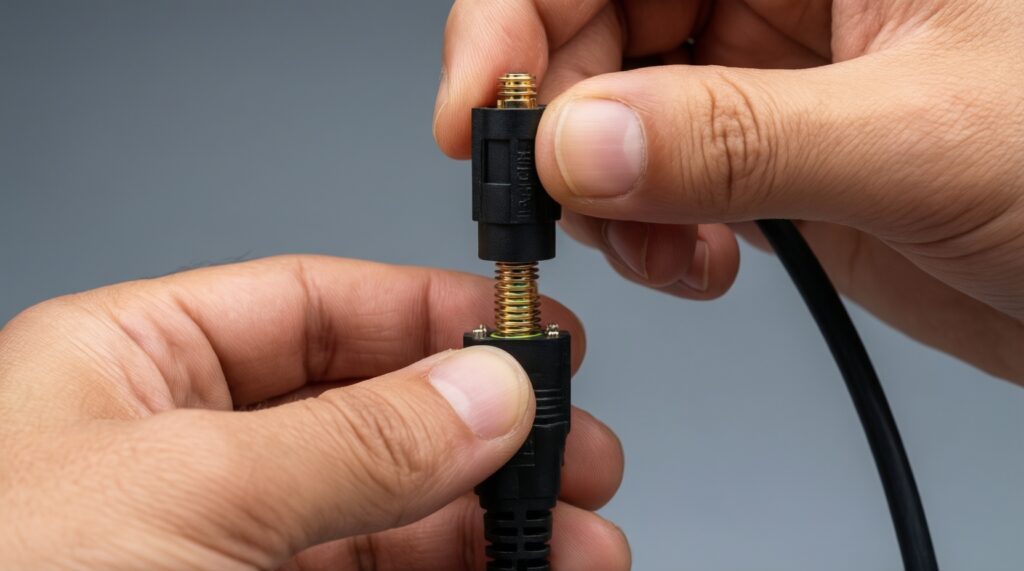
Lift straight up from the connector head to remove, and press straight down centered to attach. Never pull on the cable and never force a connector that doesn't match the socket size.
How do I know if I'm buying the right card online in Thailand?
Match form factor (e.g., M.2 2230 Key E), connector type (U.FL/IPEX vs MHF4), and OS driver availability. Product photos should clearly show the key notch and the connector style.