To upgrade RAM safely and correctly, first confirm what your motherboard and CPU actually support: DDR generation (DDR4 vs DDR5), form factor (DIMM vs SO-DIMM), maximum capacity, and the number of slots/channels. Then choose a matched kit where possible, enable XMP/EXPO in BIOS/UEFI, and validate stability with a quick memory test before daily use.
Pre-purchase upgrade checklist
- Confirm DDR generation and form factor (desktop DIMM vs laptop SO-DIMM) from your board/laptop model page.
- Verify slot count and current population (e.g., 2 slots with 1 used; 4 slots with 2 used).
- Check maximum supported capacity per slot and total: เช็กสเปก RAM รองรับกี่ GB using the official spec page.
- Pick capacity and channel plan (2x16 GB vs 1x32 GB) that matches your upgrade timeline.
- Choose a speed profile you can actually run (JEDEC default vs XMP/EXPO), not just the highest label.
- For best compatibility, buy a matched kit; only mix sticks when you accept possible downclocking.
Identify your motherboard's RAM limits and slot layout
This approach fits you if you want to ซื้อแรมเพิ่ม for heavier multitasking, VMs, content creation, or gaming, and you can access your BIOS/UEFI and system model details. Avoid upgrading yourself if your laptop has soldered memory only, your device is under strict warranty terms, or you cannot safely open the chassis without proper tools and ESD precautions.
- Desktop: check motherboard model (printed on the board, BIOS screen, or system info tools) and count DIMM slots.
- Laptop: check exact laptop SKU and whether it has 0/1/2 SO-DIMM slots; many models mix soldered + one slot.
- What to record: DDR generation, max total GB, max per slot, supported speeds, and whether dual-channel is supported.
Match DDR generation, form factor and voltage
You'll need admin access in your OS (to read hardware info), a screwdriver set, and a safe workspace. For desktops, also prepare an anti-static precaution (touch grounded metal frequently, avoid carpet). Before comparing แรม DDR4 ราคา and แรม DDR5 ราคา, lock in the correct DDR generation first-DDR4 and DDR5 are not cross-compatible.
| What to match | DDR4 (typical) | DDR5 (typical) | Why it matters |
|---|---|---|---|
| Generation | DDR4 | DDR5 | Different key notch; will not fit in the wrong slot. |
| Form factor | DIMM (desktop) / SO-DIMM (laptop) | DIMM (desktop) / SO-DIMM (laptop) | Physical size and pin layout differ between DIMM and SO-DIMM. |
| Voltage | Lower-voltage DDR4 variants are common (often labeled 1.2V) | Often labeled lower than many older generations (commonly 1.1V) | Board/CPU expects specific operating ranges; don't assume "any RAM works." |
| Speed baseline | Runs at JEDEC defaults unless XMP is enabled | Runs at JEDEC defaults unless XMP/EXPO is enabled | Advertised speeds may require enabling a profile in BIOS/UEFI. |
| ECC vs non-ECC | Depends on platform | Depends on platform | Mixing ECC expectations can prevent boot or disable ECC. |
Understand frequency, CAS timings and XMP/EXPO
-
Read current RAM configuration
In Windows, use Task Manager > Performance > Memory for a quick view; for deeper details use a reputable hardware info tool. On Linux, check tools like
dmidecode(admin required). Record current total GB, speed shown, and slot usage. -
Confirm platform limits (motherboard + CPU)
Motherboards may list supported speeds and capacities, but the CPU memory controller also matters. If your board lists a high speed, it may still run lower unless your CPU supports it or unless you enable a profile.
- Prefer the motherboard's QVL (Qualified Vendor List) when available for the least-risk pick.
- If no QVL, choose mainstream kits and avoid extreme overclock bins for maximum stability.
-
Choose a realistic speed/timing target
Frequency and CAS timings work together; lower CAS is not automatically better if frequency changes. For compatibility-first builds, prioritize stability at JEDEC defaults, then enable XMP/EXPO only after a successful boot and baseline test.
-
Decide: matched kit vs mixing
A matched kit (same model, same capacity per stick) is the simplest path to stable dual-channel. If you must mix, align DDR generation, form factor, and capacity as closely as possible; expect the system to run at the slowest common settings.
-
Enable XMP/EXPO safely (after first boot)
Boot once at defaults to confirm the new RAM is detected. Then enable XMP (common on Intel platforms) or EXPO (common on AMD DDR5 kits) in BIOS/UEFI; save and reboot.
- If it fails to boot, clear CMOS (desktop) or use BIOS recovery steps (laptop/board manual), then run defaults.
- Only change one setting at a time when troubleshooting.
-
Validate with a quick stability check
Run a short memory test and a real workload you care about (game, render, compile) to confirm no crashes or WHEA errors. One-line validation: if it boots, detects full capacity, and passes a short memory test, you're ready to proceed.
Fast mode: 4-step upgrade path
- Identify motherboard/laptop SKU, DDR generation, slot count, and max GB (don't guess).
- Buy the right form factor and a matched kit when possible; avoid mixing brands/models.
- Install, boot at defaults, confirm full capacity is detected.
- Enable XMP/EXPO only after baseline boot; then run a short memory test.
Plan capacity, channels and upgrade scenarios
- Target capacity based on your workload (multitasking/VMs/content creation typically need more headroom than office use).
- Prefer 2 sticks for dual-channel on dual-channel platforms (if you have 2 or 4 slots available).
- Keep future expansion in mind: leaving empty slots can be useful, but 2 matched sticks are often the safest now.
- Confirm max total and max per slot are both sufficient for your plan.
- Confirm your OS can use the capacity (64-bit OS for higher memory ceilings).
- After installation, verify BIOS/UEFI shows the expected total GB and that the OS reports the same.
- Check that the reported speed matches your plan (JEDEC default or XMP/EXPO speed after enabling it).
- Run a short memory test and monitor for crashes/BSOD/freezes for a day of normal use.
Rules for mixing modules and troubleshooting incompatibilities
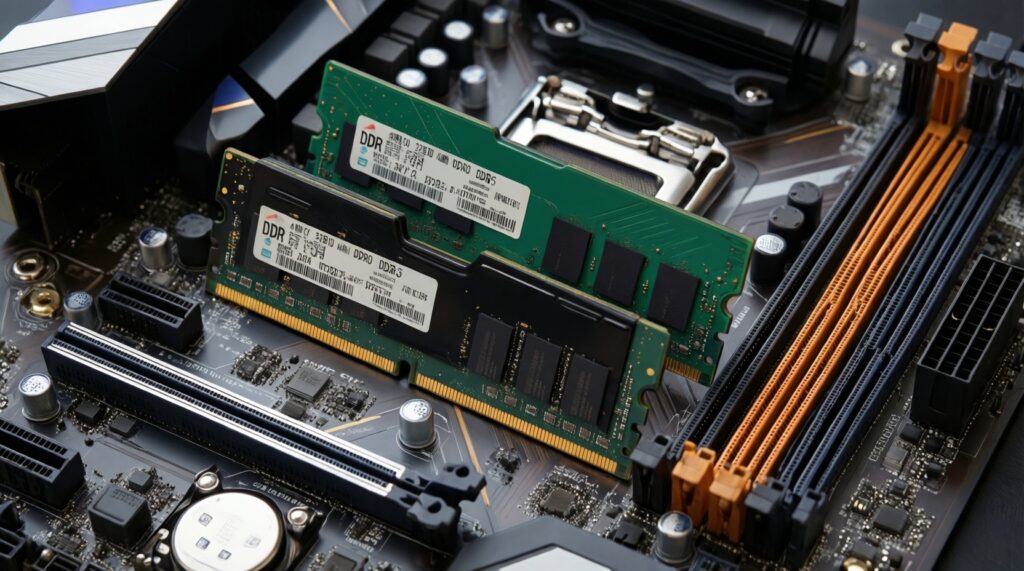
- Mixing DDR generations is impossible: DDR4 and DDR5 won't fit each other's slots.
- Different capacities can break symmetry: it may still work, but dual-channel behavior can be partial or suboptimal.
- Expect downclocking: mixed sticks often run at the slowest common frequency/timings.
- XMP/EXPO instability is common when mixing: if crashes occur, revert to defaults and test again.
- Wrong slot pairing: on many boards, dual-channel requires specific slots (often A2+B2); check the manual.
- Dirty contacts or imperfect seating: reseat modules; ensure both latches click fully on desktops.
- BIOS too old: memory compatibility improves with updates; update BIOS/UEFI carefully following the vendor guide.
- iGPU memory pressure: systems using integrated graphics may feel RAM-speed-sensitive; stability still comes first.
Install, configure BIOS/UEFI and validate performance
If a straightforward upgrade is risky or unnecessary, use these alternatives depending on your situation:
- Buy the exact same module model you already have if you want the highest chance of successful mixing (still not guaranteed, but usually safer than random mixing).
- Replace all sticks with a matched kit if you want predictable dual-channel behavior and less troubleshooting (best when current RAM is unknown or mismatched).
- Stay at JEDEC defaults (disable XMP/EXPO) if you prioritize stability for work machines; you'll often lose little in real-world tasks compared to the troubleshooting time.
- Use a qualified/compatible list approach (QVL) when building for maximum reliability; pick a kit explicitly validated for your motherboard.
Compatibility concerns and quick fixes
How do I know which slots to use for dual-channel?
Check the motherboard manual for the recommended pair (commonly A2 and B2). If unsure, populate the second slot from the CPU in each channel rather than adjacent slots.
My PC boots but shows less RAM than installed-what should I do?
Reseat the modules, then check BIOS/UEFI and OS reporting. If a laptop has soldered RAM plus one slot, verify the maximum supported for the slot and total.
Will mixing two different brands work?
Sometimes, but it often forces slower settings and can fail with XMP/EXPO enabled. For วิธีเลือกซื้อ RAM ให้เข้ากันได้กับคอม, a matched kit is the lowest-risk choice.
Do I need to enable XMP/EXPO to get the advertised speed?

Often yes; many kits default to JEDEC speeds until you enable a profile in BIOS/UEFI. Enable it only after a stable first boot at defaults.
Can I use DDR5 RAM in a DDR4 motherboard (or the opposite)?
No. The slot keying and electrical standards differ, so they are physically and electrically incompatible.
After enabling XMP/EXPO, I get crashes or no boot-what's the fastest safe fix?
Clear CMOS or load BIOS defaults, then boot at JEDEC settings. If stable, try a lower memory profile or update BIOS/UEFI before re-enabling XMP/EXPO.