To add RAM to a laptop safely, confirm how many slots you have (and whether some memory is soldered), verify the supported DDR generation and maximum speed, then buy compatible modules and test stability after installation. This guide shows วิธีเพิ่ม RAM โน้ตบุ๊ก ตรวจสล็อต, how to เช็ครองรับ RAM โน้ตบุ้ก ความเร็วสูงสุด, and how to validate the upgrade with practical tools.
Upgrade snapshot: compatibility checklist and expected gains
- Confirm slot count, current module layout, and whether any RAM is soldered (non-upgradable).
- Match the DDR generation exactly (DDR4 vs DDR5); they are not cross-compatible.
- Check the laptop's maximum total capacity and per-slot limit before buying.
- Prefer matched capacity across slots for dual-channel performance where supported.
- Plan for real-world gains: smoother multitasking, fewer pagefile swaps, and better performance in RAM-heavy workloads.
- Run a post-upgrade stability routine (boot checks + memory stress + real use) before calling it done.
Identify physical RAM slots, soldered modules and maximum capacity
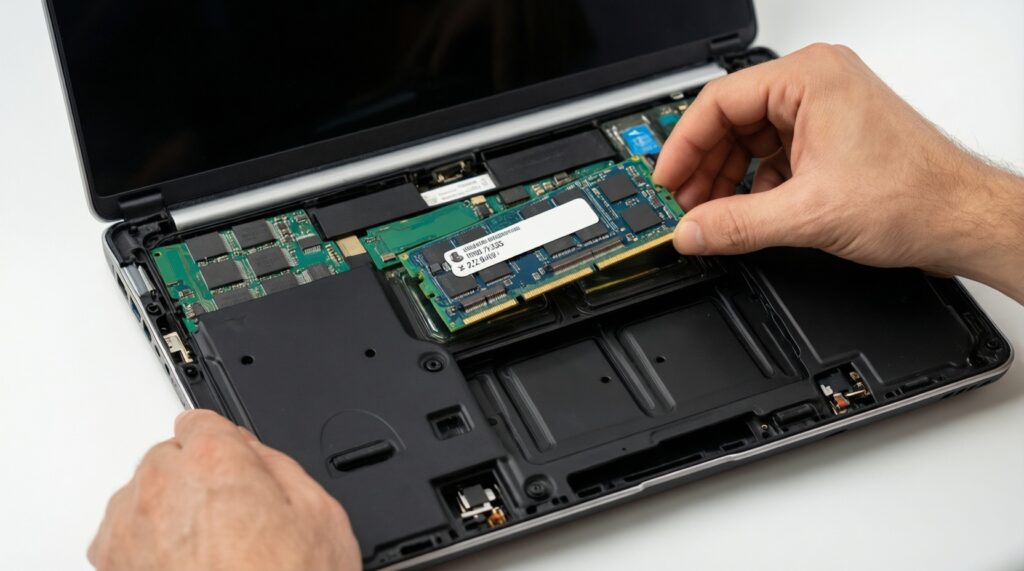
Who this is for: users who can open the laptop bottom cover (or a RAM door), and want measurable improvements in multitasking, browsers, dev tools, or light content creation.
When not to do it: if your model has fully soldered RAM (no slot), you rely on warranty seals you cannot break, or you cannot access the internals safely (swollen battery, stripped screws, damaged clips). In those cases, consider alternatives in the last section.
- Check your chassis type. Look for a service hatch; if none, assume full bottom cover removal is needed and research your exact model teardown.
- Confirm slot vs soldered. Many thin laptops have 8-16 GB soldered plus 1 slot, or fully soldered RAM. You must know this before shopping RAM โน้ตบุ๊กรุ่นไหนดี.
- Find capacity limits. Use the laptop's service manual/spec sheet or BIOS info; if unavailable, cross-check with reputable RAM compatibility tools and the CPU platform generation.
Conclusion: Slot count + soldered presence + max capacity determine whether the upgrade is possible and what to buy.
Interpret motherboard specs: DDR generation, supported speeds and voltage
What you need: a small screwdriver set, an anti-static routine (at least grounded touch), and software to read current RAM data. You'll also need access to BIOS/UEFI and (optionally) Windows or Linux commands for verification.
- Software tools (pick one): CPU-Z (SPD tab), HWiNFO, or your OEM diagnostics app.
- Windows commands: Task Manager > Performance > Memory (basic), or PowerShell:
Get-CimInstance Win32_PhysicalMemory | ft BankLabel,Capacity,Speed,ConfiguredClockSpeed,Manufacturer,PartNumber - Linux commands:
sudo dmidecode -t memory(requires sudo), pluslshw -class memory. - BIOS/UEFI access: know the key (often F2/Del/Esc) to confirm reported memory speed and total capacity.
How to read the key specs:
- DDR generation: must match (this is the core of ซื้อ RAM โน้ตบุ๊ก DDR4 DDR5 decisions).
- Form factor: laptops use SO-DIMM (not desktop DIMM).
- Supported speed: the laptop may run RAM at the platform's supported maximum even if the module is rated higher; this is why you must เช็ครองรับ RAM โน้ตบุ๊ก ความเร็วสูงสุด.
- Voltage and profiles: laptops typically expect JEDEC standard profiles; XMP/EXPO is often ignored or unsupported in many laptops.
Conclusion: Confirm DDR gen + SO-DIMM + supported speed; treat "higher-rated" RAM as "will downclock if needed."
Select modules: capacity per slot, single vs dual‑channel and XMP/JEDEC choices
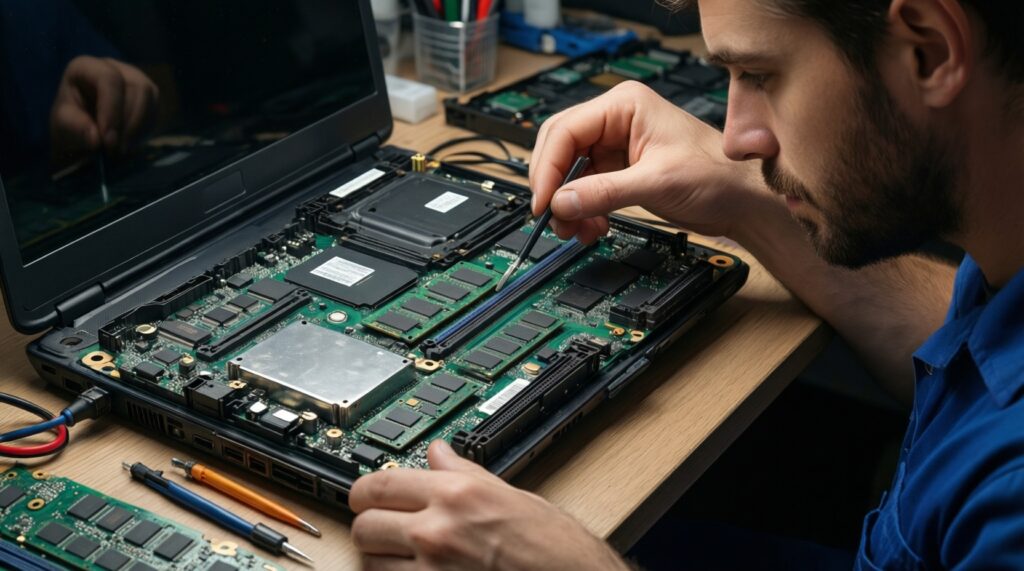
- Map your current layout (slots and capacities). Record total RAM, how many sticks, and whether any RAM is soldered. If you have "8 GB soldered + 1 empty slot," you can only add to the slot; you cannot replace soldered memory.
- Choose a target capacity based on workload. Decide your new total RAM first, then split it across available slots for best balance.
- If you have two slots, aim for equal capacities (e.g., 8+8, 16+16) for dual-channel benefits.
- If you have one slot + soldered RAM, add a module that complements the soldered capacity as closely as practical.
- Match DDR generation and SO-DIMM type. This is non-negotiable: DDR4 SO-DIMM and DDR5 SO-DIMM are physically and electrically different.
- Pick a sensible speed tier the laptop can run. Buying faster RAM than your system supports is not dangerous, but it can be wasted budget; the system typically runs at the supported speed. This matters when comparing อัปเกรด RAM โน้ตบุ๊ก ราคา versus performance.
- Prefer JEDEC-stable modules over XMP-dependent ones. If a module's advertised speed primarily relies on XMP/EXPO, your laptop might ignore it and run at a lower JEDEC speed. Choose modules with solid JEDEC ratings at the speed you expect to run.
- Buy as a kit when possible. A matched kit (same part number) reduces compatibility edge cases (mixed ranks/ICs) and makes dual-channel more predictable.
Comparison table: common module choices and how to decide
| Option | Capacity pattern | Speed expectation | Latency note | Price-to-performance guidance | Best for |
|---|---|---|---|---|---|
| Balanced dual-channel kit | 2× equal sticks | Runs at laptop-supported max (often JEDEC) | Don't chase tight timings on laptops; stability first | Usually best value per real-world smoothness | General use, multitasking, light editing |
| Single-stick add-on (soldered + 1 slot) | 1× stick + soldered | May run in "flex" mode (partial dual-channel) | Mixed layout can be fine; keep speed/JEDEC compatible | Good value when only one slot exists | Ultrabooks with partly soldered RAM |
| Max-capacity upgrade | Largest supported per-slot and total | May downclock depending on CPU/platform | Higher density can be pickier; verify compatibility | Best when you truly need capacity; not for "speed" | VMs, large datasets, heavy browsers |
| "High-speed" XMP-focused module | Varies | Often falls back to JEDEC on laptops | Advertised timings may not apply without XMP | Risk of paying extra for no gain | Only if your laptop explicitly supports XMP |
Conclusion: Choose capacity first, then DDR generation, then a speed tier your laptop can actually run-JEDEC reliability beats marketing speeds.
Fast-track mode: 5-minute decision and action plan
- Identify slot count and soldered RAM (open the back or confirm via service manual).
- Read DDR generation + current speed via CPU-Z/HWiNFO and confirm max capacity in the model specs.
- Buy compatible SO-DIMM (DDR4/DDR5 matching) with JEDEC profiles; prefer a matched kit for 2 slots.
- Install safely, then confirm capacity/speed in BIOS and OS.
- Run MemTest86 or Windows Memory Diagnostic, then a real workload session to confirm stability.
Prepare and perform a safe hardware upgrade step by step
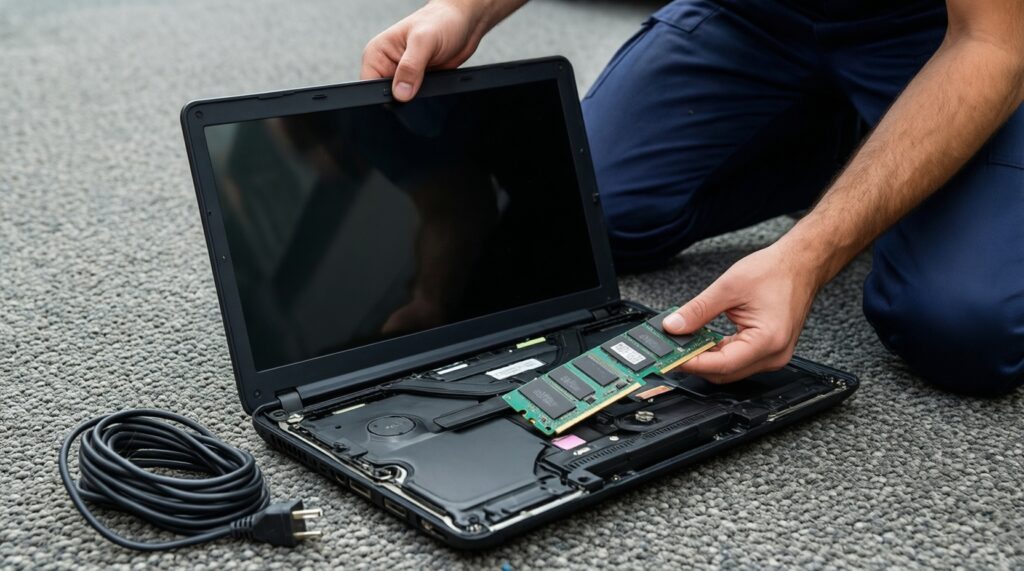
- Power down fully; unplug AC; disable fast startup/hibernate if you want cleaner cold boots.
- Discharge: hold the power button for ~10 seconds after unplugging (when applicable).
- Work static-safe: non-carpet surface; touch grounded metal before handling RAM.
- Open the back cover carefully; track screw lengths/positions (they may differ).
- If there is an internal battery connector and you can safely access it, disconnect it before touching RAM.
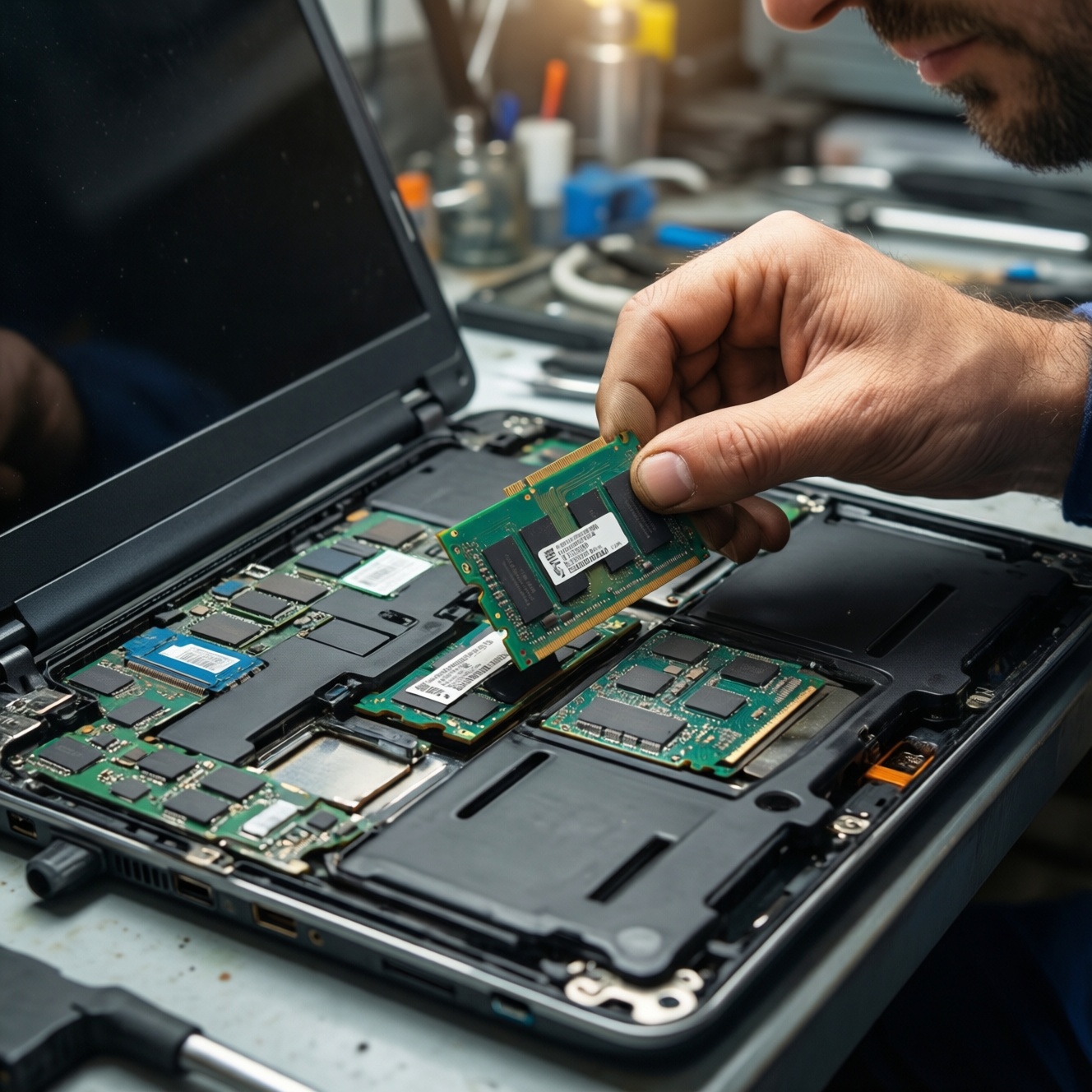
- Insert the SO-DIMM at the correct angle, then press down until the side clips lock.
- Reassemble without forcing clips; ensure no cables are pinched.
- First boot: enter BIOS/UEFI and confirm total memory is detected.
- In the OS, confirm total RAM and reported speed; compare "Speed" vs "ConfiguredClockSpeed."
Conclusion: A safe install is repeatable: no force, correct seating, and immediate BIOS/OS validation.
Verify stability: boot tests, memory stress tools and real‑world benchmarks
- Skipping a cold boot check. Do at least one full shutdown and power-on; sleep/wake is not enough to validate.
- Assuming advertised MHz equals running MHz. Many laptops ignore XMP; confirm actual configured speed in BIOS or OS tools.
- Not testing both sticks under load. Run a full memory test (MemTest86 from USB) or Windows Memory Diagnostic; intermittent errors often appear only under sustained load.
- Ignoring event logs. On Windows, check Event Viewer for WHEA errors or unexpected restarts after the upgrade.
- Overlooking thermal/pressure issues. A mis-seated back cover can press on the module, causing contact issues; random freezes can result.
- Testing only synthetic tools. Also run a real workload: 30-60 minutes of your typical heavy multitasking, compilation, or editing.
- Mixing modules with different specs and expecting ideal dual-channel. Mixed ranks and mixed sizes can reduce peak bandwidth; prioritize stability over theoretical gains.
Conclusion: Stability means no errors in memory tests, no WHEA/reboots, and no crashes during your real workload.
Diagnose and fix post‑upgrade issues: error codes, BIOS tweaks and rollback
- Reseat and isolate. If it doesn't boot, reseat the module, then test one stick at a time (and each slot) to find a bad module or slot sensitivity.
- Clear BIOS/UEFI settings. Load default settings; if your BIOS has memory tuning options, revert to Auto/JEDEC. This is the safest "tweak."
- Update BIOS/UEFI (only if stable enough). If the vendor notes memory compatibility improvements, update using the official method; avoid doing this mid-crash-loop.
- Rollback strategy. If errors persist, reinstall the original RAM configuration to confirm the laptop itself is stable, then return/exchange the new module(s).
Conclusion: Troubleshooting is fastest when you reduce variables: one stick, one slot, default BIOS, then scale up.
Quick answers to common upgrade concerns
Can I mix different RAM brands or capacities?
Often yes, but it increases the chance of downclocking or reduced dual-channel behavior. For the fewest headaches, match DDR generation, speed class (JEDEC), and capacity per slot.
Will faster RAM automatically run faster in my laptop?
Not necessarily. Many laptops run RAM at the CPU/platform-supported maximum and may ignore XMP/EXPO, so always verify the configured speed after installation.
How do I know if my laptop has soldered RAM?
Check the service manual/spec sheet or open the bottom cover and visually confirm. Tools like HWiNFO/CPU‑Z can hint at layout, but physical confirmation is most reliable.
What is the safest way to test stability after upgrading?
Run MemTest86 (bootable USB) or Windows Memory Diagnostic, then do at least one long real workload session. If you see reboots, freezes, or WHEA errors, troubleshoot before trusting the system.
Why does the laptop boot but shows less RAM than expected?
Common causes are a partially seated module, a slot that isn't fully compatible with that module, or a platform limit. Reseat, then test each stick/slot combination.
Does upgrading RAM affect warranty in Thailand?
It depends on the brand and whether you break warranty seals or damage clips/screws. If you're unsure, use an authorized service center and keep the original RAM for rollback.
How should I think about อัปเกรด RAM โน้ตบุ๊ก ราคา versus benefit?
Capacity usually delivers the most noticeable improvement when you're currently memory-bound (paging). Spend for stability and compatibility first; chasing premium "gaming" specs often adds cost without laptop-real gains.