To fix a PC that feels "slow because of heat" (ซ่อมคอมเครื่องช้าเพราะความร้อน), apply a conservative CPU undervolt: reduce voltage in small steps, validate stability, and keep a rollback path. Done correctly, undervolting cuts heat and throttling without lowering performance. This guide covers safe workflows for Intel and AMD Ryzen on laptops and desktops.
Quick overview: what safe undervolting achieves
- Reduces CPU temperature and fan noise by lowering voltage at the same clocks.
- Limits thermal throttling so sustained performance stays consistent in long workloads.
- Often improves battery life on laptops by reducing power draw under load.
- Keeps performance intact when you avoid lowering frequency limits and only tune voltage.
- Provides a reversible change: you can revert settings in minutes if instability appears.
Why thermal throttling slows Intel and AMD systems
Thermal throttling happens when the CPU hits temperature or power limits and automatically drops clocks to protect itself. The symptom is "fast for 30-90 seconds, then suddenly slow" during gaming, rendering, compiling, or even heavy browser workloads.
Good fit: repeated clock drops, hot chassis, loud fans, or performance dips that improve after cooling down.
Don't undervolt (or pause and diagnose first): random crashes at idle, corrupted OS files, unknown BIOS mods, unstable RAM/XMP, or a system already failing due to dust-clogged heatsinks, dried thermal paste, or a dying PSU. Fix cooling and stability basics before voltage tuning.
How undervolting lowers temperatures without sacrificing performance
At a given clock speed, lower voltage usually means lower power and heat. The safest approach is to change only the voltage behavior (offset or curve), then prove stability with repeatable stress tests and monitoring.
Tools and access you may need (Intel vs AMD)
| Platform | Main approach | Typical safe starting range | Common tools | Where you apply it |
|---|---|---|---|---|
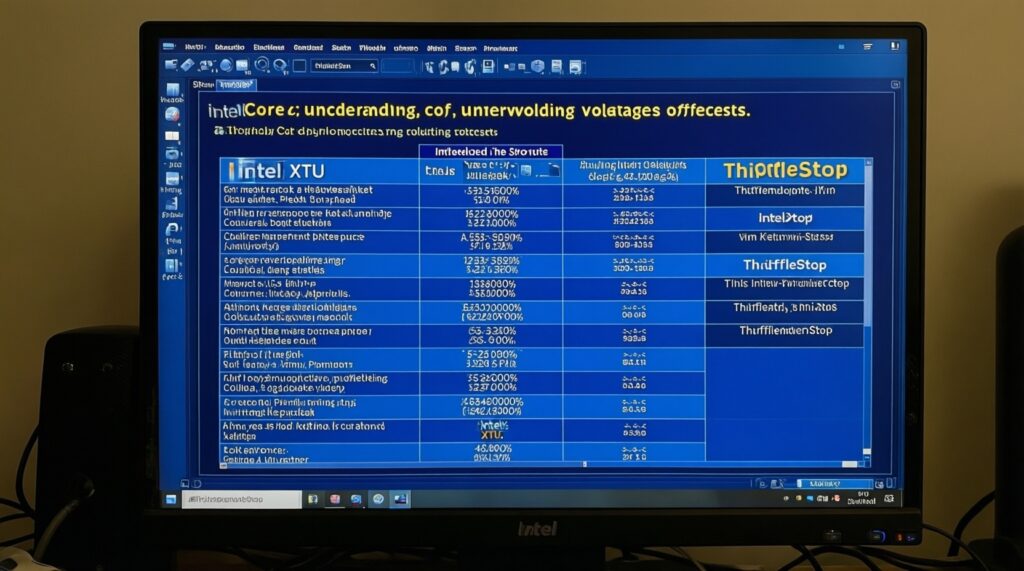
| Intel Core (many laptops/desktops) | Voltage offset undervolt | -50 mV to -80 mV to start; often stable up to around -120 mV (silicon varies) | Intel XTU; ThrottleStop (โปรแกรม undervolt CPU Intel) | Windows utility (XTU/ThrottleStop) or BIOS (if available) |
| AMD Ryzen (desktop/mobile, Zen 2+) | Curve Optimizer (negative) | -5 to -10 steps to start; often stable around -15 to -30 per core (varies) | BIOS/UEFI; Ryzen Master (โปรแกรม undervolt Ryzen) | BIOS PBO/Curve Optimizer (preferred) or Ryzen Master |
What you should be able to do
- Monitor temperatures, clocks, and power (HWInfo64 or similar).
- Run repeatable CPU stress tests and a real workload you care about.
- Revert changes quickly (profiles, safe mode, or BIOS defaults).
Pre-flight checklist: backups, drivers, firmware and required tools
-
Create a rollback path
Save anything important and make sure you can revert settings even if Windows becomes unstable. If you undervolt in BIOS, know how to reset CMOS (desktop) or load optimized defaults (laptop BIOS).
- Windows: create a restore point.
- BIOS: note down current values or take photos.
-
Update firmware and chipset drivers
Install your latest stable BIOS/UEFI and chipset drivers. Outdated firmware can cause weird boost behavior that looks like throttling but isn't fixed by undervolting.
-
Confirm throttling is the problem
Log a short run (5-10 minutes) under load and check whether clocks drop when temperatures rise. If clocks drop while temps are fine, you may be hitting power limits or VRM limits instead.
- Look for "Thermal Throttling" / "PROCHOT" flags (Intel) or "EDC/TDC/PPT" limits (AMD).
-
Install monitoring + stress tools
Pick one monitor and two stress methods: one synthetic and one real workload. Consistency matters more than the specific brand.
- Monitoring: HWInfo64.
- CPU load: Cinebench loop, OCCT CPU, Prime95 (small FFTs), or y-cruncher.
-
Decide your tuning path
Intel typically uses a voltage offset tool; Ryzen prefers Curve Optimizer in BIOS. If you're searching for "บริการ undervolt CPU Intel" or "บริการ undervolt CPU AMD", use this checklist to verify the shop's process: small steps, logs, and rollback plan.
Fast track mode (3-5 steps)
- Log baseline temps/clocks under a 10-minute repeatable CPU load.
- Apply a conservative undervolt: Intel start at -50 mV; Ryzen CO start at -10 (all-core) or -5 per core.
- Stress test 15-30 minutes; if stable, move one step further (Intel -10 mV; Ryzen -5 CO).
- Stop at the first sign of errors/crashes; back off one step and retest longer.
- Save the stable profile and keep a "stock" profile for instant rollback.
Undervolting Intel CPUs: recommended tools, settings and step-by-step
Intel undervolting is usually an offset to CPU core/cache voltage. Some newer systems block undervolting due to security mitigations; if the slider does nothing, switch to power-limit tuning or cooling improvements.
Procedure (Intel XTU or ThrottleStop)
- Start small: set Core Voltage Offset to -50 mV (and Cache offset the same, if exposed). Apply changes.
- Short stability check: run a 10-15 minute CPU stress test while logging clocks/temps.
- Step down gradually: reduce another -10 mV per iteration (e.g., -60, -70, -80 mV).
- When instability appears: revert to the last stable value, then run a longer test (45-90 minutes) plus your real workload.
- Persist safely: save a profile; avoid auto-applying on boot until you've passed long tests.
Result check (Intel) - stability and safety checklist
- No BSODs, freezes, sudden reboots, or WHEA hardware errors in logs.
- Stress test completes at least twice: one synthetic, one real workload.
- Clocks remain stable over time (no periodic drops caused by throttling flags).
- Temperature is lower or throttling happens later than baseline.
- Performance is not reduced in a repeatable benchmark run (same settings, same ambient temperature).
- No "silent" errors: corrupted archives, compile errors, or app crashes under load.
- Sleep/resume and idle stability are normal (common weak points for too-aggressive undervolts).
If you prefer a shop to do it, ask whether they use Intel XTU/ThrottleStop (โปรแกรม undervolt CPU Intel) and whether they provide before/after logs; that's a quality signal for any "บริการ undervolt CPU Intel".
Undervolting AMD Ryzen: Curve Optimizer workflow and practical tips
For Ryzen, the practical undervolt is usually PBO + Curve Optimizer (negative), ideally in BIOS. Curve Optimizer adjusts voltage/frequency behavior per core; too much negative curve causes WHEA errors, reboots, or performance regression.
Procedure (BIOS Curve Optimizer, recommended)
- Enable PBO: in BIOS, enable Precision Boost Overdrive (leave limits on Auto initially).
- Set Curve Optimizer to Negative: start with -10 all-core (or -5 per-core if you can test per-core carefully).
- Test and log: run a CPU stress test and watch for WHEA errors and unexpected performance dips.
- Refine: move in steps of -5 (e.g., -10 → -15 → -20) until errors appear, then back off.
- Optional per-core tuning: give weaker cores less negative (e.g., best cores -10, weaker cores -5) if you see errors only under light/boosty loads.
Common mistakes (Ryzen Curve Optimizer) that cause instability
- Going straight to large negatives (e.g., -30 all-core) without stepping and logging.
- Testing only heavy all-core loads; many CO instabilities show up at light loads/boost transitions.
- Ignoring WHEA warnings because the system "seems fine" (they often precede crashes/data issues).
- Mixing CO tuning with aggressive RAM overclocks/XMP changes at the same time.
- Chasing the lowest voltage instead of the best sustained clocks at safe temperatures.
- Applying Ryzen Master changes without ensuring they persist correctly after reboot (BIOS is more reliable).
- Assuming one value fits all chips; silicon variation is large across Ryzen models.
When evaluating "บริการ undervolt CPU AMD", ask if they tune Curve Optimizer with WHEA monitoring and both light-load and heavy-load testing. For DIY, Ryzen Master is a valid "โปรแกรม undervolt Ryzen", but BIOS-based CO is usually the cleanest long-term setup.
Validate results: stress tests, monitoring charts and rollback plan
Validation is what makes undervolting safe. You're done only when you can reproduce stability and performance across the workloads you actually run.
Recommended validation flow
- Baseline chart: record max temperature, sustained clocks, and throttling flags for a fixed test duration.
- Post-undervolt chart: run the same test, same ambient conditions, and compare.
- Long run: do at least one extended run plus a gaming session or production workload.
- Rollback rehearsal: confirm you can revert (profile off, delete autostart, BIOS defaults) in under 5 minutes.
Clear failure indicators (stop and revert one step)
- BSOD, freeze, reboot, black screen under load.
- WHEA hardware errors (even without a crash).
- App-only crashes that repeat at the same undervolt level.
- Performance drop versus baseline in a repeatable benchmark (often indicates clock-stretching or unstable boost behavior).
When undervolting isn't the right fix (alternatives)
- Cooling service: clean dust, replace thermal paste/pads, fix fan curves-often the best first step for a true "ซ่อมคอมเครื่องช้าเพราะความร้อน" case.
- Power-limit tuning: for locked Intel undervolts, reduce PL1/PL2 slightly to stop runaway heat while keeping smooth performance.
- Undervolt the GPU instead: in many laptops, the GPU is the main heat source; CPU undervolt alone won't stop chassis heat soak.
- Re-seat or downclock unstable RAM: if the system is marginal, any undervolt will look "bad" because the root cause is memory instability.
Practical concerns, failure modes and troubleshooting
Can undervolting damage my CPU?
Undervolting is a reduction in voltage; the typical risk is instability, not damage. The safety rule is small steps plus stress testing and reverting at the first failure sign.
My Intel undervolt slider does nothing-why?
Some systems block undervolting in firmware. Use power-limit tuning (PL1/PL2), improve cooling, or check for a BIOS option; don't force unofficial workarounds on a daily machine.
What's a conservative starting point I can trust?
Intel: start around -50 mV and move in -10 mV steps. Ryzen CO: start at -10 all-core (or -5 per core) and adjust in -5 steps.
I passed a stress test but games crash-what should I do?
Back off one step and retest, because some instabilities show up during boost transitions rather than full load. Also check GPU stability and RAM settings.
How do I tell throttling from power limits?
Use monitoring logs: thermal throttling coincides with high temperature flags; power-limit throttling shows power/EDC/TDC/PPT limits reached while temperatures may be acceptable. The fix differs (cooling/undervolt vs power limit tuning).
Should I pay for a service or do it myself?
If you're not comfortable with rollback steps, a reputable "บริการ undervolt CPU Intel" or "บริการ undervolt CPU AMD" can be worth it-ask for logs, exact settings, and a revert plan. If you can follow small-step tuning and testing, DIY is straightforward.