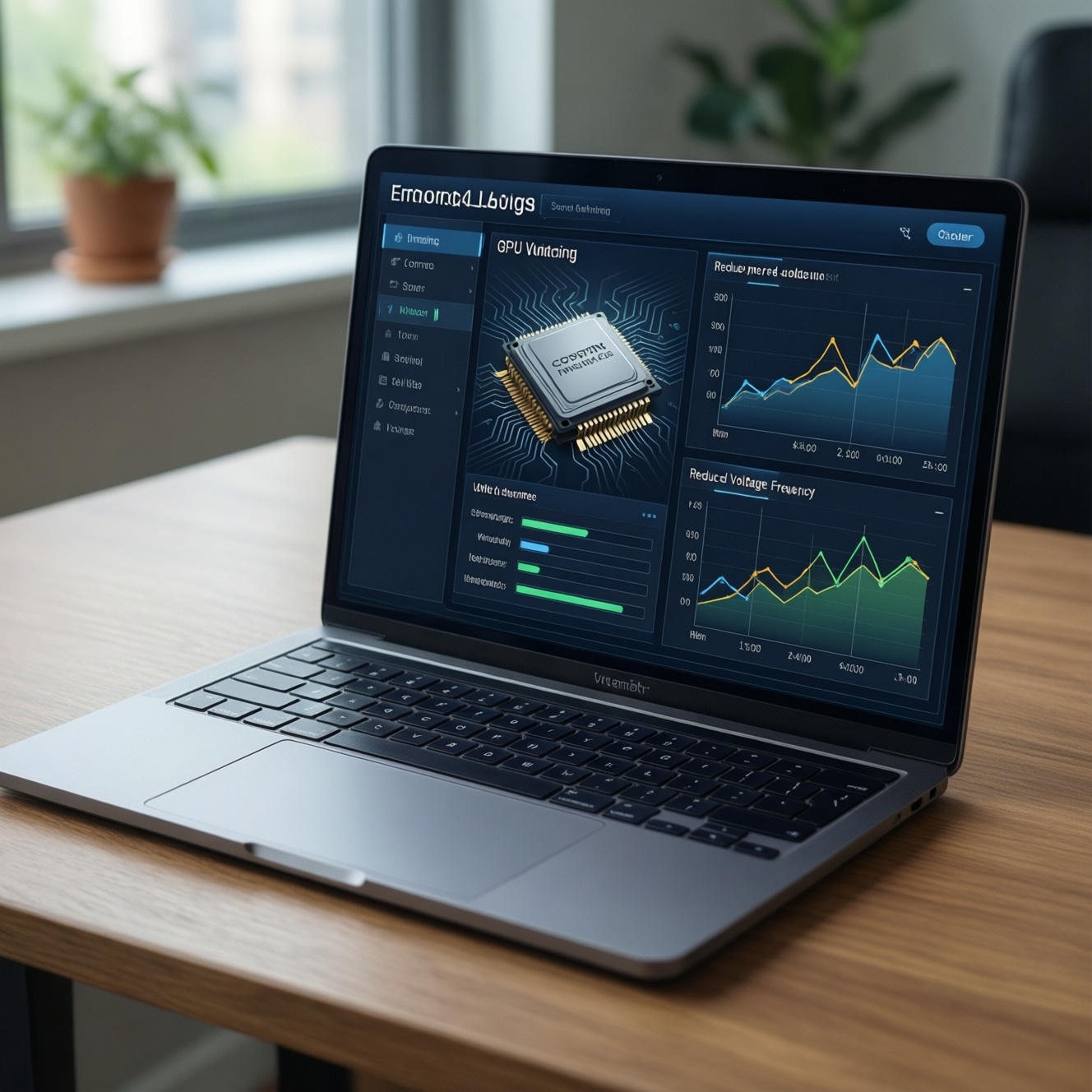
Underclocking and undervolting reduce heat and power draw by lowering CPU/GPU frequency targets and/or voltage, which can help a thin-and-light laptop sustain performance longer and avoid thermal shutdowns. For undervolt โน้ตบุ๊ก setups, the safest approach is incremental changes, stability testing after every step, and a clear rollback path via profiles, BIOS defaults, or driver resets.
Concise technical overview
- Undervolting targets lower voltage at the same clocks; underclocking reduces clocks (often more universally supported than undervolt).
- Thin-and-light systems benefit most because they hit thermal/power limits quickly, so small efficiency gains can reduce throttling.
- Modern laptops may block CPU undervolt (security mitigations); power-limit tuning and GPU undervolt can still help.
- Proceed in small steps, test each change, and save a known-good profile before going further.
- Use reputable tools: Intel XTU/ThrottleStop (Intel), AMD APU Tuning Utility / Ryzen Controller (AMD), MSI Afterburner (GPU), HWiNFO (monitoring).
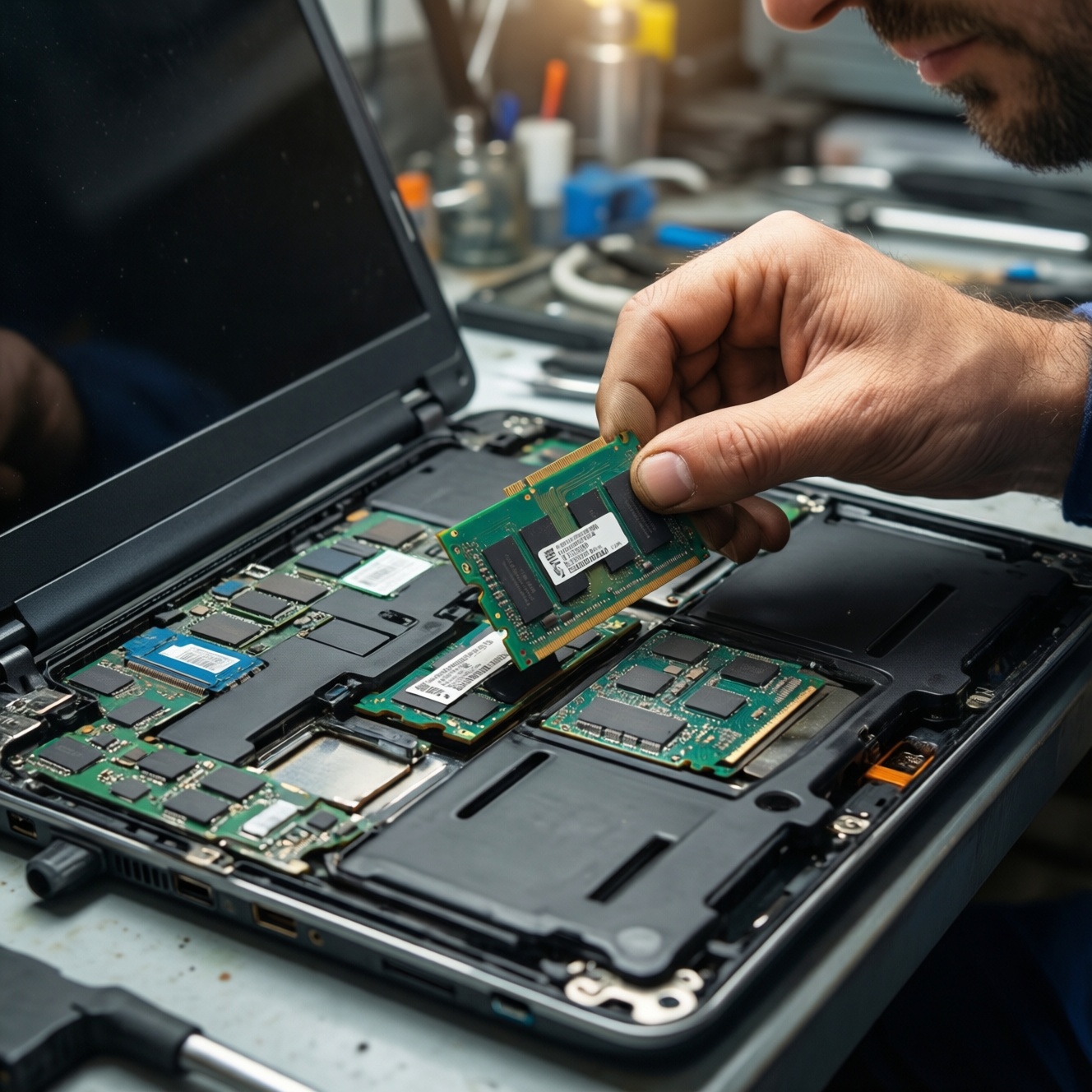
- If your symptom is sudden shutdown, treat it as reliability first: clean airflow, check fans, and only then tune-this is not a substitute for ซ่อมโน้ตบุ๊กร้อนดับ.
Why underclocking and undervolting fit thin-and-light laptops
They fit ultrabooks and compact gaming laptops that frequently throttle due to tight cooling, shared heatpipes, and conservative fan curves. If your goal is ลดความร้อน โน้ตบุ๊ก บางเบา, undervolt/underclock can lower peak temperature, noise, and sustained throttling during long workloads.
- Good candidates: laptops that run hot under sustained CPU/GPU load, but are otherwise stable and clean (no dust blockage, fans working).
- Not worth it (or postpone): random crashes at stock, swollen battery, failing fan, clogged heatsink, or warranty service needed for overheating/shutdown.
- Often blocked: some Intel 10th gen+ and many OEM BIOSes disable CPU undervolt; you may need to focus on power limits, GPU undervolt, or cooling instead.
Safety, warranty and thermal‑limit implications
- Crash risk: too much undervolt can cause BSODs, app errors, or silent data corruption during heavy load. Do not undervolt while doing critical work without a stable profile.
- Warranty/support: software tuning is usually reversible, but OEM support may ask you to reset to defaults before troubleshooting. Avoid BIOS mods if you want low risk.
- Security mitigations: CPU undervolt may be locked by BIOS/microcode. If locked, do not try unofficial bypasses on a daily-work machine.
- Thermal limits still apply: undervolt helps efficiency but cannot fix poor contact, dried thermal paste, or blocked airflow; severe overheating that powers off needs physical maintenance (ซ่อมโน้ตบุ๊กร้อนดับ route).
Required hardware, drivers and tooling checklist
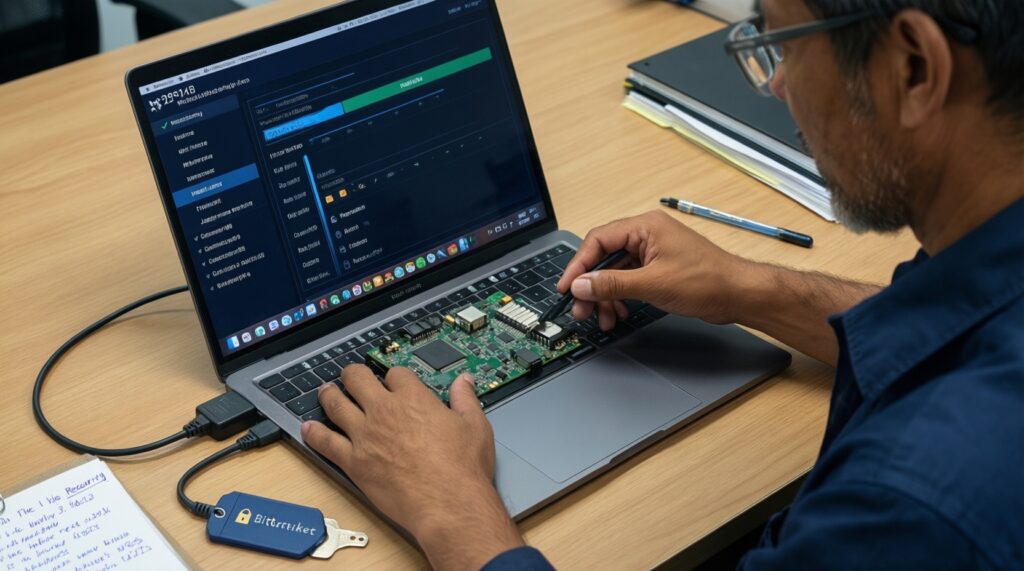
Risk-aware limits (practical): keep changes small, keep notes, and keep a revert plan.
- Expect multiple reboots; keep BitLocker recovery key available (Windows device encryption can trigger on firmware changes).
- Use AC power during tuning; avoid battery-only undervolt testing until stable.
- Stop immediately if you see WHEA errors, repeated BSODs, or file-system warnings.
- Always save a "Stock/Default" profile in your tuning tool.
-
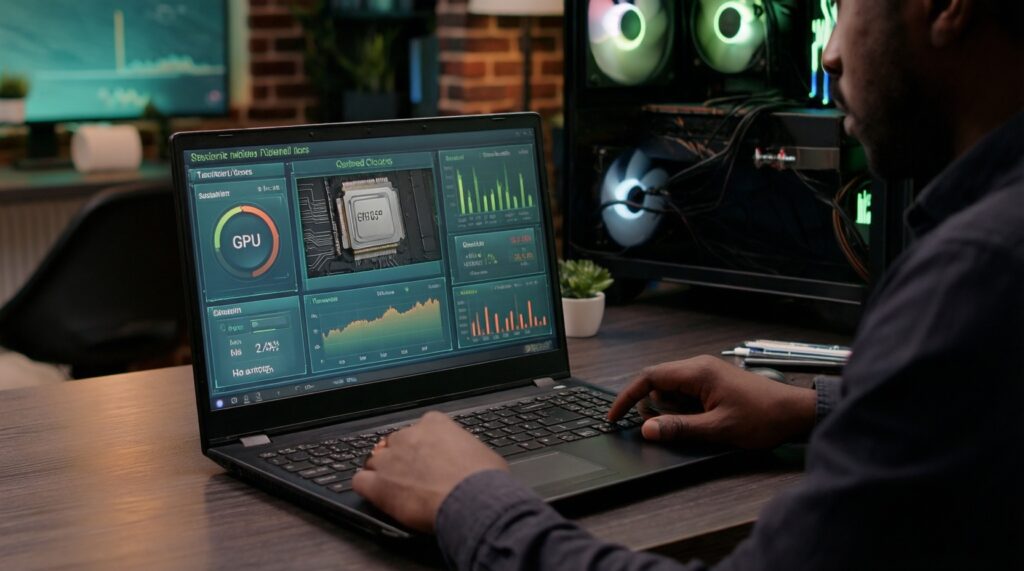
Baseline your current behavior. Record idle and load temperatures, clocks, and power draw so you know what improved. Use HWiNFO (Sensors) and log while running a consistent load (e.g., Cinebench, AIDA64 stress, or a game benchmark).
- Note: peak CPU package power (W), CPU temp, GPU temp, and whether "Thermal Throttling" flags appear.
-
Confirm whether CPU undervolt is supported. On Intel, check Intel XTU or ThrottleStop if "Core Voltage Offset" is available; on AMD, check if your APU tool exposes voltage/curve controls (many laptops don't).
- If CPU undervolt is locked: plan to tune PL1/PL2 (Intel), PPT/TDC/EDC (AMD), and/or undervolt the GPU instead.
-
Install and prepare tools (minimal set). Use one tuner per domain to avoid conflicting settings.
- Intel CPU: Intel XTU or ThrottleStop (pick one).
- AMD APU: AMD APU Tuning Utility / Ryzen Controller (depending on model support).
- NVIDIA/AMD dGPU: MSI Afterburner (curve editor) where supported.
- Monitoring: HWiNFO (recommended), plus Windows Event Viewer for WHEA errors.
-
Create rollback and safe-boot options. Ensure you can revert even if Windows becomes unstable.
- Make a Windows restore point.
- Know how to boot Safe Mode and how to uninstall/disable the tuning utility.
- Save a "Default" profile in your tuning tool and disable "Start with Windows" until stable.
-
Apply a conservative CPU undervolt (if available). Start with a small negative offset, then test; repeat until instability appears, then back off.
- Typical approach: start around -25 mV to -50 mV on CPU core/cache (Intel), then move in -10 mV steps.
- Keep core and cache offsets equal on many Intel systems unless you know your platform's behavior.
-
Undervolt the GPU (often highest payoff for heat). Use MSI Afterburner's voltage/frequency curve to target a slightly lower voltage at a stable clock for your workload.
- Pick a target frequency you already sustain, then lock it at a lower voltage point and test in your actual game/render workload.
-
Only then adjust power limits (the safer "always works" lever). If undervolt is locked or marginal, lower sustained power to match your cooling.
- Intel: reduce PL1 (sustained) first; keep PL2 (short boost) conservative to avoid heat spikes.
- AMD: reduce PPT (package power) and, if exposed, tune TDC/EDC conservatively.
- Re-test, save a stable profile, and enable auto-apply last. When stable across multiple sessions, save "Daily Stable" and only then allow startup application.
Step‑by‑step undervolt workflow for Intel and AMD systems
- Verify your tuning changes actually applied (read-back in HWiNFO/XTU/ThrottleStop), not just the slider moved.
- Run a 10-15 minute mixed load (CPU + GPU) and check for WHEA errors, driver resets, or app crashes.
- Run a longer workload you truly care about (a full render, compile, or a long gaming session) before calling it stable.
- Watch "Thermal Throttling," "Power Limit Throttling," and clock drops; note which limit you hit most.
- Check sleep/hibernate/wake reliability; some undervolts are stable under load but fail on resume.
- Confirm battery behavior (idle drain, video playback) after stability is proven on AC.
- Log temperatures and clocks for a day; improvements should be consistent, not only in one benchmark run.
- Keep a "Stock" profile and a "Daily Stable" profile; never overwrite the stock baseline.
Underclocking CPU/GPU and adjusting power/thermal limits
- Changing too many variables at once: adjust one thing (CPU undervolt, GPU undervolt, or power limit) and test before stacking changes.
- Assuming undervolt always reduces temperature: if the laptop boosts higher due to extra headroom, temps may stay similar; look at sustained clocks and noise, not just peak °C.
- Using aggressive voltage offsets: big jumps can appear stable in a short test but fail later (sleep/wake, AVX workloads, driver updates).
- Ignoring Event Viewer: WHEA-Logger warnings are often the first sign your undervolt is borderline even if you don't crash.
- Fighting the fan curve: an overly quiet fan profile can negate undervolt gains; keep a balanced curve for sustained loads.
- Forgetting BIOS/firmware updates: updates can reset locks, power limits, or tuning behavior; re-validate after updates.
- Auto-start too early: applying an unstable profile at boot makes recovery harder; enable auto-apply only after multiple stable days.
- Using unknown "โปรแกรม undervolt โน้ตบุ๊ก" tools: avoid unofficial utilities with unclear sources; stick to widely used tools and vendor utilities when possible.
Stability validation, benchmarking and long‑term monitoring
If undervolt is locked or too unstable to be worth it, these alternatives still achieve วิธี undervolt โน้ตบุ๊ก-style outcomes (less heat, fewer throttles) with lower risk:
- Power cap instead of undervolt: reduce PL1/PL2 (Intel) or PPT (AMD) to a level your cooling can sustain without thermal spikes.
- Cooling and airflow maintenance: clean vents, ensure the fan spins freely, and consider a professional repaste when temperatures suggest poor thermal contact (especially if you're near thermal shutdown).
- GPU-focused tuning: for gaming workloads, a GPU undervolt or slight underclock often delivers the best heat/noise reduction per effort.
- Workload-side tuning: reduce turbo ratio limits, cap FPS, use balanced power mode, or undervolt-capable OEM performance profiles where available.
Common practical concerns and answers
Is undervolting safe for a thin-and-light laptop?
It's generally low risk when done in small steps with stability testing, but an unstable undervolt can crash the OS and corrupt active work. Keep a stock profile and avoid tuning during critical tasks until proven stable.
What if CPU undervolt controls are missing or locked?
That's common on modern laptops. Use power-limit tuning (PL1/PL2 or PPT) and/or GPU undervolting instead, which often still reduces heat effectively.
Which tool should I use as my main "โปรแกรม undervolt โน้ตบุ๊ก"?
Use Intel XTU or ThrottleStop for Intel (choose one), and a reputable AMD APU tuning utility if your model supports it. Always pair with HWiNFO for monitoring and logging.
How do I recognize an undervolt that is "almost stable" but risky?
Look for WHEA warnings in Event Viewer, random app errors, or issues after sleep/wake even if stress tests pass. Back off one step (e.g., +10 mV) and re-test.
Can undervolting fix a laptop that overheats and shuts down?
It can reduce heat, but shutdowns often indicate a cooling fault (dust blockage, failed fan, poor thermal paste). Treat frequent shutdowns as a maintenance/repair case (ซ่อมโน้ตบุ๊กร้อนดับ) first.
Do I need underclocking if undervolt already works?
Not always. Underclocking is useful when undervolt is locked or when you need guaranteed lower heat by limiting peak frequency regardless of voltage behavior.
How should I roll back quickly if things go wrong?
Disable the tuning tool's auto-start, switch to the saved stock/default profile, or uninstall the tool in Safe Mode. If firmware settings were changed, load BIOS defaults.