To fix slowdowns caused by heat, undervolting reduces CPU/GPU voltage so the chip runs cooler, hits power limits less often, and throttles less. Done correctly, it does not reduce clock targets; it improves sustained performance and fan noise. This guide covers safe, repeatable steps for Intel and AMD laptops/desktops in Thailand.
Quick safety checklist before undervolting
- Update BIOS/UEFI and chipset drivers first; newer firmware can change voltage control behavior.
- Back up important data; instability can corrupt open files.
- Record a thermal baseline (temps, clocks, power) before changing anything.
- Change only one variable at a time (offset step size), and test after every change.
- Keep a rollback path: know how to reset BIOS settings or delete the undervolt profile.
- If your device is already overheating badly, address cooling first (dust, fans, paste); undervolt is not a substitute.
Why heat causes throttling and when undervolt helps
Heat triggers thermal throttling and power-limit throttling: the CPU/GPU reduces frequency to stay within temperature and power constraints, which feels like "เครื่องช้าเพราะความร้อน". Undervolting helps most when your system sustains high load (gaming, rendering, long compiles) and hits high temps or power limits quickly.
- Good candidates: laptops with strong CPUs in thin chassis, iGPU-heavy workloads, long gaming sessions, workstations that spike fans and drop clocks.
- Not recommended / low value: already cool systems, devices with locked voltage control (common on some newer Intel laptops), or where instability risk is unacceptable (mission-critical work).
- Fix cooling first when: fans are clogged, heatsink is dusty, paste is dry; in Thailand's heat/humidity, basic maintenance often matters as much as tuning. If needed, plan to ซื้อซิลิโคนระบายความร้อน CPU and repaste before chasing offsets.
Preparing your system: backups, BIOS updates and thermal baseline
- Update firmware and drivers
Install the latest BIOS/UEFI and chipset drivers from your laptop/board vendor. Reboot and load default BIOS settings if you've previously tweaked power/OC options. - Set Windows power mode to a known state
Use the same power plan for all tests (e.g., "Balanced" or "Best performance"). Plug in AC for repeatability (battery limits can mask results). - Install monitoring tools
Use one tool to watch temps, clocks, and power (examples: HWiNFO on Windows). Keep logging on while you test so you can compare "before vs after". - Capture a baseline
Run a repeatable load for 10-15 minutes (game benchmark, CPU stress, or your real workload). Note peak temperature, average clocks, and whether throttling flags appear. - Create a rollback plan
Know where your undervolt settings live (BIOS or app profile) and how to reset them. Save a restore point if you prefer, but the most important rollback is being able to boot and disable the undervolt.
Tools and values: choosing software and identifying stable offsets
Risks and limitations (read before touching voltage):
- Undervolting can cause crashes, freezes, reboots, or rare data corruption during writes if pushed too far.
- Some Intel systems block undervolting at firmware level; the "โปรแกรม undervolt CPU Intel" may run but won't apply offsets.
- AMD laptop control varies by model; "วิธี undervolt CPU AMD Ryzen" often means Curve Optimizer (PBO) rather than classic voltage offsets.
- Stability is silicon-dependent: the same CPU model can need different offsets.
-
Pick the right control method for your platform
Intel laptops/desktops usually use an offset undervolt via BIOS (if available) or tools like Intel XTU / ThrottleStop. AMD Ryzen typically uses Curve Optimizer in BIOS (PBO), or vendor utilities on some laptops.- Intel: BIOS voltage offset (best), Intel XTU (simple), ThrottleStop (fine control).
- AMD: BIOS PBO + Curve Optimizer (common), Ryzen Master (desktop-focused), OEM laptop tools if provided.
-
Start with conservative targets (example ranges, not guarantees)
Begin small and step down gradually. For many Intel systems, a starting point like -30 mV to -50 mV core/cache offset is conservative; some chips can go further, some cannot. For AMD Curve Optimizer, start with a small negative value (e.g., a few steps) per-core or all-core, then iterate.- Prefer small steps (e.g., 10 mV on Intel offsets) over big jumps.
- Keep CPU core and cache offsets equal at first on Intel; split later only if needed for stability.
-
Apply one change, then immediately test
After each step, run a short stability check (5-10 minutes) before going lower. If it fails, revert to the last stable value and retest longer. -
Watch the right indicators while testing
You want lower temps and fewer throttle events while keeping similar or higher sustained clocks. Monitor: CPU package temp, power, effective clocks, and throttling flags (thermal/power/current). -
Lock in the "daily stable" setting, not the "barely stable" setting
Once you find a stable undervolt, add a safety margin (slightly less negative) for long sessions, hot rooms, and dusty conditions-important for Thailand ambient temperatures.
Step-by-step undervolt for Intel CPUs and integrated GPUs
This workflow targets the common goal: แก้โน้ตร้อนเครื่องช้าด้วย undervolt on Intel by reducing CPU core/cache voltage (and optionally iGPU). If your model blocks undervolting, skip to the alternatives section.
- Choose your tool
Use BIOS voltage offset if available; otherwise Intel XTU or ThrottleStop. Keep only one tuning tool active to avoid conflicts. - Set an initial CPU Core offset
Apply a small negative offset (example: -30 mV). Apply the same value to CPU Cache initially. - Optional: undervolt Intel iGPU (carefully)
If you game on the iGPU, a small negative offset can help temps. iGPU undervolts can be less stable than CPU undervolts; change it only after CPU is stable. - Iterate in small steps
Lower by small increments (example: -10 mV steps). After each step: quick test, then proceed. - Save a profile and set startup behavior
Only enable "apply at startup" after you've passed longer stability tests.
Result check (use this checklist after changes):
- System boots normally and resumes from sleep without freezing.
- No WHEA errors in Windows Event Viewer during load (if you know how to check).
- Under the same workload, peak temperatures are lower than baseline.
- Sustained effective clocks are equal or higher than baseline (less throttling).
- No sudden app crashes in your real workload (browser + calls + games, etc.).
- Fans ramp less aggressively or stabilize sooner.
- iGPU workloads (if undervolted) run without driver resets/artifacts.
- Battery/AC behavior is consistent (no random reboots when unplugged).
Step-by-step undervolt for AMD Ryzen and APUs
On many Ryzen systems, undervolting is done via PBO Curve Optimizer (negative curve) rather than a simple voltage offset. This is the practical "วิธี undervolt CPU AMD Ryzen" approach for sustained performance and lower temperatures.
- Enter BIOS/UEFI and find PBO settings
Look for AMD Overclocking → Precision Boost Overdrive (names vary by vendor). Accept any warnings. - Enable PBO (moderate) and set Curve Optimizer to Negative
Start with a small negative value on all cores, or per-core if your BIOS supports it. - Test, then increase the negative curve gradually
If stable, try a slightly more negative value. If unstable, back off to the last stable setting. - For Ryzen APUs (laptops), keep changes conservative
APUs share thermal and power budgets with the iGPU; aggressive curve settings can cause graphics driver resets during gaming.
Common mistakes to avoid on AMD (quick list):
- Pushing Curve Optimizer too negative and assuming a successful boot means stable under sustained load.
- Testing only CPU-only stress while your real issue happens in mixed CPU+iGPU load (APUs).
- Changing multiple BIOS knobs at once (PBO limits, curve, boost overrides) and losing track of what caused instability.
- Ignoring intermittent errors: rare reboots after sleep or during light loads can still be curve-related.
- Leaving "apply aggressive settings" enabled without validating in a hot room or after long sessions.
- Expecting undervolt to fix bad cooling hardware; sometimes you must clean or repaste (again: ซื้อซิลิโคนระบายความร้อน CPU can be the real win).
Validation, stress testing and safe rollback procedures
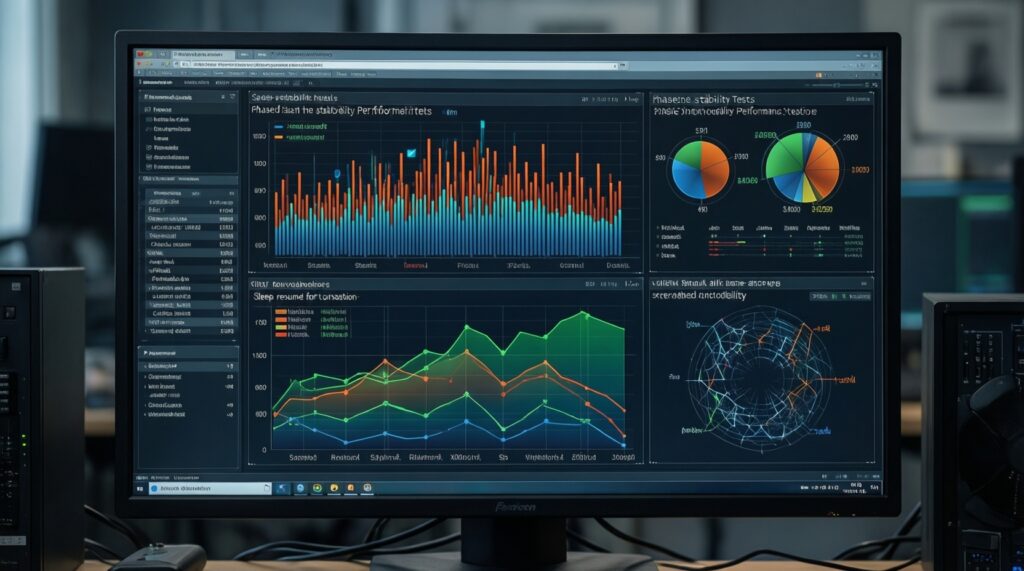
- Validate in phases
Do a short test after each step (minutes), then a longer test once you pick a candidate daily setting (long gaming session / rendering task). Include sleep/resume and idle-to-boost transitions. - Rollback safely when unstable
If you crash or freeze, revert to the last stable offset/curve:- Intel XTU/ThrottleStop: remove startup apply, reset offsets to 0 or last stable, reboot.
- BIOS (Intel/AMD): load optimized defaults or reduce the negative value, save, reboot.
- Can't boot: clear CMOS (desktop) or use BIOS recovery/reset steps for your laptop model.
- Alternatives when undervolt is blocked or not enough
- Repaste and clean cooling: best when temps spike fast; schedule maintenance or, if you're unsure, consider รับบริการ undervolt โน้ตบุ๊ก bundled with cleaning/repaste from a reputable shop.
- Power limit tuning (Intel PL1/PL2, AMD PPT): reduces heat predictably when voltage control is locked; may lower peak performance but improve sustained behavior.
- Fan curve tuning: useful if you prefer stable clocks over noise; good complement to undervolting.
- Frame cap / resolution scaling (gaming): reduces heat at the source when the GPU/iGPU is the bottleneck.
Typical pitfalls, warranty and instability scenarios
Can undervolting void my warranty in Thailand?
It depends on the brand and whether you change BIOS settings or use software tuning. In practice, reverting to defaults before service reduces friction, but you should assume any tuning is at your own risk.
Why does my Intel undervolt slider do nothing?
Many systems have undervolting locked by BIOS/firmware. Try BIOS options first; if locked, use power limits/fan tuning instead of forcing a software offset.
What's the first sign my undervolt is too aggressive?
Random app crashes, WHEA errors, sudden reboots, or freezes during light loads/sleep-resume transitions. Back off to the last stable setting and retest.
Should I undervolt CPU core and cache separately on Intel?
Start with the same offset for core and cache for stability. Only split them if you know what you're doing and have a clear stability reason.
My Ryzen is stable in benchmarks but crashes in games-why?
Games create mixed CPU/GPU bursts and different voltage/frequency transitions. Reduce the negative Curve Optimizer value and validate with real gaming sessions.
Is undervolting enough if my laptop is extremely hot and throttles instantly?
Usually not. Clean the heatsink/fans and consider repasting; undervolting works best as an optimization after cooling is healthy.
When should I use a shop instead of DIY?
If you can't afford downtime, don't want to troubleshoot boot issues, or also need cleaning/repaste, a รับบริการ undervolt โน้ตบุ๊ก from a reputable technician can be safer and faster.