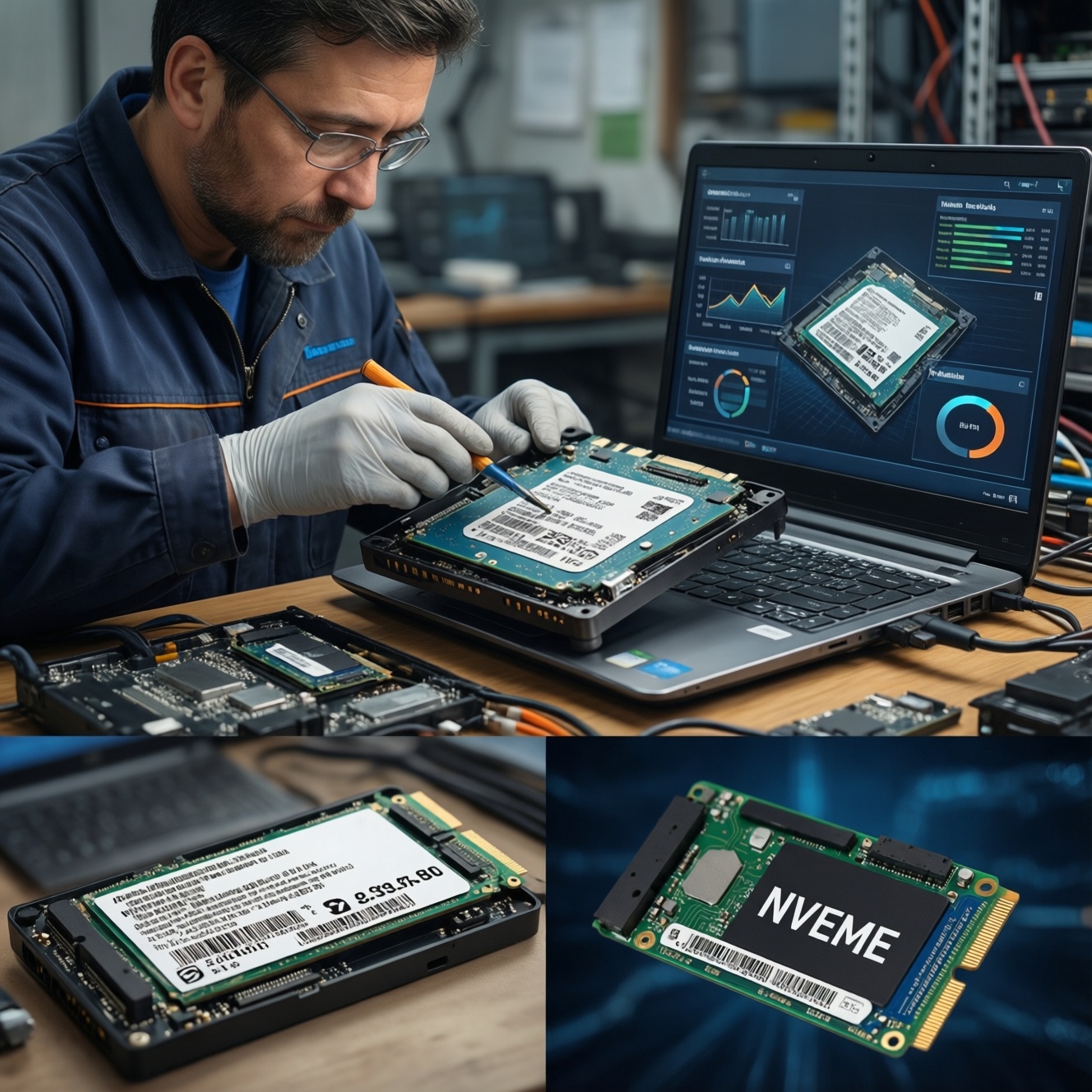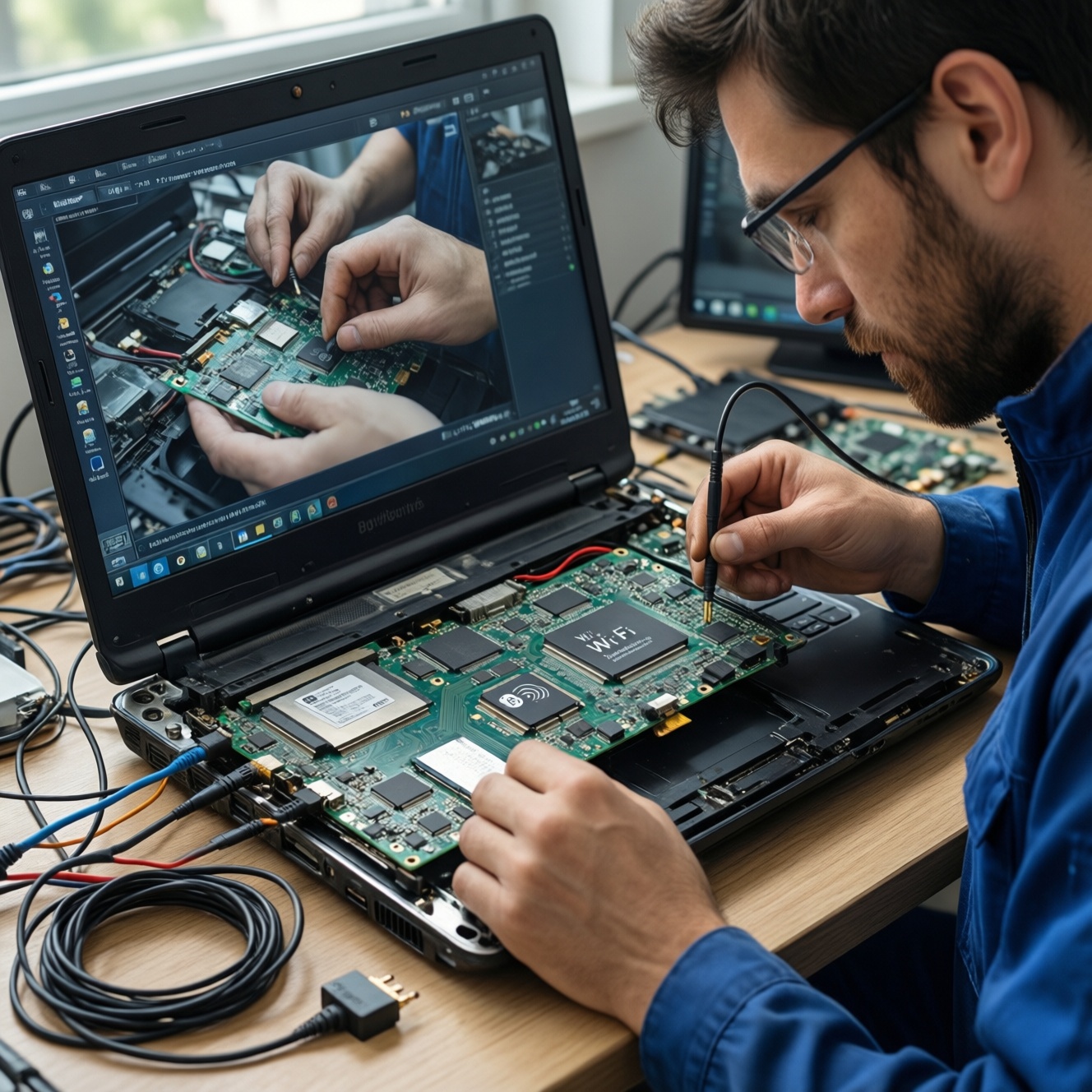
To upgrade Wi‑Fi/Bluetooth in a laptop, confirm the internal slot (usually M.2 2230 Key E or older Mini‑PCIe), antenna count, and any BIOS whitelist. Then choose a compatible module (often Intel AX200/AX210 class), swap it safely, and install the correct Wi‑Fi and Bluetooth drivers. This improves stability and device compatibility without replacing the laptop.
Essential upgrade checklist for Wi‑Fi and Bluetooth
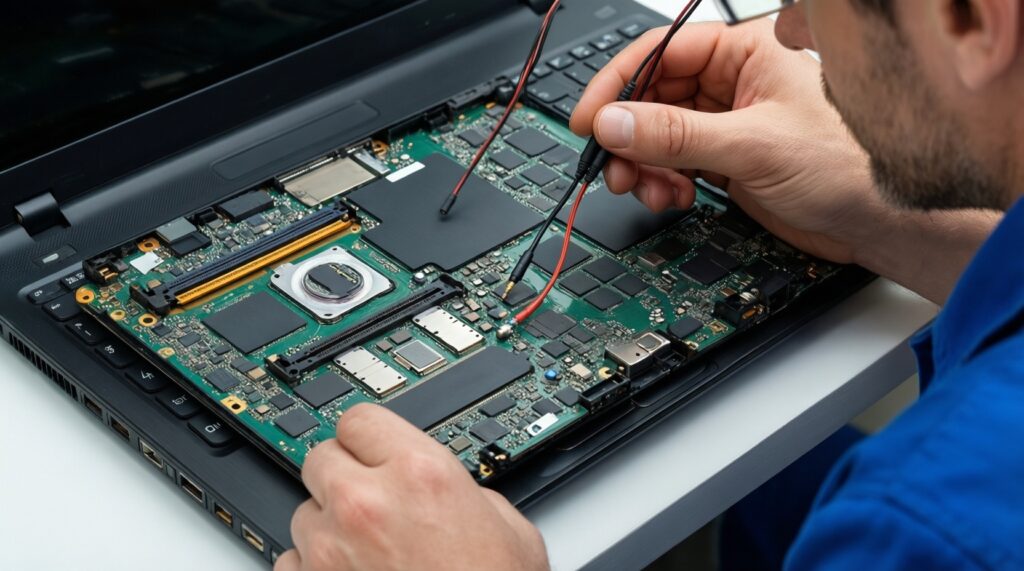
- Identify your internal interface: M.2 2230 (Key E/A-E) vs Mini‑PCIe; avoid mixing with M.2 SSD slots (Key M/B).
- Confirm antenna leads: 2 is typical; 1 limits performance; missing leads can cause weak signal.
- Check BIOS/UEFI for possible vendor whitelist (common on some business models).
- Pick a module matching your router and region needs (Wi‑Fi 6 vs 6E) and your OS support plan.
- Prepare drivers before opening the laptop (Wi‑Fi and Bluetooth packages, plus a fallback Ethernet/USB tether).
- Map antenna labels (MAIN/AUX) and photograph routing before disconnecting anything.
Relevant Wi‑Fi and Bluetooth standards: AX, AC, BT 5.x and beyond
Wi‑Fi 5 (802.11ac) is still fine for many 5 GHz networks, but Wi‑Fi 6/6E (802.11ax) is the practical upgrade when you want better performance in crowded environments, improved latency, and newer Bluetooth (often BT 5.x) for peripherals. In Thailand, 6E makes sense only if you already use a 6 GHz-capable router and your environment benefits from a cleaner band.
- Good fit: you have Wi‑Fi drops, poor throughput near the router, BT audio stutter, or you're moving to a Wi‑Fi 6/6E router.
- Not worth it: your laptop has only one antenna lead, you must keep a vendor-approved card due to whitelist, or you mainly use wired Ethernet and stable BT already.
Verifying laptop compatibility: form factors, antennas and vendor whitelists
Before you buy (e.g., if you're searching ซื้อการ์ด Wi‑Fi Bluetooth โน้ตบุ๊ก), verify these items so you don't end up with the wrong interface or a blocked module.
- Service access: the laptop's maintenance manual (or at least a teardown video for the exact model).
- Tools: small Phillips screwdriver, plastic pry tool, tweezers (optional), ESD-safe habits (unplug power, discharge, avoid carpets).
- Slot type: open the bottom cover (or use the manual) and confirm:
- M.2 2230 Key E/A-E Wi‑Fi slot (most modern laptops), or
- Mini‑PCIe (common in older models), or
- No internal slot accessible (then plan a USB adapter).
- Antenna leads: count and note labels (MAIN/AUX). Two leads are ideal.
- BIOS whitelist risk: search your exact laptop model + whitelist or unsupported wireless network device. If present, you may need the OEM-approved FRU/part number.
- CPU/platform constraints (practical): some combinations behave better with certain modules; plan a fallback (USB Wi‑Fi) in case of quirks.
Selecting the right module: M.2 2230 vs Mini‑PCIe vs USB adapters
- Confirm the physical interface and keying. Match what you have: M.2 2230 Key E/A‑E is not interchangeable with M.2 NVMe SSD Key M. If you only see Mini‑PCIe, do not buy an M.2 card without a proper adapter (usually not recommended inside tight laptop shells).
- Choose Wi‑Fi generation based on your router. If you're comparing อัปเกรด Wi‑Fi โน้ตบุ๊ก เป็น Wi‑Fi 6/6E ราคา, treat price as secondary to compatibility: Wi‑Fi 6 is widely useful; Wi‑Fi 6E is only useful when you can use 6 GHz.
- Wi‑Fi 6 (AX): best general upgrade for 2.4/5 GHz routers.
- Wi‑Fi 6E (AX + 6 GHz): only if your router and clients can use 6 GHz.
- Pick a proven module family and verify OS support. For many laptops, the shopping intent looks like การ์ด Intel AX200 AX210 สำหรับโน้ตบุ๊ก ซื้อที่ไหน; these families are common because driver availability is strong. Confirm your OS version and install plan before buying.
- Decide whether you need internal or USB. USB Wi‑Fi/Bluetooth is the safest fallback when you can't open the laptop, you suspect a whitelist, or you need a quick test before committing. Internal cards are cleaner and usually more stable when antennas are correctly installed.
- Validate antenna and clearance constraints. Two antenna leads are ideal. If you only have one, expect reduced performance; if the chassis has no extra antenna path, don't assume you can add one cleanly.
Common module choices (quick comparison)
| Example module / approach | Wi‑Fi standard | Bluetooth | Interface | Best for | OS support (practical) |
|---|---|---|---|---|---|
| Intel AX200-class | Wi‑Fi 6 (802.11ax) | BT 5.x (varies by vendor) | M.2 2230 Key E/A‑E | Most upgrades where 6 GHz is not needed | Windows; Linux usually works with modern kernel/firmware |
| Intel AX210-class | Wi‑Fi 6E (802.11ax + 6 GHz) | BT 5.x (varies by vendor) | M.2 2230 Key E/A‑E | 6E routers / 6 GHz environments | Windows; Linux needs up-to-date kernel/firmware for best results |
| Older AC-class M.2 cards | Wi‑Fi 5 (802.11ac) | BT 4.x/5.x (varies) | M.2 2230 Key E/A‑E | Minimal change, older ecosystems | Broad compatibility; less future-proof |
| Mini‑PCIe Wi‑Fi/BT card (OEM-approved) | Varies (often N/AC) | Varies | Mini‑PCIe | Older laptops, whitelist-sensitive models | Depends heavily on OEM driver availability |
| USB Wi‑Fi + USB Bluetooth adapter | Varies | Varies | USB | No internal access, quick troubleshooting | Usually easiest on Windows; Linux depends on chipset |
Fast-track mode (3-5 steps)
- Open the bottom cover, confirm the Wi‑Fi slot type (M.2 2230 Key E/A‑E vs Mini‑PCIe) and count antenna leads.
- Buy a matching module (e.g., AX200 for Wi‑Fi 6 or AX210 for Wi‑Fi 6E) and pre-download Wi‑Fi/Bluetooth drivers.
- Swap the card, reconnect MAIN/AUX antennas exactly as photographed, then boot.
- Install drivers, reboot once, then verify Wi‑Fi and Bluetooth operation.
System preparation: backups, BIOS updates and antenna mapping
- Back up anything you can't afford to lose (at least key documents; preferably a system restore point or image).
- Record your current adapter model and driver version (Device Manager or
lspcion Linux). - Download the new Wi‑Fi and Bluetooth drivers in advance (keep them offline-ready on a USB drive). If your main goal is ดาวน์โหลดและติดตั้งไดรเวอร์ Wi‑Fi/Bluetooth โน้ตบุ๊ก, do this step first to avoid getting stuck without connectivity.
- Update BIOS/UEFI only if you have a clear reason (compatibility fixes, whitelist notes) and stable power; don't update mid-disassembly.
- Shut down fully (no sleep/hibernate), unplug AC, and disable internal battery in BIOS if your model supports it.
- Discharge residual power (hold power button briefly after unplugging).
- Photograph the antenna routing and note which lead is on MAIN and which is on AUX.
- Prepare a fallback network path: USB Ethernet, phone tethering, or another PC to transfer drivers.
Hardware swap: safe disassembly, module installation and reseating tips
- Forgetting to disconnect power: always unplug AC; if possible, disconnect the internal battery connector before touching the card.
- Snapping antenna connectors: lift straight up with a plastic tool; do not twist or pry sideways.
- Swapping MAIN/AUX: if labels exist, follow them; if not, replicate the original mapping from your photo.
- Not fully seating the card: insert at an angle, push fully into the slot, then screw it down so it lies flat.
- Stripping tiny screws: use the correct driver size and downward pressure; stop if it cams out.
- Pinched antenna cables: route cables along original channels; ensure the bottom cover closes without force.
- ESD risk: touch grounded metal before handling the module; avoid working on fabric surfaces.
- Assuming any M.2 fits: M.2 is a form factor; keying and protocol matter. A Wi‑Fi M.2 Key E card will not work in an NVMe SSD slot.
- Whitelist surprise: if the laptop shows an unauthorized wireless card message at boot, revert to the original module and source an OEM-approved part number.
Driver and firmware installation: Windows, Linux commands and common fixes
If you are comparing การ์ด Wi‑Fi 6E M.2 (NGFF) สำหรับโน้ตบุ๊ก ราคา, plan driver availability as part of the total cost of the upgrade: a cheap card is expensive if you cannot get stable drivers on your OS. Use one of the options below depending on your situation.
Option A: Windows (clean install and verification)
- Boot Windows and wait 1-2 minutes to allow basic detection.
- Install the Wi‑Fi driver package first, then the Bluetooth package.
- Reboot once.
- Verify in Device Manager: no warning icons under Network adapters and Bluetooth.
Option B: Windows (if Bluetooth is missing after Wi‑Fi works)
- In Device Manager, View > Show hidden devices, then uninstall the Bluetooth adapter entries (check Delete the driver only if you have the new package ready), reboot, reinstall the Bluetooth driver.
- Ensure WLAN AutoConfig and Bluetooth Support Service are running (Services).
Option C: Linux (quick chipset and driver checks)
- Identify the adapter:
lspci -nn | grep -i networklsusb | grep -i bluetooth
- Check kernel messages:
dmesg | grep -iE "iwlwifi|firmware|bluetooth"
- If firmware is missing, install the appropriate firmware package for your distro and reboot.
Option D: If an internal upgrade is blocked or too risky
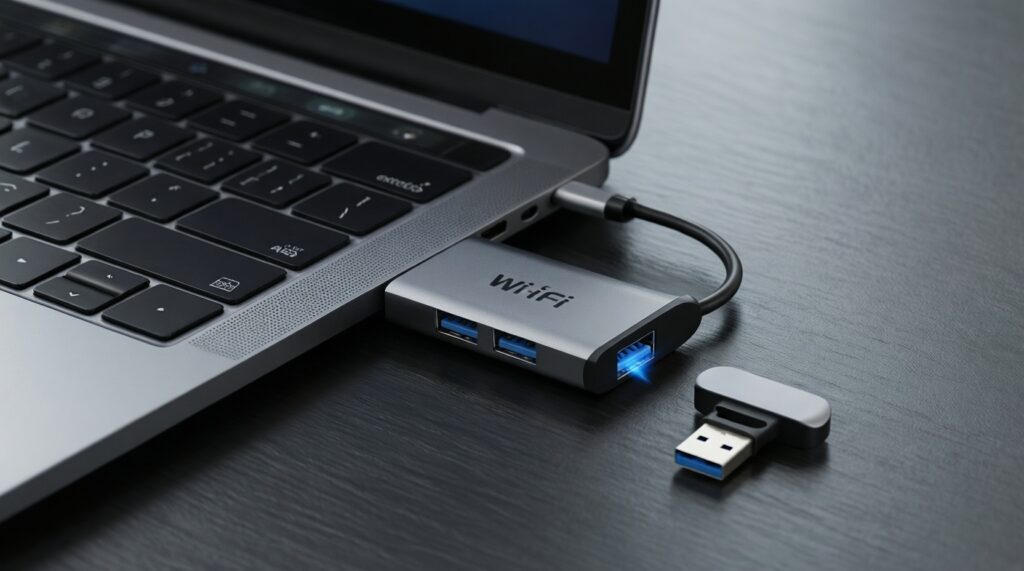
- Use a USB Wi‑Fi adapter for immediate connectivity and troubleshooting.
- If you need Bluetooth only, a small USB Bluetooth dongle can be a low-effort fix (especially for audio).
Targeted troubleshooting and concise clarifications
The laptop boots with an unauthorized wireless card message. What now?
This is a BIOS whitelist behavior. Reinstall the original card to regain boot, then source an OEM-approved FRU/part number or use a USB Wi‑Fi adapter instead.
Why does Wi‑Fi work, but Bluetooth does not appear in the OS?
Install the Bluetooth driver package separately and reboot. If still missing, remove Bluetooth device entries in Device Manager (Windows) or check lsusb/dmesg (Linux) to confirm the USB Bluetooth interface is enumerating.
I only have one antenna lead. Should I still upgrade?
You can, but expect reduced throughput and range compared to a two-antenna setup. Prioritize stability and driver support, and avoid expecting peak Wi‑Fi 6/6E performance.
Can I put an M.2 Wi‑Fi card into an M.2 SSD slot?
No. Wi‑Fi modules use Key E/A‑E and different signaling than NVMe (Key M). Always match the correct keying and slot type.
After upgrading, why is the connection unstable or slow?
Reseat the module and antenna connectors, then reinstall drivers cleanly. Also verify router settings (band steering, channel width) and test both 2.4 GHz and 5 GHz/6 GHz where applicable.
Where should I buy in Thailand, and what should I search for?
Use your exact slot type in the query and prefer sellers that clearly list M.2 2230 Key E/A‑E or Mini‑PCIe plus supported standards. Queries like ซื้อการ์ด Wi‑Fi Bluetooth โน้ตบุ๊ก and การ์ด Intel AX200 AX210 สำหรับโน้ตบุ๊ก ซื้อที่ไหน help filter listings, but always confirm keying and antenna support.