To make an old PC feel faster on Windows 10 or Linux, focus on safe wins: disable only non-essential services and startup apps, reduce background indexing/sync, ensure storage is healthy (TRIM/defrag appropriately), and pick a lightweight desktop environment. Avoid aggressive "optimizer" tools; instead, apply reversible changes and verify each step with simple checks.
Preflight checklist for tuning legacy PCs
- Create a restore point (Windows) or a snapshot/backup (Linux) before changing services and system settings.
- List the real bottleneck: disk at 100%, low RAM, high CPU, or slow boot-then tune that first.
- Update critical drivers/firmware only from trusted sources; avoid random "driver booster" apps.
- Document what you change (service name, previous startup type, commands used) for fast rollback.
- Keep one control measurement: boot time feeling, app launch time, and idle CPU/disk usage.
Service audit and safe disabling: Windows and Linux
Goal: reduce background work that steals CPU, disk I/O, and RAM on legacy hardware.
Risk: disabling the wrong services can break networking, printing, updates, audio, login, or security. If the machine is used for work, shared printing, domain/AD, BitLocker, VPN, or as a "family PC," change one item at a time and test.
Who should do this
- Home and small-office PCs that feel sluggish at idle, with many startup apps.
- Systems where Task Manager shows sustained high Disk/CPU with no foreground workload.
- Users considering โปรแกรมเร่งความเร็วคอมเก่า Windows 10 but prefer safer, reversible tuning.
When not to disable services
- If you rely on corporate policies, endpoint security, domain login, or managed updates.
- If you do not have admin access or you cannot roll back (no restore point/backup).
- If symptoms point to failing hardware (SMART errors, frequent freezes, clicking disk).
Safe audit workflow (Windows / Linux)
-
Baseline first: On Windows, open Task Manager → Startup and Processes; on Linux, use
top/htopandsystemd-analyze. Note what is consistently consuming CPU, Disk I/O, or RAM. -
Disable startup apps before services: Windows Task Manager → Startup → disable non-essential items (messengers, updaters, launchers). On Linux, remove autostart entries (Desktop Environment "Startup Applications" or
~/.config/autostart). - Target one service class at a time: Prefer disabling "features" you do not use (offline files, fax, unused vendor telemetry). Avoid touching core networking, audio, storage, and security components.
- Verify and roll back immediately: After each change, reboot once and test: Wi‑Fi/Ethernet, sound, printing, sleep/wake, Windows Update or package updates. If anything breaks, revert that specific item.
Choose and configure a lightweight desktop stack
Goal: reduce UI overhead and background services to free CPU/RAM for apps.
Risk: stripping too much can remove drivers, language support, or power management, and the system may feel "faster" but less usable.
What you need (access and tools)
- Administrator rights on Windows / sudo access on Linux.
- A way to recover: Windows Safe Mode knowledge; Linux TTY login (Ctrl+Alt+F3) and a USB installer as fallback.
- Basic monitoring tools:
- Windows: Task Manager, Resource Monitor, Services (
services.msc), Event Viewer. - Linux:
htop,iotop(if available),journalctl,systemctl,systemd-analyze.
- Windows: Task Manager, Resource Monitor, Services (
Practical desktop choices (when Linux is an option)
- If you plan to ติดตั้ง Linux สำหรับคอมเก่าให้ลื่น, prefer a lighter desktop (e.g., XFCE/LXQt/MATE) and fewer background effects.
- Disable heavy visual effects and animations in your desktop settings; it reduces CPU/GPU wakeups on old iGPUs.
- Keep a simple set of apps (one browser, one office suite, one messenger) and avoid multiple auto-updaters.
Storage and memory: swap, trim, defrag, and caching
Goal: remove storage stalls and memory pressure that make old PCs feel "stuck."
Risk: wrong maintenance action (e.g., defragging SSDs excessively, mis-sizing swap/pagefile, or disabling paging entirely) can worsen performance or stability.
Preparation mini-checklist (do this before steps)
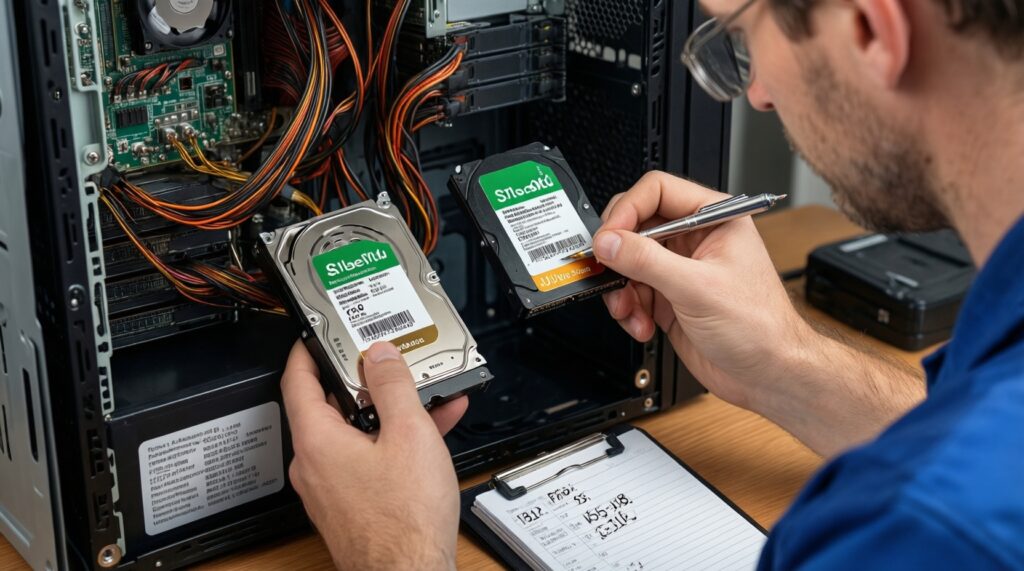
- Confirm storage type: HDD vs SSD (don't guess).
- Ensure at least a few GB of free space so updates and paging can work.
- Close heavy apps and pause large downloads/sync tools during testing.
- Write down current settings (pagefile size, swap config, scheduled maintenance).
- If you consider อัปเกรด SSD สำหรับคอมเก่า ราคา or ซื้อ RAM อัปเกรดคอมเก่า ราคา, measure current bottleneck first to avoid wasting money.
-
Identify HDD vs SSD, then pick the correct maintenance: On Windows, open "Defragment and Optimize Drives" and check "Media type." On Linux, check
lsblk -o NAME,ROTA,TYPE,SIZE,MODEL(ROTA=1 typically HDD, 0 typically SSD).- If HDD: defrag/optimize is appropriate.
- If SSD: ensure TRIM is enabled; avoid manual frequent defragging.
-
Windows 10: reduce disk thrash safely: Disable unnecessary Startup apps first; then consider limiting heavy background indexing if you rarely search.
- Check indexing impact: Task Manager → Disk usage spikes around "Search" activity.
- Safer approach: exclude large folders from indexing rather than disabling everything.
- Windows 10: confirm TRIM / HDD optimization schedule: In "Optimize Drives," ensure SSD optimization runs (TRIM) and HDD defrag is scheduled. Keep it automatic unless you have a specific reason.
-
Windows 10: pagefile sanity check (do not disable it): Keep "Automatically manage paging file size" unless you fully understand your workload. Disabling paging often causes app crashes on low-RAM systems.
- Quick verification: after reboot, open several apps; if you see "out of memory" behavior, revert to automatic.
-
Linux: enable periodic TRIM for SSDs: If using systemd, enable a scheduled TRIM timer (commonly
fstrim.timer) and run a one-time trim if needed.- Commands (typical systemd systems):
sudo systemctl enable --now fstrim.timer - Quick verification:
systemctl status fstrim.timer
- Commands (typical systemd systems):
-
Linux: tune swap behavior conservatively: Adjusting swappiness can reduce aggressive swapping on machines with limited RAM, but keep swap enabled for stability.
- View current:
cat /proc/sys/vm/swappiness - Temporary set (until reboot):
sudo sysctl vm.swappiness=10 - Rollback:
sudo sysctl vm.swappiness=60(or your previous value)
- View current:
-
Hardware upgrade decision gate (optional, highest impact): If the disk is the bottleneck and you still run an HDD, an SSD is usually the biggest "feel" upgrade; if RAM is constantly maxed, adding RAM helps multitasking.
- Windows quick check: Task Manager → Performance → Memory (check if near full) and Disk (check if pegged).
- Linux quick check:
free -handvmstat 1(watch swap-in/swap-out). - If you're comparing อัปเกรด SSD สำหรับคอมเก่า ราคา vs ซื้อ RAM อัปเกรดคอมเก่า ราคา, choose based on which resource is saturated during your normal workload.
Boot, firmware and power settings that affect responsiveness
Goal: reduce boot delays and stop power-saving settings from making the system feel laggy.
Risk: firmware changes can prevent booting if misconfigured. Change one setting at a time and keep defaults noted.
- Windows: Task Manager → Startup tab shows "Startup impact"; keep only essentials enabled.
- Windows: Power plan set to a balanced/performance-leaning mode when plugged in; avoid extreme battery saver on desktops.
- Disable unnecessary boot devices in BIOS/UEFI (e.g., PXE/network boot) if you never use them.
- Update BIOS/UEFI only if you have a clear reason (stability, compatibility); don't "update for speed."
- Enable AHCI for SATA if supported and currently misconfigured (only if you know the safe OS procedure; otherwise leave it).
- Linux: check boot timing with
systemd-analyzeandsystemd-analyze blame; address the slowest units first. - On both OSes, disable unnecessary background cloud sync on login if the machine is disk-bound.
- Verify improvement: after one reboot, confirm idle CPU is low and disk activity settles within a few minutes.
System-level tweaks: sysctl, registry and scheduler tuning
Goal: apply limited, reversible low-level tweaks when basic service/startup cleanup is not enough.
Risk: "tweak packs" can break updates and security. Avoid applying large registries/sysctl lists from the internet.
- Disabling core Windows services without understanding dependencies (network stack, update components, audio, installer services).
- Using "optimizer" suites that promise โปรแกรมเร่งความเร็วคอมเก่า Windows 10 and apply hidden registry changes you cannot audit.
- Editing the registry without exporting the key first (no rollback path).
- Turning off Windows Update completely; it often leads to driver/security issues and can increase long-term instability.
- Setting Linux swappiness to 0 and removing swap; under memory pressure this can trigger OOM kills and random app exits.
- Enabling aggressive disk write caching without stable power (risk of corruption on sudden power loss).
- Changing CPU governors blindly on Linux; wrong settings can cause overheating or worse responsiveness under burst load.
- Over-disabling Linux services with
systemctl disablewithout checking what your desktop/network manager needs.
Monitoring, rollback and routine maintenance
Goal: keep the system fast after changes and recover quickly if a tweak backfires.
Rollback and verification routines

- Windows service rollback: open
services.msc→ service → set Startup type back to its prior state; reboot and retest. - Windows startup rollback: Task Manager → Startup → re-enable the item you disabled; reboot.
- Linux service rollback:
sudo systemctl enable --now <unit>; verify withsystemctl status <unit>. - Linux sysctl rollback: revert the value with
sudo sysctl key=value; remove any added lines from/etc/sysctl.confor/etc/sysctl.d/*.conf, then runsudo sysctl --system.
Alternatives when tuning isn't enough
- Clean OS re-install or professional setup: if the system is bloated or unknown history, a fresh install can beat hours of tweaking; if you prefer hands-off, look for บริการรับลง Windows 10 ให้เครื่องเก่าลื่นขึ้น from a reputable local shop and ask for a list of exactly what they disable.
- Move to a lightweight Linux setup: when Windows 10 is too heavy for the hardware, ติดตั้ง Linux สำหรับคอมเก่าให้ลื่น with a lightweight desktop is often the most sustainable path.
- Targeted hardware upgrade: if disk is the limiter, consider an SSD; if multitasking is the limiter, add RAM (evaluate your use case when comparing อัปเกรด SSD สำหรับคอมเก่า ราคา and ซื้อ RAM อัปเกรดคอมเก่า ราคา).
Common hurdles and rapid remedies
After disabling a service, Wi‑Fi or Ethernet stopped working. What now?
Re-enable the last changed networking-related service and reboot. If unsure, revert changes one-by-one; on Windows start with services tied to WLAN/Network Location Awareness, and on Linux re-enable NetworkManager (or your network unit) immediately.
My Windows 10 disk stays at 100% even when idle.
Disable non-essential Startup apps first, then reduce indexing scope rather than fully disabling search. If it's an HDD, ensure scheduled optimization runs; if it's an SSD, confirm optimization is TRIM, not repeated manual defrag.
Linux feels fast but apps randomly close under load.
This is often memory pressure with OOM kills, especially if swap was removed or set too low. Re-enable swap and use conservative swappiness, then retest with your usual workload.
Is it safe to use an "optimizer" or โปรแกรมเร่งความเร็วคอมเก่า Windows 10 tool?
Avoid tools that apply hidden changes you can't review or roll back. Prefer built-in controls (Startup, Services, power settings) and document each change.
I'm thinking about อัปเกรด SSD สำหรับคอมเก่า ราคา-how do I know it will help?
If disk usage is pegged during simple actions (opening apps, switching windows) and you're on an HDD, an SSD usually improves responsiveness the most. Confirm by watching disk activity in Task Manager (Windows) or iotop/vmstat (Linux).
Will ซื้อ RAM อัปเกรดคอมเก่า ราคา fix slowness?
It helps when memory is consistently near full and the system swaps heavily. If the machine is mostly slow due to HDD I/O, SSD first typically yields a bigger "snappiness" gain.
Should I pay for บริการรับลง Windows 10 ให้เครื่องเก่าลื่นขึ้น?
It can be worthwhile if you need a clean reinstall, driver sanity, and a documented service/startup configuration. Ask for a change list and ensure they don't disable updates or security features without your consent.