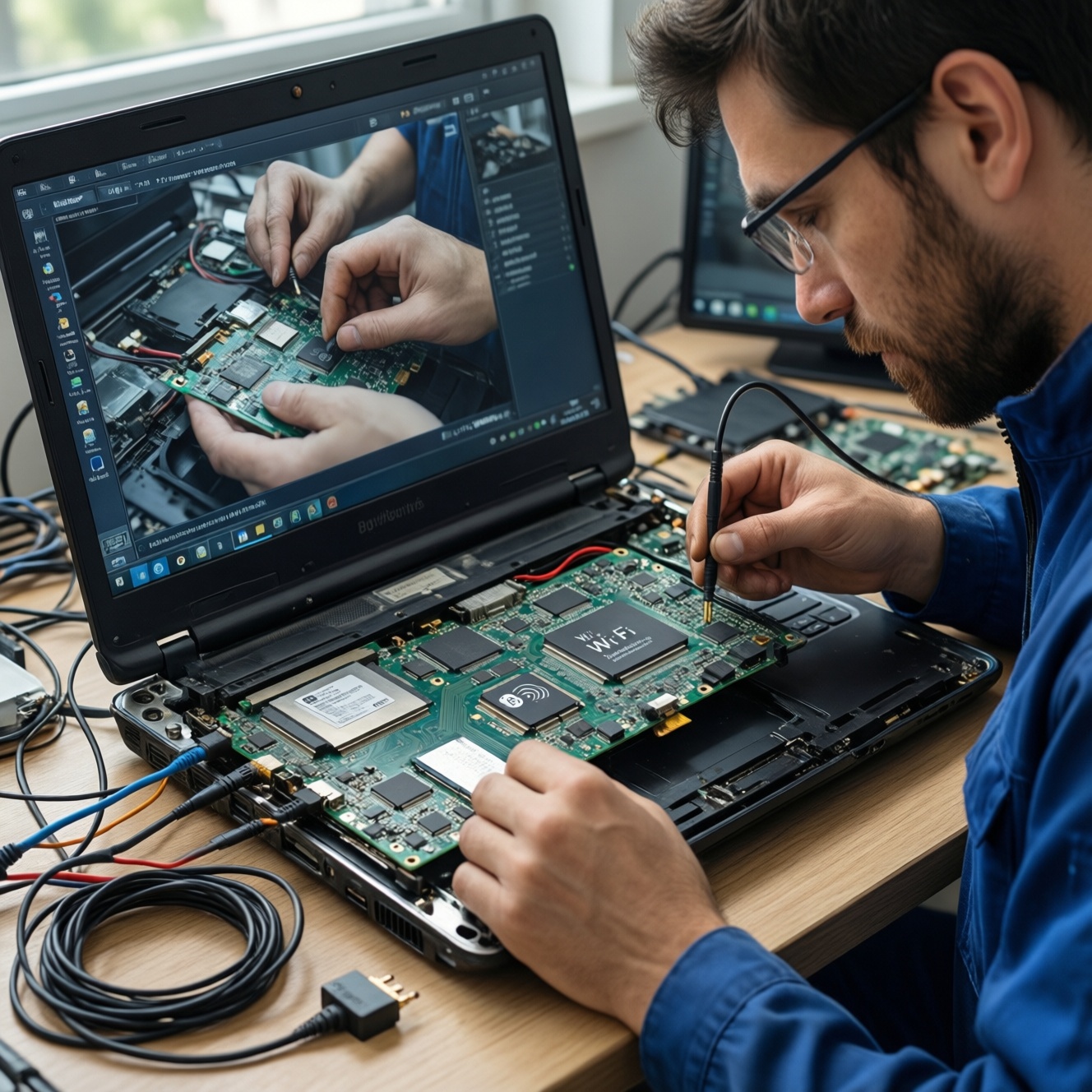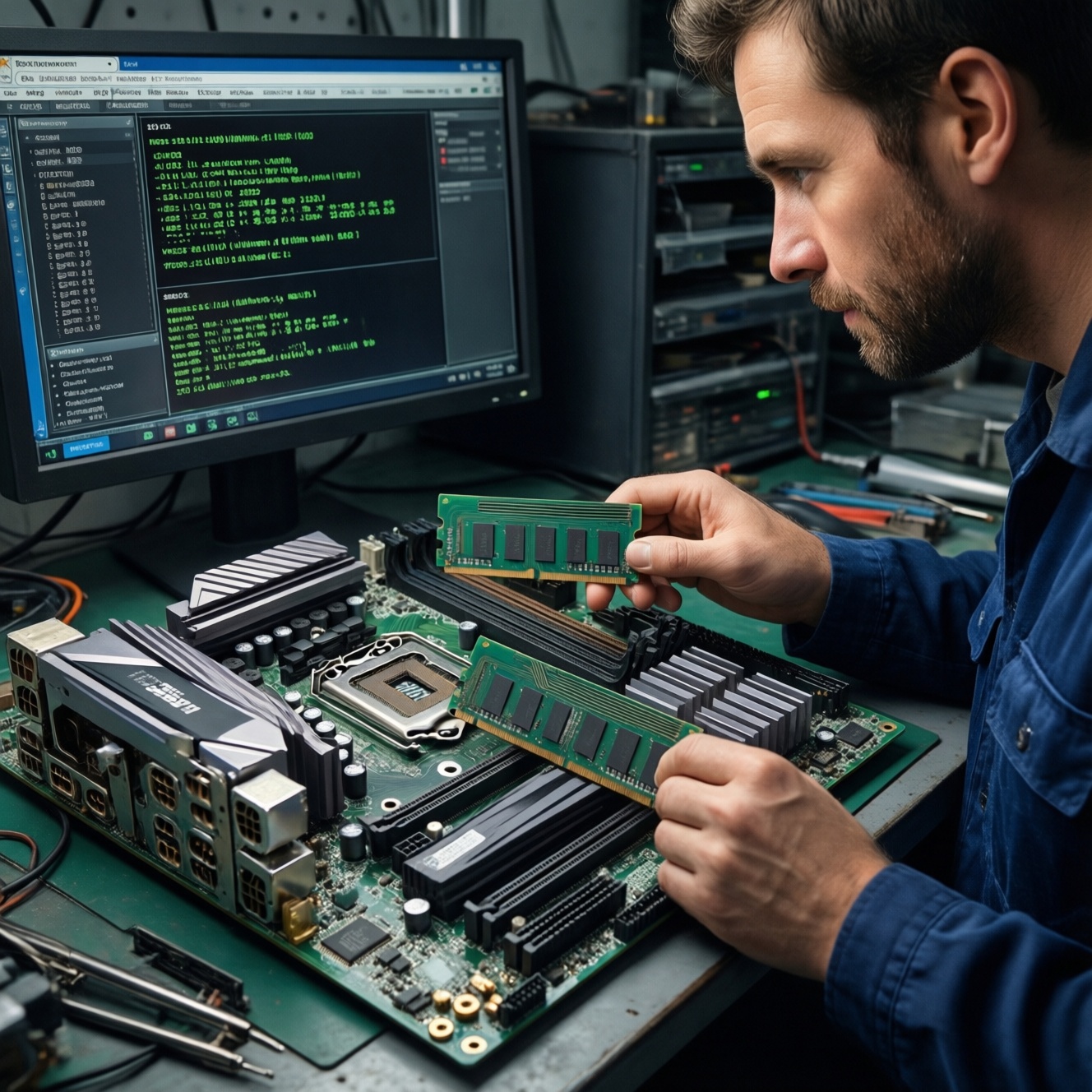
To upgrade RAM cost-effectively, confirm your motherboard or laptop supports the exact RAM generation (DDR4/DDR5), maximum capacity per slot, and supported speeds, then install matched modules for dual-channel where possible. After the upgrade, verify BIOS detection and run stability checks so you catch boot loops, random reboots, and memory errors early.
Before You Buy: Essential RAM Checks
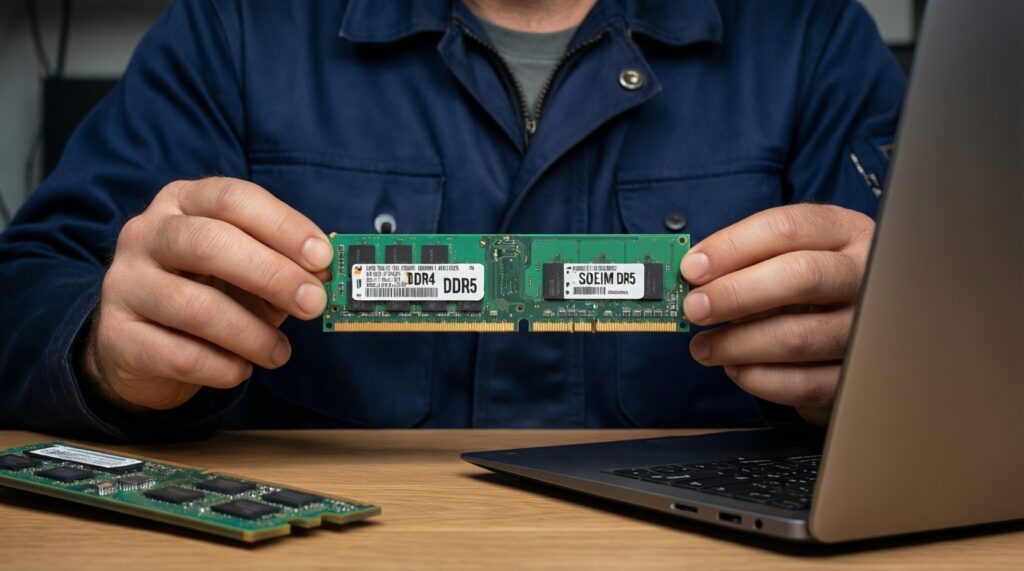
- Identify device type and module format: desktop DIMM vs laptop SO-DIMM.
- Confirm RAM generation: DDR4 and DDR5 are not cross-compatible.
- Check slot count, maximum total capacity, and maximum per-slot capacity.
- Verify supported speed range (JEDEC) and whether XMP/EXPO is supported.
- Match capacity and ranks as closely as practical for stable dual-channel operation.
- Confirm physical clearance (heatsinks, CPU cooler, laptop serviceability) before buying.
Identifying Your Motherboard's RAM Slots and Limits
This process fits intermediate users who can open a PC case or a serviceable laptop panel, and who want a predictable performance boost without replacing CPU/motherboard. Avoid upgrading if your laptop RAM is soldered-only, the device is under strict warranty terms, or you can't access BIOS/UEFI settings and basic diagnostics.
- Find slot count and current population: Use Task Manager (Windows), System Information tools, or BIOS/UEFI to see how many slots exist and how many are used.
- Confirm maximum capacity: Prefer the motherboard/laptop model's official memory support page or manual; don't rely only on generic "max RAM" lists.
- Check serviceability for laptops: Before you ซื้อ RAM โน้ตบุ๊ก, confirm whether there's an accessible SO-DIMM slot or only soldered RAM.
Understanding RAM Types, Speeds, and Timings
You'll need: (1) admin access in your OS, (2) access to BIOS/UEFI, (3) a small Phillips screwdriver (most laptops/PC cases), and (4) a way to read the existing module label if software reports are incomplete. Also plan for ESD safety and a clean workspace.
| What to compare | DDR4 | DDR5 | Why it matters when upgrading |
|---|---|---|---|
| Physical format | DIMM (desktop) / SO-DIMM (laptop) | DIMM (desktop) / SO-DIMM (laptop) | DDR4 vs DDR5 notches differ; you must buy the correct generation and form factor. |
| Typical speed behavior | Runs at JEDEC defaults; optional XMP profiles (platform-dependent) | Runs at JEDEC defaults; optional XMP/EXPO profiles (platform-dependent) | If you mix kits or enable profiles incorrectly, you may lose stability or fall back to lower speeds. |
| Common motherboard/laptop limit types | Max total capacity; max per-slot capacity; supported JEDEC speed list | Max total capacity; max per-slot capacity; supported JEDEC speed list | Limits vary by model and BIOS version; verify before purchase with the exact model name. |
| Timings and compatibility | CAS/timings often looser at higher speed profiles | CAS/timings differ by profile and platform | Mixed sticks run at the slowest common settings; for best results, match sticks as a pair. |
Pricing changes frequently by shop and promo, so treat RAM DDR4 ราคา and RAM DDR5 ราคา as comparison keywords rather than fixed expectations. Focus on verified compatibility first, then pick the best value within your supported speed/capacity range.
Matching Capacity, Dual/Quad Channel and Upgrade Paths
- Back up important files (disk image optional, but recommended for mission-critical machines).
- Download any needed tools now (BIOS update notes, memory test utilities) so you don't troubleshoot on an unstable system.
- Prepare ESD precautions: shut down fully, unplug power, discharge residual power, avoid working on carpet, and ground yourself periodically.
- Photograph current RAM placement and labels (helps when reseating or reverting).
-
Collect current memory specs from the system
Record generation (DDR4/DDR5), current total capacity, number of installed modules, and current operating speed. If software is ambiguous, read the physical label on the RAM stick.
-
Confirm slot layout and the preferred channel pairing
Most consumer boards label slots like A1/A2/B1/B2; the recommended two-stick pairing is usually A2 + B2. Laptop SO-DIMMs typically have 1-2 slots; if only one slot exists, dual-channel may be limited by design.
-
Choose a capacity target based on real workload
Upgrade to eliminate swapping and stutter: heavy browser use, content creation, VMs, and modern games benefit most. When comparing อัปเกรด RAM คอมพิวเตอร์ ราคา across shops, weigh the cost of a matched kit versus mixing sizes.
- If you already have 2 sticks and want more RAM, replacing both with a matched kit is often more predictable than adding mismatched modules.
- If you have 1 stick and an empty slot, adding a second matching stick is the simplest path to dual-channel benefits.
-
Pick the right kit: match generation, format, and sensible speed
For stability, prioritize correct generation and JEDEC compatibility first, then choose speed. If you're asking เช็ก RAM รองรับ รุ่นไหนดี, the safest answer is: the kit that matches your platform's supported list and your existing stick's key specs.
- Desktop: DIMM; Laptop: SO-DIMM.
- DDR4 and DDR5 cannot be mixed or inserted into each other's slots.
-
Plan the upgrade path to avoid dead-end buys
If you expect to expand again, buy a 2-stick kit that leaves room for future growth (or a 1-stick plan only if you're sure about matching later). Consider BIOS update availability and whether your platform handles higher-density modules well.
Ensuring Physical Fit: DIMM, SO‑DIMM and Voltage Considerations
- Module type matches device: DIMM for desktop, SO-DIMM for laptop.
- RAM generation matches the slot: DDR4-only board gets DDR4; DDR5-only board gets DDR5.
- Heatsink height and CPU cooler clearance are compatible (desktop).
- SO-DIMM thickness and shielding clearance fit (laptop); no cable pinching on reassembly.
- Both sticks can fully latch: side clips lock on DIMMs; SO-DIMM sits flat after insertion.
- Voltage/profile expectations are realistic: if you don't enable XMP/EXPO, RAM may run at standard JEDEC speeds.
- Slot pairing follows the motherboard manual (when using 2 or 4 sticks).
- No dust/debris in slots; contacts are clean and undamaged.
Step-by-Step Installation, BIOS Settings and XMP Profiles
- Not fully powered down: Use full shutdown, unplug AC, and disconnect battery if serviceable; "sleep/hibernation" can cause odd boot behavior.
- Wrong slot pairing: Two sticks in the wrong slots may reduce performance or stability; follow the board's recommended A2/B2 pairing.
- Incomplete seating: A DIMM that isn't fully latched often causes no-boot or memory errors-press evenly until both clips click.
- Mixing mismatched modules aggressively: Different capacities/ranks/speeds can force slow fallback settings or instability; matched kits are easiest to stabilize.
- Enabling XMP/EXPO blindly: If the system becomes unstable, revert to JEDEC defaults, then try a milder profile (or manual settings only if you know what you're doing).
- Skipping a BIOS update when needed: Some platforms improve memory compatibility with BIOS updates; read release notes before flashing and don't update mid-instability.
- Over-tightening laptop screws or misplacing them: Can warp panels and stress the board; reassemble gently and in the correct screw order.
- Touching gold contacts: Oils can cause contact issues; hold modules by the edges.
Post‑Upgrade Validation: Stress Tests, Benchmarks and Troubleshooting
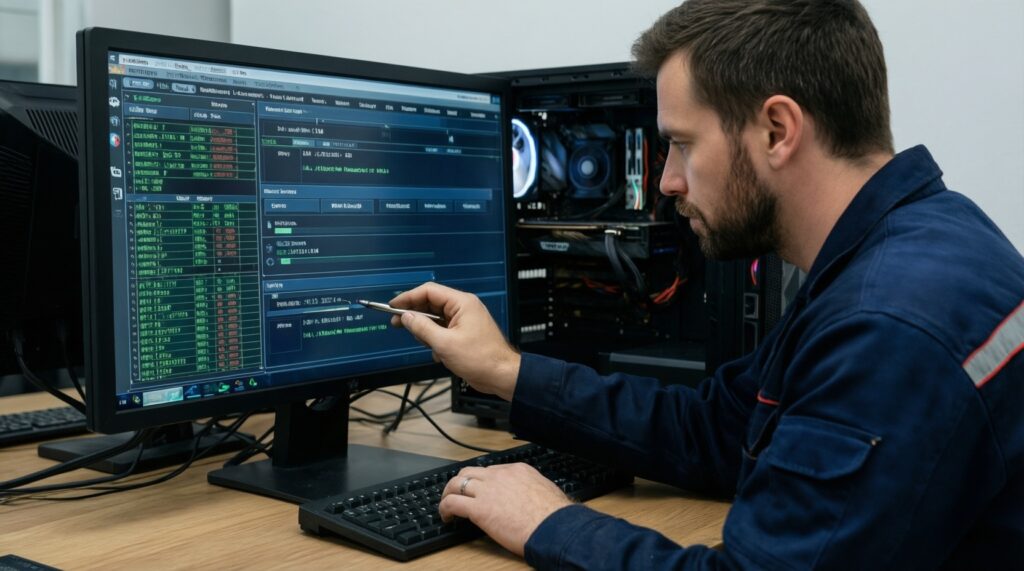
If you want alternatives to a full benchmarking routine, these options are practical depending on your goal:
- Quick verification only (fastest): Confirm total RAM and speed in BIOS/UEFI and in the OS, then do a normal workload session; suitable when you only added a matching stick.
- Targeted stability check (recommended): Run a memory-focused test and watch for errors, then do a few hours of your most demanding app/game; best for mixed kits or after enabling XMP/EXPO.
- Rollback-first troubleshooting: If issues appear, revert to default memory settings and test one stick at a time; ideal when diagnosing no-boot or random reboots.
- Professional service route: For sealed ultrabooks, mission-critical workstations, or repeated memory errors after reseating, use a reputable service center to avoid board damage.
- No boot / black screen: Power off, reseat RAM, try one stick in the recommended slot, clear CMOS (desktop), then boot with defaults.
- Random restarts under load: Disable XMP/EXPO, update BIOS if appropriate, retest; if stable at defaults, the profile is too aggressive for your CPU/board.
- Blue screens / app crashes: Run a memory test; if errors persist, test sticks individually to identify a faulty module or slot.
- RAM shows but speed looks "low": You're likely on JEDEC defaults; enable XMP/EXPO only if your platform supports it and stability remains clean.
Common Concerns and Quick Answers
Will DDR4 work in a DDR5 slot (or the other way around)?
No. DDR4 and DDR5 are physically keyed differently and electrically incompatible.
Is it safe to mix different RAM brands or capacities?
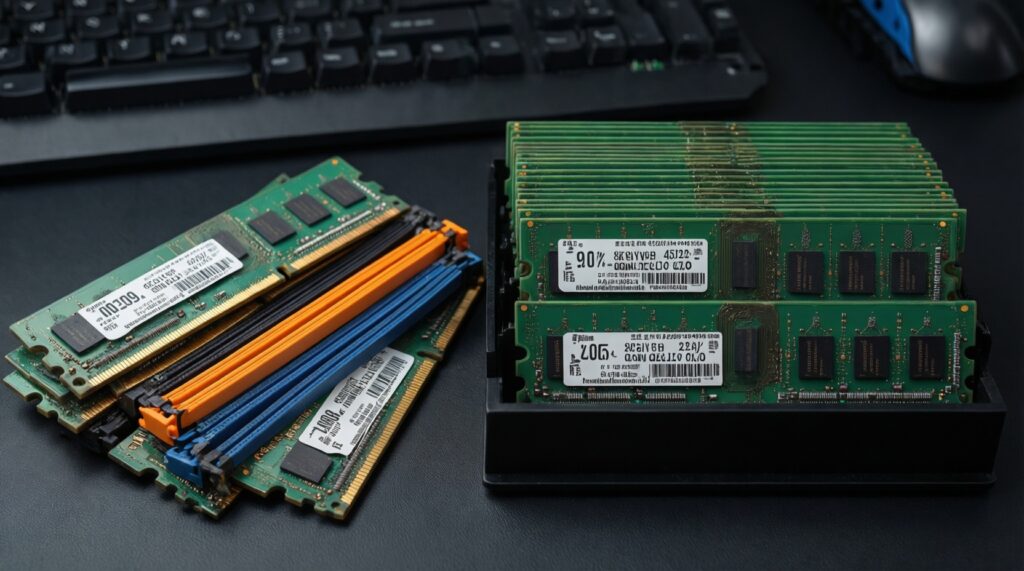
It can work, but stability and speed usually fall back to the slowest common settings. For the least trouble, use a matched kit.
Why does my RAM run at a lower speed than the box says?
Many kits advertise an overclocking profile; without XMP/EXPO, systems often run JEDEC defaults. Enable the correct profile only if the system remains stable.
What's the simplest upgrade for a laptop with one free slot?
Add a second SO-DIMM that matches generation and key specs; you often gain capacity and better channel behavior. Confirm the laptop isn't soldered-only before you buy.
After the upgrade, the PC turns on but shows no display-what now?
Reseat the modules, try booting with one stick, and clear CMOS on desktops. If it boots with one stick only, the other module/slot pairing or XMP settings may be the issue.
Do I need to update BIOS before installing new RAM?
Not always, but it can improve memory compatibility on some platforms. If you're already stable, install RAM first; update BIOS only when needed and following official instructions.
How do I judge value when comparing prices in Thailand?
Compare like-for-like capacity and generation first, then prioritize verified compatibility over minor price gaps. Use shop comparisons for RAM DDR4 ราคา or RAM DDR5 ราคา only after confirming your supported specs.