To make an older PC feel faster, reduce background load first: disable nonessential Windows services, stop unneeded Linux units, and trim startup apps/drivers-then verify with simple benchmarks and keep rollback options ready. Apply one change at a time, document results, and prefer reversible settings over "tweaker" tools.
Primary tuning checklist for older PCs
- Create a restore point (Windows) or a snapshot/backup (Linux) before changing services or startup.
- Measure a baseline: boot time feel, idle CPU/RAM, and disk activity while doing nothing.
- Disable only clearly nonessential services/units; leave security, networking, storage, and update components intact.
- Trim startup apps and scheduled tasks; keep drivers and core system components enabled.
- Retest after each change; if something breaks, roll back immediately.
- If software tuning is not enough, consider hardware: อัปเกรด SSD ราคา and เพิ่ม RAM โน้ตบุ๊ก ราคา often matter more than aggressive tweaks.
Windows: identify and safely disable nonessential services
This fits Windows 10/11 (and many Windows 7/8 setups still in use) when the machine is slow at idle, has frequent disk thrashing, or takes long to become responsive after login. Avoid service disabling on managed/corporate devices, machines using BitLocker/VPN policies you don't control, or PCs where you can't easily recover (no admin access, no recovery media).
Safe workflow (conservative)
- Create a restore point (System Protection). If a core component stops working, this is your fastest rollback.
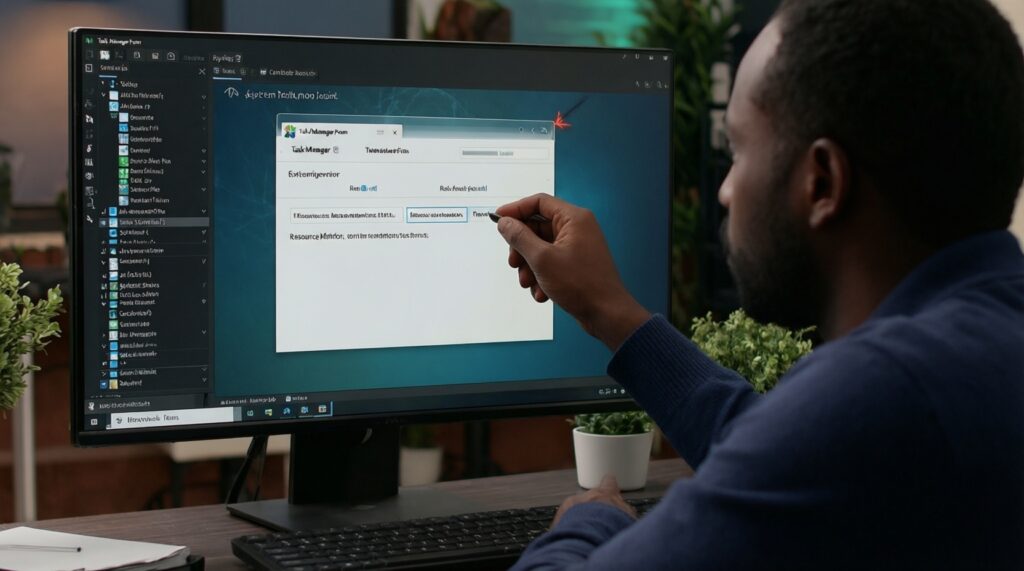
- Inspect current service load with Task Manager → Services and Resource Monitor (resmon). Look for services tied to apps you don't use.
- Prefer "Manual" over "Disabled" for uncertain items. "Manual" allows Windows to start the service if required.
- Change one service at a time, reboot, and test: network, printing, audio, Bluetooth, sleep/wake, and Windows Update.
Where to change services (GUI and PowerShell)
- GUI: Win+R →
services.msc→ double-click a service → set Startup type to Manual or Disabled → Stop (optional) → OK. - PowerShell (Admin): check status with
Get-Service; change start mode withSet-Service -Name <ServiceName> -StartupType Manual(orDisabled).
Common "usually safe" targets (only if you truly don't use them)
- Print Spooler (if you never print)
- Bluetooth Support Service (if no Bluetooth devices)
- Xbox services (if no Xbox/Game Bar features needed)
- Offline Files (if not using enterprise offline sync)
Do not disable core items you're unsure about (network stack services, storage, cryptography, Windows Update components, Defender/security, device install services). If you are tempted to install a "โปรแกรมเร่งความเร็วคอมพิวเตอร์ Windows", treat it as higher risk than manual changes-many bundle ads, change multiple settings at once, and complicate rollback.
Linux: using systemd and init tools to stop unnecessary units
You'll need admin privileges (sudo), a terminal, and a way to recover if networking breaks (physical access or out-of-band console). For most modern distros (Ubuntu, Debian, Fedora, Arch), you'll use systemd. On older/minimal systems you may see SysVinit/OpenRC; the principle is the same: stop and disable what you don't need, and keep rollback paths.
Tools and access you should have ready
- Systemd commands:
systemctl,journalctl - Baseline monitoring:
toporhtop,free -h,df -h - Package awareness: know what installed the service (e.g.,
apt/dnf/pacman) so you can remove it cleanly later - Rollback: ability to re-enable units and reboot; optional snapshot (Btrfs/ZFS/Timeshift) if available
Systemd: identify and disable safely
- List enabled units:
systemctl list-unit-files --state=enabled. Focus on services that start at boot. - Check what a unit does:
systemctl status <unit>andsystemctl cat <unit>. If it's tied to hardware you don't use (e.g., Bluetooth), it's a candidate. - Disable (reversible):
sudo systemctl disable --now <unit>. This stops it now and prevents autostart. - Verify logs after reboot:
journalctl -b -p warning. If you see network/storage/auth errors, re-enable immediately.
Non-systemd note (older init)
- SysVinit/LSB: look for scripts in
/etc/init.d/and use your distro tool (oftenupdate-rc.don Debian-based) to disable. - OpenRC: use
rc-update del <service> defaultandrc-service <service> stop.
Startup optimization: managing autostart apps and drivers
Risks and limitations (read before changing anything)
- Disabling a startup item can break sign-in helpers, touchpad gestures, hotkeys, audio enhancements, VPN clients, or cloud sync.
- Driver-related entries may be required for stability; when in doubt, keep hardware vendor components enabled.
- Some items respawn via scheduled tasks or update agents; remove the source app rather than playing "whack-a-mole".
- Always test one change at a time and keep a small log so you can undo the exact change.
-
Record a baseline (before changes)
Open Task Manager and note CPU/RAM at idle for 2-3 minutes after login. Also note whether the disk stays at high activity without you doing anything.
- Windows: Task Manager → Performance + Processes
- Linux:
top/htop+free -h
-
Trim Windows startup apps (safe first pass)
Task Manager → Startup tab: disable apps you don't need immediately at login (chat updaters, launchers, tray-only helpers). Leave security software, touchpad/hotkey utilities, and audio drivers enabled.
- Use Startup impact as a hint, not a rule; verify the publisher and file path.
-
Audit deeper autostart locations (targeted, reversible)
Check additional entry points that frequently slow older PCs. Make a single change, reboot, and confirm functionality.
- Windows: Task Scheduler (scheduled updaters), Settings → Apps → Installed apps (uninstall bloat), and (advanced) Sysinternals Autoruns.
- Linux desktop: your DE's Startup Applications; also check
~/.config/autostart/.
-
Reduce unnecessary background sync and indexing
If your disk is the bottleneck, background indexing/sync can dominate responsiveness. Prefer narrowing scope (folders) over fully disabling core features.
- Windows: limit Search indexing locations; pause heavy cloud sync when working on battery/slow disk.
- Linux: disable unused file indexers for your desktop environment, or limit them to home directories.
-
Document every change in a small log
Write down what you disabled, where, and the result after reboot. This prevents getting stuck in "it used to work" situations and makes rollback fast.
Change log template (use this to test one change at a time)
| Date | OS | Item changed (service/unit/startup) | Where changed | Before symptom | After result | Rollback action |
|---|---|---|---|---|---|---|
| 2026-05-25 | Windows | Startup app: vendor updater | Task Manager → Startup | Slow after login | Improved / No issue | Re-enable in Startup tab |
| 2026-05-25 | Linux | Unit: bluetooth.service | systemctl disable --now | Idle CPU wakeups | Improved / Bluetooth off | systemctl enable --now bluetooth.service |
Lightweight replacements and resource-friendly configurations
If tuning doesn't reach your target, reduce workload: swap heavy apps for lighter alternatives and adjust settings that trigger constant background work. If the device is extremely constrained, consider ลง Linux เบาสำหรับเครื่องเก่า, but only after confirming your needed apps and hardware (Wi‑Fi, graphics) are supported.
Result verification checklist (after you tune)
- Idle CPU remains low and stable (no recurring spikes without user activity).
- Disk activity settles quickly after login; no constant 100% disk usage on idle.
- RAM pressure decreases: fewer apps stay resident in the tray/background.
- Boot-to-usable time improves (subjective is fine if you keep notes).
- Network is stable: Wi‑Fi reconnects after sleep, VPN works if you use it.
- Peripherals work: touchpad gestures, audio, webcam, Bluetooth (if needed), printing (if needed).
- Updates still function (Windows Update or your Linux package manager).
- No recurring errors in Event Viewer (Windows) or
journalctl -b(Linux).
Performance monitoring, benchmarks and safe rollback steps
Common mistakes that cause slowdowns or breakage
- Disabling "unknown" services in bulk: you lose track of what changed and can break networking, login, or updates.
- Using "optimizer" suites to apply many tweaks at once: hard to audit, harder to roll back, and can add more background tasks than they remove.
- Confusing app services with system services: removing a vendor service might break hotkeys, battery profiles, or audio enhancements.
- Disabling update mechanisms: it can reduce short-term activity but increases security risk and long-term instability.
- Ignoring storage health: a failing HDD/SSD can mimic "software slowness" and makes tuning pointless.
- Chasing micro-optimizations instead of bottlenecks: if the main limit is storage or RAM, service tweaks won't substitute for an SSD/RAM upgrade.
- Not rebooting between tests: many startup/service changes only show true impact after a full restart.
Safe rollback options (Windows and Linux)
- Windows services: revert Startup type in
services.msc, or use System Restore to the restore point you created. - Windows startup: re-enable the item in Task Manager → Startup; undo scheduled tasks you disabled.
- Linux units:
sudo systemctl enable --now <unit>; if the machine won't boot cleanly, use recovery mode and re-enable from a root shell. - Config changes: restore the backed-up config file (keep a timestamped copy before edits).
Automate routine cleanup and deferred maintenance tasks
Use automation when you've stabilized the system and want low-effort maintenance without constant manual checking. If you're evaluating whether tuning is worth it or you should ซื้อคอมพิวเตอร์มือสองสเปกดี ราคาถูก instead, run these for a week and judge stability and daily responsiveness.
Practical alternatives (choose what matches your setup)

- Windows built-in cleanup and storage policies: Storage Sense and uninstalling unused apps is safer than third-party cleaners; it reduces background updaters and disk churn.
- Windows update scheduling (not disabling): set active hours and let updates run when you're not working; reduces "random slow" moments.
- Linux periodic maintenance via timers: rely on distro defaults; if you add your own, use
systemdtimers for controlled tasks (log cleanup, package cache trimming) and keep them minimal. - Hardware-first option: if your profiling shows disk is the bottleneck, compare อัปเกรด SSD ราคา versus your time cost; similarly, เพิ่ม RAM โน้ตบุ๊ก ราคา can be the cleanest "optimization".
Troubleshooting tips and common risk scenarios
After disabling a service, Windows Update stopped working-what should I do?
Re-enable the last service you changed and reboot. If you don't know which one, use System Restore to return to the restore point, then retry with one change at a time.
My laptop lost Wi‑Fi or Bluetooth after tuning-how do I recover safely?
Undo the most recent startup/service change related to networking or Bluetooth and reboot. On Linux, run sudo systemctl enable --now NetworkManager (or your network service) and re-enable bluetooth.service if you need it.
Boot is faster, but apps open slower-what does that indicate?
It often points to storage limits or aggressive background reduction that removed a needed cache/index component. Check disk activity at app launch; if it's consistently high, prioritize SSD or reduce background sync rather than disabling more services.
Is it safe to use a โปรแกรมเร่งความเร็วคอมพิวเตอร์ Windows?
It's riskier than manual, documented changes because it typically applies multiple tweaks and adds resident components. If you use one, create a restore point first and verify it can fully revert changes.
Linux feels lighter, but video playback stutters-what should I check?
Confirm you didn't disable graphics-related services, and check whether the correct GPU driver is in use. Also verify your desktop environment isn't too heavy for the machine; consider lighter DE settings rather than disabling core system units.
When should I stop tuning and instead ลง Linux เบาสำหรับเครื่องเก่า or upgrade hardware?
If you've trimmed startup, reduced background services safely, and the system still thrashes disk or runs out of RAM during normal tasks, software tuning is near its limit. At that point, decide between a lightweight Linux install, SSD/RAM upgrades, or ซื้อคอมพิวเตอร์มือสองสเปกดี ราคาถูก.