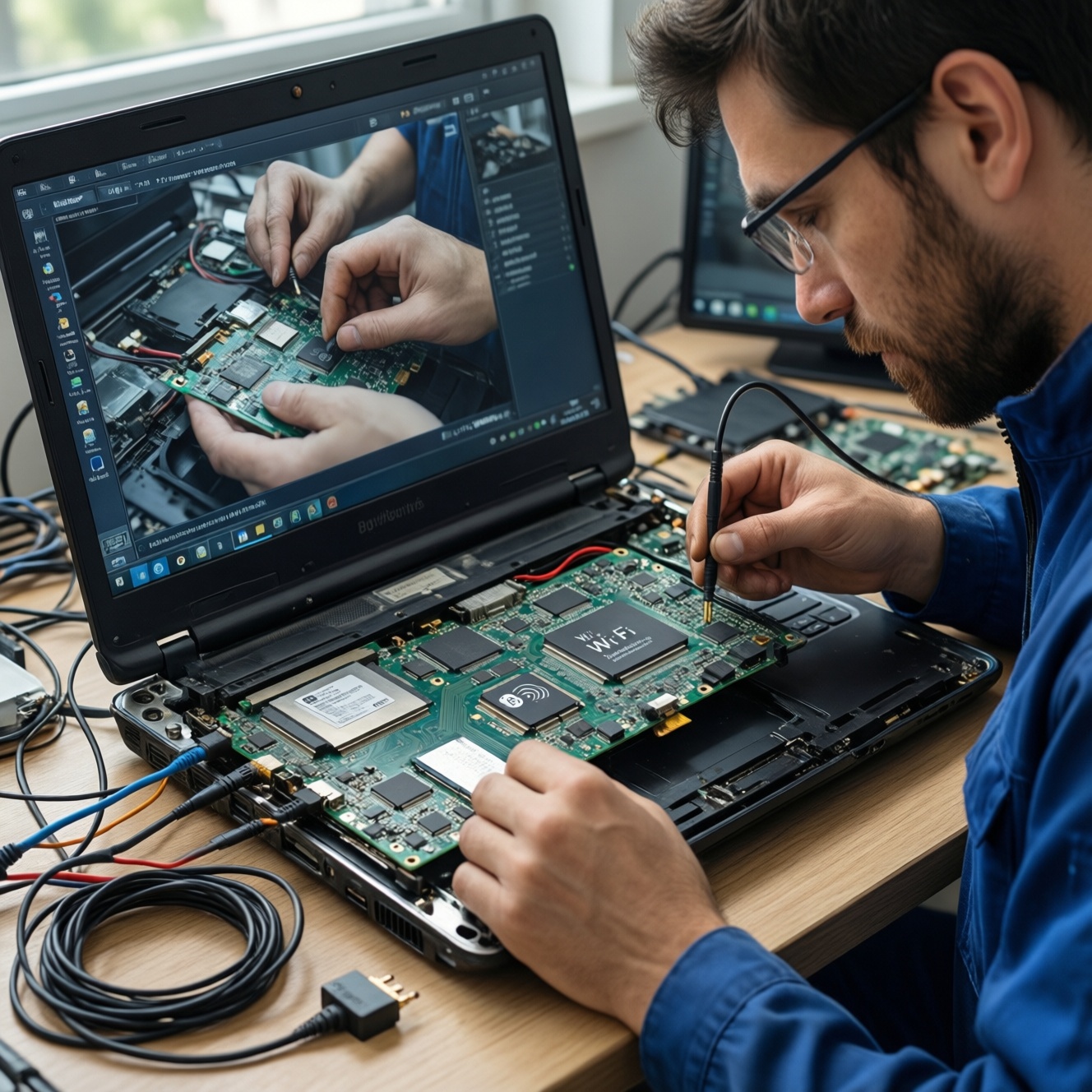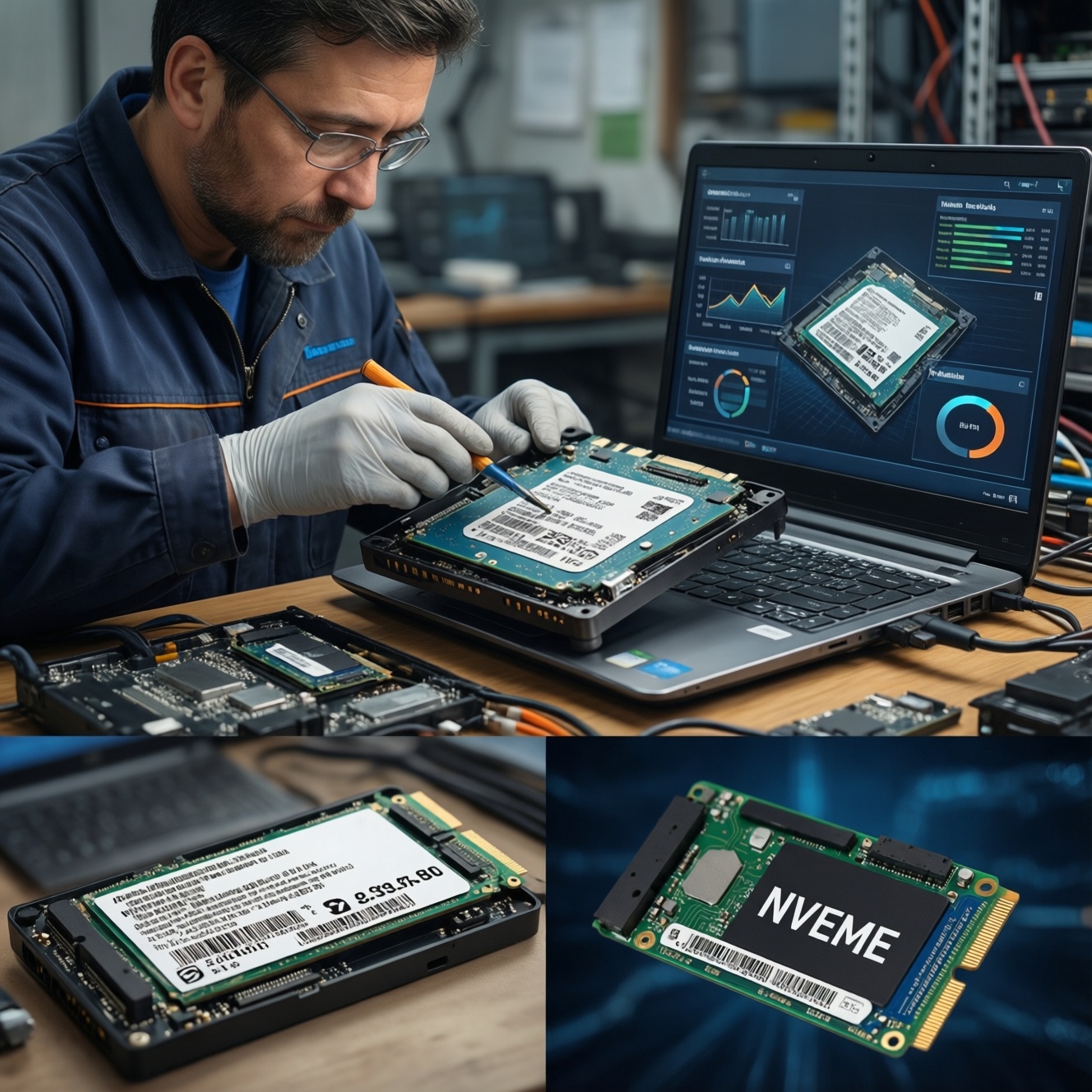
To upgrade an SSD in a laptop (SATA vs NVMe), first confirm which slot and protocol your machine actually supports, then choose capacity and endurance that match your workload, clone the OS safely, and finish with firmware/driver checks and validation benchmarks. This risk-aware flow minimizes data loss, boot failures, and throttling after the upgrade.
Decisions to Make Before You Buy
- Which interface you can use: 2.5-inch SATA, M.2 SATA, or M.2 NVMe (many laptops support only one).
- Your real target: faster boot/app load vs sustained transfers vs battery life.
- Capacity plan: how much space you need now and what headroom you want for the next 12-24 months.
- Migration method: clean install vs โคลนระบบ Windows ไป SSD (and whether you can keep both drives connected during cloning).
- Thermals: whether the laptop can keep an NVMe drive cool enough to avoid performance drops.
- Budget expectations (including local shop labor), e.g., comparing ซื้อ SSD NVMe 1TB ราคา and the added ติดตั้ง SSD NVMe ในโน้ตบุ๊ก ราคา if you won't DIY.
SATA vs NVMe: Performance, Power and Compatibility Compared
If your laptop only has a 2.5-inch bay or M.2 SATA slot, SATA is your ceiling and the upgrade still delivers a big real-world improvement over HDDs. NVMe is worth it when your laptop supports M.2 PCIe/NVMe and you frequently move large files, compile code, run VMs, or do heavy creative work. If cooling is weak or the system is locked to legacy/CSM boot, NVMe can be more hassle than benefit.
When people ask SSD SATA กับ NVMe ต่างกัน, the practical difference is mainly protocol + bus: SATA is limited and broadly compatible; NVMe uses PCIe lanes, usually lower latency and higher peak throughput, but is more sensitive to thermals, BIOS/UEFI settings, and slot keying.
| Factor | SATA SSD | NVMe SSD |
|---|---|---|
| Typical user-visible wins | Fast boot and app loads vs HDD; smooth daily usage | Faster large transfers, heavy multitasking, dev/VM work; snappier under load |
| Throughput ceiling (practical) | Limited by SATA | Depends on PCIe generation/lanes; higher ceiling |
| Latency / queue handling | Higher protocol overhead | Lower protocol overhead; scales better with parallel I/O |
| Power and heat sensitivity | Usually cooler, predictable | Can run hot; may throttle without airflow/heatsink |
| Compatibility risks | Very broad (2.5-inch SATA) | Slot keying (M-key/B+M), BIOS UEFI/NVMe boot support, lane sharing |
| Cost dynamics | Often cheaper at low/mid capacities | Price varies widely; compare by warranty/endurance and controller class, not just capacity |
Fast decision flowlines
- Mobile worker: prioritize reliability + battery + thermals → quality SATA or efficient NVMe (if supported) + keep free space.
- Developer/VM user: NVMe if supported + higher capacity headroom; validate sustained performance and temperatures.
- Gamer: NVMe helps with large game installs/updates; SATA still fine if the laptop lacks NVMe or runs hot.
Inspecting Your Laptop: Physical Slots, BIOS Modes and Thermal Constraints
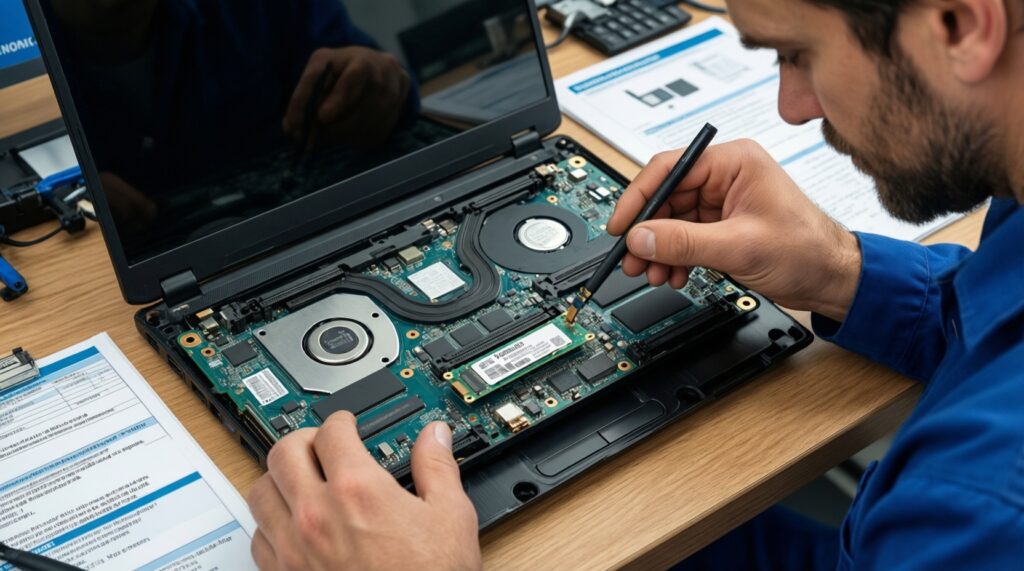
Before you start any อัปเกรด SSD โน้ตบุ๊ก, verify the exact storage connectors and boot mode. Many laptops have an M.2 slot that supports only SATA or only NVMe, and the sticker on the motherboard (or service manual) is more trustworthy than marketing names.
What you need (tools and access)
- Documentation: laptop model + service manual/teardown guide to confirm slot type and screw locations.
- ESD precautions: non-carpet surface, discharge yourself; avoid touching contacts.
- Tools: correct screwdriver bit, plastic pry tool, small container for screws.
- Cloning gear: a way to connect both drives at once (USB-to-SATA enclosure for 2.5-inch, or USB NVMe enclosure) if you plan to clone.
- Admin access: Windows admin account and BitLocker recovery key (if encryption is enabled).
Checks to run before opening the laptop
- Slot type: 2.5-inch SATA bay vs M.2. For M.2, confirm length (commonly 2280) and keying (B, M, or B+M).
- UEFI vs Legacy/CSM: NVMe boot is typically easiest in UEFI mode. Plan a clean migration if your current install is legacy/MBR and you want NVMe.
- Lane sharing: some laptops disable a port when M.2 is populated (rare but real). Check the manual.
- Thermals: look for a thermal pad/heatsink area near the M.2 slot; thin ultrabooks are more likely to throttle.
- Warranty seals: confirm whether opening the bottom cover impacts local warranty policies.
Selecting Capacity, Endurance (TBW) and Overprovisioning for Real Use
Choose for your workload first, then price. Searching ซื้อ SSD NVMe 1TB ราคา is useful, but don't ignore controller class, warranty terms, and whether the drive is known to throttle in thin laptops.
Risks and limits to acknowledge (risk-aware)
- Data loss: cloning mistakes and hidden encryption can make the new drive unbootable.
- Thermal throttling: an NVMe drive may benchmark well briefly, then slow down under sustained writes.
- Fit and protocol mismatch: an M.2 drive can physically fit but still be incompatible (SATA vs NVMe).
- Warranty and screw damage: stripped screws and broken clips are common when rushing.
- Rollback complexity: without a plan, you can end up with two drives that won't boot cleanly.
-
Map your storage demand (today + headroom)
Check used space and growth drivers (games, VMs, media caches). Aim to keep meaningful free space for performance and updates.
- Windows: Settings → System → Storage (or run
ms-settings:storagesense). - Include hidden usage: hibernation file, restore points, VM disks, creative caches.
- Windows: Settings → System → Storage (or run
-
Confirm compatibility before choosing SATA or NVMe
Don't buy based on "M.2" alone. Confirm whether your slot supports NVMe (PCIe) or only M.2 SATA, and the supported length (e.g., 2280).
- If the laptop only supports 2.5-inch SATA, buy a 2.5-inch SATA SSD.
- If it supports M.2 NVMe, you can choose NVMe; if it supports only M.2 SATA, NVMe will not work.
-
Choose endurance and drive class to match your write load
Endurance (often expressed as TBW) matters more for sustained heavy writes (VMs, scratch disks, builds). For general office use, prioritize reliability, warranty, and thermals instead of chasing peak benchmarks.
- Developer/VM: favor models known for consistent sustained performance.
- Ultrabook: favor efficiency and low throttling risk.
-
Plan overprovisioning and free-space rules
Leaving unallocated space (or simply maintaining healthy free space) helps long-term consistency. If you are frequently near full, choose a larger capacity rather than relying on tweaks.
- Keep a cushion for Windows updates and temporary files.
- After migration, consider shrinking the last partition to leave some unallocated space.
-
Decide your install path: clean install vs clone
Cloning is fastest for getting back to work; clean install is cleaner if you're switching boot modes or have years of accumulated issues. If you must keep everything exactly, proceed with โคลนระบบ Windows ไป SSD but build a rollback plan first.
Preparing, Cloning and Migrating the Operating System Safely
Goal: a bootable system on the new SSD with no silent corruption and a clear rollback. If you pay a shop for ติดตั้ง SSD NVMe ในโน้ตบุ๊ก ราคา, still insist on a verified backup and a boot test before you leave.
Cloning steps (practical, minimal)
- Backup first: save critical files to an external drive or cloud; verify you can open a few random files.
- Suspend encryption: if BitLocker is enabled, suspend protection and store the recovery key safely.
- Connect the new SSD: use the internal slot (preferred) or a USB enclosure compatible with the drive type.
- Clone disk-to-disk: clone all required partitions (EFI/System/Recovery + OS). Ensure alignment and that the target uses GPT if booting UEFI.
- First boot test: power off, install the new SSD internally, then boot and confirm Windows loads normally.
Verification checklist before you delete or format the old drive
- Windows boots without repair loops and reaches the login screen normally.
- Device encryption/BitLocker status is as expected (re-enabled only after successful boot).
- Disk is detected correctly in Disk Management and shows the correct partitions.
- Free space and primary partition size match your plan (extend/shrink as needed).
- TRIM is enabled (Windows): run
fsutil behavior query DisableDeleteNotify(0 typically indicates TRIM enabled). - Apps that rely on licensing (Adobe, dev tools) launch successfully.
- Windows Update completes one check cycle without errors.
- Sleep/hibernate works at least once (important on laptops).
Firmware, Drivers and OS Tweaks to Unlock Maximum Throughput
These are the mistakes that most often prevent an upgrade from feeling fast, especially after switching to NVMe.
- Buying the wrong M.2 type: M.2 is a form factor; your slot may accept only SATA or only NVMe.
- Leaving BIOS in legacy mode: NVMe boot is typically smoother with UEFI; migrating from MBR/legacy without a plan can cause no-boot issues.
- Skipping SSD firmware updates: apply SSD firmware updates using the vendor tool when stable power is available.
- Forgetting chipset/storage drivers: install OEM chipset drivers; avoid random "driver booster" utilities.
- Thermal pad/heatsink omitted in tight chassis: an NVMe drive can throttle; use the laptop's intended thermal pad if present.
- Cloning with the wrong partition layout: missing EFI/Recovery partitions is a classic cause of boot failure.
- Running the drive nearly full: low free space can hurt consistency and update reliability.
- Disabling power management blindly: aggressive tweaks can reduce battery life or create sleep/wake bugs on laptops.
Quick Windows checks and commands (safe defaults)
- TRIM status:
fsutil behavior query DisableDeleteNotify - Drive health (basic):
wmic diskdrive get status,model(limited but quick) - Partition style: Disk Management → right-click disk → Properties (or check via
diskpartandlist disk)
Post‑Upgrade Validation: Benchmarks, Monitoring and Troubleshooting
Validate performance with short and sustained tests, then monitor temperatures during real workloads. If results are inconsistent, suspect thermals, lane limits, or a misidentified interface (SATA vs NVMe).
Recommended validation flow
- Confirm link type: ensure the drive is running as NVMe (not SATA) in Device Manager and vendor tools.
- Run a short benchmark: do one quick run, then repeat after several minutes of sustained writes to detect throttling.
- Check temps under load: monitor SSD temperature while copying a large folder or running your typical workload.
- Test real tasks: compile a project, export media, or load a few large games-use what you actually do.
Alternatives when an SSD upgrade is not the best next step
- External SSD for project files: useful when internal slots are limited; great for media libraries and portable worksets.
- RAM upgrade first: if you page to disk heavily, more RAM can improve responsiveness even with the same SSD.
- Clean install instead of cloning: best when you're changing boot mode, removing years of clutter, or troubleshooting persistent OS issues.
- Professional installation: sensible when the chassis is hard to open, parts are fragile, or you need guaranteed same-day turnaround (factor in ติดตั้ง SSD NVMe ในโน้ตบุ๊ก ราคา locally).
Common Concerns and Quick Answers
How do I know whether my laptop supports NVMe?
Check the service manual and the motherboard label near the M.2 slot. "M.2" alone is not enough; it must explicitly support PCIe/NVMe, and the slot key/length must match.
Can I clone Windows from SATA to NVMe without reinstalling?
Yes, if the laptop supports NVMe boot and you clone all required partitions (EFI/System/Recovery and OS). Suspend BitLocker first and do a first-boot test before wiping the old drive.
Why is my NVMe SSD not faster after the upgrade?
Common causes are thermal throttling, the slot running fewer PCIe lanes, or the drive actually running in SATA mode. Confirm interface type in Device Manager and monitor temperature under sustained writes.
Do I need to change BIOS settings after installing an SSD?
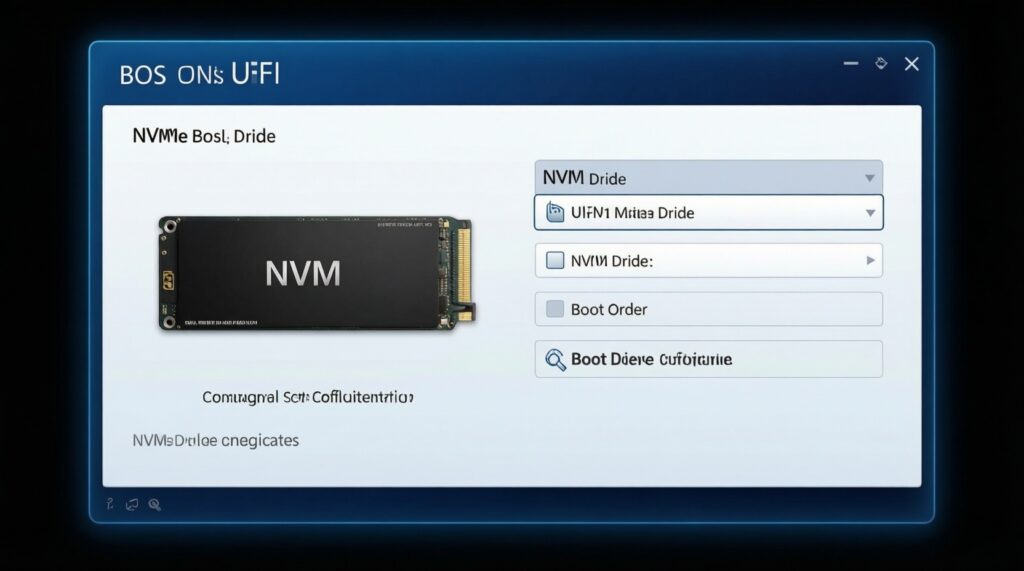
Sometimes. If you're moving to NVMe, UEFI mode is typically recommended, and you may need to adjust boot order. Avoid changing multiple settings at once so rollback is easy.
Is it safe to keep the old drive as a secondary disk after cloning?
Yes, but only after you confirm the new drive boots reliably. To avoid boot confusion, remove the old drive for the first boot, then reconnect it and wipe/repurpose it intentionally.
Should I pay attention to "ซื้อ SSD NVMe 1TB ราคา" or just buy the cheapest?
Use price as a filter, not the final decision. Also consider compatibility, thermals in your laptop, warranty terms, and whether the drive is known for stable sustained performance.