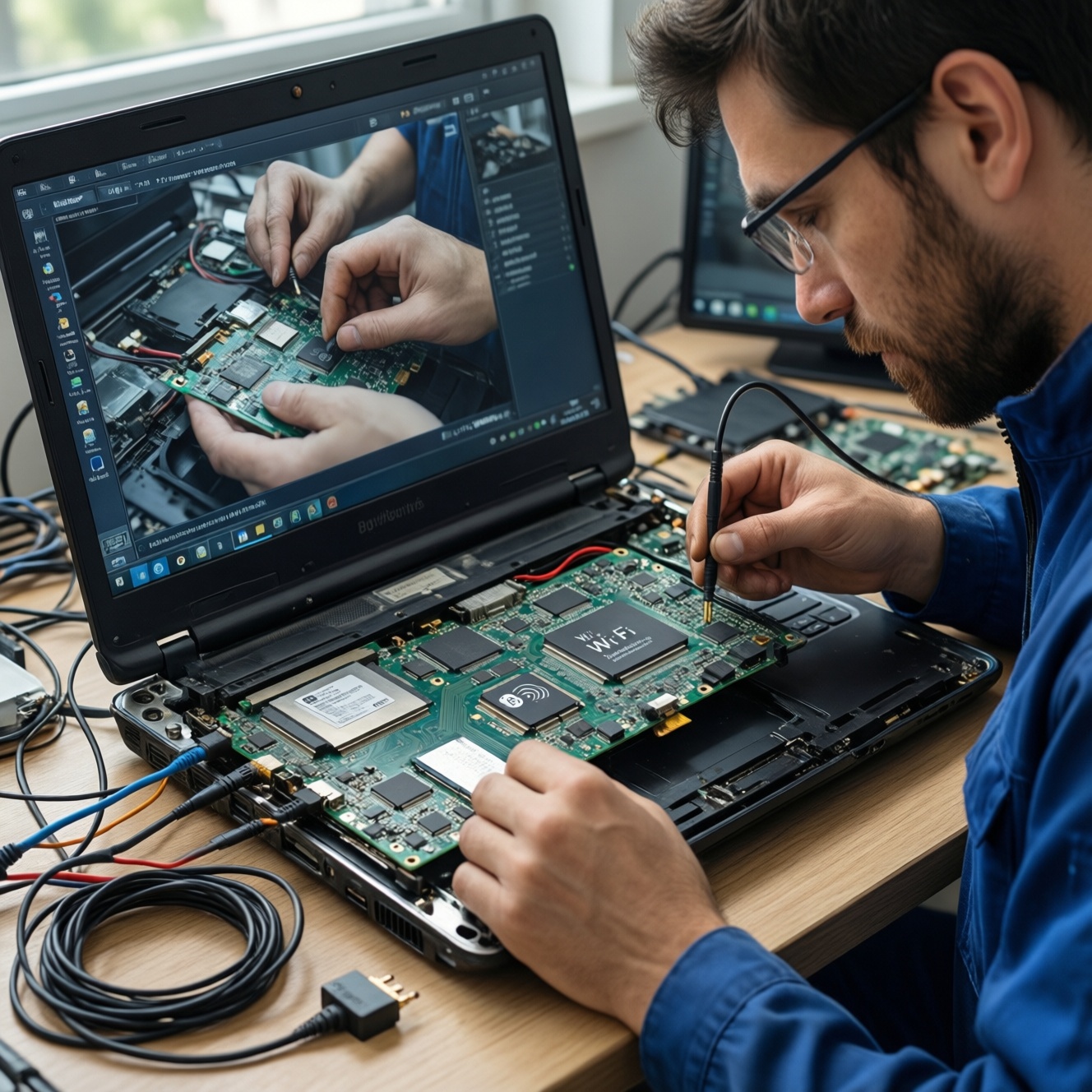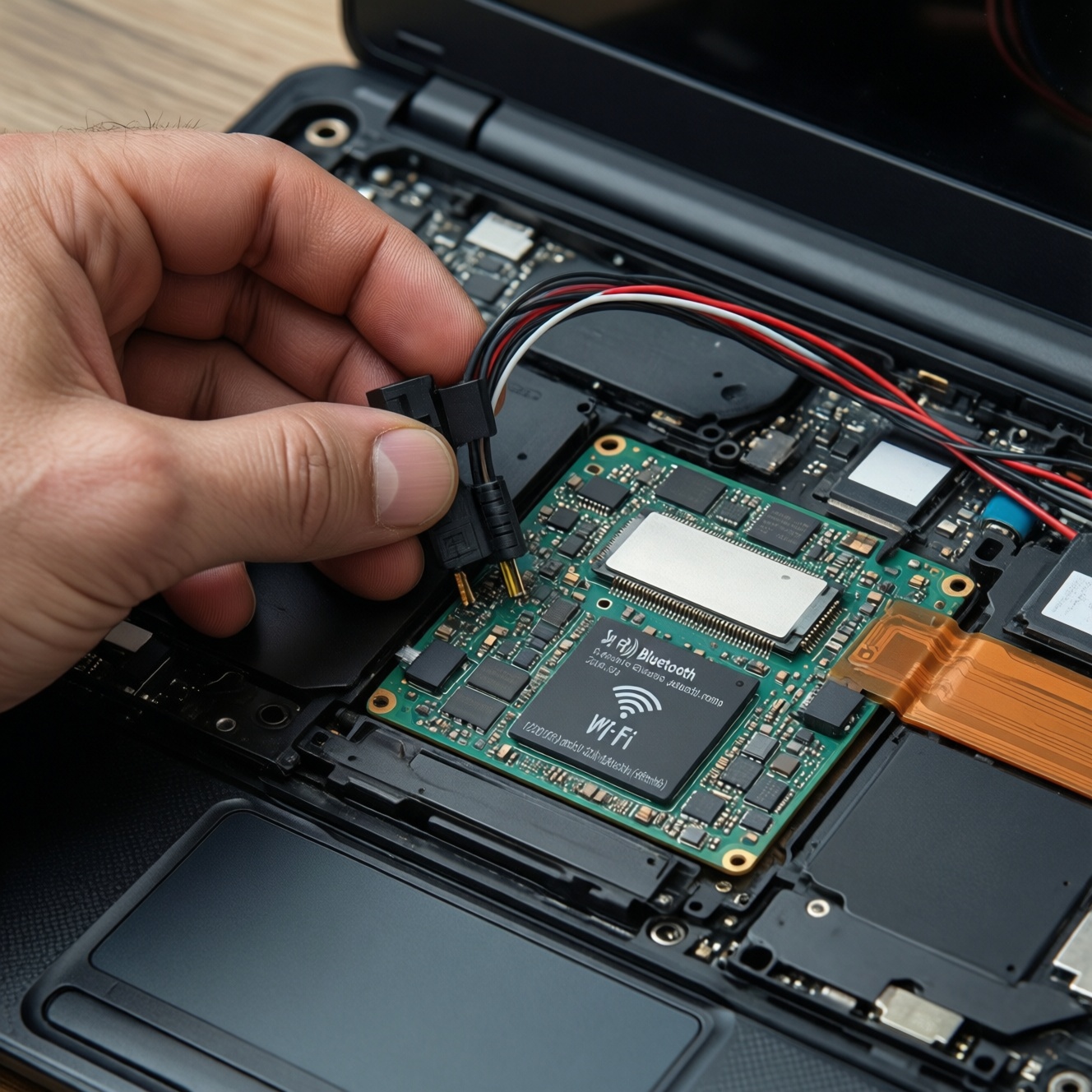
To upgrade Wi‑Fi/Bluetooth in a laptop, first confirm the wireless slot type (usually M.2 Key E/A+E) and whether your BIOS allows third‑party cards, then pick a matching Wi‑Fi 6/6E card with the right antenna connectors, swap it safely, and install the correct WLAN + Bluetooth drivers (vendor package or manual INF). Test pairing and throughput afterward.
Compatibility and Requirements Checklist
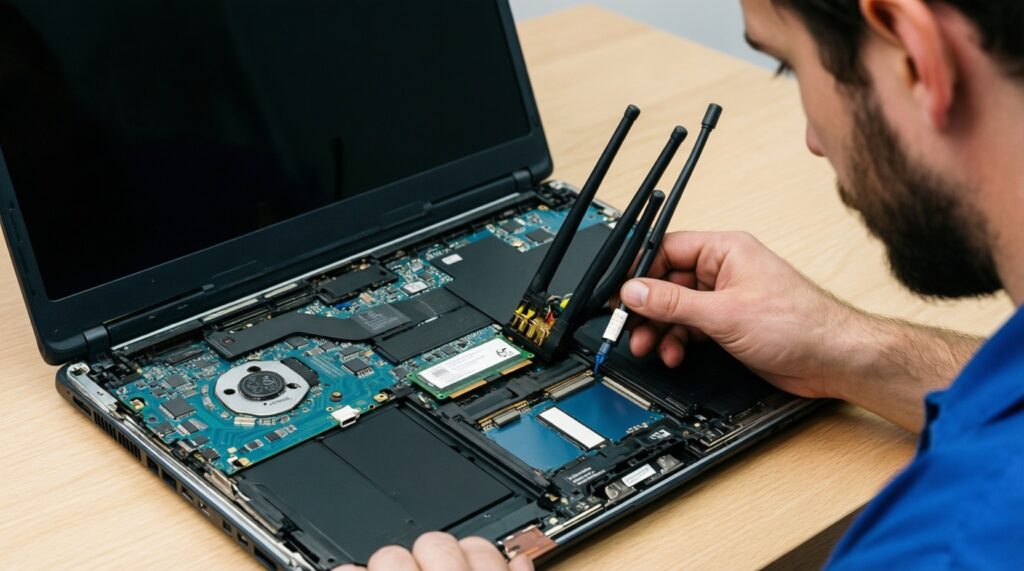
- Confirm the wireless interface: M.2 Key E, M.2 Key A+E, or mini PCIe (older laptops).
- Check for possible BIOS/whitelist restrictions (common on some older business models).
- Match antenna connector type (typically MHF4/IPEX4 or older U.FL/IPEX1) and number of antenna leads (1x1 vs 2x2).
- Prepare drivers in advance for both Wi‑Fi (WLAN) and Bluetooth, plus LAN/USB tether as a fallback internet option.
- Have correct tools: precision Phillips, plastic pry tool, ESD precautions, and a container for screws.
How to Identify Your Laptop's Wireless Slot and Interface
Prep checklist (tools/files):
- Windows Device Manager access (or Linux
lspci/lsusb). - Service manual or teardown guide for your exact model (best) or bottom-cover photo reference.
- Phone camera to record antenna routing and screw locations.
This upgrade is ideal when you need better stability, Wi‑Fi 6 features, or newer Bluetooth for peripherals (the common "อัปเกรดการ์ด WiFi โน้ตบุ๊ก" scenario). Avoid doing it if your laptop has a soldered Wi‑Fi module, if the vendor enforces a strict whitelist, or if you rely on warranty coverage and the access panel seal will be broken.
- Check for a removable WLAN card: power off, remove the bottom cover (or service hatch), and locate the small card with two antenna wires labeled MAIN/AUX.
- Identify the connector and keying:
- M.2 Key E: a small 2230 card with a single notch position typical for WLAN.
- M.2 Key A+E: also used for WLAN; notch layout differs-match your existing card exactly.
- mini PCIe: older half‑mini/full‑mini card with edge connector and two antenna snaps.
- Confirm Bluetooth path expectation: most modern internal combo cards expose Bluetooth via USB internally; if your laptop previously had Wi‑Fi only, confirm your current module is a combo or the system supports combo modules.
| Interface / form factor | Typical era in laptops (TH market) | How to recognize quickly | What to buy | Common gotchas |
|---|---|---|---|---|
| M.2 2230 Key E | Most consumer & business notebooks in recent years | Small 2230 board, one M.2 screw, 1-2 antenna snaps | Wi‑Fi/Bluetooth combo M.2 2230 Key E (PCIe + USB) | Wrong keying; antenna connector mismatch (MHF4 vs U.FL) |
| M.2 2230 Key A+E | Some thin/light and older M.2 WLAN implementations | M.2 card with different notch positions than Key E | Exact match A+E card (do not force Key E) | Confusing A+E with Key E; limited clearance under cover |
| mini PCIe (Half/Full) | Older laptops still common in secondary market | Rectangular card, edge connector, 1-2 screws | mini PCIe Wi‑Fi/Bluetooth combo (if supported) | BIOS whitelist more likely; Bluetooth sometimes needs separate header/cable |
Choosing the Right Wi‑Fi/Bluetooth Card: Standards, Form Factors and Antennas
Prep checklist (tools/files):
- Current card model/FRU from the label (photo it).
- Router specs (Wi‑Fi 5/6/6E) and your OS version (Windows 10/11 build).
- Offline driver packages saved locally (WLAN + Bluetooth).
- Standard choice: Wi‑Fi 6 (802.11ax) is the usual target when comparing "การ์ด WiFi 6 โน้ตบุ๊กราคา" in local shops; Wi‑Fi 6E only helps if you have 6 GHz support in your region/router and a compatible OS configuration.
- Form factor: match the existing physical interface exactly (this is the core of "การ์ด WiFi โน้ตบุ๊กที่รองรับ M.2"). Most upgrades are M.2 2230 Key E, but don't assume.
- Antennas: a 2x2 card expects two antennas; using only one lead may work but reduces performance. If your laptop has only one antenna, consider a 1x1-capable module or accept the limitation.
- Connector type: confirm whether your antennas are MHF4/IPEX4 (tiny) or U.FL/IPEX1 (slightly larger). Adapters exist but add fragility.
- Practical buying notes (TH context): when you "ซื้อการ์ด WiFi Bluetooth โน้ตบุ๊ก", prioritize genuine modules with known driver support for your OS, not just the chipset name.
Step‑by‑Step Hardware Swap: Safe Disassembly and Card Installation
Prep checklist (do this before opening the laptop):
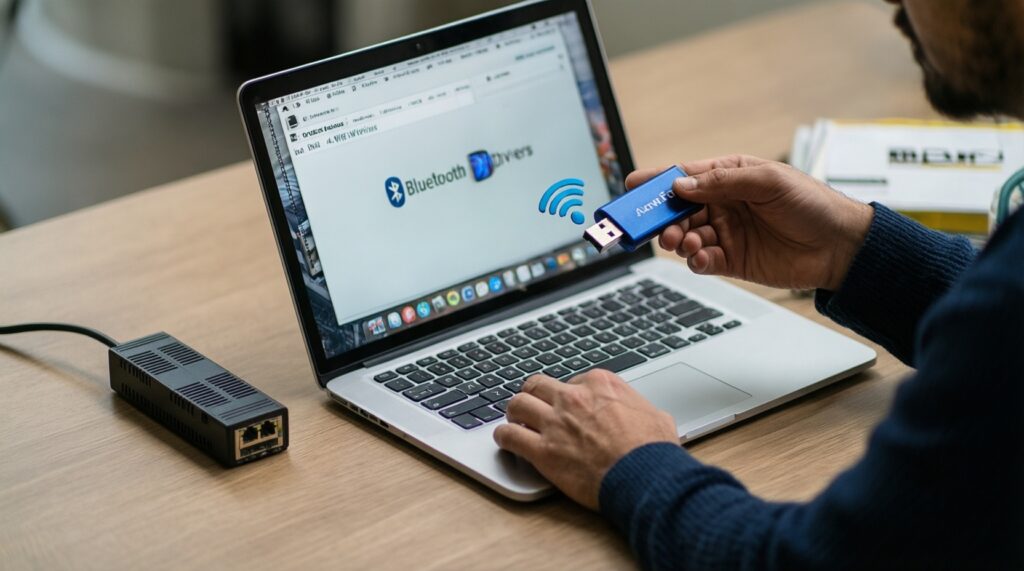
- Download WLAN + Bluetooth drivers and save them to
C:DriversWiFiBT(or a USB stick). - Ensure you have a backup internet method (Ethernet dongle, phone USB tethering, or another PC).
- Shut down fully (not Sleep), unplug charger, and disconnect all peripherals.
- If the laptop has an internal battery connector accessible, plan to disconnect it after opening.
- Work on a non-conductive surface; discharge static (ESD strap recommended).
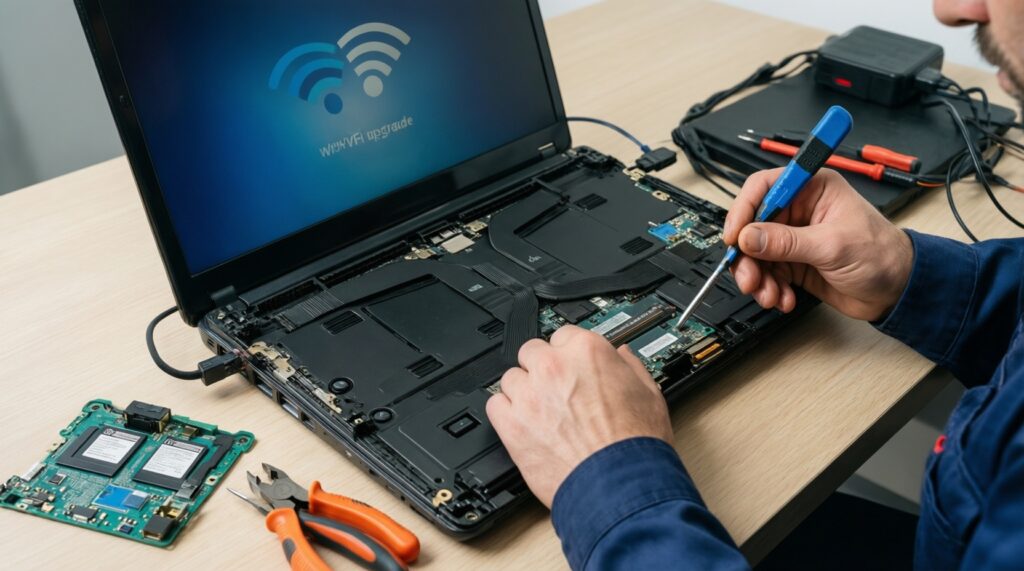
- Document the current layout: Remove the bottom cover carefully and take a clear photo of the Wi‑Fi card, antenna labels (MAIN/AUX), and cable routing. This prevents reversed antennas and pinched cables during reassembly.
- Make the system safe to work on: Disconnect the internal battery connector if accessible; otherwise, avoid touching exposed power rails. Press and hold the power button for a few seconds to help discharge residual power.
- Remove the antenna leads correctly: Pop the antenna connectors straight up using a plastic pry tool or fingernail; do not lever sideways.
- If connectors are tight, support the socket area on the card while lifting.
- Note which lead goes to MAIN and AUX (or 1 and 2).
- Unscrew and extract the old card: Remove the single retention screw; the card will spring up at an angle. Slide it out gently without bending the socket.
- Install the new card: Insert at the same angle (usually ~30 degrees), push down flat, and reinstall the retention screw snugly (do not overtighten).
- Reconnect antennas with alignment: Align the antenna plug perfectly over the socket and press straight down until it clicks.
- MAIN should typically go to the primary connector; follow your photo and any printed labels.
- Route cables in the original channels to avoid pinching under the cover.
- Reassemble and first boot: Reconnect the battery (if disconnected), reinstall the bottom cover, then boot into the OS. Expect Windows to detect new hardware; don't rely on automatic drivers for best performance.
Driver Selection and Installation: From Vendor Packages to Manual INF Updates
Prep checklist (tools/files):
- Vendor driver ZIP/EXE for WLAN and a separate one for Bluetooth (often different installers).
- Admin account on Windows.
- Device Manager (
devmgmt.msc) and a reboot window.
- Install the Wi‑Fi (WLAN) driver package first, then reboot if prompted.
- Install the Bluetooth driver package next, then reboot again.
- If the installer refuses or mis-detects, use Device Manager manual install:
- Device Manager > the unknown device / Network Controller > Properties > Details > Hardware Ids (confirm chipset/vendor).
- Right-click device > Update driver > Browse my computer > Let me pick / Have Disk > point to the extracted
.inffolder.
Result verification checklist (use after "ติดตั้งไดรเวอร์ WiFi Bluetooth โน้ตบุ๊ก"):
- Device Manager shows the Wi‑Fi adapter under Network adapters with no warning icons.
- Device Manager shows Bluetooth items under Bluetooth (and not as Unknown USB device).
Settings > Network & internet > Wi‑Fican scan and connect to your SSID.Settings > Bluetooth & devicescan toggle Bluetooth on/off.- Connected link details look correct in adapter status (expected band and channel width for your router).
- Sleep/resume works: Wi‑Fi reconnects and Bluetooth devices reappear after wake.
- No repeated driver reinstall prompts after a reboot.
Post‑Install Configuration: Pairing, Band Preferences and Advanced Drivers Settings
Prep checklist (tools/files):
- Access to router admin page (optional but helpful).
- One known-good Bluetooth device (mouse/earbuds) for pairing tests.
- Windows settings access and Device Manager advanced properties.
Common mistakes to avoid (and what to do instead):
- Forcing 160 MHz everywhere: set channel width to Auto unless your router and environment support it; instability often looks like random drops.
- Using mixed legacy security modes: keep WPA2/WPA3 consistent; odd compatibility settings can reduce throughput or break roaming.
- Bluetooth pairs but audio stutters: in crowded 2.4 GHz areas, prefer 5 GHz Wi‑Fi for data while using Bluetooth, or move the router channel away from interference.
- Wrong power settings: Device Manager > Wi‑Fi adapter > Power Management: uncheck "Allow the computer to turn off this device to save power" if you see sleep disconnects.
- Incorrect antenna mapping: swapping MAIN/AUX can hurt signal quality; if RSSI is unexpectedly poor, swap leads and re-test.
- Assuming Windows Update is enough: if advanced features (6 GHz, Bluetooth codecs, stability fixes) are missing, install the vendor package.
- Router band steering confusion: if you need a stable 5 GHz connection, split SSIDs temporarily or set preferred band in the adapter Advanced tab.
Troubleshooting Connectivity, Performance Issues and Rollback Options
Prep checklist (tools/files):
- Saved copy of the previous working driver installer (or a Windows restore point).
- Small plastic pry tool for re-checking antenna seating.
- Alternate internet method for fetching drivers if Wi‑Fi fails.
Alternatives when the internal upgrade is not the best path:
- Use a USB Wi‑Fi adapter: best when the laptop has a BIOS whitelist, a soldered module, or you need a zero-disassembly solution. Downsides: protrusion, potential heat/port stress.
- Use Ethernet (built-in or USB-C/USB-A dongle): best for stable low-latency work; keeps wireless complexity out of the laptop. Not mobile-friendly if you move often.
- Rollback to the old card or older driver: best when the new card works but stability is worse due to driver/firmware quirks. Keep the original card until you pass a few days of normal usage.
- Service-center installation: best when the bottom cover is fragile, screws are hidden, or you can't risk damaging antenna leads.
Typical Installer Concerns and Quick Resolutions
How do I know if my laptop supports an M.2 Wi‑Fi card?
Open the bottom cover and confirm a 2230 module secured by one screw with 1-2 antenna snaps; then check whether the keying is M.2 Key E or A+E. If there is no removable card and you see a small RF shielded module soldered to the board, it's not an M.2 upgrade.
Will any Wi‑Fi 6 card work if it physically fits?
No. You must match the interface/keying and ensure the laptop supports the card without BIOS restrictions. Antenna connector type and the presence of the internal USB lane for Bluetooth also matter.
Why does Wi‑Fi work but Bluetooth is missing after the swap?
Bluetooth typically enumerates as an internal USB device; install the Bluetooth driver package separately and reboot. If it still doesn't appear, confirm the card is a combo model and that the laptop previously supported combo cards.
What's the safest order to install drivers on Windows?
Install WLAN first, then Bluetooth, rebooting when prompted. If auto-detection fails, use Device Manager "Have Disk" and point to the extracted INF folder.
My signal became weaker after upgrading-what should I check first?
Re-seat the antenna snaps and verify MAIN/AUX are connected as documented before removal. Also confirm you didn't pinch the antenna cables under the bottom cover.
Can I keep using the laptop if I break an antenna connector?
It may still work at reduced performance or intermittently, but it's not reliable. Replace the antenna pigtail/lead or have a shop repair it; do not glue the connector.
Should I buy a USB Wi‑Fi dongle instead of opening the laptop?
Choose USB if you suspect a whitelist, you can't access the internal card safely, or you need a quick reversible fix. Internal upgrades are cleaner and usually perform better when fully compatible.