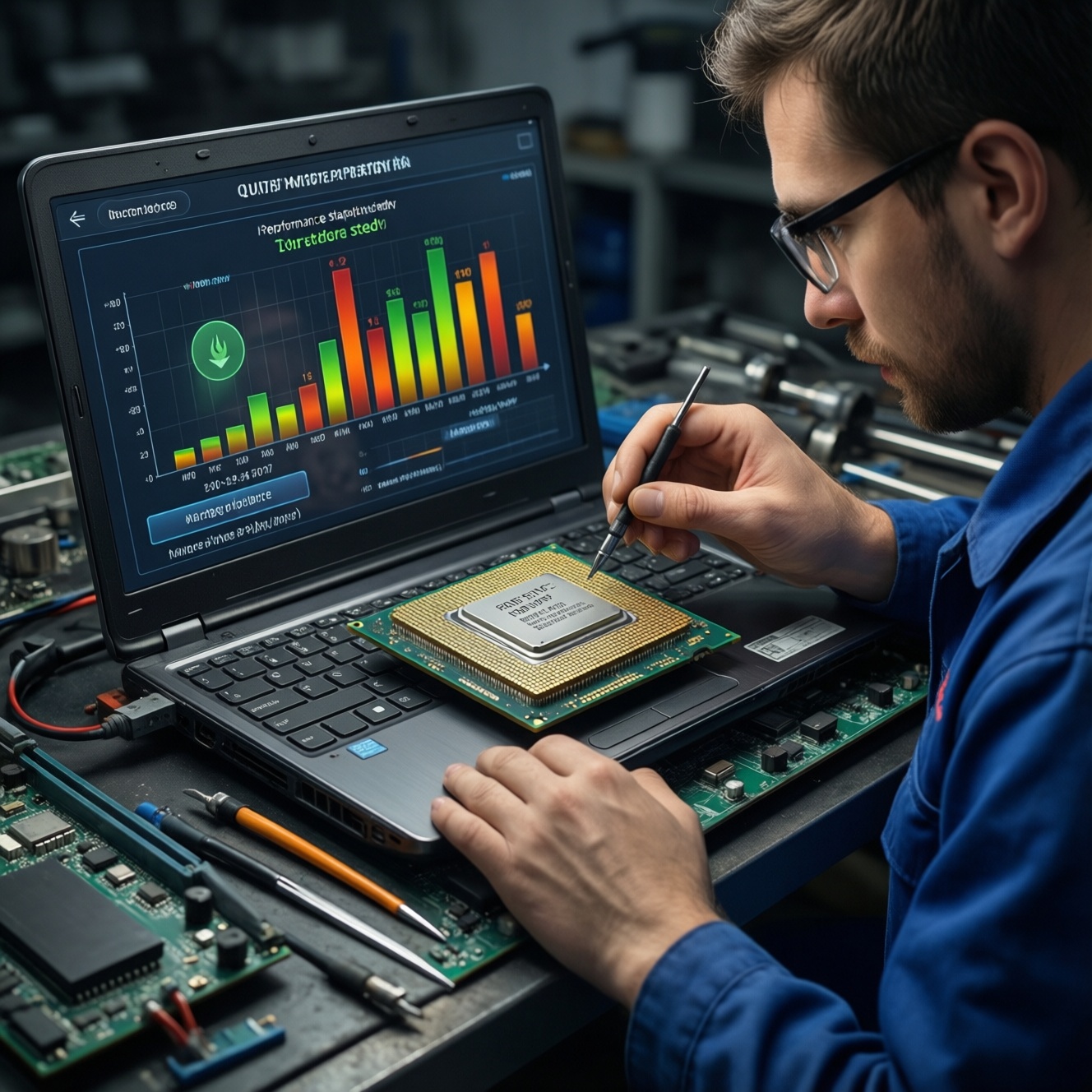
Undervolting and power limiting reduce heat and fan noise on older laptops while keeping most real-world performance, especially in sustained loads. You lower CPU/GPU voltage or cap wattage, then validate stability under stress. Done carefully, this can stop thermal throttling and random shutdowns without replacing parts, making "old but usable" machines feel fast and quiet again.
Power-tuning at a glance
- Start with power limits (PL1/PL2, GPU power limit): safest, most predictable way to cool down.
- Undervolt in small steps; stability testing matters more than the "best" voltage number.
- Log temperatures, clocks, and errors; tune based on sustained performance, not 30-second bursts.
- Have a rollback plan (BIOS defaults, safe mode, remove startup tuning) before you begin.
- If you need hands-on help in Thailand, searches like "รับบริการ Undervolt โน้ตบุ๊ก" and "บริการปรับแต่งโน้ตบุ๊กเก่า เพิ่มประสิทธิภาพ ลดความร้อน" are common-but you can still verify the work yourself with the checks below.
Why undervolting and power capping help older laptops
- Best fit: older gaming/work laptops with loud fans, heat spikes, and thermal throttling under long loads (compiling, rendering, gaming).
- Why it works: less voltage/wattage means less heat; the CPU/GPU can sustain higher clocks instead of bouncing due to temperature or power limits.
- Typical "quiet but still fast" outcome: you may lose a little peak boost, but gain steadier performance and lower fan RPM.
- Do not do this when:
- Your laptop already crashes at stock settings (fix hardware/thermals first).
- BIOS/firmware is unstable or heavily modified, or you cannot recover settings.
- You rely on mission-critical workloads and cannot tolerate any risk of random errors.
- Your platform blocks undervolting (some OEM BIOS updates disable it); then use power capping only.
- Service context: if the real problem is dust/paste/fan failure, undervolt won't "repair" it-this is why shops advertise "ซ่อมโน้ตบุ๊กร้อนดับ ปรับแต่งแรงเงียบ" as a combined thermal + tuning job.
Preflight checklist: backups, firmware and required tools
Before changing CPU/GPU power behavior, prepare for safe rollback and reproducible testing. The goal is to avoid "it feels better" tuning and instead make controlled changes with logs.
| Item | Windows (examples) | Linux (examples) | Risk level | Why you need it |
|---|---|---|---|---|
| Temperature + power monitoring | HWiNFO (GUI), Intel Power Gadget (Intel) | sensors (lm-sensors), watch -n1 sensors |
Low | Verify temps, clocks, package power while testing. |
| CPU power limit / tuning | ThrottleStop (GUI), XTU (if supported) | intel-undervolt (where supported), cpupower |
Medium | Set PL1/PL2, optionally undervolt (platform-dependent). |
| GPU tuning | NVIDIA: MSI Afterburner (GUI); AMD: Adrenalin (GUI); Intel: Arc Control (GUI) | NVIDIA: nvidia-smi; AMD: rocm-smi (if available); Intel: intel_gpu_top |
Medium | Cap power and/or undervolt GPU to reduce heat and stabilize fps. |
| Stress testing | Cinebench, OCCT, 3DMark, Unigine | stress-ng, glmark2, your real workload |
Low | Reproduce worst-case heat and catch instability. |
| Rollback & recovery | System Restore point; Safe Mode access | Bootable USB; ability to edit configs from TTY | Low | Undo an unstable setting without guessing. |
- Update BIOS/EC only if you need a known fix; remember some BIOS updates can remove undervolt capability.
- Back up important data; undervolting is usually safe, but instability can corrupt open files.
- Ensure the laptop is clean enough to test: unobstructed vents, stable fan behavior, consistent ambient temperature.
CPU undervolting: concrete procedures for Windows and Linux
- Confirm you can revert: note BIOS defaults, and ensure you can boot into Safe Mode (Windows) or recovery/TTY (Linux).
- Install monitoring first and verify baseline: run a 10-15 minute sustained load and record max temperature, average clocks, and power.
- Prefer power limits first (safer), then undervolt only if supported and stable.
- Change one variable at a time; keep a simple tuning log (date, setting, result).
-
Measure a baseline under sustained load
Run a CPU-heavy test long enough to reach steady-state (fans ramped, temps stabilized). Record: package power, peak temperature, sustained clocks, and whether throttling flags appear.
- Windows: monitor with HWiNFO sensors (CPU Package Power, Core Clocks, Thermal Throttling).
- Linux:
watch -n1 sensorsand observe frequency vialscpu/cpupower frequency-info.
-
Apply a conservative CPU power cap (recommended first)
This is the practical "ตั้งค่า จำกัดพลังงาน CPU ลดความร้อน" approach: reduce PL1 (sustained) so the laptop stops saturating its cooling. Start with a small reduction; avoid jumping to extreme low limits.
- Windows (GUI): ThrottleStop → TPL (Turbo Power Limits) → lower PL1 a bit, keep PL2 slightly higher, and keep time windows reasonable.
- Linux (Intel, platform-dependent): if RAPL is available, use distro tools or vendor docs; where supported you may manage limits via powercap interfaces (advanced) rather than random scripts.
-
If supported, undervolt the CPU in small steps
Only proceed if your platform actually allows undervolting. Reduce core/cache voltage offset gradually; test after each step. If you see WHEA errors, freezes, or sudden reboots, step back immediately.
- Windows (GUI): ThrottleStop → FIVR → start with a small negative offset on CPU Core and Cache, keep them similar, then iterate.
- Linux (CLI, where supported): tools such as
intel-undervoltcan apply offsets. Example workflow: edit config, apply, then verify logs:sudo intel-undervolt readsudo intel-undervolt applysudo journalctl -k --since "10 min ago" | tail(look for machine check/WHEA-like events)
-
Re-test and compare to baseline with the same workload
Run the exact same test duration and conditions. You want lower temperatures and equal-or-better sustained clocks, not just a nicer peak number.
- If performance drops too much, raise PL1 slightly before touching voltage again.
- If temperatures barely change, the bottleneck may be cooling (dust, paste, fan curve) rather than power settings.
-
Make settings persistent and document them
Only after passing stability tests, configure startup application or system service persistence. Keep a rollback note: "how to disable on boot" and the last known stable values.
- Windows: ensure the tuning tool does not auto-apply unstable profiles at startup until validated.
- Linux: prefer a controlled systemd service with clear comments and an easy disable command (
systemctl disable --now ...).
GPU power limits and undervolt workflows (NVIDIA/AMD/Intel)
For many laptops, GPU heat drives the whole chassis temperature. "Undervolt GPU ลดความร้อน เพิ่มเฟรม" is often achieved by combining a power limit with a voltage/frequency curve that sustains stable clocks instead of throttling.
- NVIDIA (Windows, GUI): use MSI Afterburner to set a lower power limit and tune the V/F curve. Keep changes small, test, then iterate.
- NVIDIA (Linux, CLI): verify power and clocks with
nvidia-smi. On supported GPUs/drivers, you can cap power with:nvidia-smi -q -d POWER(see limits)sudo nvidia-smi -pl <watts>(set power limit, if allowed)
- AMD (Windows, GUI): Radeon Software (Adrenalin) typically exposes tuning for voltage/frequency and power targets depending on device/OEM.
- AMD (Linux): options vary by GPU and driver stack; use distribution-recommended tooling and verify with logs and sensors rather than assuming a slider exists.
- Intel Arc / iGPU: use vendor tools where available; otherwise focus on sane system power limits and cooling because undervolt controls may be restricted.
Result checklist (run after every GPU change):
- No driver reset / black screen during a 15-30 minute GPU load.
- Stable frametime (no periodic stutter that matches thermal or power limit oscillation).
- GPU temperature lower or equal vs baseline at similar scene/load.
- Clocks are steadier (less "sawtooth" behavior) rather than only higher peaks.
- No artifacting (sparkles, corrupted textures) in multiple games/benchmarks.
- System remains stable during combined CPU+GPU load (common laptop worst case).
- Sleep/wake works (often reveals marginal undervolts).
Validation: monitoring, benchmarking and stability matrix
Most failures come from changing too much at once or trusting a single benchmark. Use a simple matrix: idle, CPU-only, GPU-only, combined, and sleep/wake.
- Changing PL1/PL2 and undervolt together: you won't know which change caused instability or performance loss.
- Testing only short runs: laptops often fail after heat soak; run long enough to reach steady-state.
- Ignoring event logs: Windows WHEA warnings and Linux kernel machine check messages can appear before visible crashes.
- Assuming "no crash" means correct: silent errors are possible; watch for app crashes, corrupted archives, browser tab crashes under load.
- Tuning on battery and judging results: many laptops enforce different limits on battery; validate on AC first, then separately on battery.
- Not validating sleep/hibernate: marginal undervolts often break resume and look like "random" issues.
- Overfocusing on maximum temperature only: sustained clock and throttling flags are usually more informative than a single peak temp.
- Forgetting that cooling maintenance matters: if the machine is "โน้ตบุ๊กร้อนดับ" (overheats and shuts down), clean/repaste/fan repair may be required before tuning can help.
Recovery, diagnostics and handling persistent instability
- Fallback to power caps only: if undervolt is unstable or blocked, keep a moderate PL1/PL2 (CPU) and a lower GPU power limit for a "แรงเงียบ" profile with minimal risk.
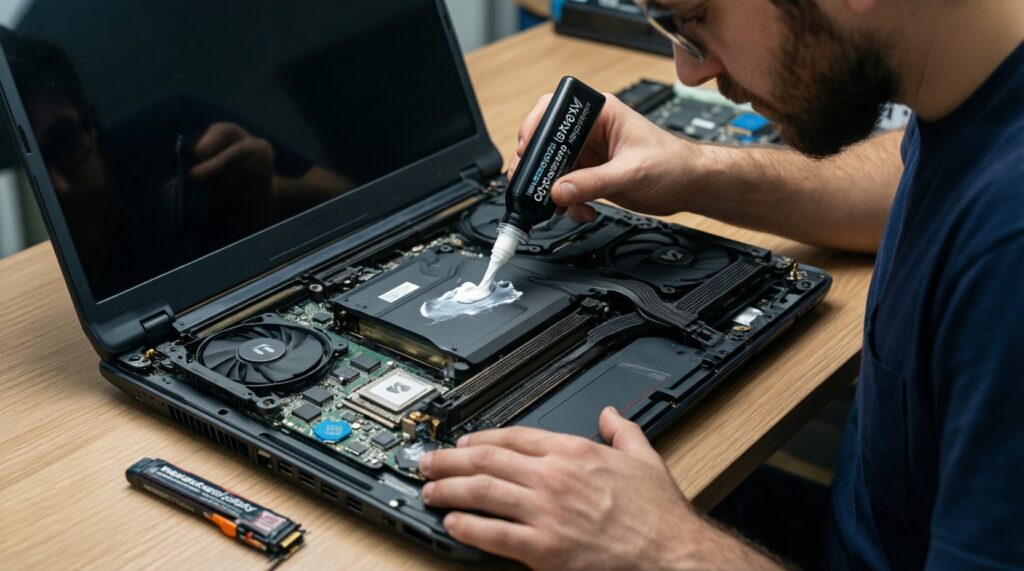
- Fix thermals first: clean heatsink, replace thermal paste/pads, confirm fan health; then retune. This is often the real fix behind "ซ่อมโน้ตบุ๊กร้อนดับ ปรับแต่งแรงเงียบ".
- Use OS power profiles and frame caps: Windows power mode, processor maximum state, in-game frame cap/V-Sync can reduce heat without undervolting.
- Get a second opinion for older units: if you're considering "บริการปรับแต่งโน้ตบุ๊กร้อนดับ" or "รับบริการ Undervolt โน้ตบุ๊ก", ask for before/after logs (temps, power, clocks) so the outcome is measurable, not subjective.
Practical answers and edge cases
Will undervolting always increase performance?
No. It often improves sustained performance by reducing throttling, but peak benchmark scores can stay the same or drop slightly if your power cap is too aggressive.
What is safer: undervolt or power limiting?
Power limiting is generally safer and more predictable. Undervolting can be stable, but an overly negative offset can cause crashes, sleep/wake failures, or subtle errors.
My BIOS update removed undervolting controls-what now?
Use CPU/GPU power caps and cooling maintenance instead. Some platforms intentionally block undervolting; avoid risky BIOS downgrades unless you fully understand the recovery path.
How do I know my "ตั้งค่า จำกัดพลังงาน CPU ลดความร้อน" value is too low?
If sustained clocks drop noticeably below your baseline and the system feels slower under the same workload, raise PL1 slightly and retest under identical conditions.
Can "Undervolt GPU ลดความร้อน เพิ่มเฟรม" help with stutter?
Yes, when stutter is caused by power/thermal oscillation. A sensible GPU power limit and a stable V/F curve can make frametimes steadier, but it won't fix CPU-bound stutter.
What if the laptop still overheats and shuts down after tuning?
That points to a thermal hardware problem (dust blockage, degraded paste, weak fan, heatsink contact). Treat tuning as secondary until cooling is restored.
Is it worth it for very old laptops?
Often yes: "บริการปรับแต่งโน้ตบุ๊คเก่า เพิ่มประสิทธิภาพ ลดความร้อน" usually combines cleanup + power tuning. Even without upgrades, reducing heat can stabilize performance and extend usable life.