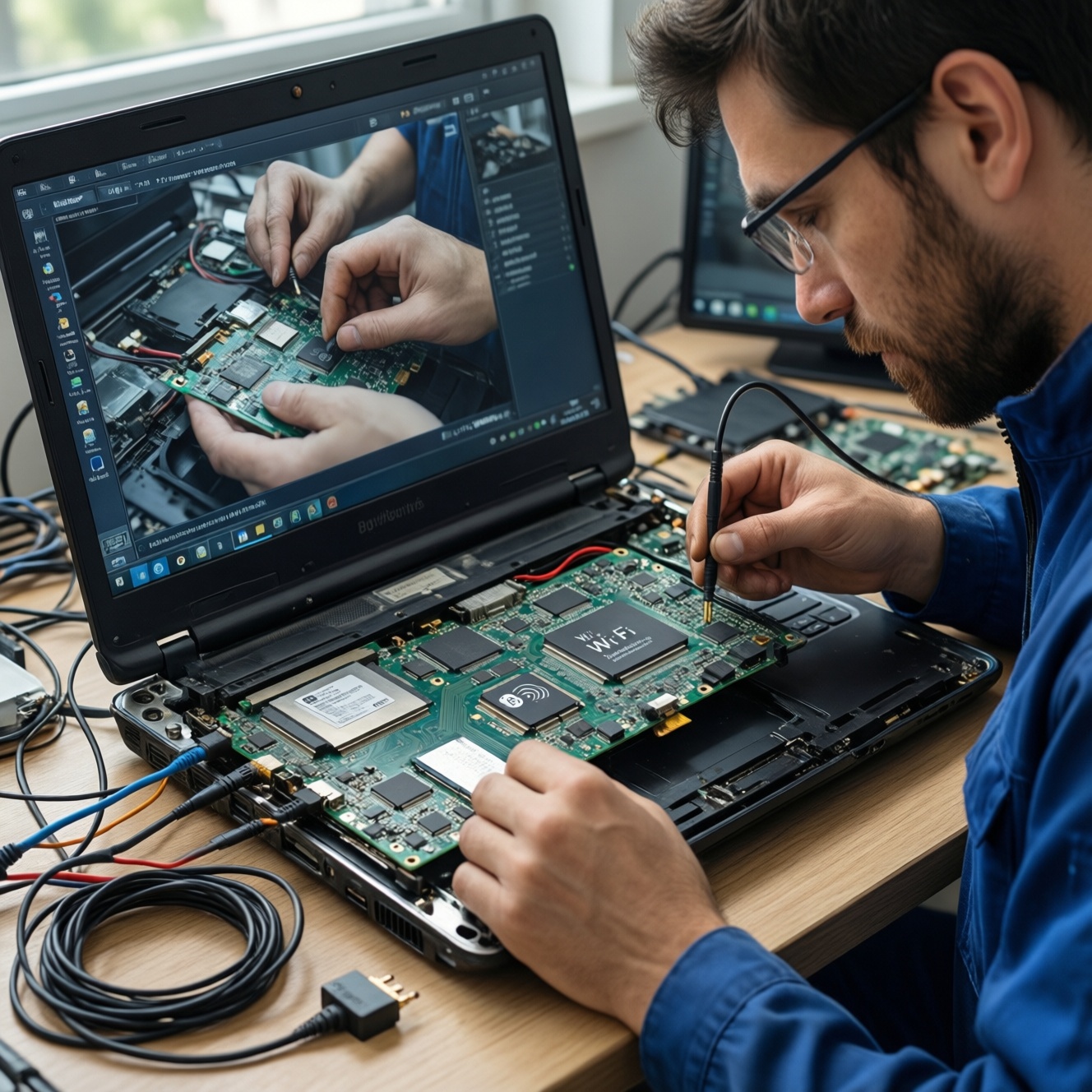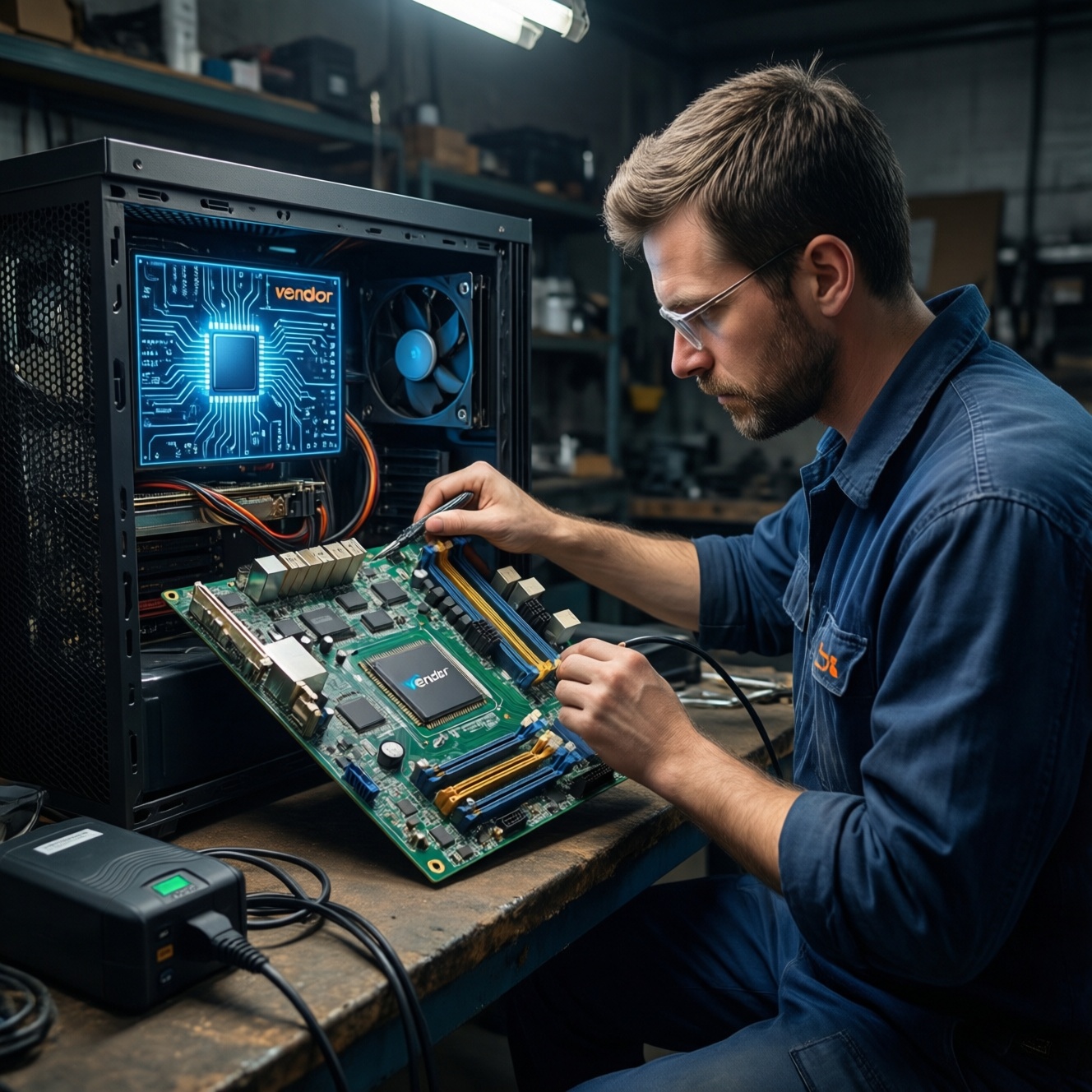
To update firmware (BIOS/UEFI and device firmware) safely and avoid a brick, treat it like a controlled change: confirm you need the update, identify exact hardware, download only vendor-signed files, ensure stable power, use the motherboard's built-in flashing tool, and verify recovery options first. This is the practical workflow for อัปเดต BIOS ปลอดภัย.
Quick security checklist for firmware updates
- Confirm your exact model and hardware revision (motherboard, laptop SKU, device P/N) before downloading anything.
- Use only official vendor channels; avoid re-packed ROMs and "one file for many models".
- Ensure stable power (UPS for desktops; battery + AC for laptops) and pause overclocks/undervolts.
- Create a recovery path (BIOS Flashback/dual-BIOS, rescue USB, BitLocker key) before flashing.
- Verify integrity (hash/signature if provided) and keep the previous firmware version available.
- After updating, validate boot, device detection, and security settings (Secure Boot/TPM) before resuming work.
Why firmware updates matter: benefits, threats, and common failure modes
Firmware updates can fix boot instability, CPU/memory compatibility issues, security vulnerabilities, and device bugs. They also carry higher risk than typical software updates because a failed flash can prevent the system from booting.
Do it when you have a concrete reason: security advisories from the vendor, adding support for new CPU/RAM/storage, fixing a known bug you actually hit, or improving stability on your exact platform (อัปเดต UEFI เมนบอร์ด is common when new CPU microcode or memory training fixes are required).
Skip or postpone when: the machine is currently stable and the update notes do not apply to you, you can't ensure reliable power, you're on a mission-critical system without downtime, or you cannot confirm the exact model/revision.
Preparing safely: backups, recovery media, and hardware inventory
Before any flash, prepare like you might need to recover from a no-boot situation.
What you need (minimum)
- Stable power: UPS (desktop) or fully charged battery + AC (laptop).
- A USB drive (FAT32 is commonly accepted by BIOS flash tools).
- Admin access to the OS (if using OS-based updaters) and BitLocker recovery key (Windows).
- Time: schedule downtime and do not multitask during the flash.
Inventory: identify exact hardware
- Motherboard: vendor + model + revision (silkscreen on PCB or vendor software).
- Laptop: exact SKU/MTM (not just marketing name).
- Current BIOS/UEFI version: note it down to help roll back or compare after the update.
One-line checks (Windows / Linux)
- Windows (PowerShell):
Get-CimInstance Win32_BIOS | Select-Object SMBIOSBIOSVersion,ReleaseDate - Windows (System info GUI): run
msinfo32and note "BIOS Version/Date". - Linux:
sudo dmidecode -t bios | egrep -i 'Vendor|Version|Release Date' - Linux (UEFI state):
test -d /sys/firmware/efi && echo UEFI || echo Legacy
Comparison: update methods vs. typical risk
| Method | Best use | Main risks | Practical mitigations |
|---|---|---|---|
| UEFI built-in flasher (EZ Flash / M-Flash / Q-Flash) | Most desktop boards; controlled environment | Wrong file, power loss | Verify exact model; UPS; FAT32 USB; do not reset during flash |
| BIOS Flashback (USB button, no CPU/RAM needed on some boards) | Recovery; safer path when system is unstable | Wrong filename/USB format; incompatible revision | Follow vendor naming rules; small FAT32 USB; use correct port |
| OS-based updater (Windows utility) | Laptops/OEM systems where vendor enforces workflow | Driver/OS crash; background apps; BitLocker recovery prompt | Clean boot; pause AV conflicts; suspend BitLocker; AC power |
| Linux fwupd/LVFS (for supported devices) | Enterprise-friendly for supported hardware | Partial support; reboot requirements | Confirm device support; keep AC power; check logs after |
| External programmer (CH341A, etc.) | Last resort repair (ซ่อมคอม brick หลังอัปเดต BIOS) | Physical damage; wrong chip voltage; bad clip contact | Use correct voltage adapter; verify chip ID; read-back verify |
Trustworthy sources: verifying vendor firmware and signature checks
-
Match the exact product and revision first
Use the motherboard/laptop support page for your exact model, and confirm the hardware revision if the vendor distinguishes it. Many "bricks" happen because users flash a close-looking but different board.
- If the vendor offers separate BIOS for Wi‑Fi vs non‑Wi‑Fi or different PCB revs, treat them as different products.
-
Read release notes for relevance and prerequisites
Check whether the update requires an intermediate version, resets TPM/Secure Boot keys, changes CPU microcode, or impacts RAID settings. If notes mention "must update to X first", follow it.
-
Download only from official channels
Prefer the vendor's HTTPS support portal. Avoid files from forums, file-hosters, or "modded BIOS" unless you can recover with an external programmer.
-
Verify integrity (hash/signature) when available
If the vendor provides SHA-256/MD5 or a signed package, validate it before you copy to USB.
- Windows:
certutil -hashfile BIOSFILE.bin SHA256 - Linux:
sha256sum BIOSFILE.bin
- Windows:
-
Use the vendor's recommended flash path
For most boards, this is the built-in UEFI tool. For recovery or unstable systems, prefer Flashback if supported. This is the safest baseline for วิธีแฟลช BIOS เมนบอร์ด.
Quick mode: 4-step safe flash
- Identify exact model/revision + current BIOS version; download the matching firmware from the vendor.
- Verify hash/signature if provided; copy to a FAT32 USB; keep the previous BIOS file too.
- Disable OC/XMP temporarily; ensure UPS/AC power; suspend BitLocker (Windows) if enabled.
- Flash using UEFI built-in tool (or Flashback), then reboot once and load optimized defaults before re-applying settings.
Step-by-step update workflows for BIOS/UEFI and device firmwares
Workflow A: Motherboard UEFI built-in flasher (recommended)
- Reset unstable tuning: revert overclock/undervolt; consider disabling XMP/EXPO until after the update.
- Prepare USB: format FAT32, copy the BIOS file (and rename if your vendor requires a specific filename).
- Enter UEFI setup: reboot and press the vendor key (often Del/F2).
- Run the built-in flasher: select the BIOS file from the USB and confirm.
- Do not interrupt: no resets, no power changes, no keyboard mashing; wait for auto reboot(s).
- After first boot: enter UEFI again, load optimized defaults, then reconfigure only what you need.
Workflow B: BIOS Flashback (when available)
- Follow vendor instructions for filename and the dedicated USB port.
- Use a simple USB drive (small, FAT32) to reduce detection issues.
- Start Flashback and wait for the indicator to finish; do not remove power during the process.
Workflow C: Device firmware (SSD, NIC, dock, etc.)
- Prefer vendor tools or enterprise tooling (where supported) such as fwupd on Linux.
- Schedule a reboot window; firmware updates frequently apply on reboot.
- Keep power stable and avoid hot-unplugging the device during update.
Post-update validation checklist (5-10 items)
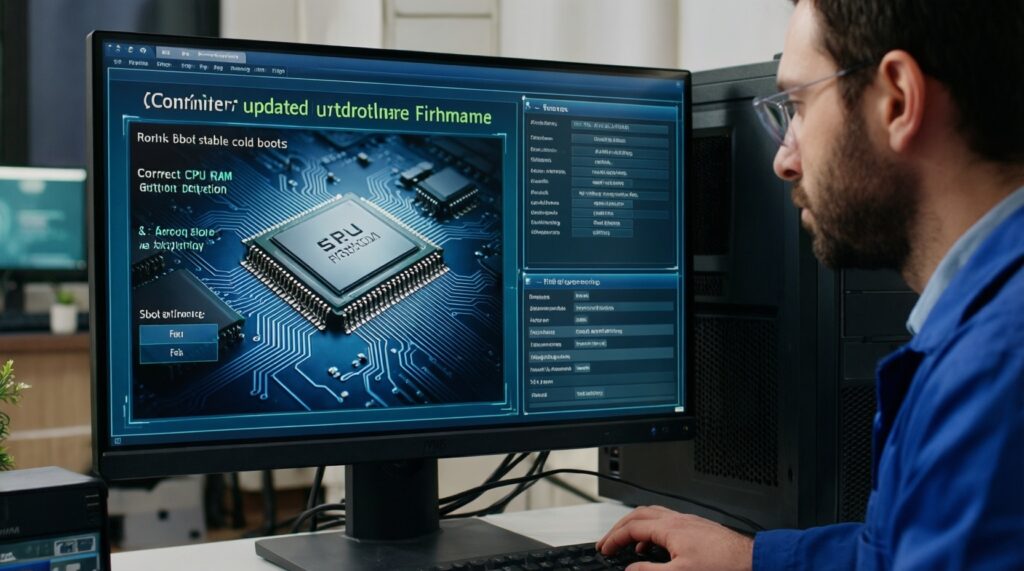
- BIOS/UEFI version changed to the intended target.
- System boots reliably for at least two cold boots (power off, then on).
- CPU/RAM detected correctly; memory runs at safe defaults before enabling XMP/EXPO again.
- Boot mode unchanged (UEFI vs Legacy) and boot order correct.
- Storage mode correct (AHCI/RAID); OS boots without "inaccessible boot device".
- TPM/Secure Boot status verified (especially on Windows 11 systems).
- Windows BitLocker is not stuck in recovery; if it is, use your saved recovery key.
- Device firmware components (NVMe, NIC, Thunderbolt/USB4 docks) still enumerate normally.
Bricking prevention: rollback strategies, dual-BIOS and hardware safeguards
Most bricks come from preventable operational mistakes rather than the firmware itself.
- Flashing the wrong file: double-check model + revision; don't trust "compatible with many boards".
- Power instability: avoid storms, weak outlets, and loose power cords; use a UPS for desktops.
- Interrupting the flash: never reset during a "black screen" phase; some boards reboot multiple times.
- OS updater crashes: close heavy apps, disable aggressive tuning tools, and avoid updating while the OS is unstable.
- BitLocker recovery loop: suspend BitLocker before BIOS updates, then resume after confirming stable boot.
- Overclock/XMP during update: run defaults during the flash; re-apply tuning only after validation.
- USB detection issues: use FAT32, try a different smaller USB, and use rear I/O ports directly.
- Skipping required intermediate versions: follow vendor prerequisites when stated.
- No rollback plan: keep the previous BIOS file and know how to trigger dual-BIOS/Flashback if present.
When to consider a professional service
If the system is already unstable, has no Flashback/dual-BIOS, or is mission-critical, a บริการอัปเดต BIOS เมนบอร์ด can be rational: they can validate board revision, use known-good media, and recover with an external programmer if needed.
Verification and monitoring after updates: tests, logs and automated alerts
If you cannot or should not flash immediately, these alternatives reduce risk while still improving safety.
- Defer and harden: keep OS and drivers updated, enable Secure Boot/TPM correctly, and reduce exposure until a maintenance window is available.
- Use vendor-managed tooling: on OEM fleets, prefer the vendor's update framework that matches their firmware packaging and prerequisites.
- Staged rollout: update one non-critical machine first, validate stability, then proceed to others.
- Repair-first approach: if you suspect a prior failed flash, plan for ซ่อมคอม brick หลังอัปเดต BIOS with Flashback/dual-BIOS steps or an external programmer rather than repeated risky reflashes.
Common concerns and concise answers
Is it safe to update BIOS/UEFI if my PC works fine?
Only if the vendor notes address a security issue you care about or a compatibility/stability fix you need. If you cannot guarantee stable power and recovery options, postpone.
What's the safest method for most desktops?
The UEFI built-in flasher is usually the safest, because it avoids OS crashes and background software. If your board supports Flashback, it is often the safest recovery-capable method.
Do I need to suspend BitLocker before updating BIOS?
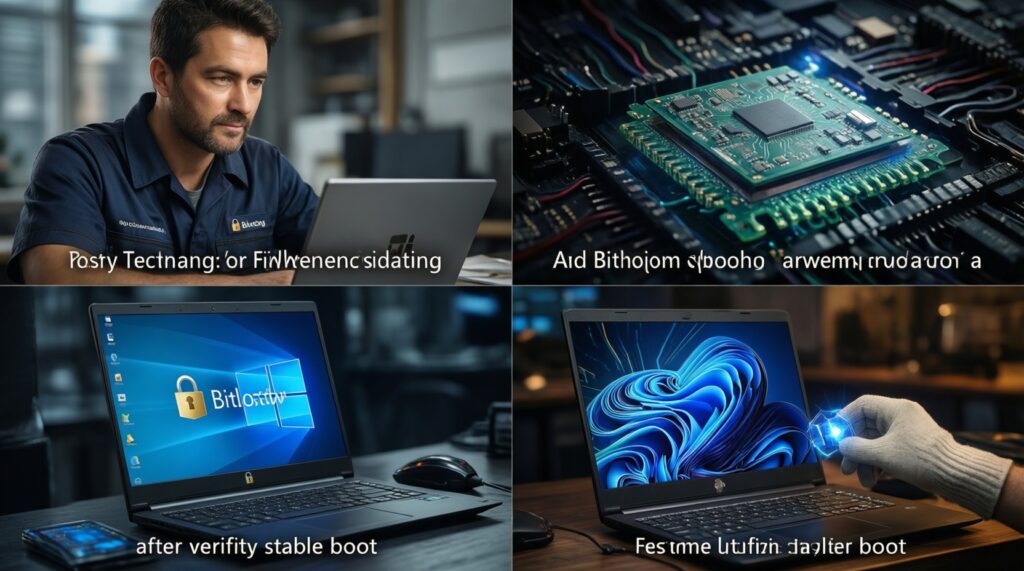
If BitLocker is enabled, suspending it reduces the chance of a recovery prompt after firmware changes. Resume protection only after you confirm stable boot.
Can I update BIOS from Windows utilities?
Yes, especially on laptops where the vendor controls the process, but it's riskier than flashing in UEFI. Use AC power, close apps, and avoid doing it on an unstable system.
What are the early signs a flash went wrong?
No POST beeps/diagnostic LEDs stuck, repeated reboot loops, or no video output beyond the normal first-boot delays. Check manual recovery options (dual-BIOS/Flashback) before doing anything else.
How do I recover a "bricked" motherboard?
Try Flashback or dual-BIOS recovery first if available, then clear CMOS only if the vendor suggests it for recovery. If there is no recovery feature, an external programmer or a service shop may be required.
After updating, what should I verify first?
Confirm the new firmware version, boot mode, and storage settings, then test two cold boots. Only then re-enable XMP/EXPO or overclocking.
Author: วราภรณ์ บุญมี